
Preferences
Preferences let you adjust SuperMagic’s interface language, time display, follow-up suggestions, and browser notifications, as well as manage scheduled tasks and local data.
Preferences let you adjust SuperMagic’s interface language, time display, follow-up suggestions, and browser notifications, as well as manage scheduled tasks and local data.
Open Preferences
Log in to SuperMagic.
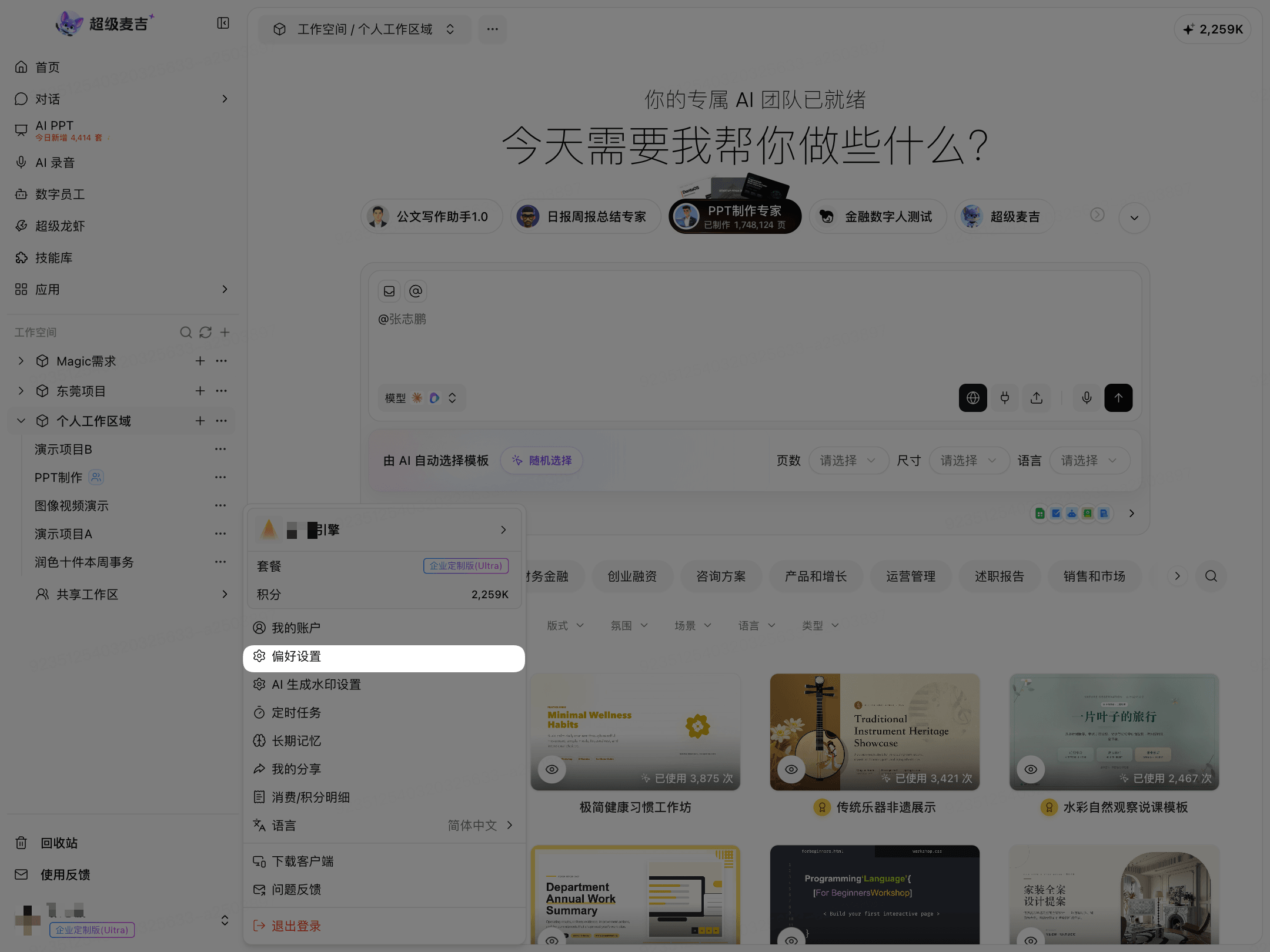
Click your profile picture or account name in the lower-left corner of the page.
Click Preferences.
Usage Preferences
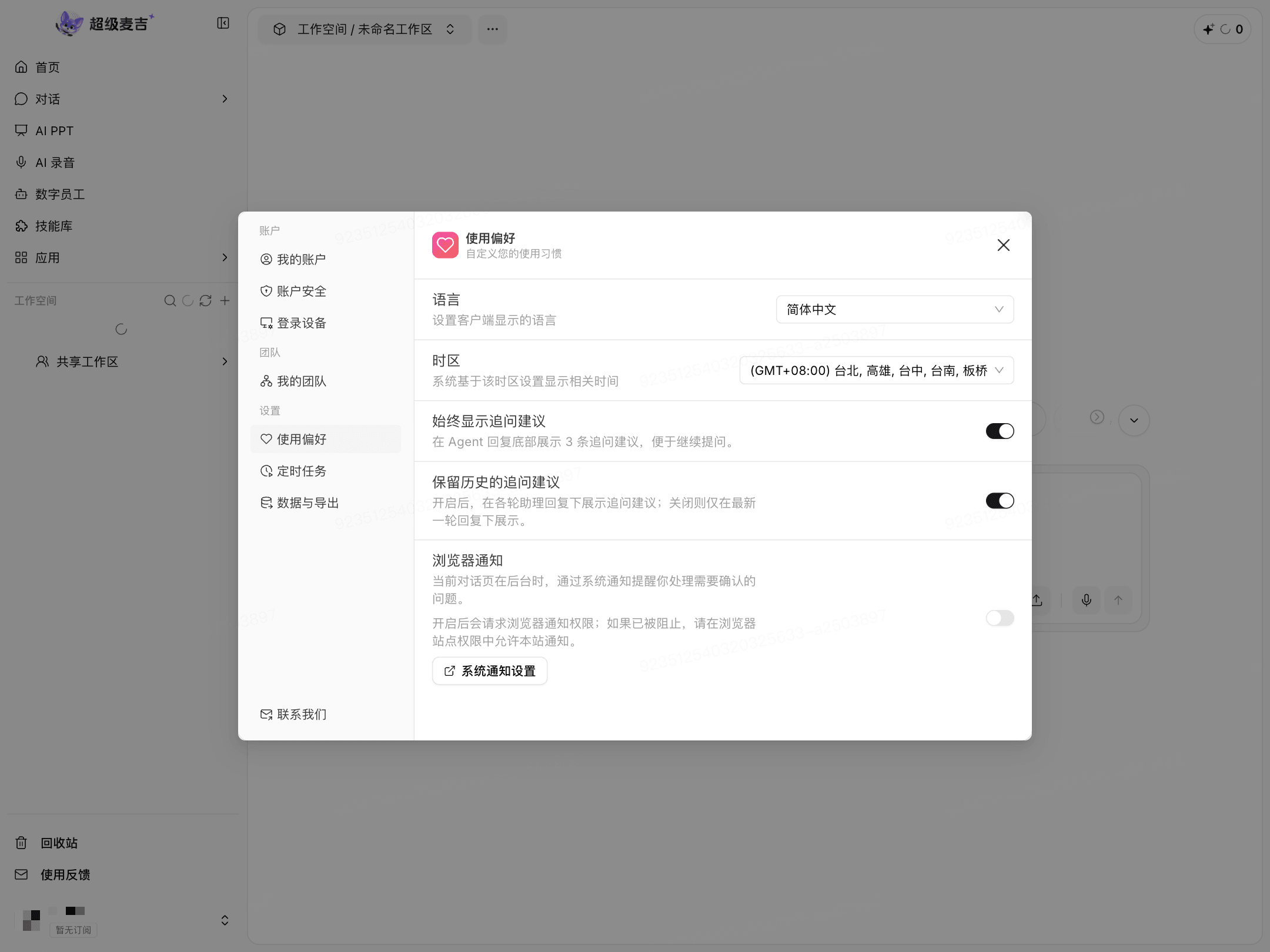
Click Usage Preferences on the left side of the Preferences window.
Set the Language
Under Language, click the drop-down menu on the right.
Select Follow System, Simplified Chinese, or English.

Follow System: Displays the interface in your device’s system language.
Simplified Chinese: Displays the interface in Simplified Chinese.
English: Displays the interface in English.
The change takes effect immediately. You do not need to save it separately.
Set the Time Zone
Under Time Zone, click the drop-down menu on the right.
Select the time zone you want to use.
The time zone is used to display relevant times in SuperMagic.
Configure Follow-Up Suggestions
The page provides two toggles:
Always Show Follow-Up Suggestions: Displays three follow-up suggestions at the bottom of the Agent’s response.
Keep Previous Follow-Up Suggestions: When enabled, follow-up suggestions remain under each response. When disabled, they appear only under the latest response.
Click a toggle to enable or disable the setting. Changes take effect immediately.
Configure Browser Notifications
Turn on Browser Notifications.
Allow notification permissions in the browser prompt.
If notifications still do not appear, click System Notification Settings and check your system notification permissions.
Browser notifications alert you when an issue requires your confirmation while the current conversation page is in the background.
Scheduled Tasks
View Scheduled Tasks
Click Scheduled Tasks on the left side of the Preferences window.
View tasks by status:
In Progress: Tasks that are currently enabled.
Completed: Tasks that have finished running.
Disabled: Tasks that have been turned off.

Create a Scheduled Task
Click Create Scheduled Task in the upper-right corner.
Enter a Name.
Under Message Content, enter the task instructions. You can upload files or select a model as prompted on the page.
Select the Workspace for Task Execution.
To limit the scope, turn on Specify a Project for Task Execution or Specify a Topic for Task Execution, then select the corresponding project or topic.
Under Schedule, set the execution method, date, and time.
Confirm the status of the Enable toggle.
Click Create.
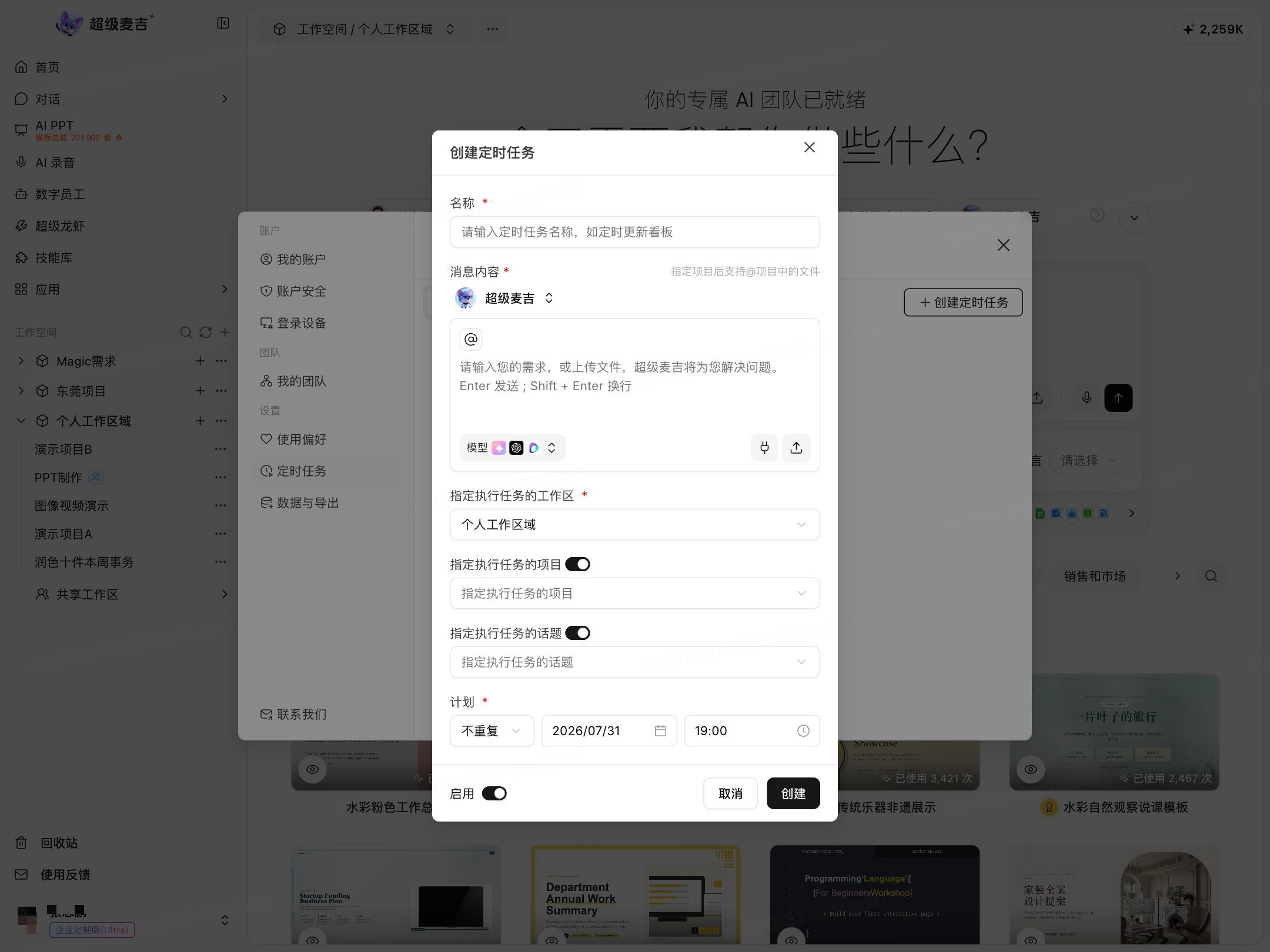
Fields marked with an asterisk (*) are required. After creating the task, return to the Scheduled Tasks page to view its status.
Data and Export
Click Data and Export on the left side of the Preferences window.
View Recording History
Under Recording History, click View Recording History.
View recording sessions in the dialog box.
You can perform the following actions as needed:
Switch between Current User and All.
Click Refresh to update the list.
Click Export All to export recording data.
Click Clear Expired to delete records that have exceeded the retention period.

The system retains recording sessions started within the last 14 days. Exported files are provided in ZIP format.
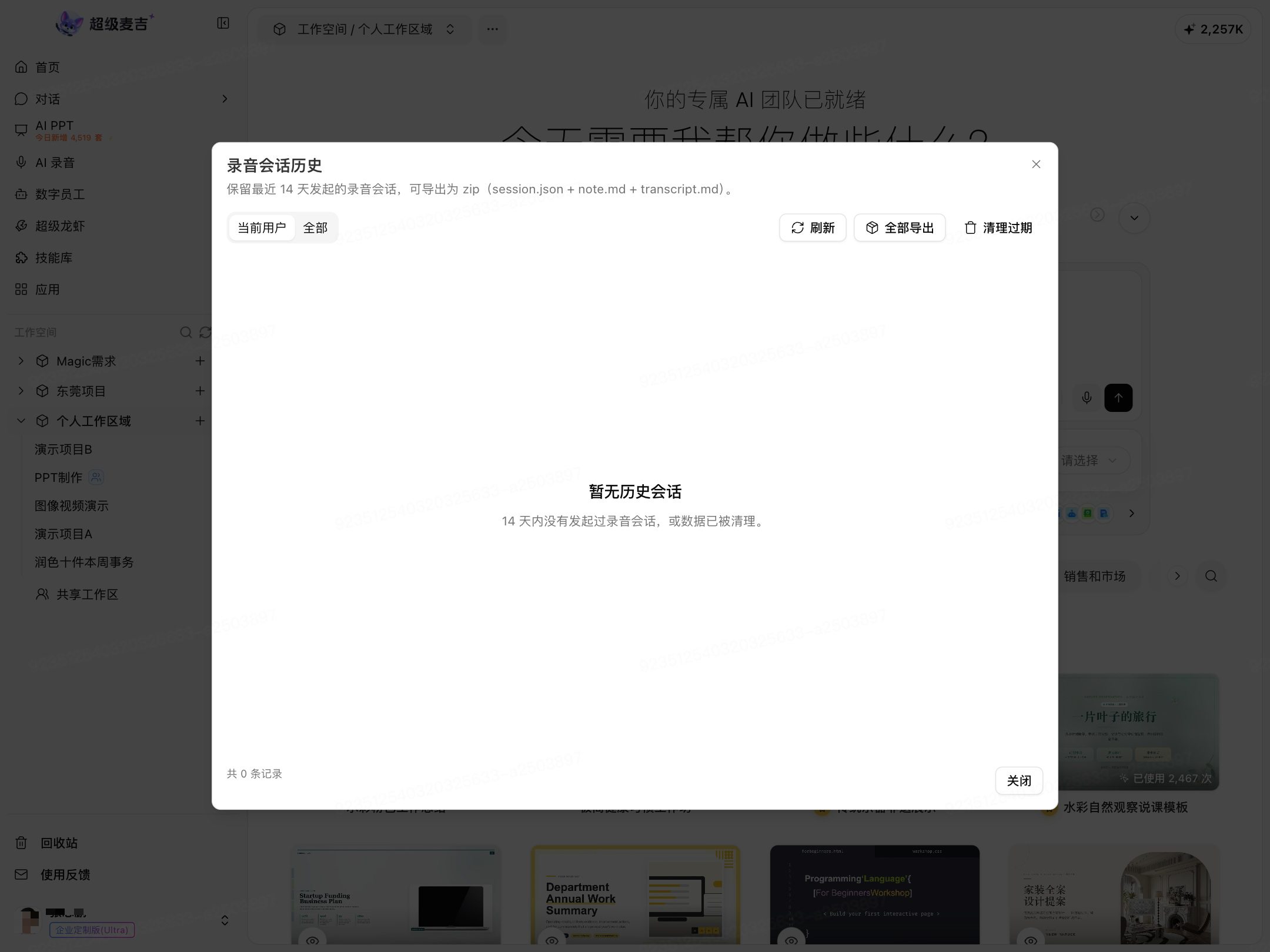
When no records are available, the page displays “No session history.”
FAQ
Do I need to save my changes?
Changes to the language, time zone, and toggle settings take effect immediately and do not need to be saved separately. To save a scheduled task, you must click Create.
Why am I not receiving browser notifications?
Make sure your browser has permission to send notifications from SuperMagic. If you still cannot receive notifications, click System Notification Settings and check your system permissions.
What does “Follow System” mean?
When selected, SuperMagic displays the interface in your device’s system language.
What does the time zone setting do?
The time zone affects how relevant times are displayed in SuperMagic. Select the time zone that matches your region.
Can I specify a project or topic for a scheduled task?
Y
Turn on the corresponding toggle, then select the project or topic for the task.
How long is recording history retained?
The system retains recording sessions started within the last 14 days. Records that exceed the retention period can be deleted by clicking Clear Expired.