
Quickly Understand Conversations
Conversations are used to submit requests directly to an Agent. From the conversation list, you can create, find, and manage past conversations.
Conversations are used to submit requests directly to an Agent. From the conversation list, you can create, find, and manage past conversations.
Open Conversations
Click Conversations in the left navigation bar.
The conversation list appears on the left side of the page.
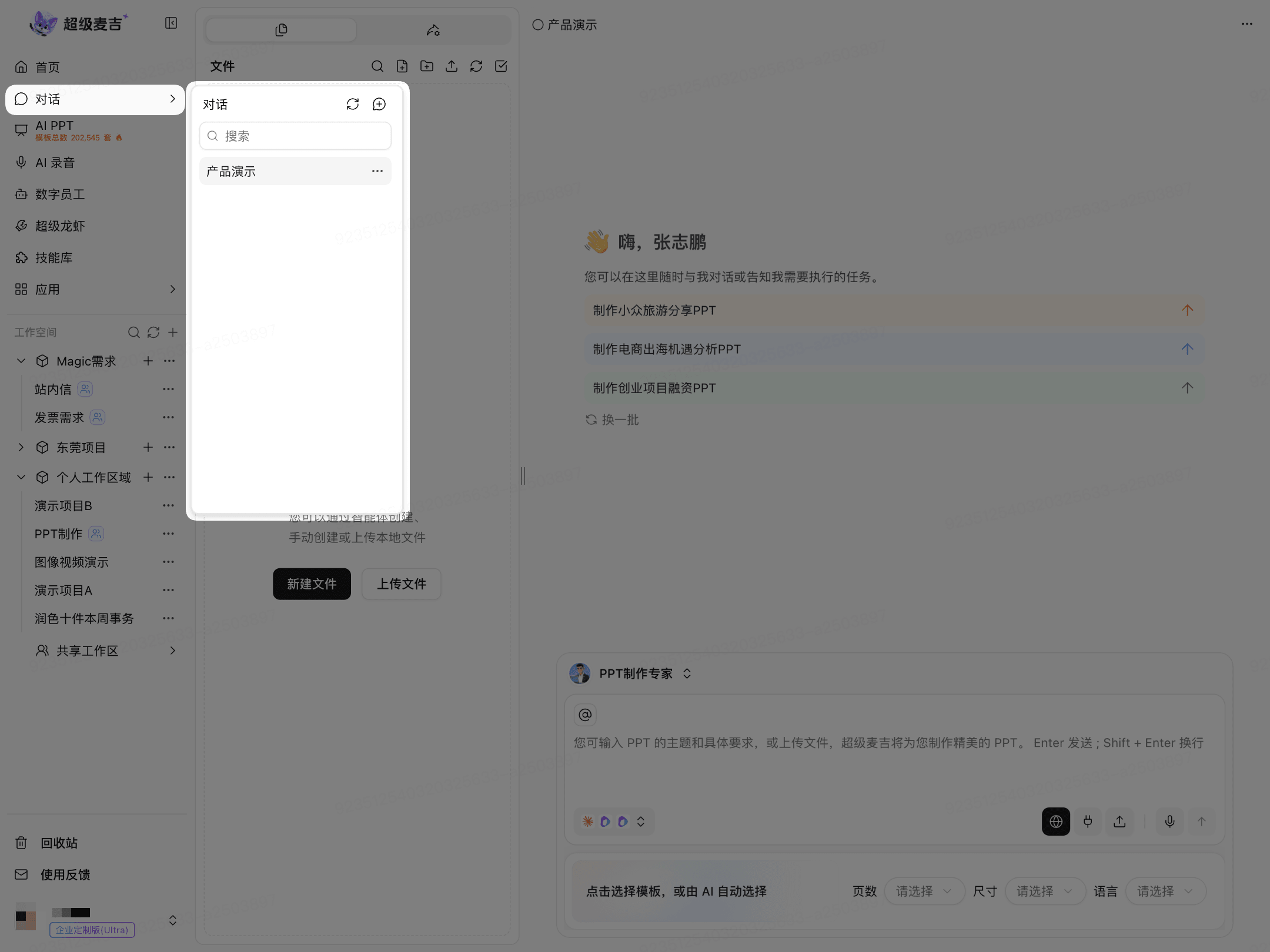
Use the Conversation List
Click + in the upper-right corner of the list to create a conversation.
Enter keywords in the search box to find past conversations.
Click a conversation name to open the corresponding conversation.
Manage Existing Conversations
Find the conversation you want to manage.
Click … to the right of the conversation.
Select the desired action.
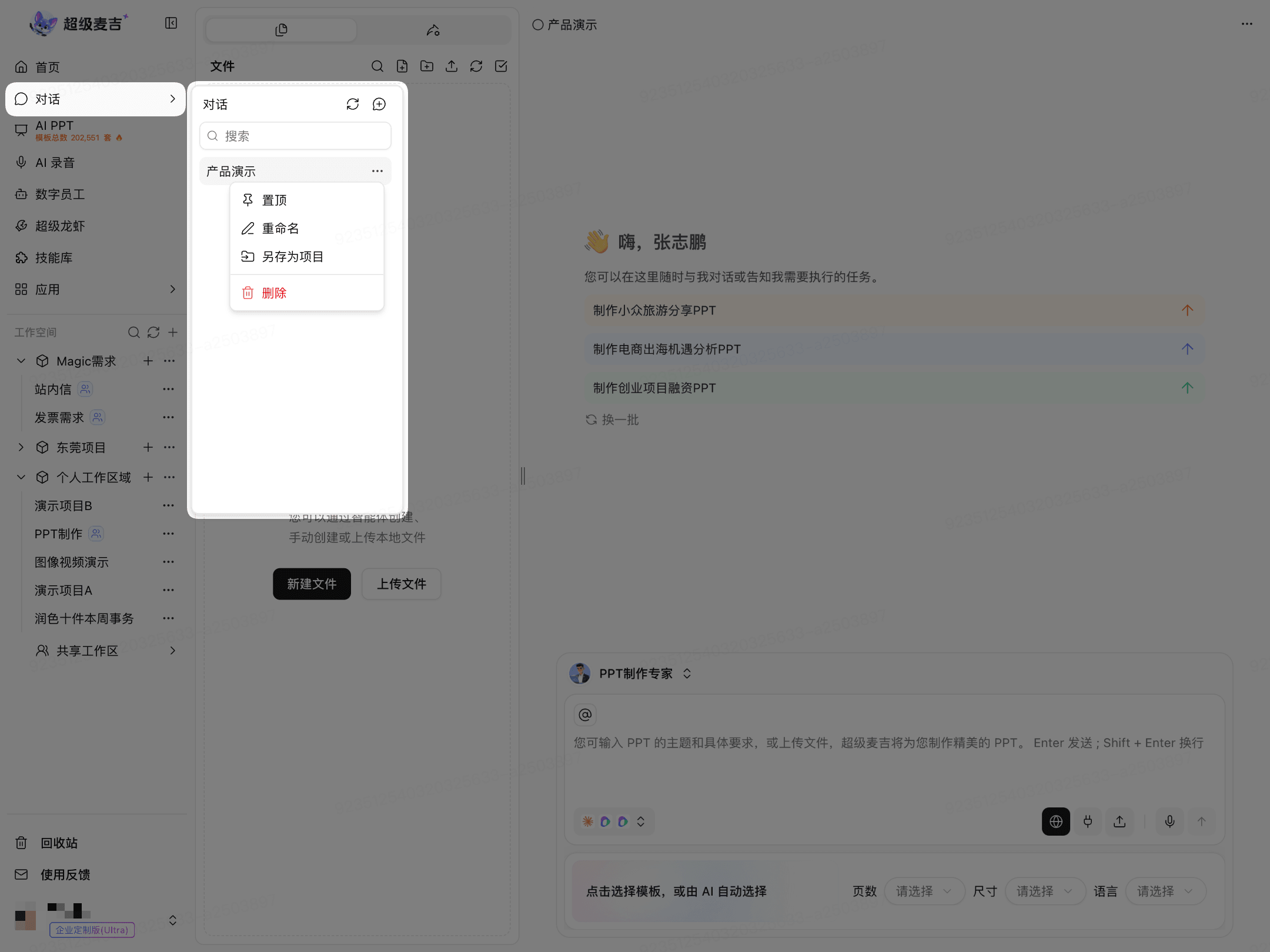
Action | Purpose |
|---|---|
Pin | Pins the conversation near the top of the list. |
Rename | Changes the conversation name. |
Save as Project | Saves the current conversation as a new project. |
Delete | Moves the conversation to the Recycle Bin. |
Save a Conversation as a Project
When you need to save the current conversation in a workspace:
Click Save as Project in the conversation's … menu.
Enter or edit the Project Name.
Select the Workspace where you want to save the project.
Click Confirm Save as Project.
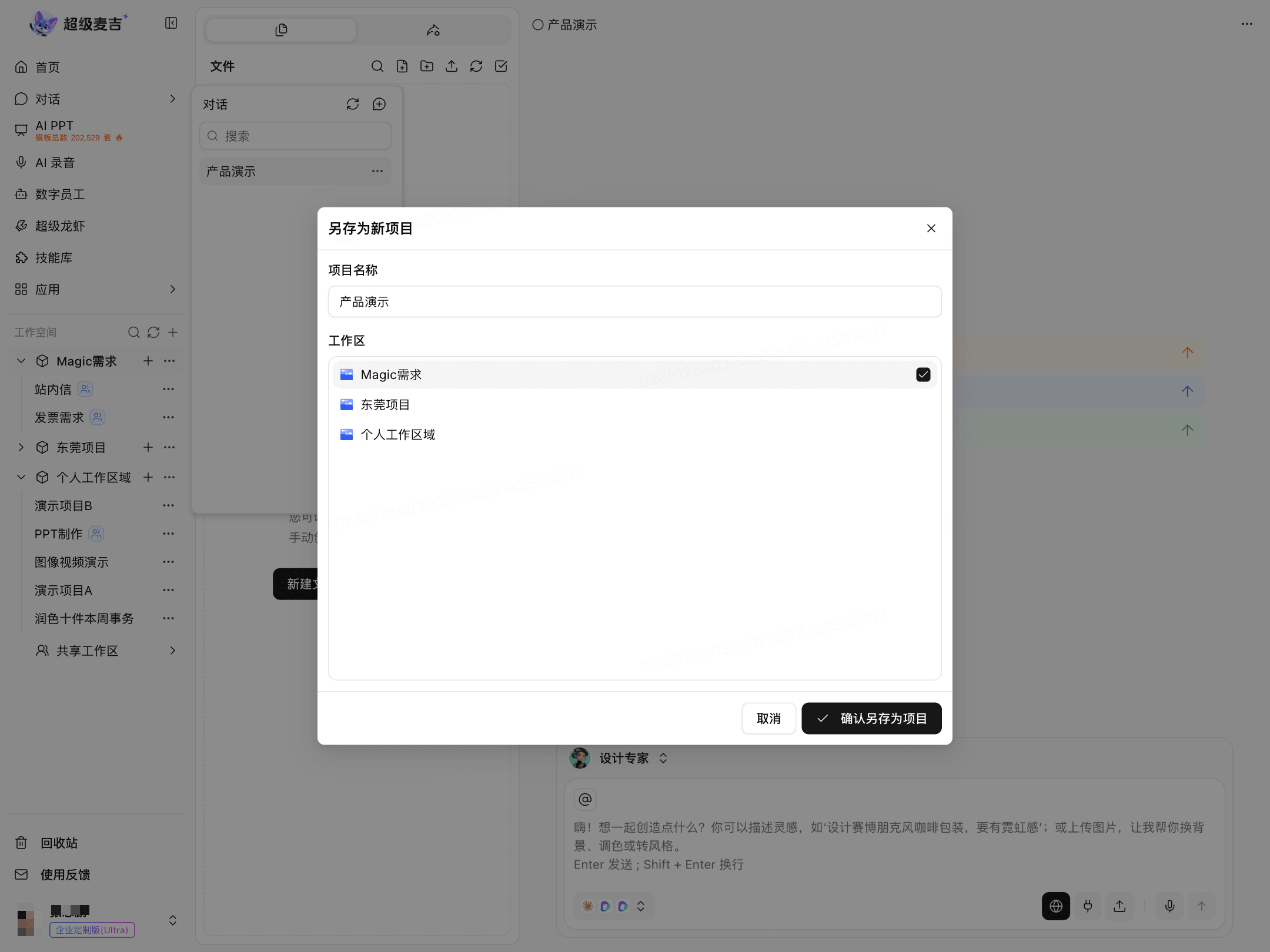
Delete a Conversation
Click Delete in the conversation's … menu.
Verify the conversation name in the confirmation window.
Click Confirm Deletion.
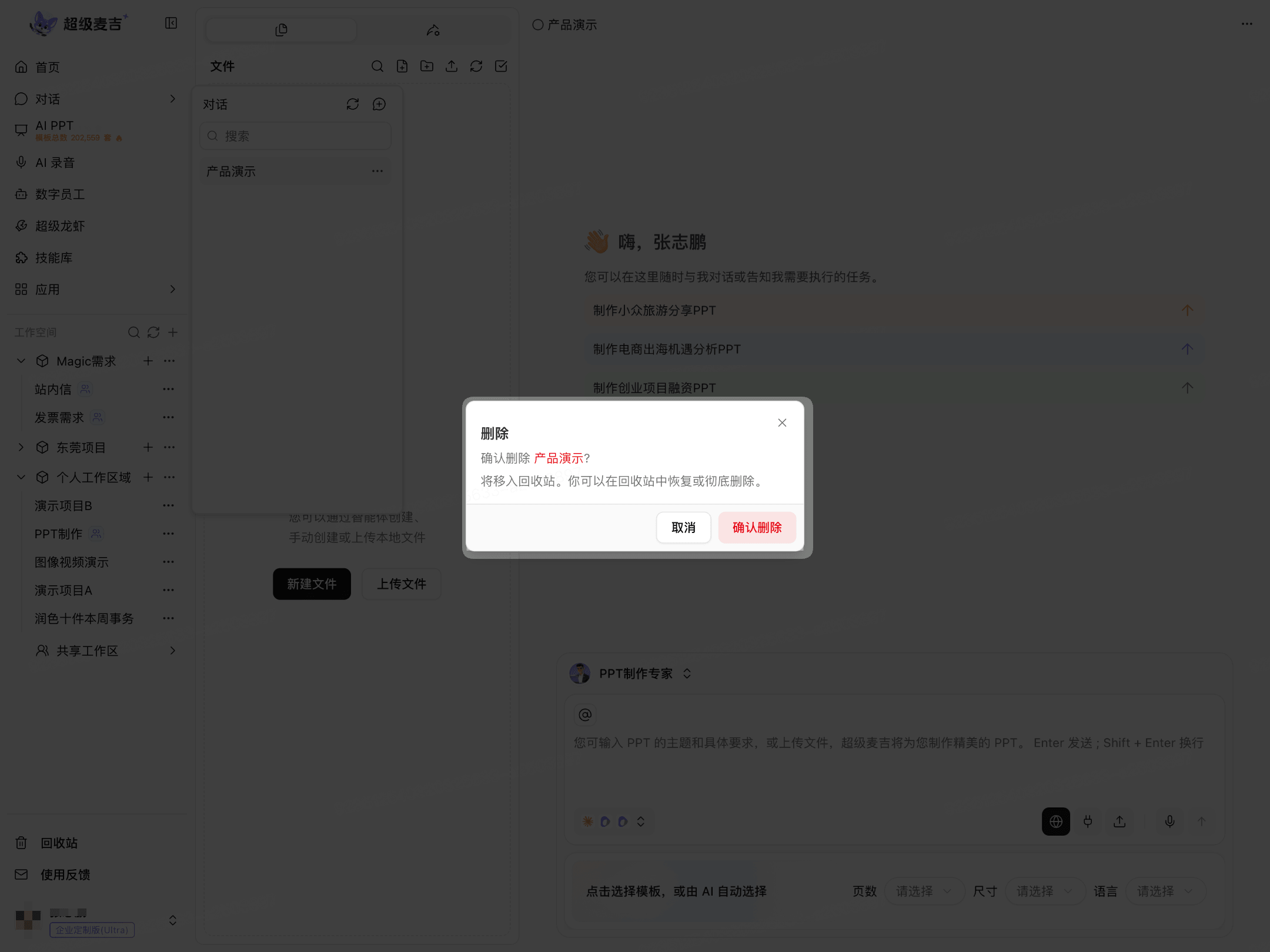
After deletion, the conversation is moved to the Recycle Bin. You can restore it from the Recycle Bin or delete it permanently.
Frequently Asked Questions
How do I find a previous conversation?
Open Conversations, then enter keywords in the search box in the conversation list.
Can I restore a conversation after deleting it?
Y
Deleted conversations are moved to the Recycle Bin.
Will “Save as Project” overwrite the original conversation?
This action saves the current conversation as a new project.