
Log in to the Admin Console
After logging in to SuperMagic, open the current enterprise's Admin Console from the account menu in the frontend.
After logging in to SuperMagic, open the current enterprise's Admin Console from the account menu in the frontend.
The current account must have permission to access the Admin Console. If the account does not have permission, Admin Console will not appear in the account menu.
Log in to SuperMagic
Open the SuperMagic login page.
Select the country or region code associated with your mobile phone number.
Enter your mobile phone number.
Select the checkbox to agree to the User Agreement and Privacy Policy.
Click Next.
Complete identity verification as prompted on the page.
After completing identity verification, the page opens the SuperMagic frontend.
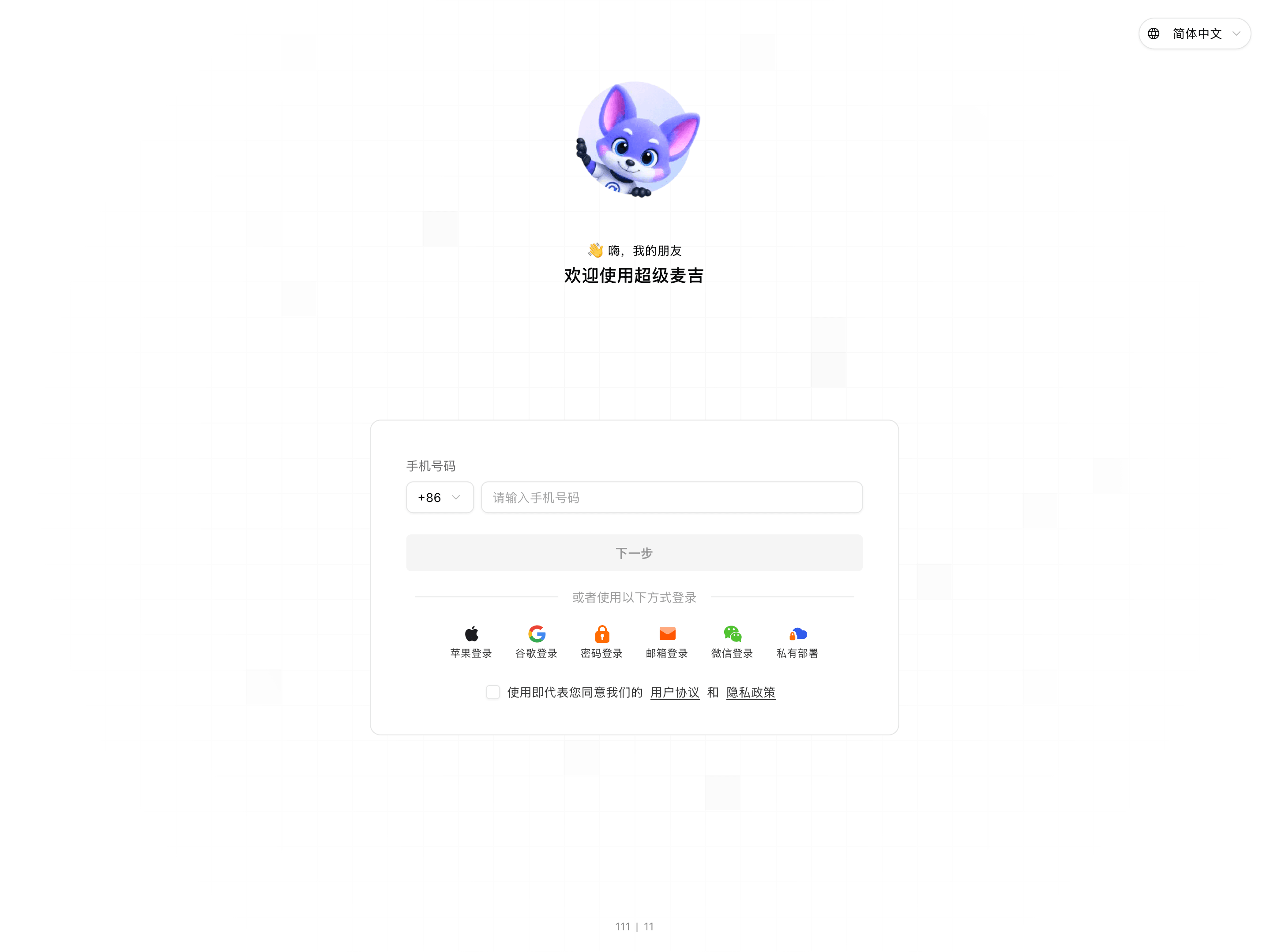
The login page also provides other login methods. This article only describes the mobile phone number login entry and does not cover the subsequent verification processes for other methods.
Open the Admin Console
Click the account or enterprise area in the lower-left corner of the frontend page.
Click Admin Console in the account menu.
The page switches from the SuperMagic frontend to the enterprise Admin Console.
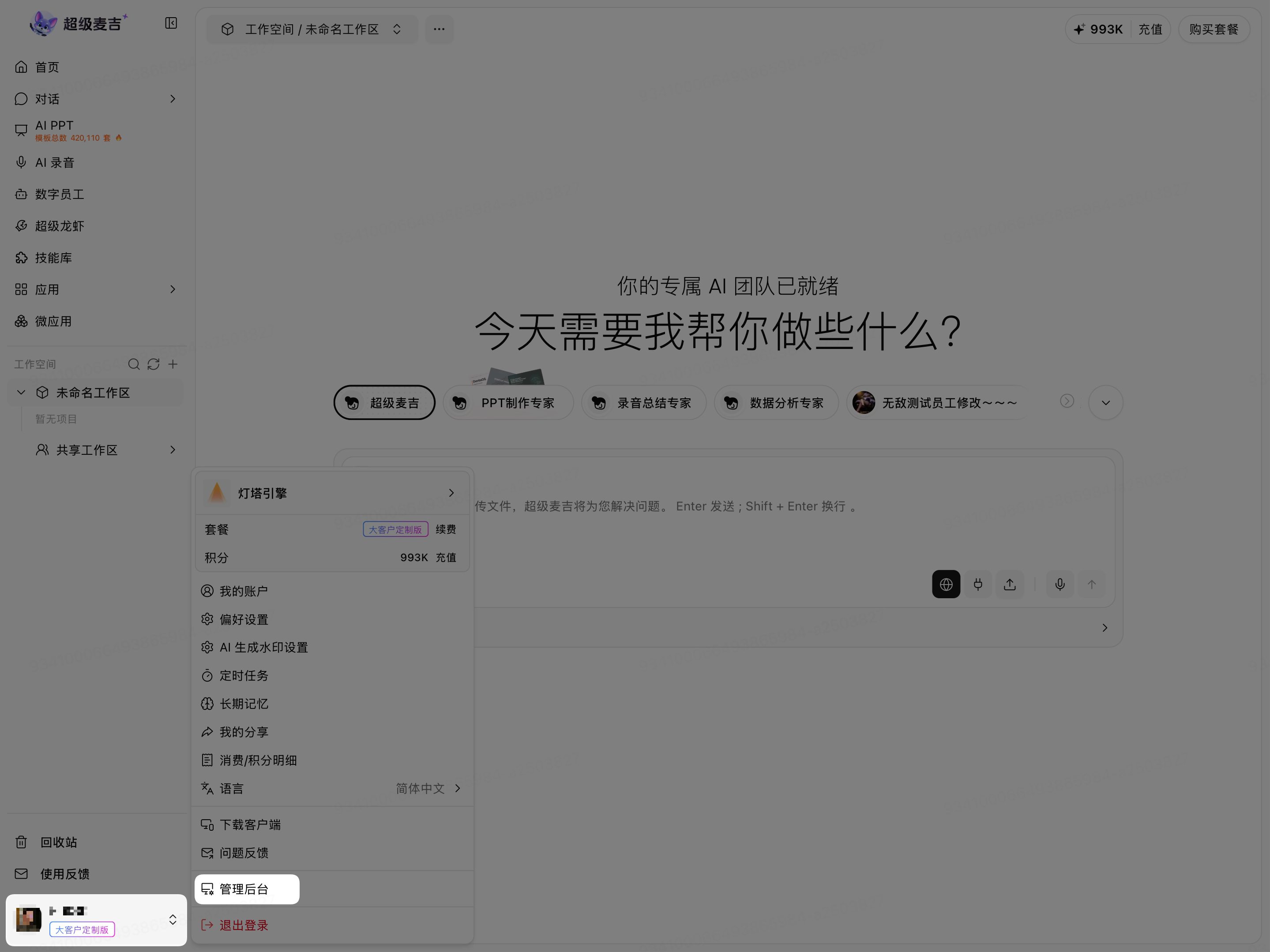
If Admin Console does not appear in the account menu, the current account may not have permission to access the Admin Console. Contact your enterprise administrator to confirm your permissions.
Confirm the current enterprise Admin Console
Check whether the SuperMagic Admin Console name appears in the upper-left corner.
Check whether AI Management, Enterprise Features, and Team Management appear at the top.
Check whether the enterprise displayed in the upper-right corner is the enterprise you need to manage.
When the Admin Console name, top management modules, and current enterprise are displayed correctly, you have entered the Admin Console for that enterprise.
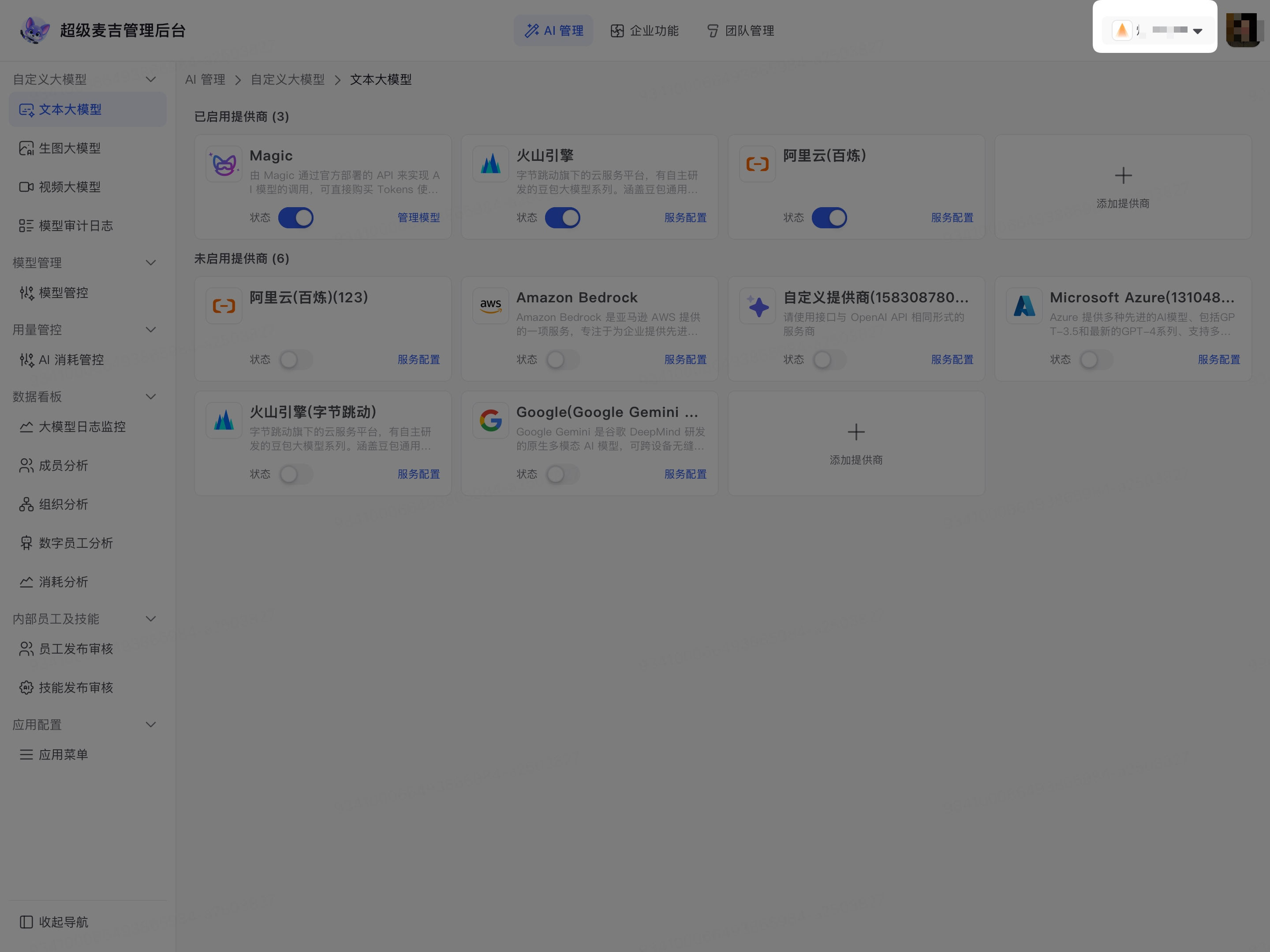
Different administrators may see different modules and items in the left-side menu. The specific scope is determined by account permissions and enterprise configuration. If the current enterprise is incorrect, do not continue modifying Admin Console settings.