
Create and Manage Micro-Apps
After the account is granted the required permissions, you can create, edit, preview, publish, update, and unpublish micro-apps.
After the account is granted the required permissions, you can create, edit, preview, publish, update, and unpublish micro-apps.
Enter an existing app to view or continue editing it, or enter a requirement to create a new app.
Enter a Micro-App
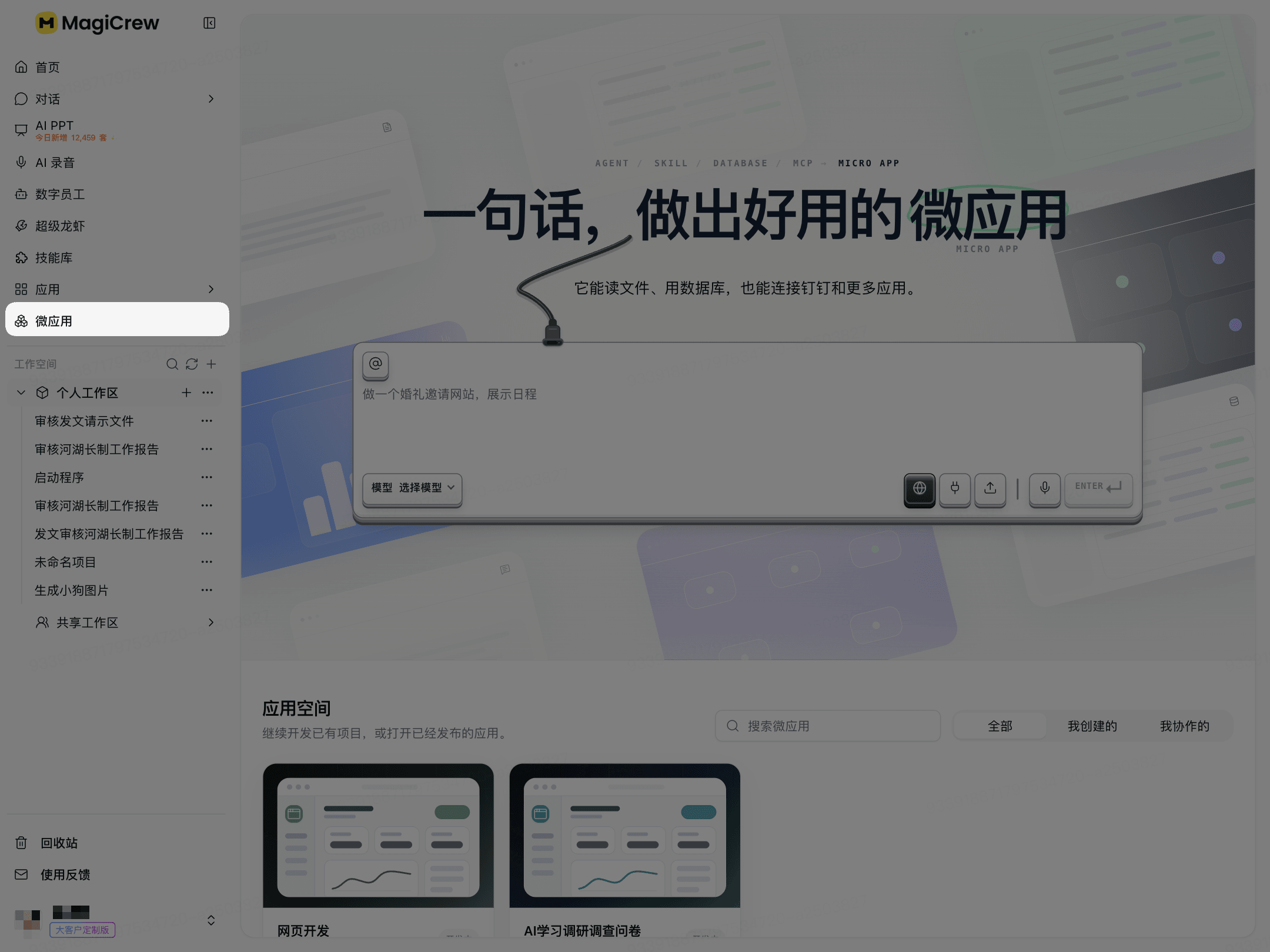
Click Micro-Apps in the left navigation.
Search for an app in the app space, or filter by All, Created by Me, or Collaborating on.
Click an app card to enter the app.
This step opens an existing app. You do not need to enter a new requirement in the input box.
Create a Micro-App
Click Micro-Apps in the left navigation.
Describe your app requirements in the input box on the page.
Press Enter to send the requirement.
After the app is generated, click the new app card.

Manage Code Files
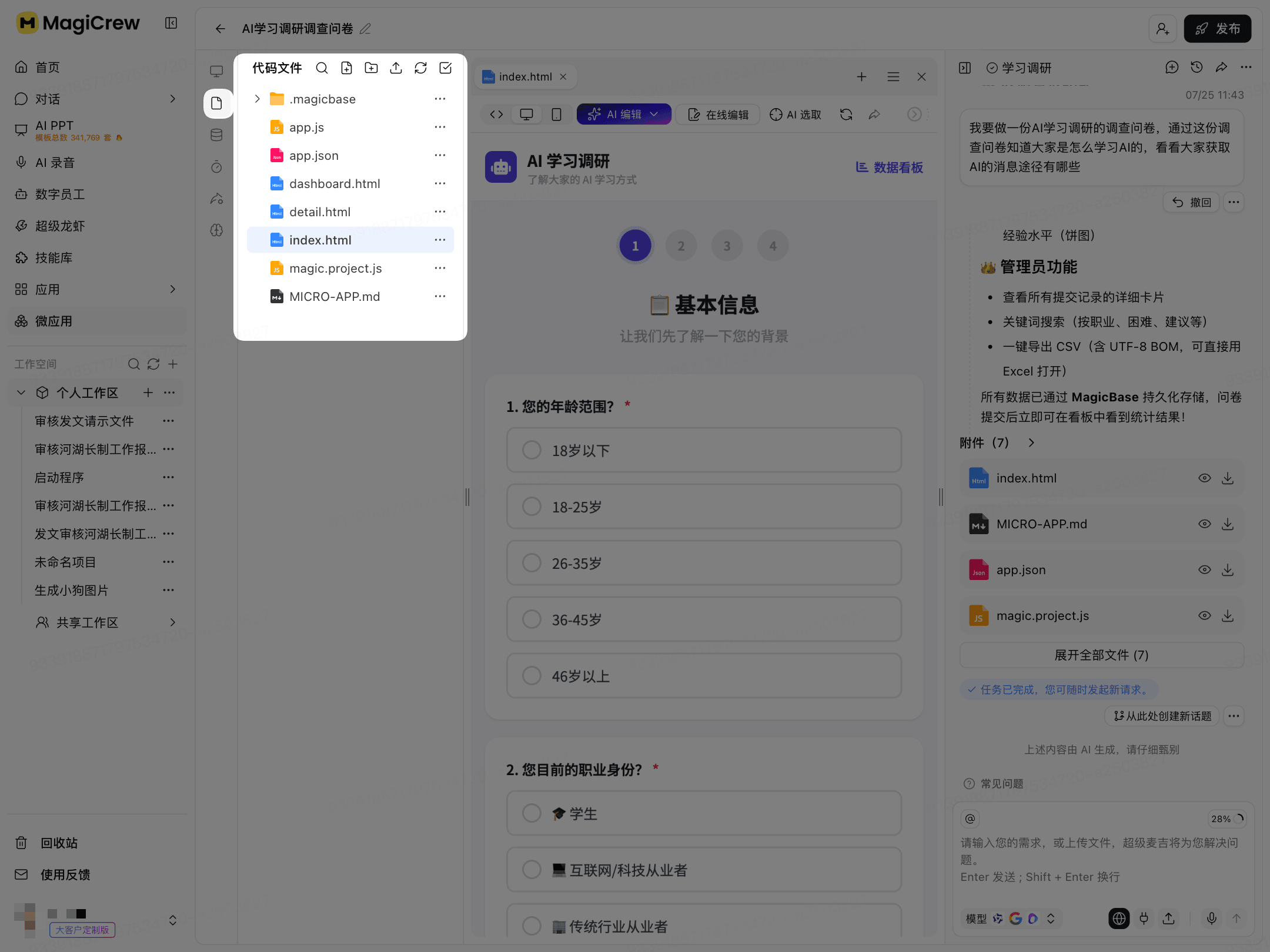
Enter the target micro-app.
Click Code Files on the left.
Select the file you want to view or modify.
Select AI Edit, Online Edit, or AI Select as needed.
AI Edit and Online Edit are used to modify files; AI Select is used to select code for processing.
View App Data
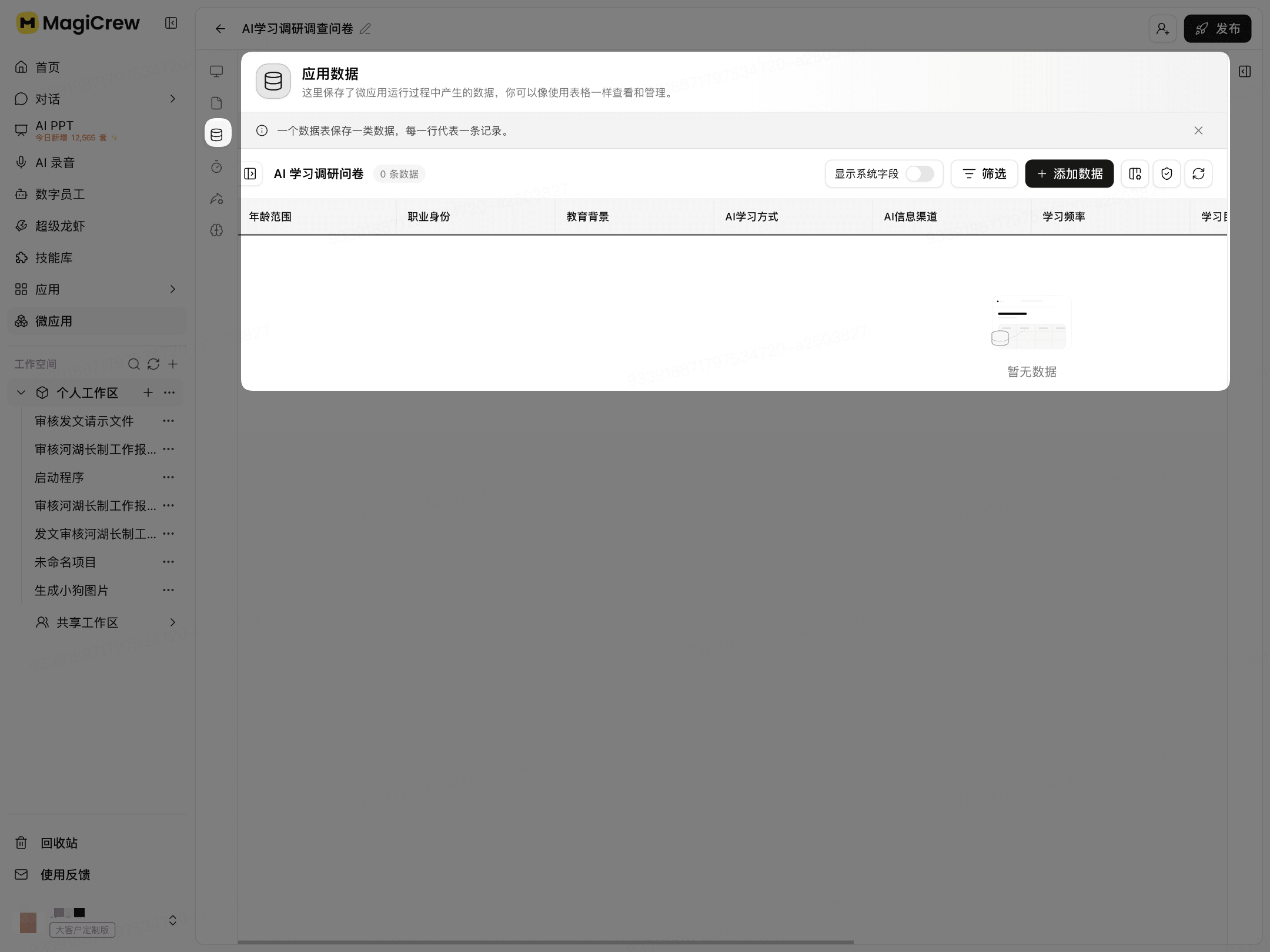
Click App Data on the left.
Select the data table you want to view.
View, filter, or add data, depending on your permissions.
Data generated while the app is running is saved in data tables. When there are no data records, the page displays “No data”.
Preview a Micro-App
Click Preview on the left.
Switch between desktop and mobile as needed.
Check the app pages and interaction effects.

Publish a Micro-App
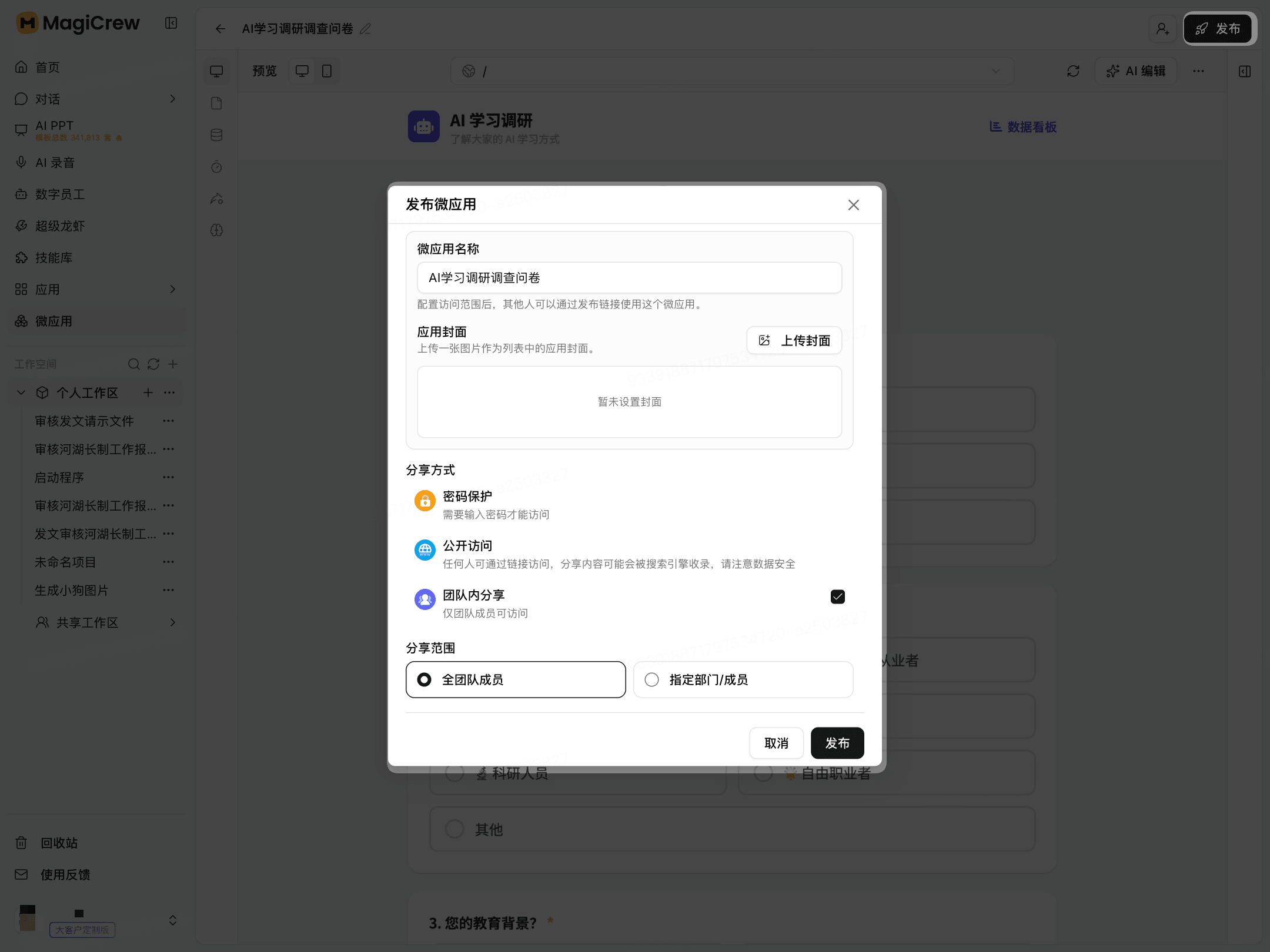
Click Publish in the upper-right corner.
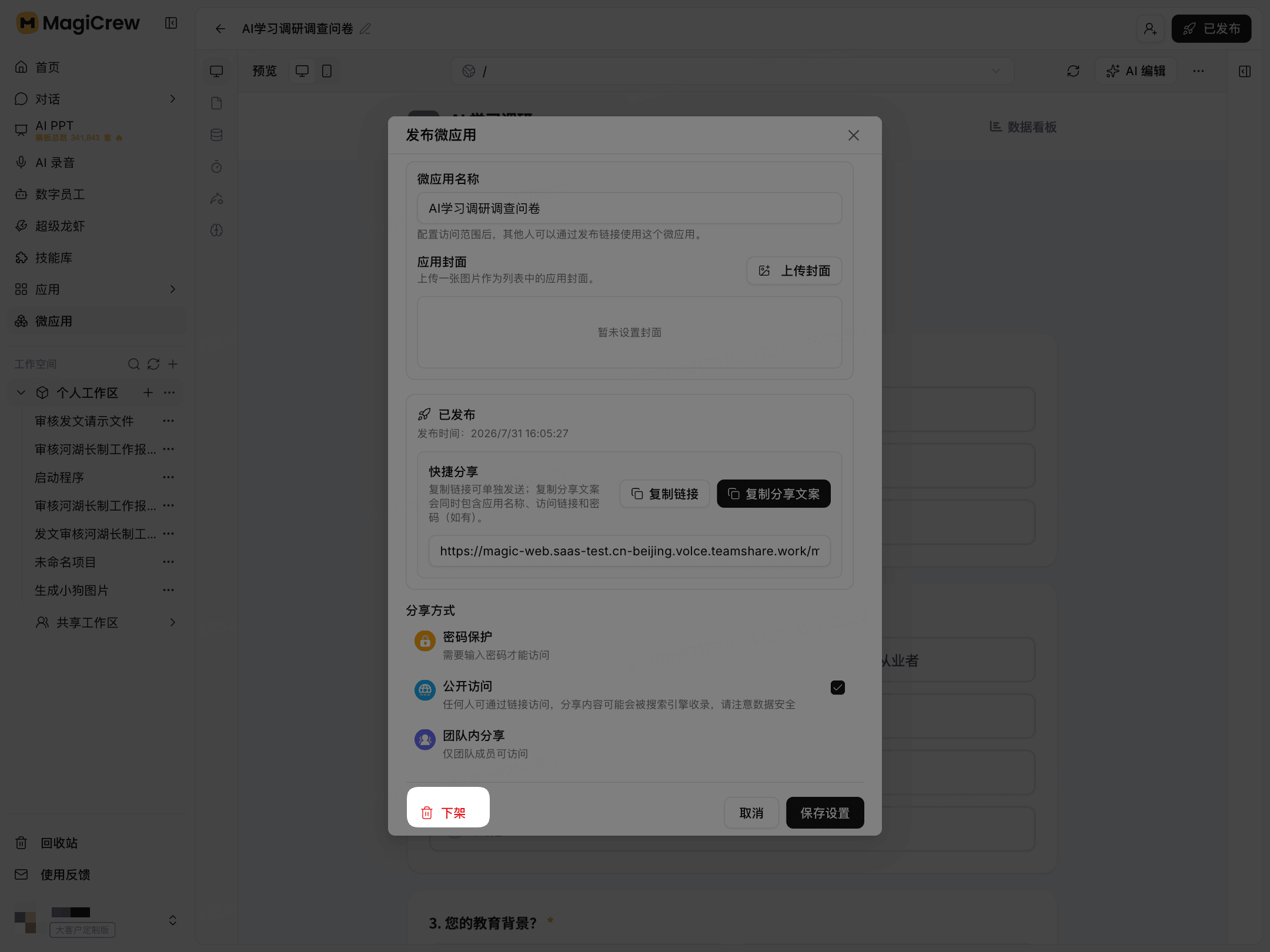
Enter the micro-app name in the “Publish Micro-App” window.
Upload an app cover image as needed.
Select a sharing method:
Password Protection: A password is required for access.
Public Access: Anyone can access the app through the link.
Share Within the Team: Only team members can access the app.
Select the sharing scope. You can select All Team Members or Specific Departments/Members.
Click Publish.
Update or Unpublish a Micro-App
Update Settings
Open the published micro-app in the app space.
Click Published in the upper-right corner to open the publishing settings.
Modify the name, cover image, or sharing method.
Click Save Settings.
Unpublish the App
In the publishing settings, click Unpublish to stop external access.
The access methods and available actions for published micro-apps are subject to what is displayed on the current page.