
Step 1: Purchase an Enterprise Plan and Create a Team
When a personal account purchases an **Enterprise plan**, you must first enter a **team name** to create a team, then continue completing the subscription.
When a personal account purchases an Enterprise plan, you must first enter a team name to create a team, then continue completing the subscription.
Before you start
Sign in to the SuperMagic SaaS Personal plan.
Prepare the team name you want to use.
Before purchasing, confirm the plan, price, and subscription period displayed on the current page.
Open the plan upgrade page
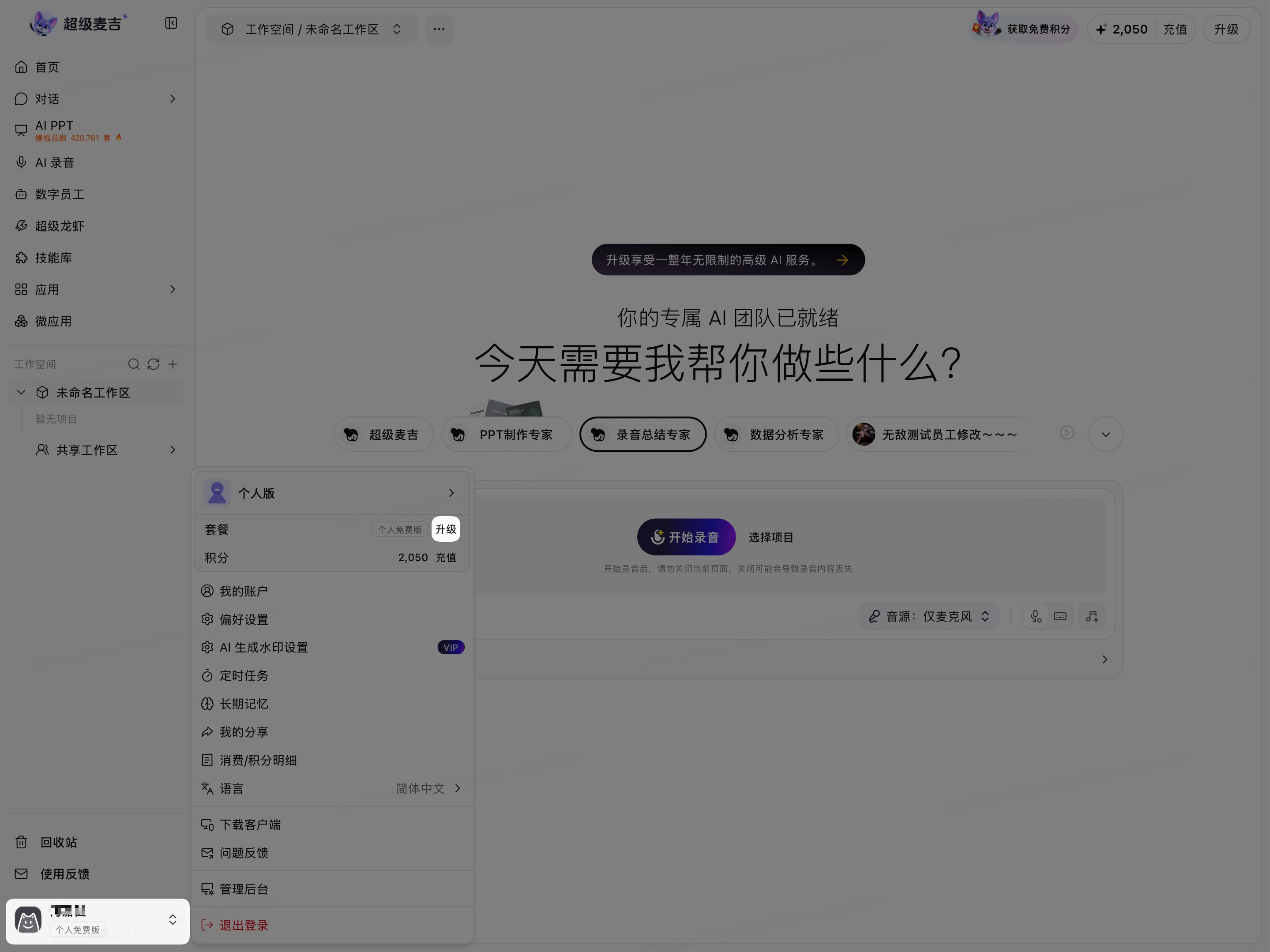
Click the personal account area in the lower-left corner of the page.
In the account menu, click Upgrade to the right of Plans.
The plan upgrade window opens.
Select an Enterprise plan
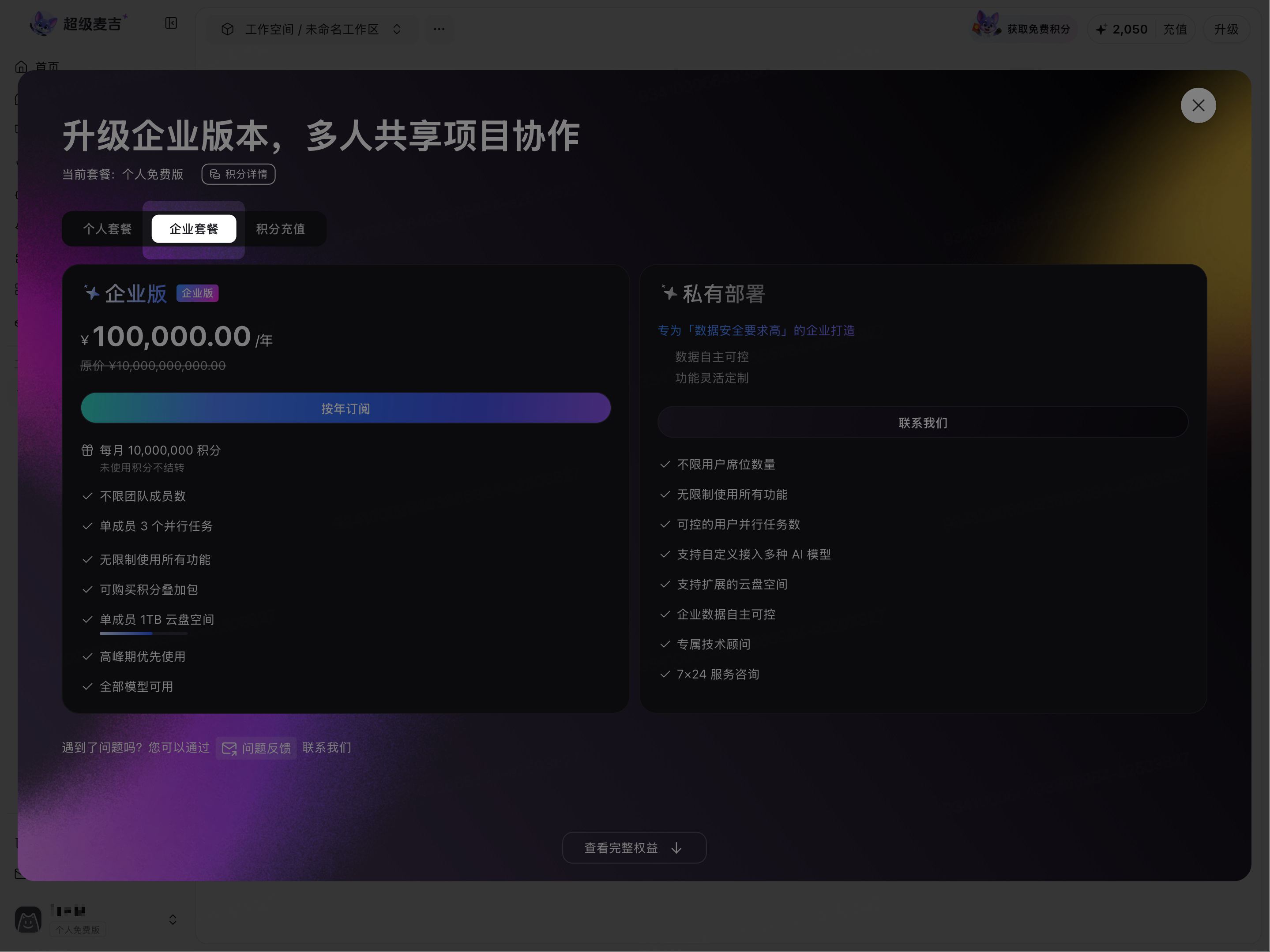
In the plan upgrade window, switch to Enterprise plan.
Review the Enterprise plan benefits and subscription information displayed on the current page.
Click Subscribe annually.
If the account has not created a team yet, the page displays the Create team window and requires you to complete the team information first.
Plan prices, credits, and specific benefits may change. Refer to the information displayed on the purchase page at the time of purchase.
Create a team
Enter the team name you want to create in Team name.
Click the Arrow button below.
Follow the on-screen instructions to continue purchasing the Enterprise plan.
After clicking it, follow the on-screen instructions to complete team creation and purchase the Enterprise plan.
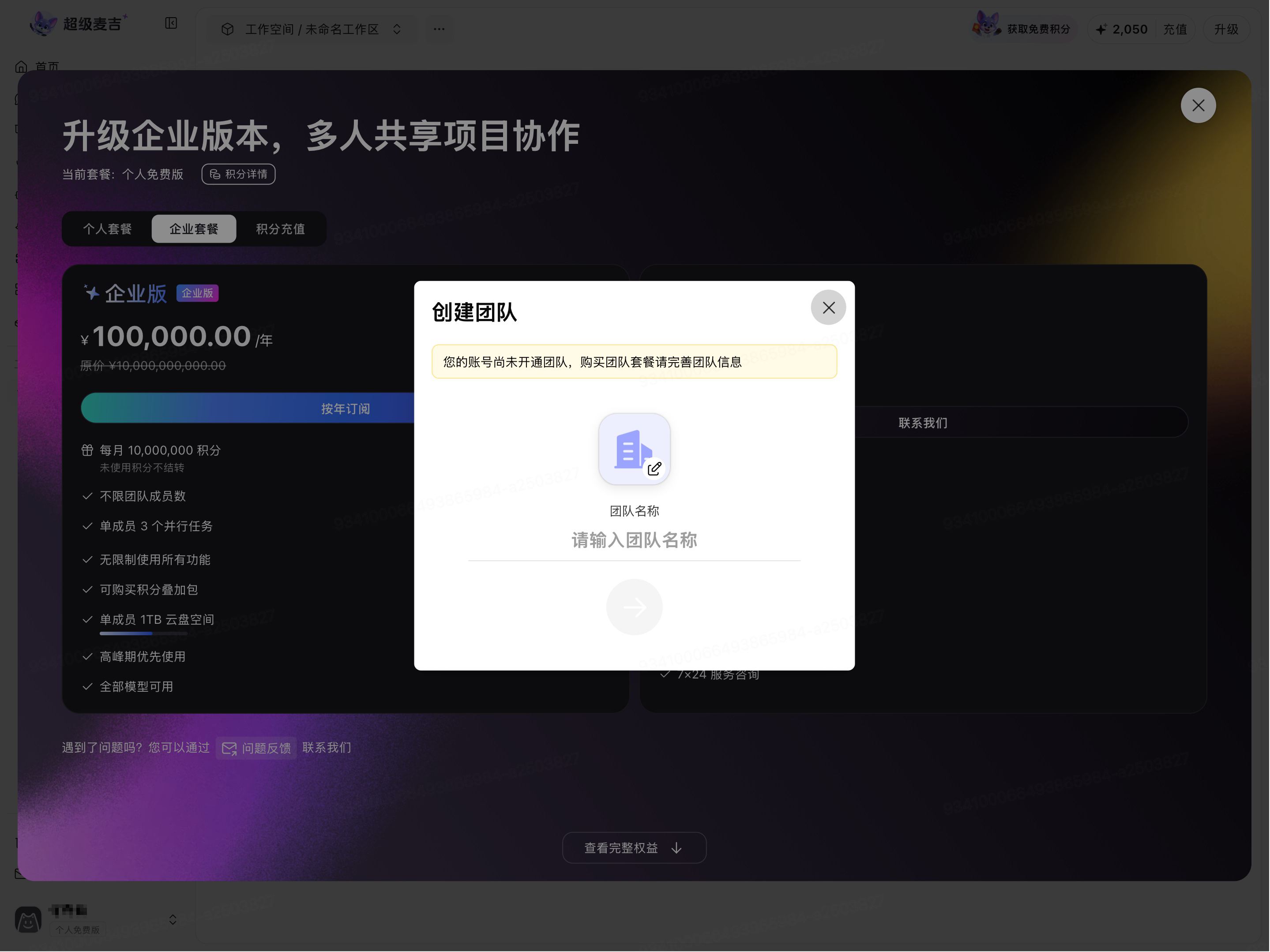
Only accounts that have not yet created a team are required to enter team information when purchasing an Enterprise plan (the pop-up may display “Team plan”). For accounts that already have a team, follow the purchase flow displayed on the current page.