
Step 2: Invite Members to Join Your Organization
Add organization members in the admin console, assign them to departments, and help them bind and activate their accounts through activation text messages or invitation links.
Add organization members in the admin console, assign them to departments, and help them bind and activate their accounts through activation text messages or invitation links.
Open the Members and Departments Page
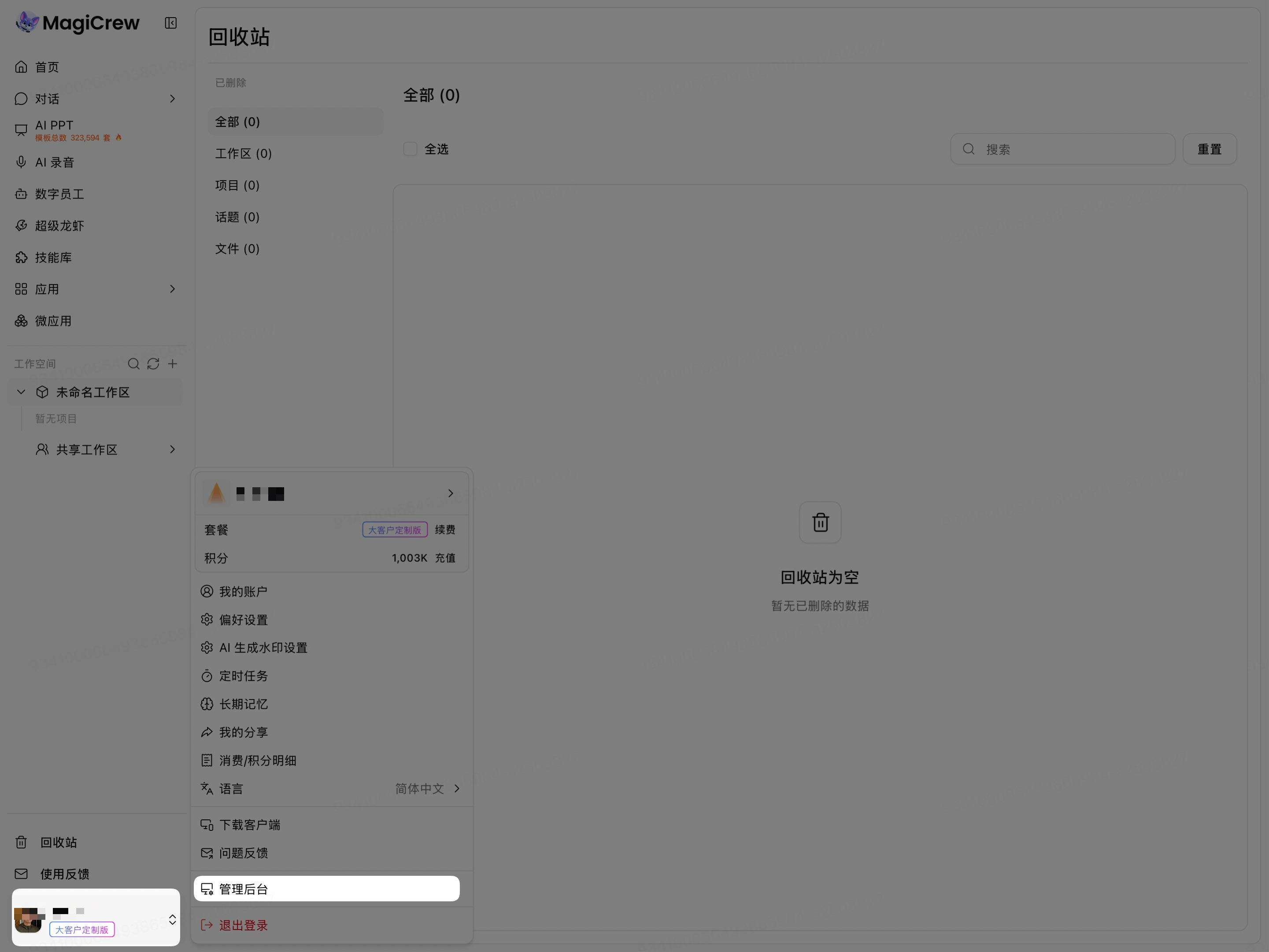
Open the account or organization menu in the lower-left corner.
Click Admin Console.
Click Organization Features at the top of the admin console.
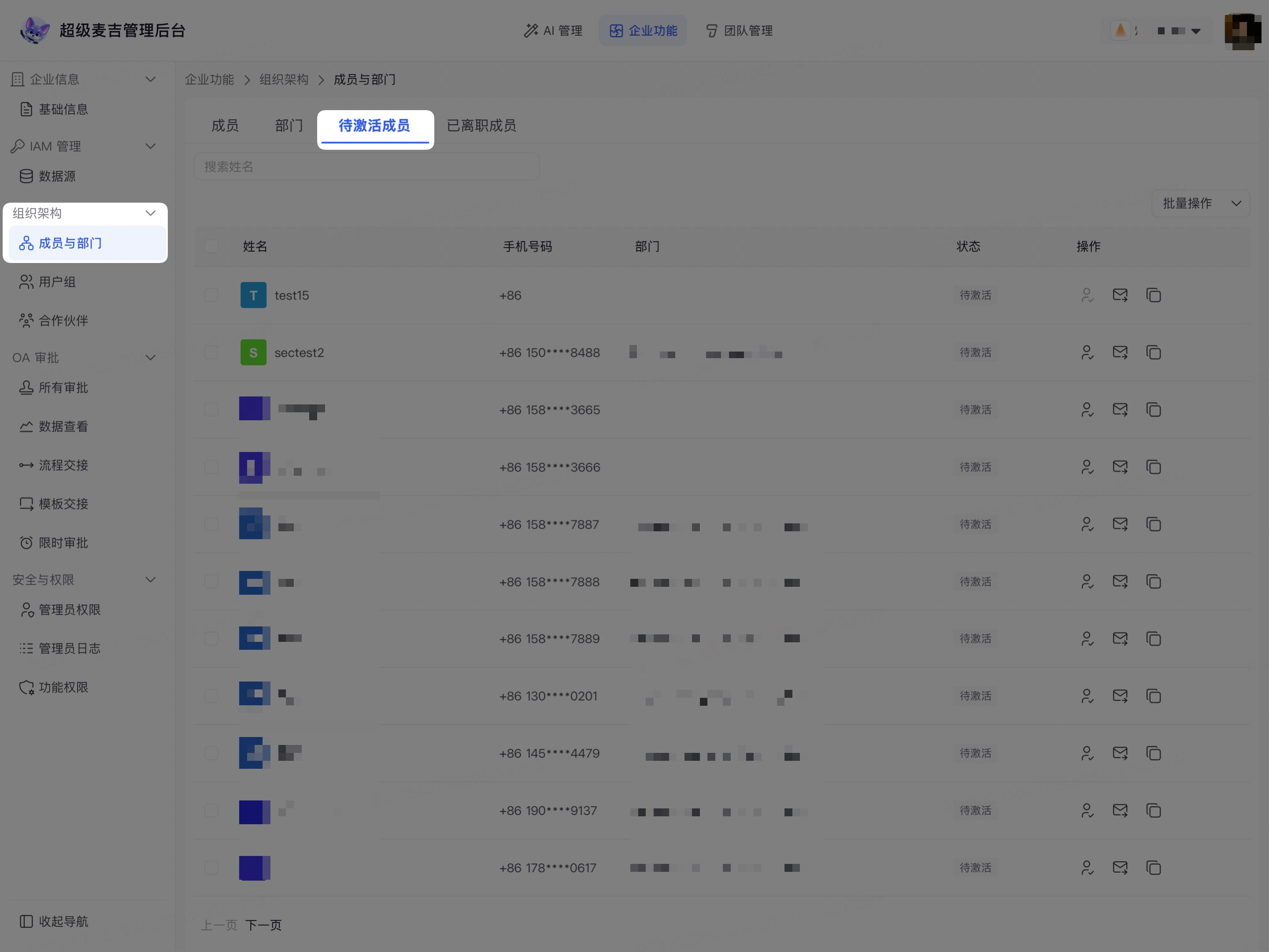
Expand Organization Structure in the left navigation.
Click Members and Departments.
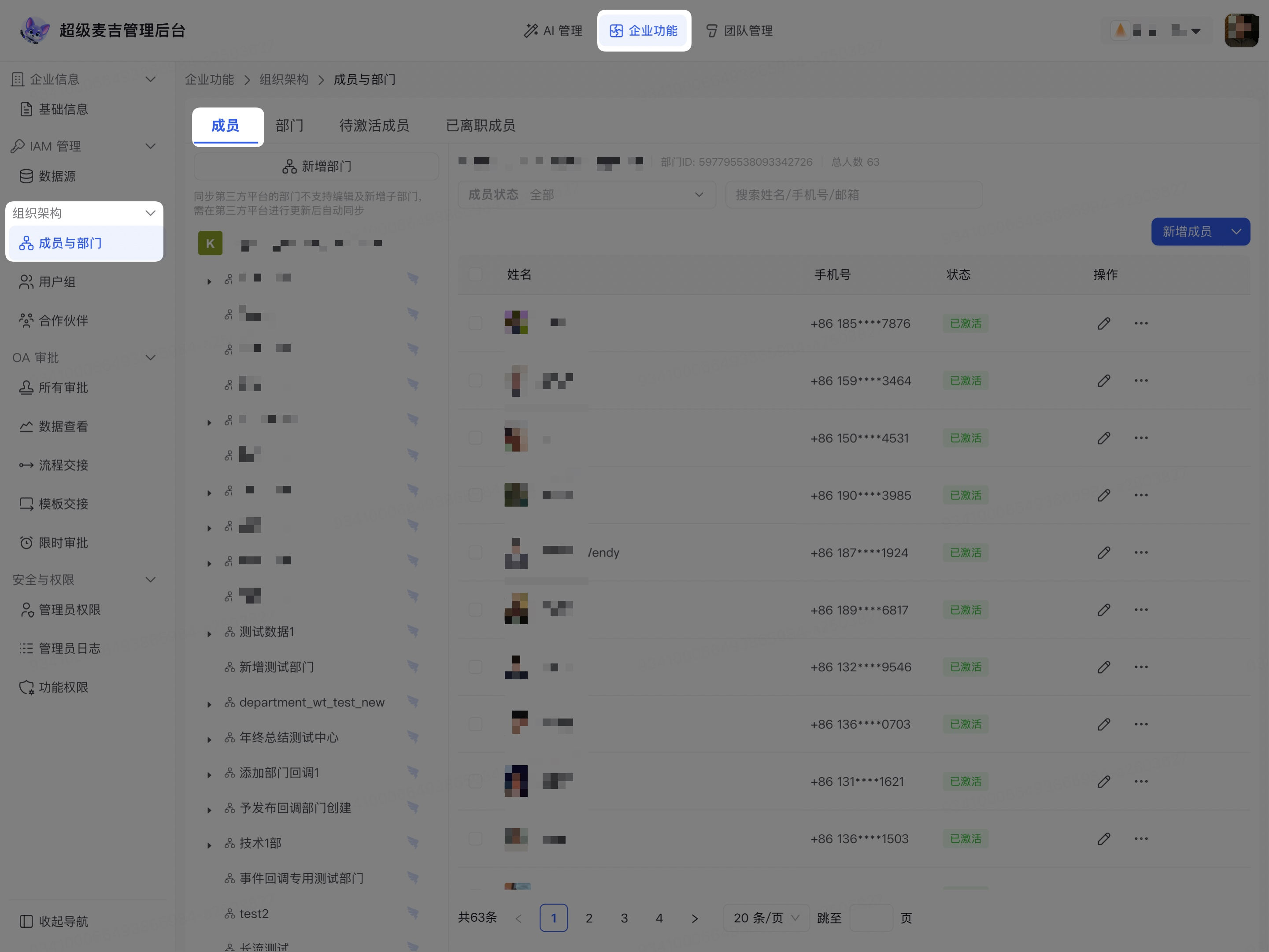
The page displays four tabs: Members, Departments, Members Pending Activation, and Former Members.
Add Members
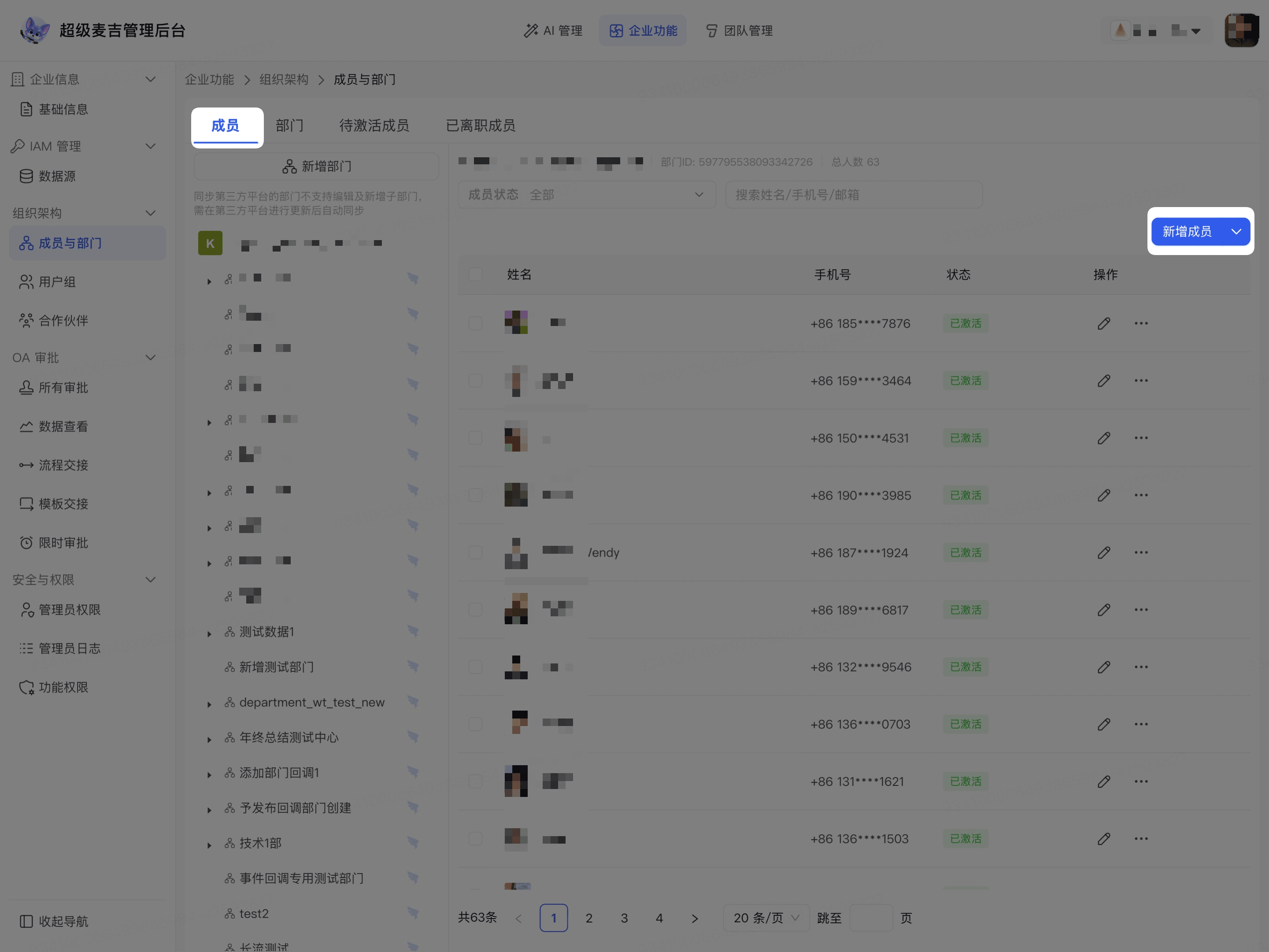
Click the Members tab.
Click Add Member in the upper-right corner of the page.
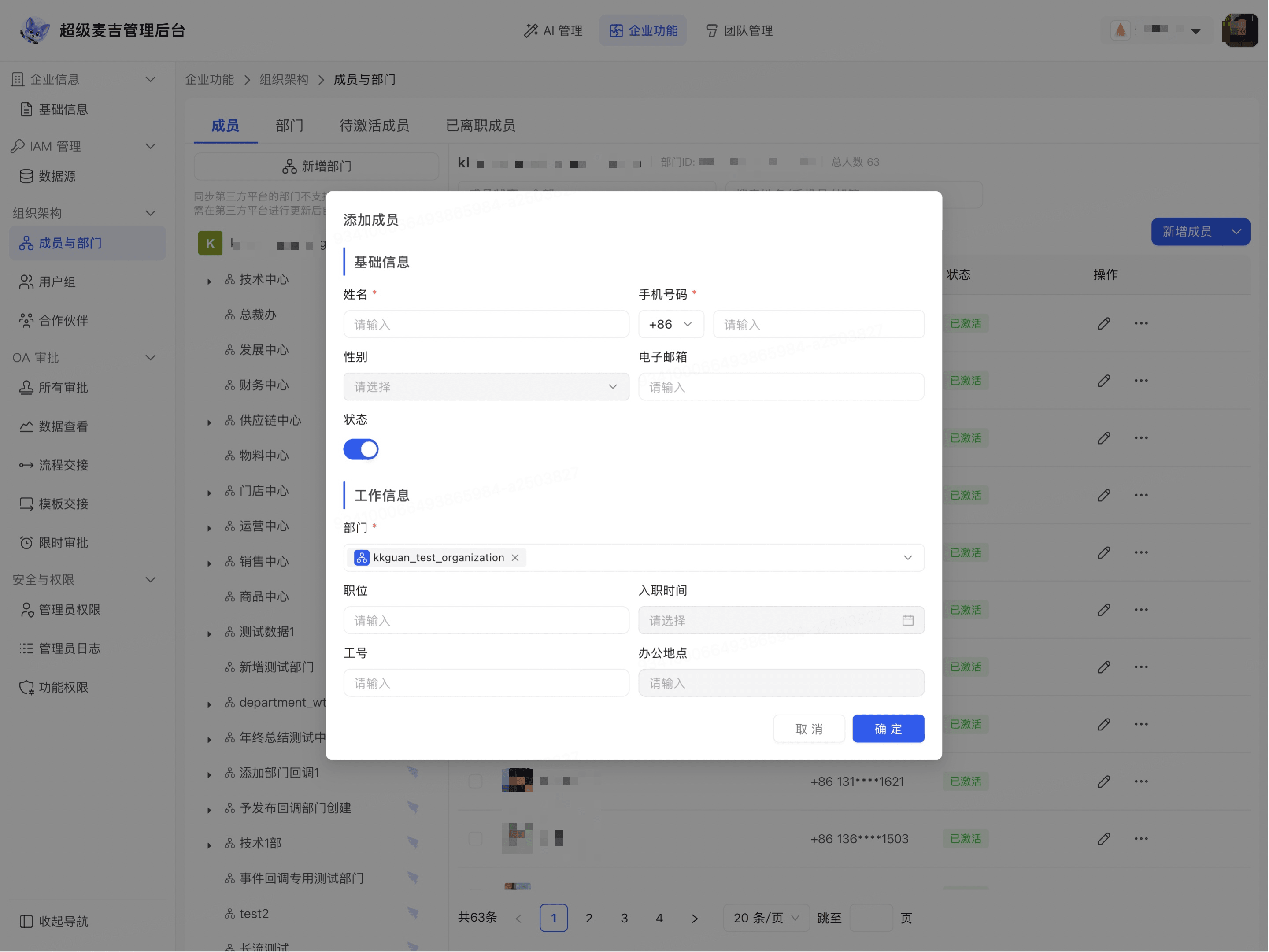
Enter the member's name in Name.
Select the country or region code for the phone number.
Enter a valid phone number in Phone Number.
Select Gender as applicable.
Enter an email address in Email.
Confirm whether the member is enabled in Status.
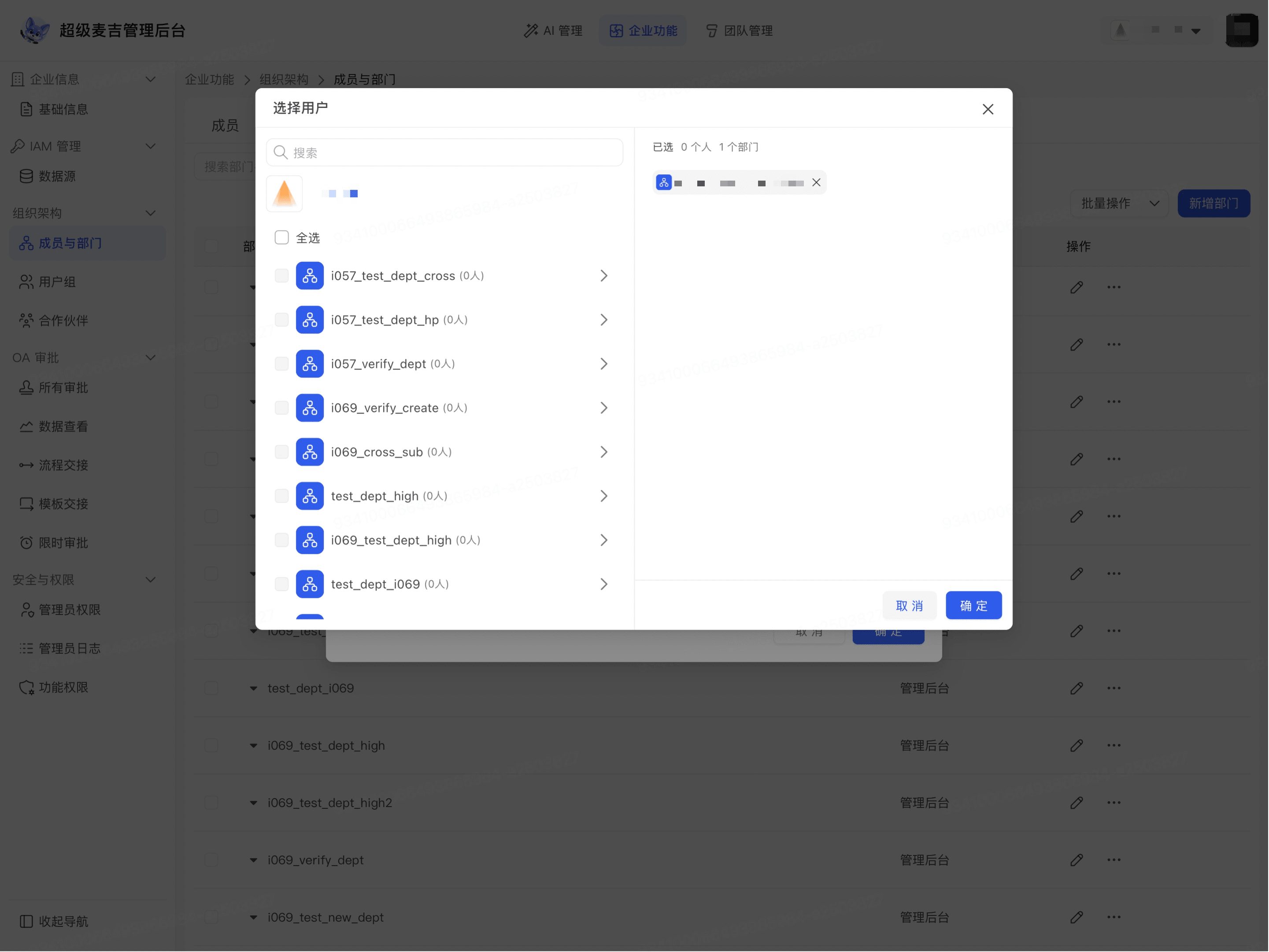
Select the member's department in Department.
When selecting a department, you can search by department name or expand departments by organizational level.
Enter the member's position in Job Title.
Select the member's start date in Start Date.
Enter the employee ID in Employee ID.
Enter the office location in Office Location.
Click Confirm.
The new member appears in the member list. Members who have not completed activation appear on the Members Pending Activation tab.
Status descriptions: Enabled/Disabled indicates whether the member's account is currently available; Pending Activation/Activated indicates whether the member has completed account binding and activation. These two types of status are independent of each other.
Send Activation Information
Newly added members who have not yet completed account binding and activation appear on the Members Pending Activation tab.
Click the Members Pending Activation tab.
Find the member who needs to be activated.
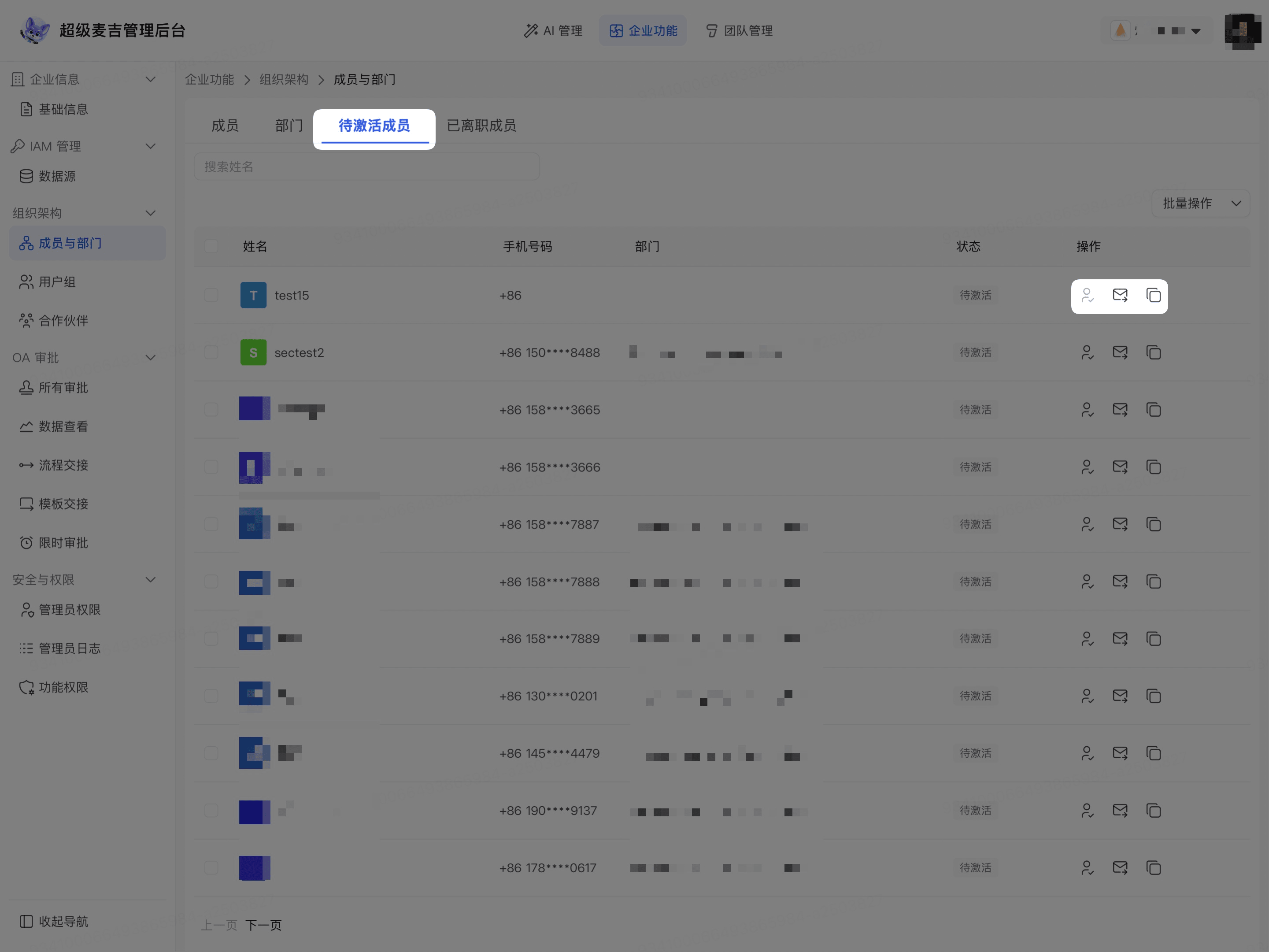
Click the envelope icon to send an activation text message.
To send the information through another communication tool:
Click the copy icon.
Copy the member's activation link or invitation message.
Send the content generated during the current session to the corresponding member.
The invitation link is a dedicated link generated for the current organization. When sending an invitation, use the content copied from the page during the current session. Do not manually reuse the example link in the documentation.
Activate Members or Send Notifications in Bulk
Select the members to process.
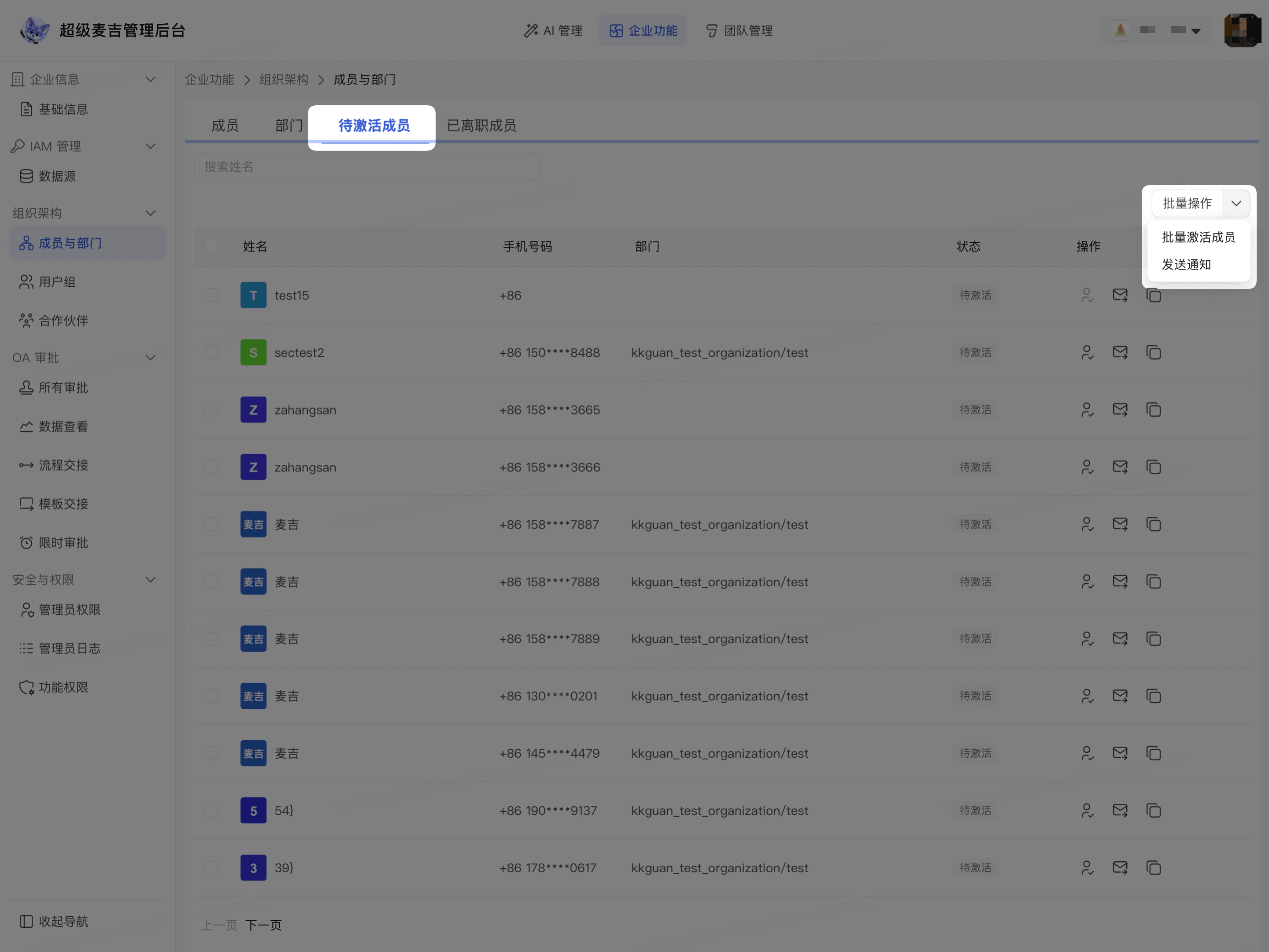
Open Bulk Actions in the upper-right corner.
Select Activate Members in Bulk or Send Notification.
Complete the operation as prompted on the page.
Before performing a bulk action, verify the selected members and phone numbers again.
When inviting members, prioritize sending an activation text message or copying the activation link.