
Step 2: Learn the SuperMagic Interface and Features
After signing in, remember these four areas. When you need to find a feature, project, or personal setting, you will know where to go.
After signing in, remember these four areas. When you need to find a feature, project, or personal setting, you will know where to go.
Explore the Home Page
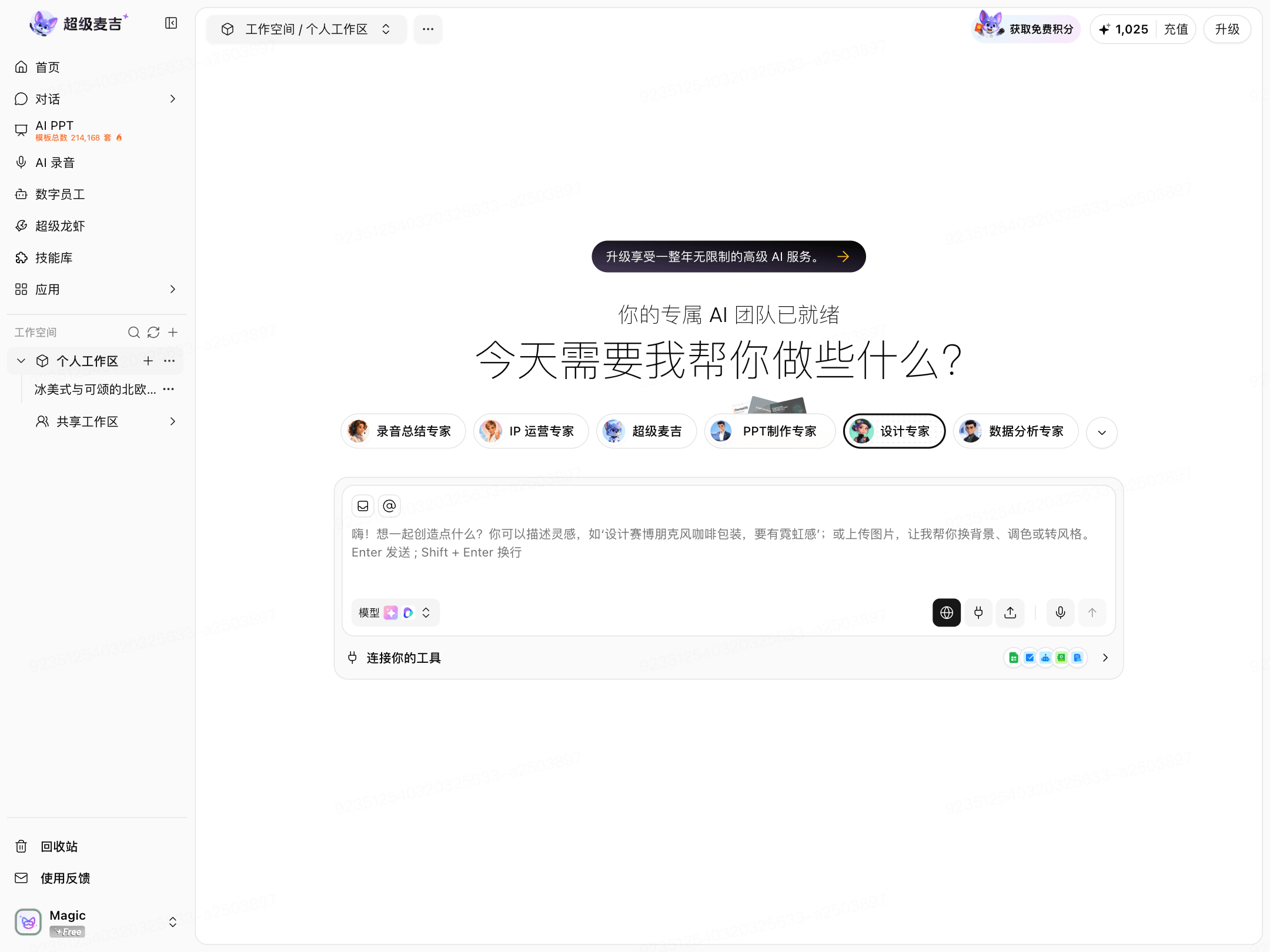
Left Navigation Bar: Use it to access Home, Conversations, AI Slide, AI Recording, Digital Crew, SuperMagic, Skills Library, Apps, and other features.
Workspace: Use the lower-left area to view and switch workspaces. A workspace can contain multiple projects.
Main Workspace: This is the main area where you collaborate with AI, choose different experts, and start tasks.
Personal Menu in the Lower-Left Corner: Click your avatar or account name to open My Account, Preferences, or sign out.
Workspaces and Projects
You can understand them simply as follows:
Workspace: A place for projects, such as "Personal Workspace."
Project: A place for handling a specific piece of work, such as "Customer Visit Summary."
When using SuperMagic for the first time, find a project on the left and click it to open. After entering the project, you can start a task with AI.
To learn about the difference between a personal workspace and a shared workspace, see Get to Know Workspaces and Projects.
Personal Menu
Click your avatar or account name in the lower-left corner to open the personal menu.
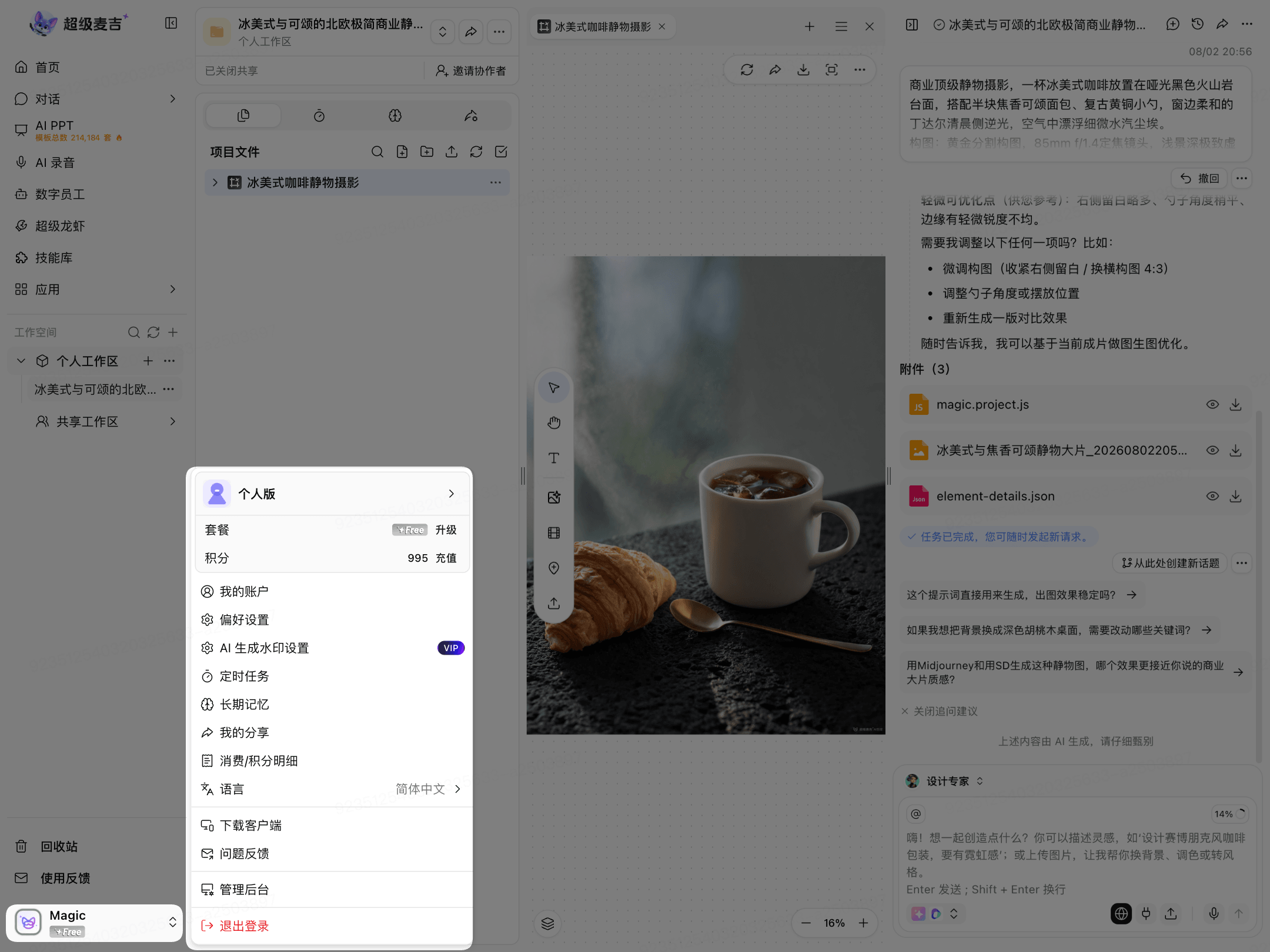
My Account: View account information and edit your personal profile.
Preferences: Adjust usage preferences such as language and time zone.
Sign Out: Sign out of the current account when using a public device or when you are temporarily done.