
Add Enterprise Administrators
Add organization administrators in the admin console, or assign sub-administrators the admin permissions they need to complete their work through admin groups.
Add organization administrators in the admin console, or assign sub-administrators the admin permissions they need to complete their work through admin groups.
Before you start
Sign in to SuperMagic and confirm that you have entered the enterprise you need to manage.
Open the admin console and confirm that your account can configure administrator permissions.
This feature is available for the Enterprise edition. Visibility depends on enterprise configuration and account permissions.
Confirm that the member you want to add has already joined the current enterprise.
Before adding the member, confirm whether they need to manage all admin console features or only need permissions for specific features.
Administrator permissions affect the menus visible in the enterprise admin console and the actions that can be performed. Assign permissions based on the member's actual responsibilities to avoid granting unnecessary administrative capabilities.
Choose an administrator type
The administrator permissions page includes two types of administrators:
Administrator type | Suitable management scope |
|---|---|
Organization administrator | Manage all admin console features for the current enterprise and add or remove other organization administrators. |
Sub-administrator | Obtain specified admin console permissions through an admin group and use only the features that have been assigned. |
Members who are responsible for managing the enterprise as a whole can be set as organization administrators. Members who are responsible only for models, applications, data, or certain enterprise features are recommended to be set as sub-administrators with permissions assigned according to their responsibilities.
Open the administrator permissions page
At the top of the admin console, click Enterprise Features.
In the left navigation, expand Security and Permissions.
Click Administrator Permissions.
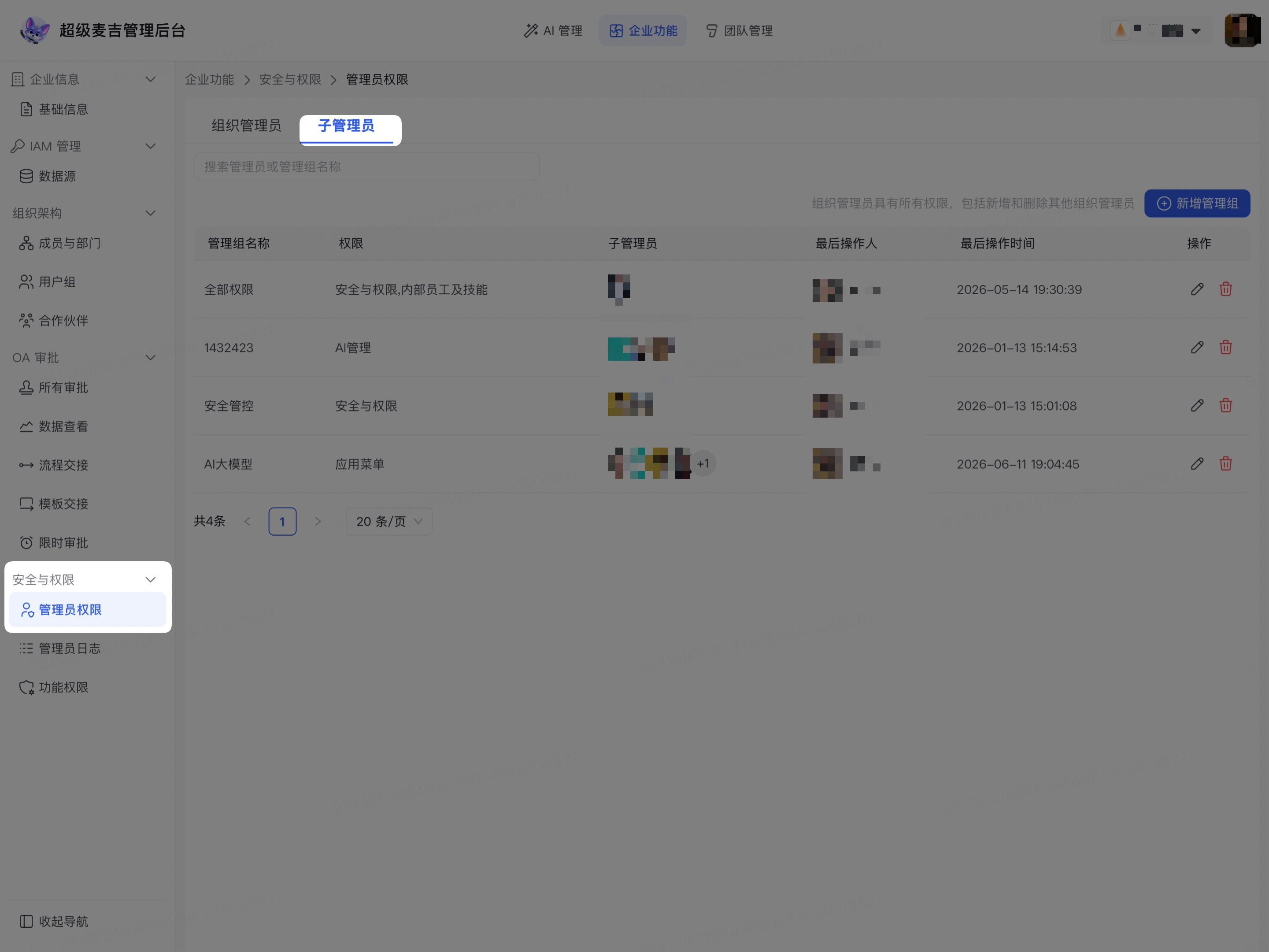
The page displays the Organization Administrators and Sub-Administrators tabs. The Organization Administrators tab is selected by default.
Add an organization administrator
Click the Organization Administrators tab.
Click Add Organization Administrator in the upper-right corner of the page.
Enter the member's name or a keyword in the search box.
In the member list, select the members to set as organization administrators.
To search for members by department, expand the corresponding department.
Check the number of selected members and departments displayed on the right.
Click Confirm.
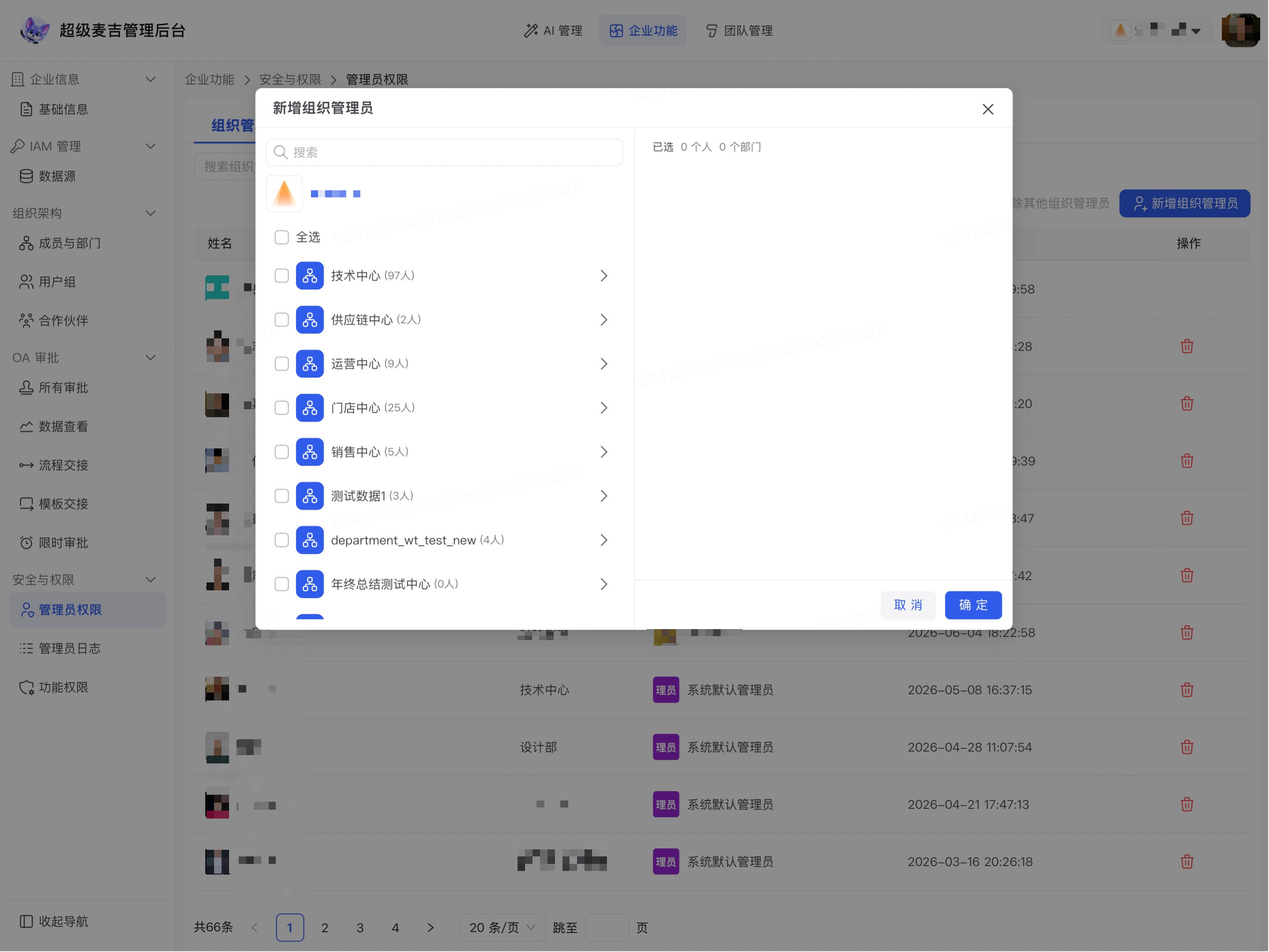
The added members appear in the Organization Administrators list and receive all administrative permissions within the current enterprise.
Organization administrators can add and remove other organization administrators. Before submitting, verify the member's name and affiliated enterprise again to avoid assigning the highest level of administrative permissions to the wrong account.
Add a sub-administrator
Sub-administrators must obtain admin console permissions through an admin group. An admin group stores the admin group name, sub-administrator members, and the features they are allowed to use.
Click the Sub-Administrators tab.
Click Add Admin Group in the upper-right corner of the page.
In Admin Group Name, enter a name that describes the scope of responsibilities.
In Sub-Administrators, select the members responsible for the admin group.
In Available Permissions for Admin Group, expand the feature categories that need to be configured.
Select the feature permissions members need to complete their work.
Check the admin group name, sub-administrators, and permission scope.
Click Confirm.
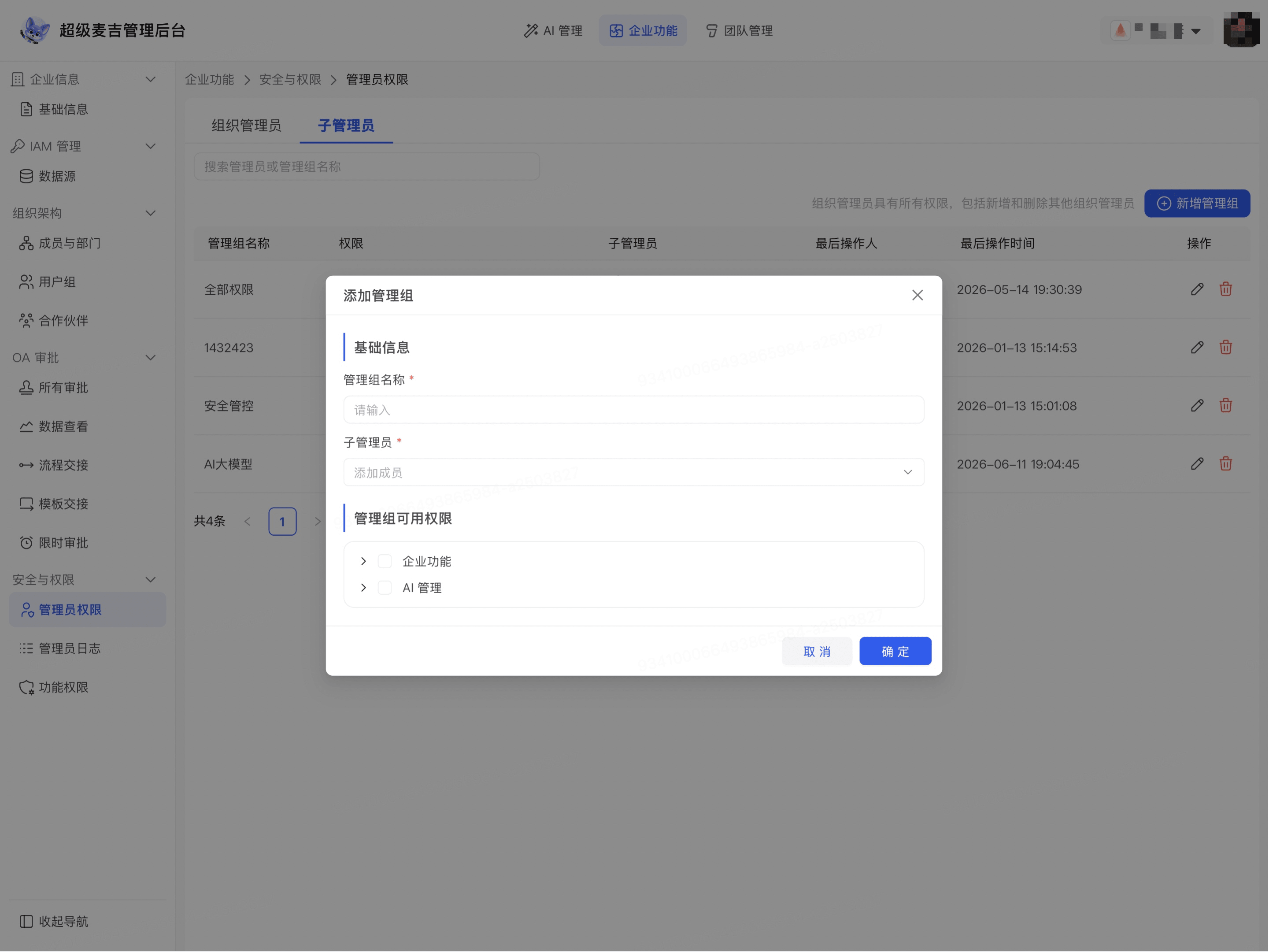
The new admin group appears in the Sub-Administrators list. Members in the admin group can view and use the assigned admin console features. Features that have not been assigned are not automatically available.
The categories and available features in the permission tree may vary depending on the enterprise edition, organization configuration, and the current account's permissions. Refer to the options displayed on the page. Select only the permissions required to complete the member's job responsibilities.