
Connect DingTalk CLI and Feishu CLI to Expand SuperMagic Collaboration Capabilities
Authorize your DingTalk CLI or Feishu CLI account in a SuperMagic conversation and confirm the connection.
Start a DingTalk CLI or Feishu CLI connection in a SuperMagic conversation, complete account authorization as prompted, and return to the conversation to confirm the connection.
Connect DingTalk CLI
Start the Connection
Open a SuperMagic conversation.
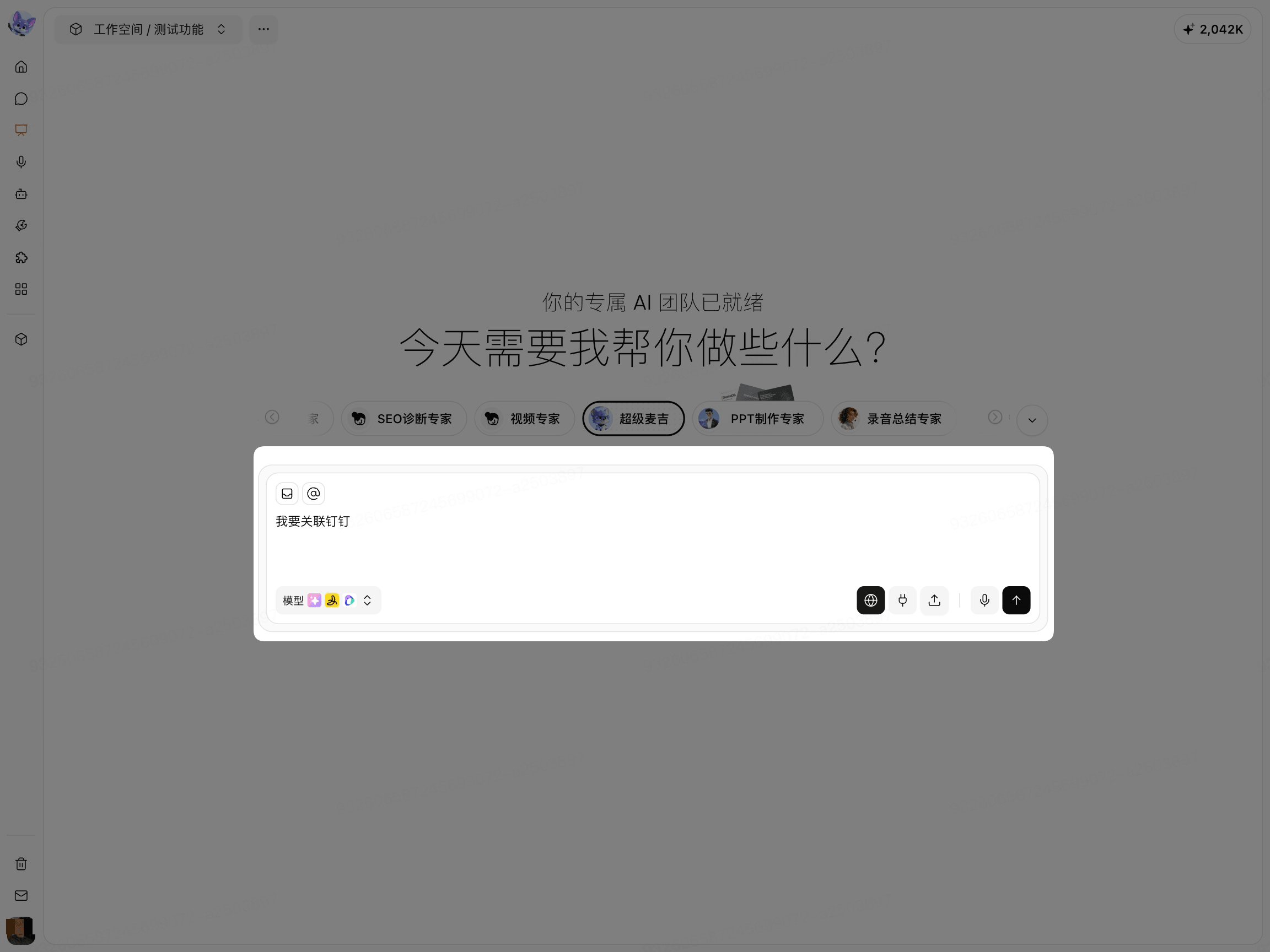
Enter I need to connect DingTalk CLI in the input box.
Submit the request.
Wait for the page to check the DingTalk CLI authentication status.
After the device authorization process starts, the page generates an authorization link and authorization code.
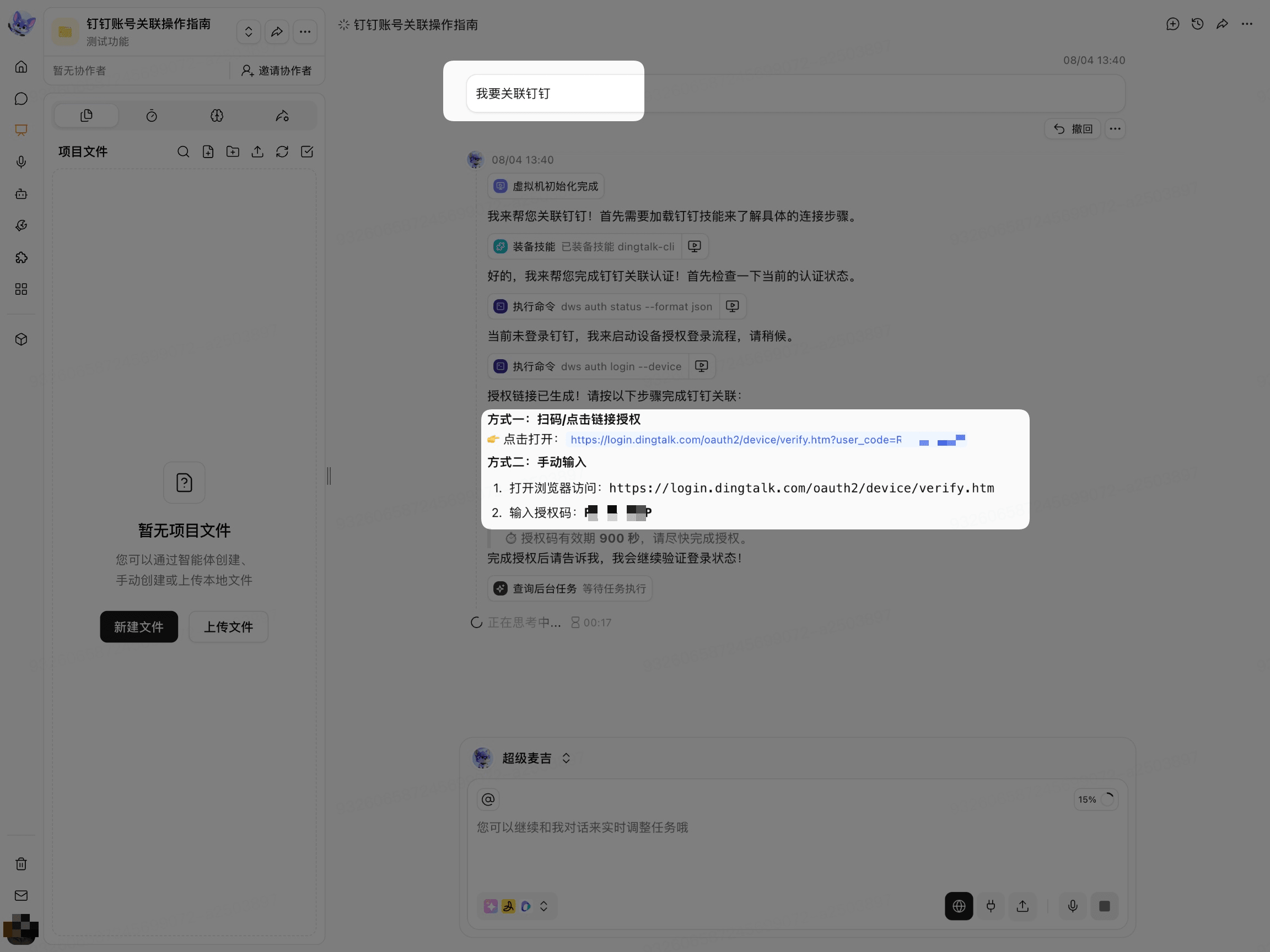
The authorization information is time-sensitive. Use the authorization link and authorization code newly generated on the current page.
Complete Device Authorization
Click the authorization link generated on the page.
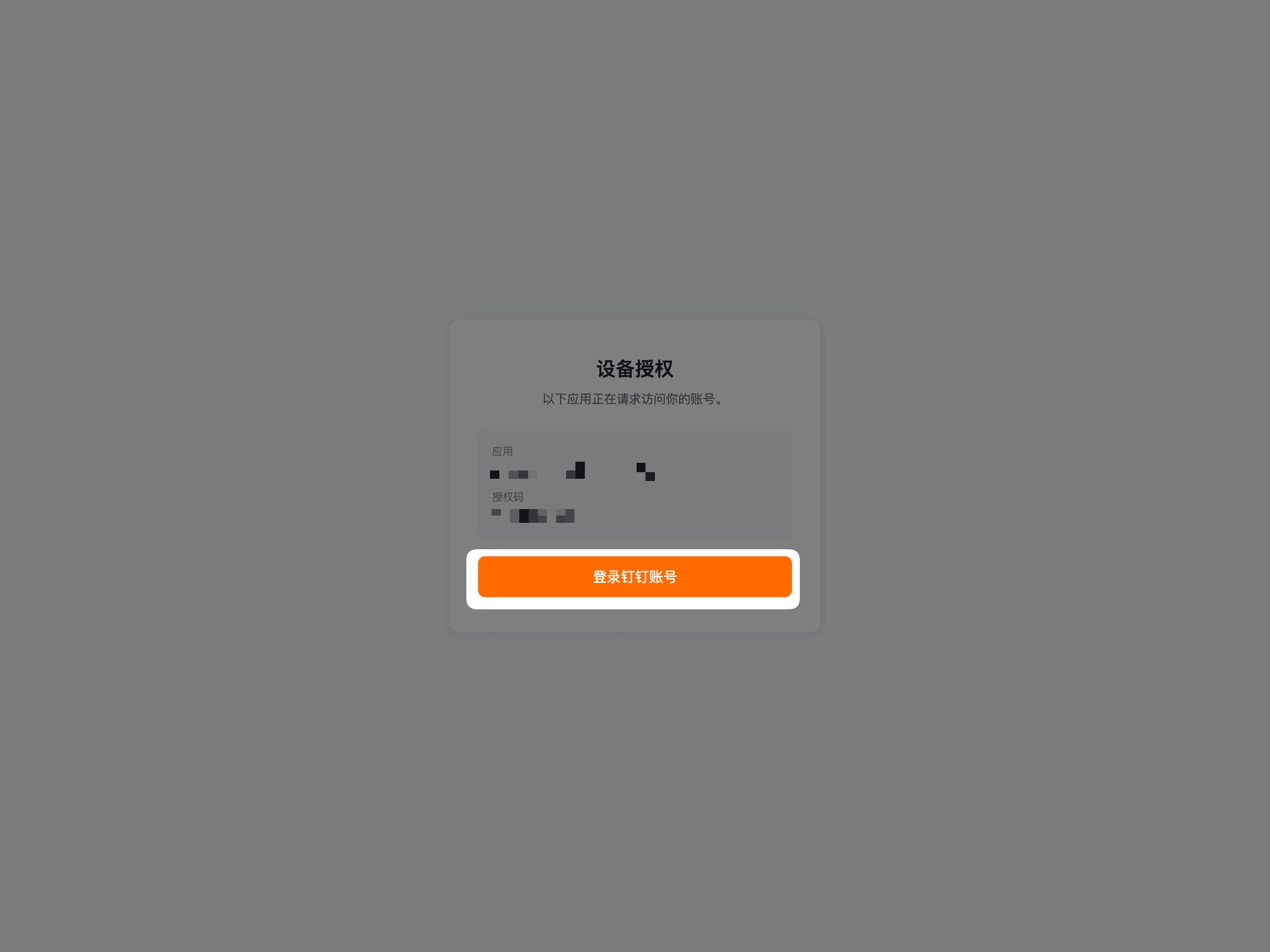
On the device authorization page, click Log in to DingTalk account.
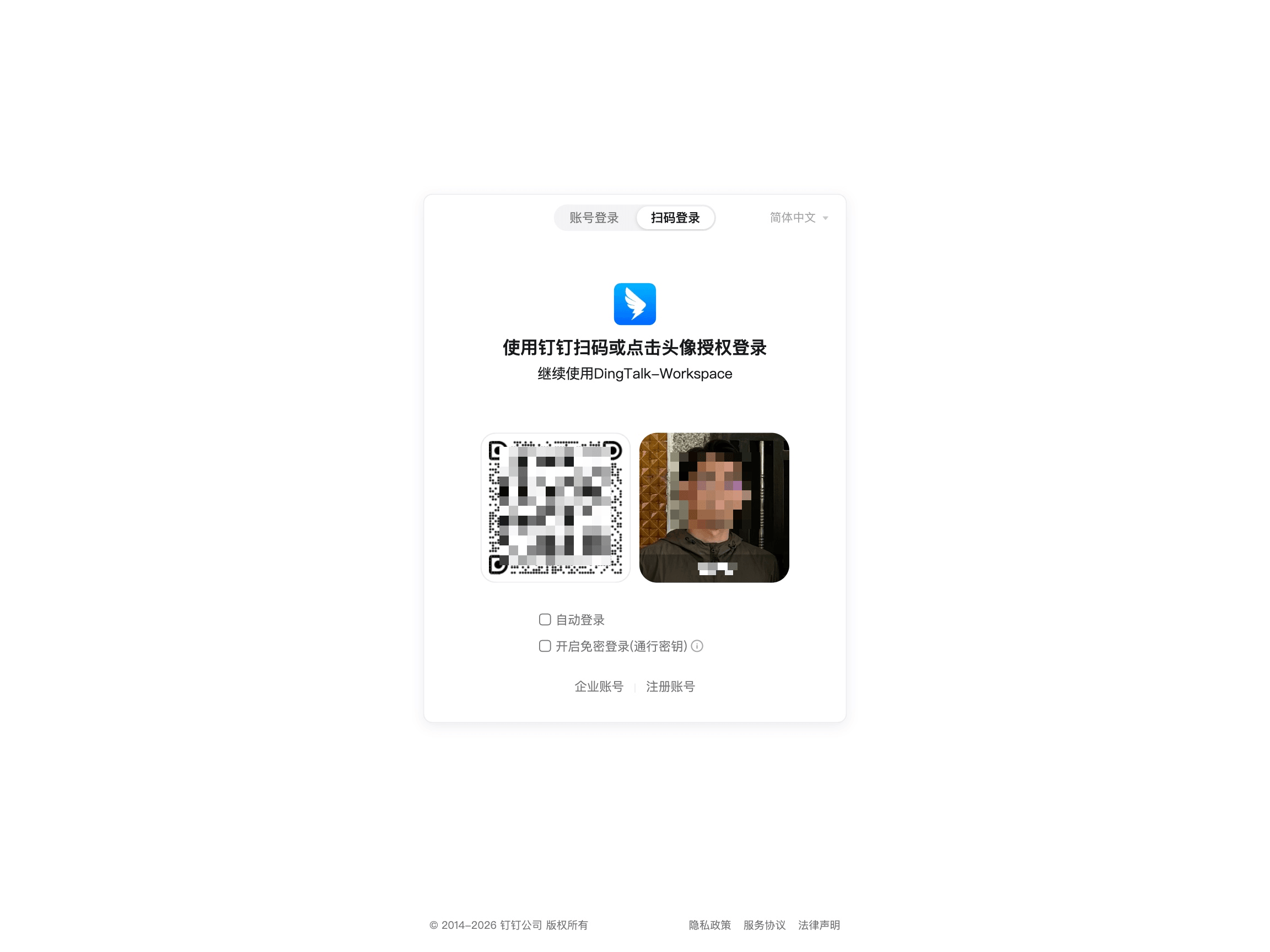
Scan the QR code on the page with DingTalk, or click the account avatar on the page.
Complete account login in DingTalk.
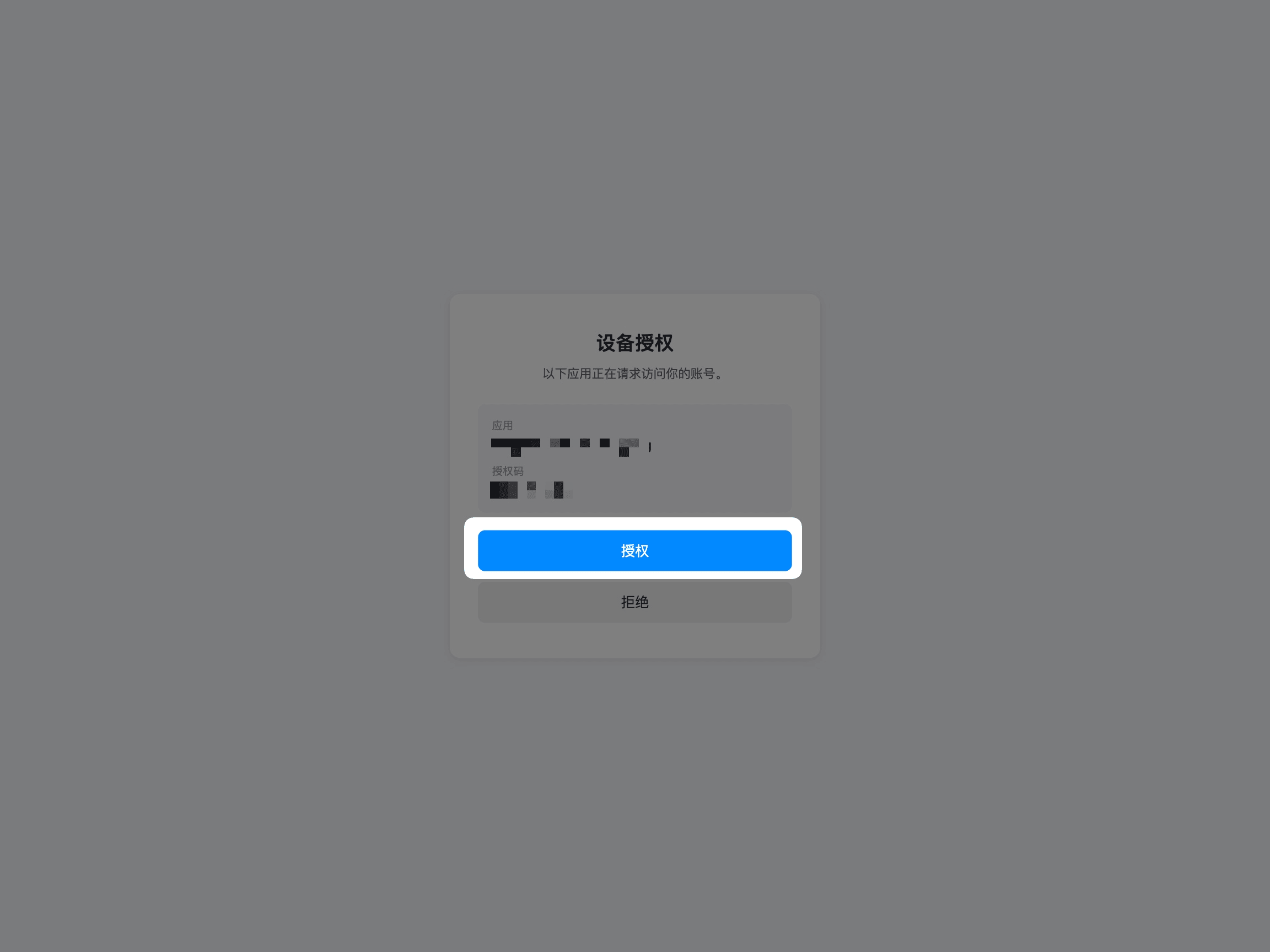
Return to the device authorization page and check the current application and authorization code.
Click Authorize.
Do not send the authorization link, authorization code, or login QR code to unrelated people.
Confirm That the DingTalk CLI Connection Succeeded
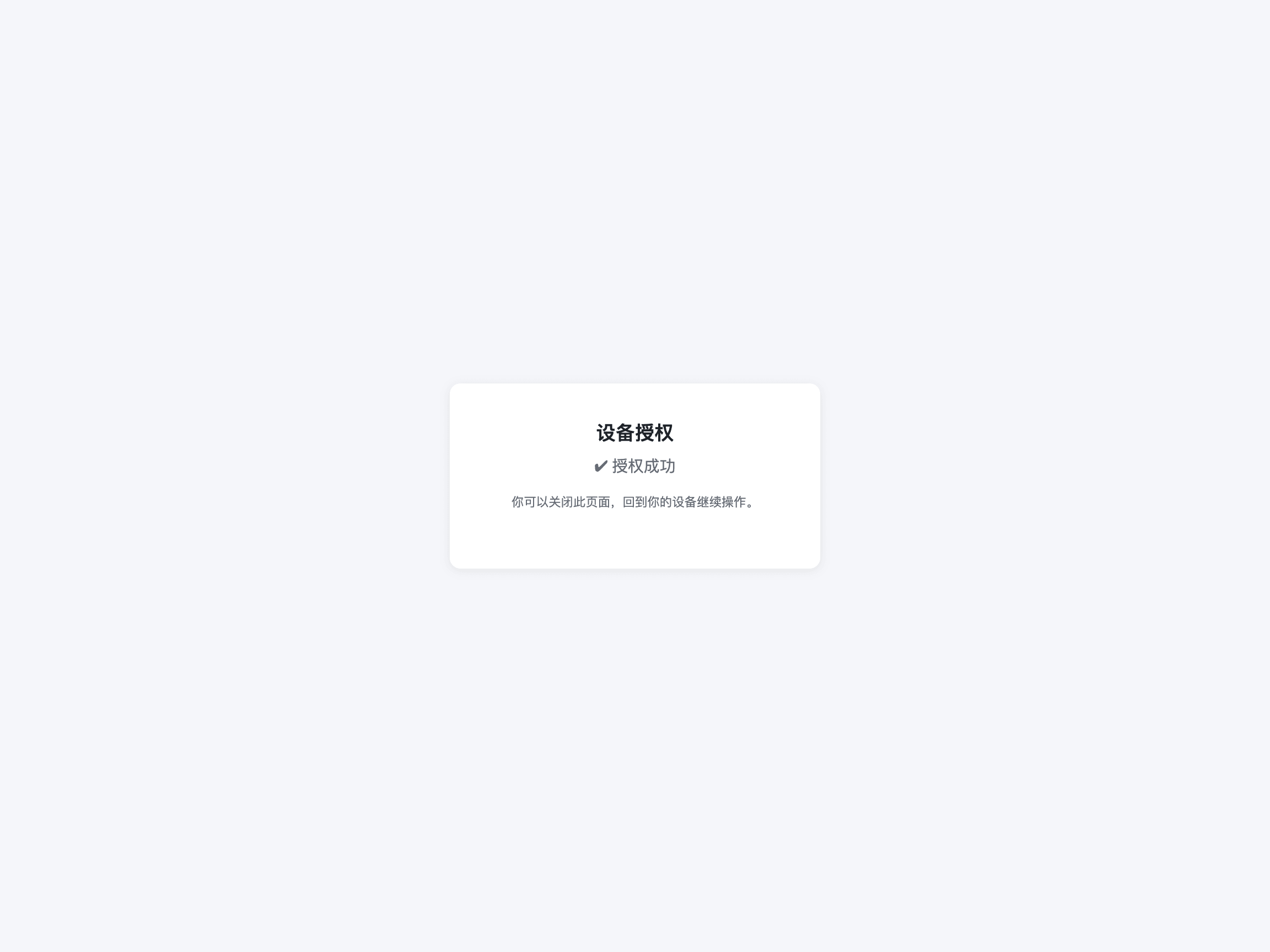
After the DingTalk page displays that authorization succeeded, close the authorization page and return to SuperMagic.
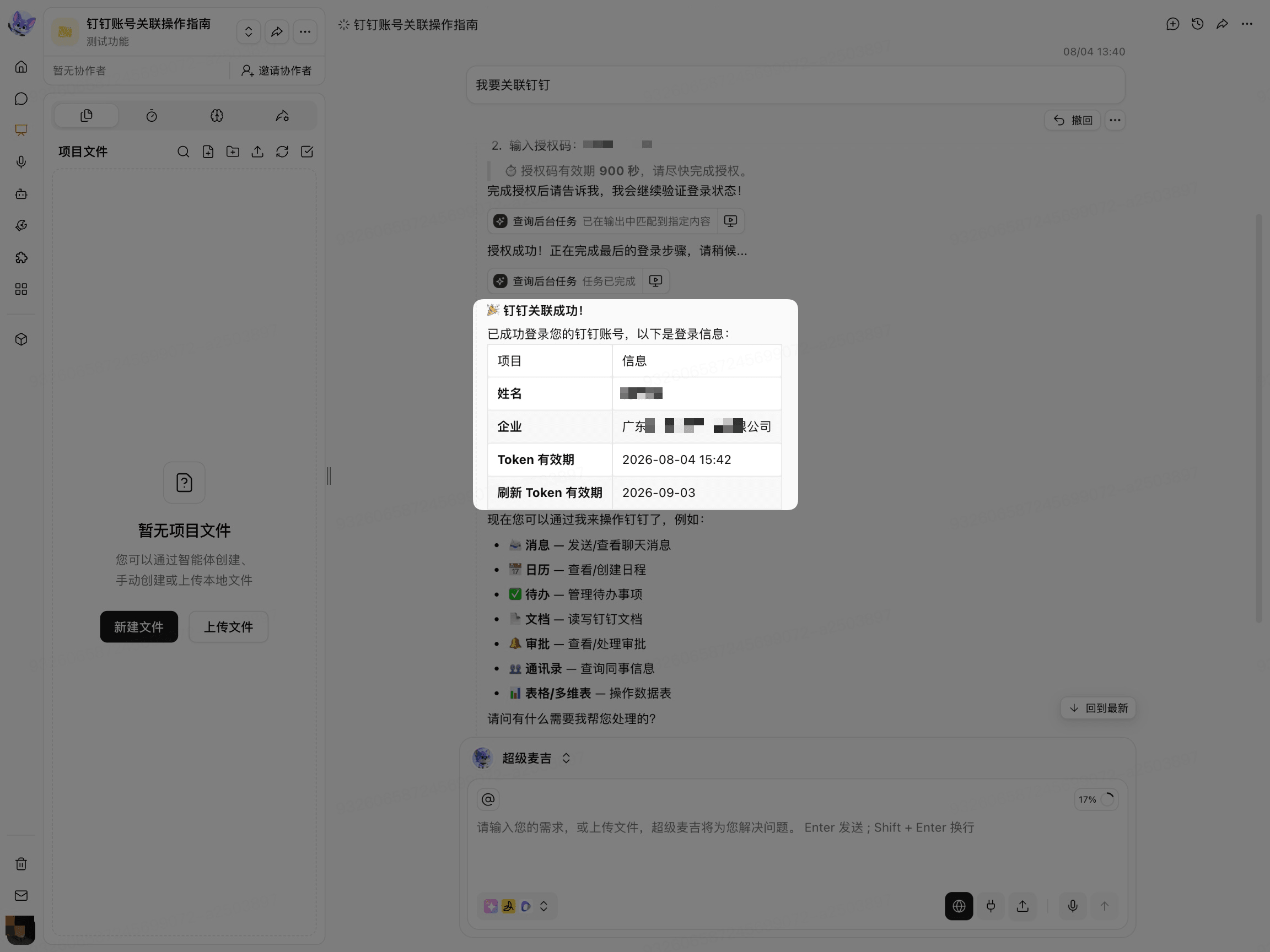
Wait for SuperMagic to continue checking the login status. When the page displays that the DingTalk CLI connection succeeded, the current account has been successfully connected.
Connect Feishu CLI
Start the Connection and Select Features
Open a SuperMagic conversation.
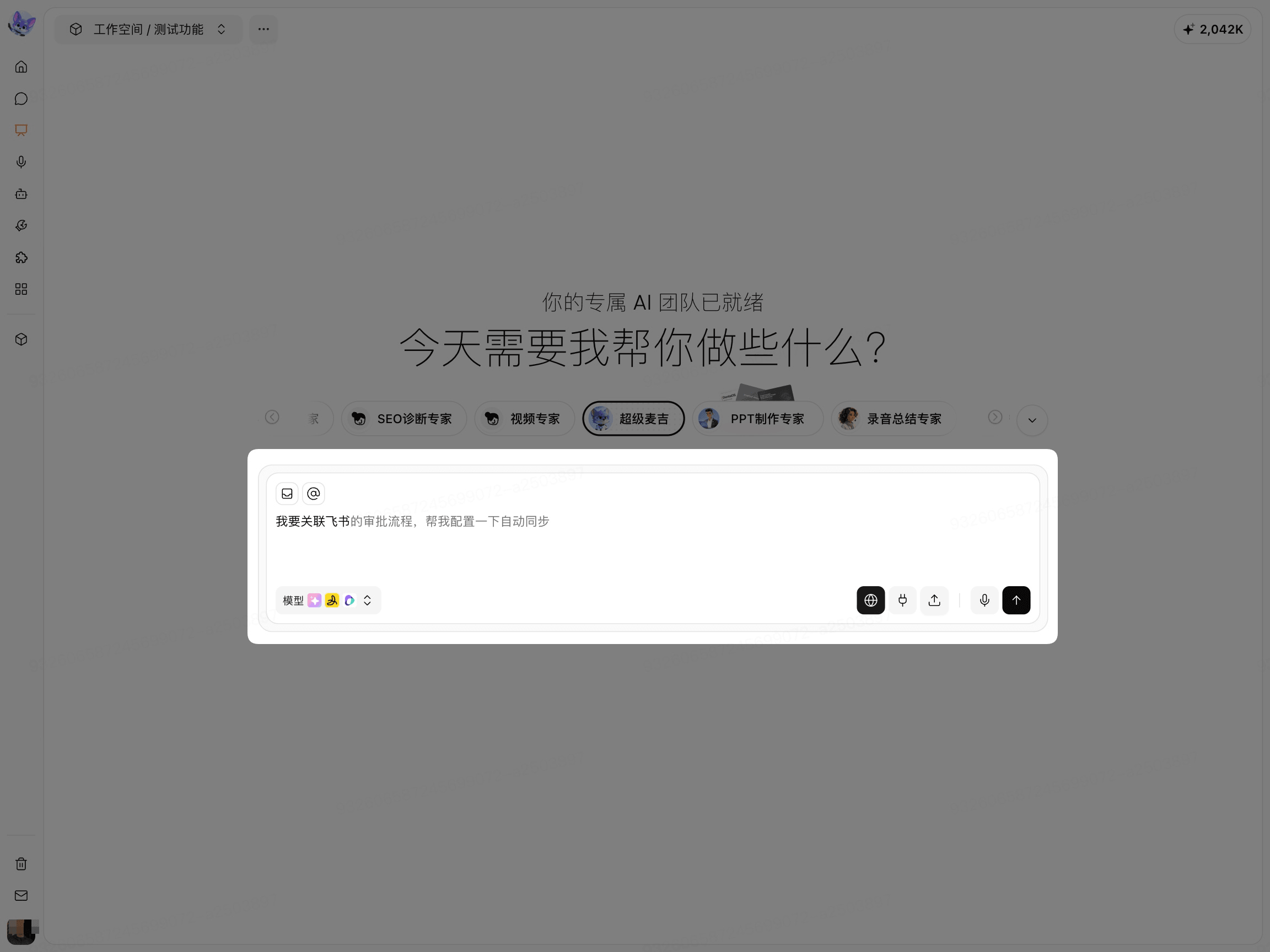
In the input box, describe the need to connect Feishu and the features you plan to use. For example: I want to connect Feishu. Help me configure automatic synchronization for approval workflows.
Submit the request.
Wait for the page to check the current Feishu login status and application status.
When the page asks which Feishu features you need to use, select the corresponding options.
Click Submit.
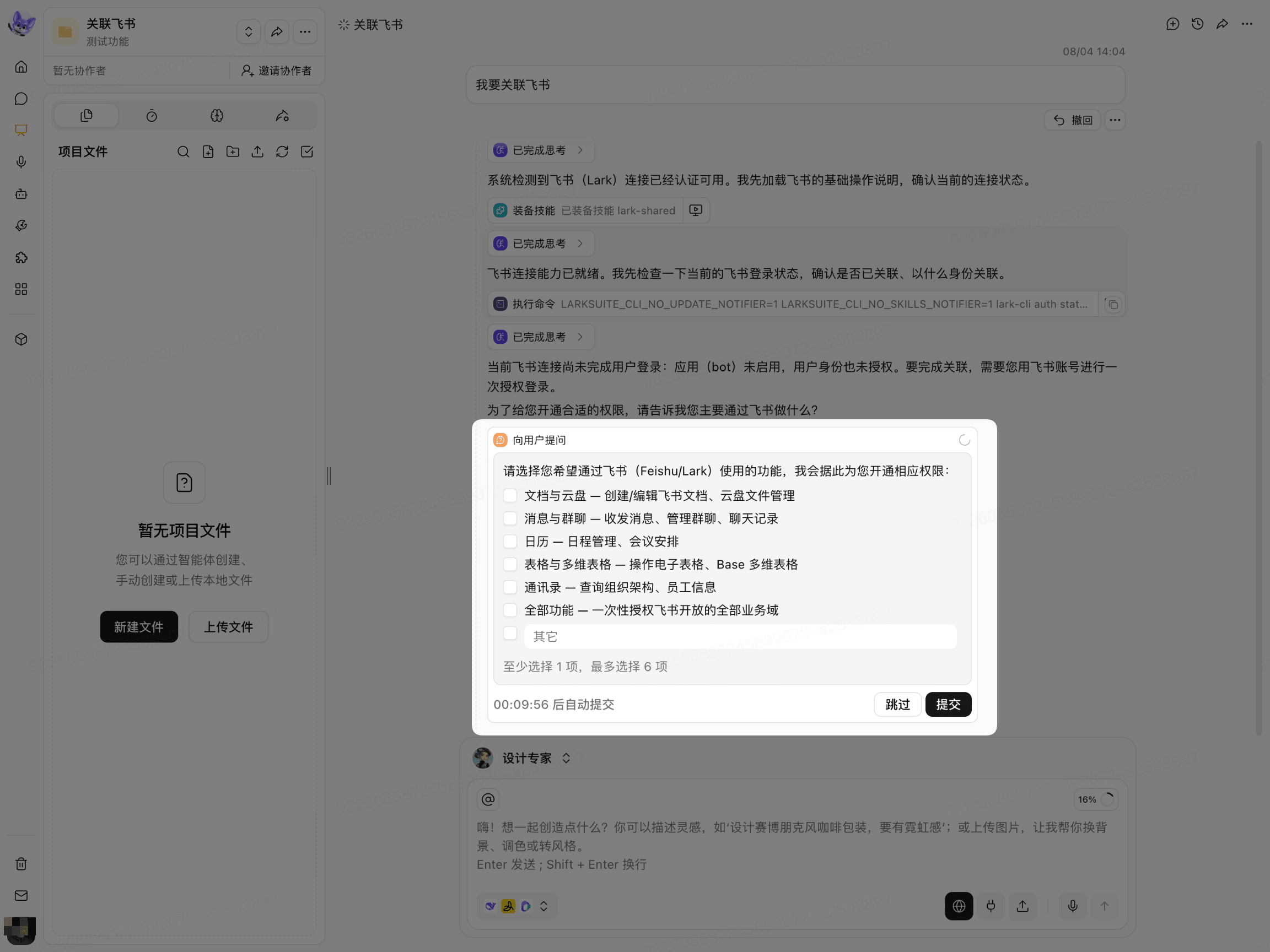
Select the permission scope based on the actual task. Do not select features that are not needed.
Open the Feishu Application Configuration Entry
Wait for SuperMagic to generate a configuration link and the
Feishu Configuration QR Code.pngattachment.Click
Feishu Configuration QR Code.pngto open the QR code image.Scan the opened QR code with Feishu, or open the configuration link provided on the page in a browser.
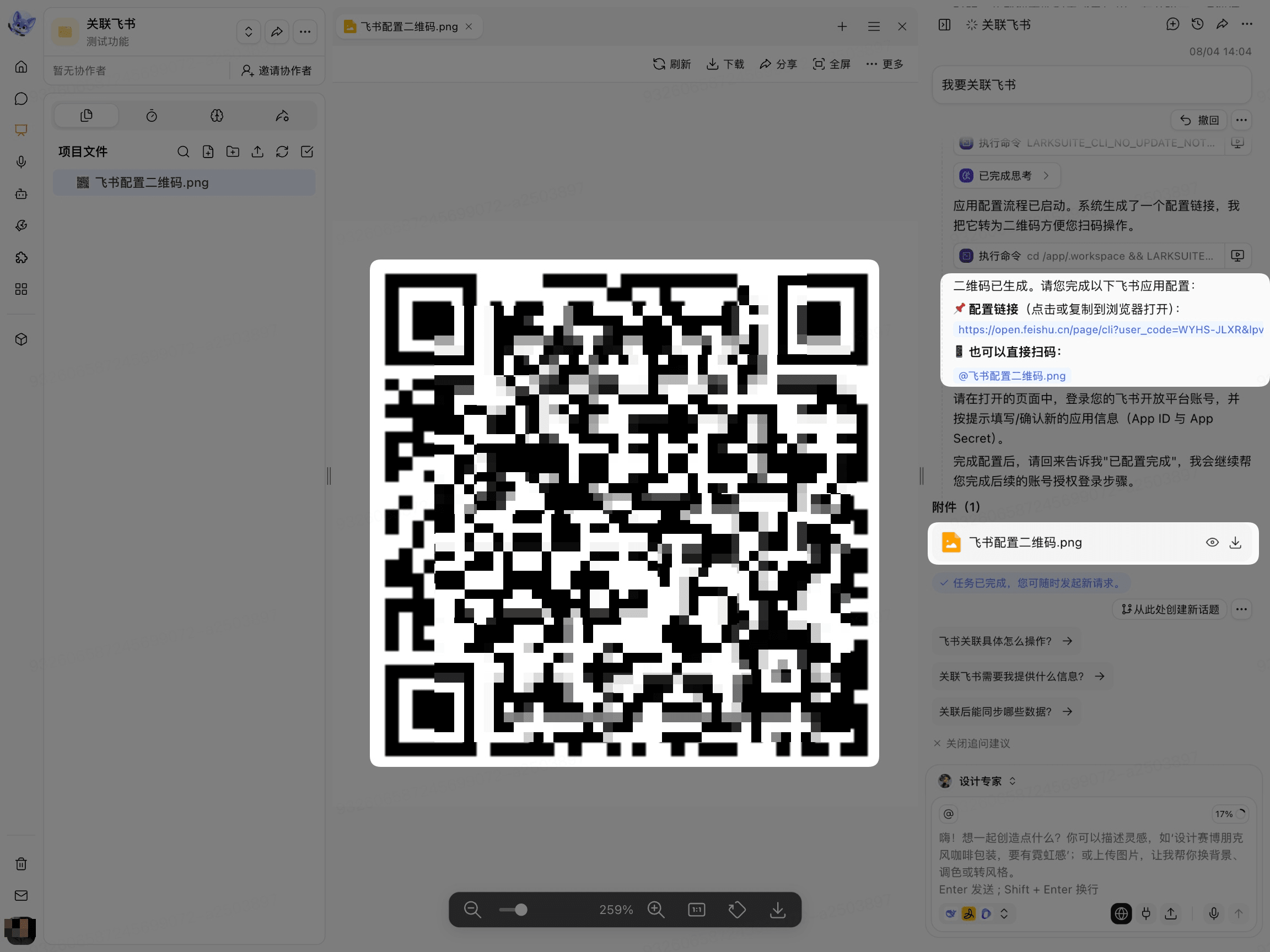
The configuration link and QR code are time-sensitive. Use the entry newly generated in the current conversation.
Create or Select a Feishu CLI Application
Sign in to the Feishu Open Platform account that you want to connect.
Select an existing application. If no application is available, create a Feishu CLI application.
When creating an application, select an application avatar and enter an application name.
Click Create.
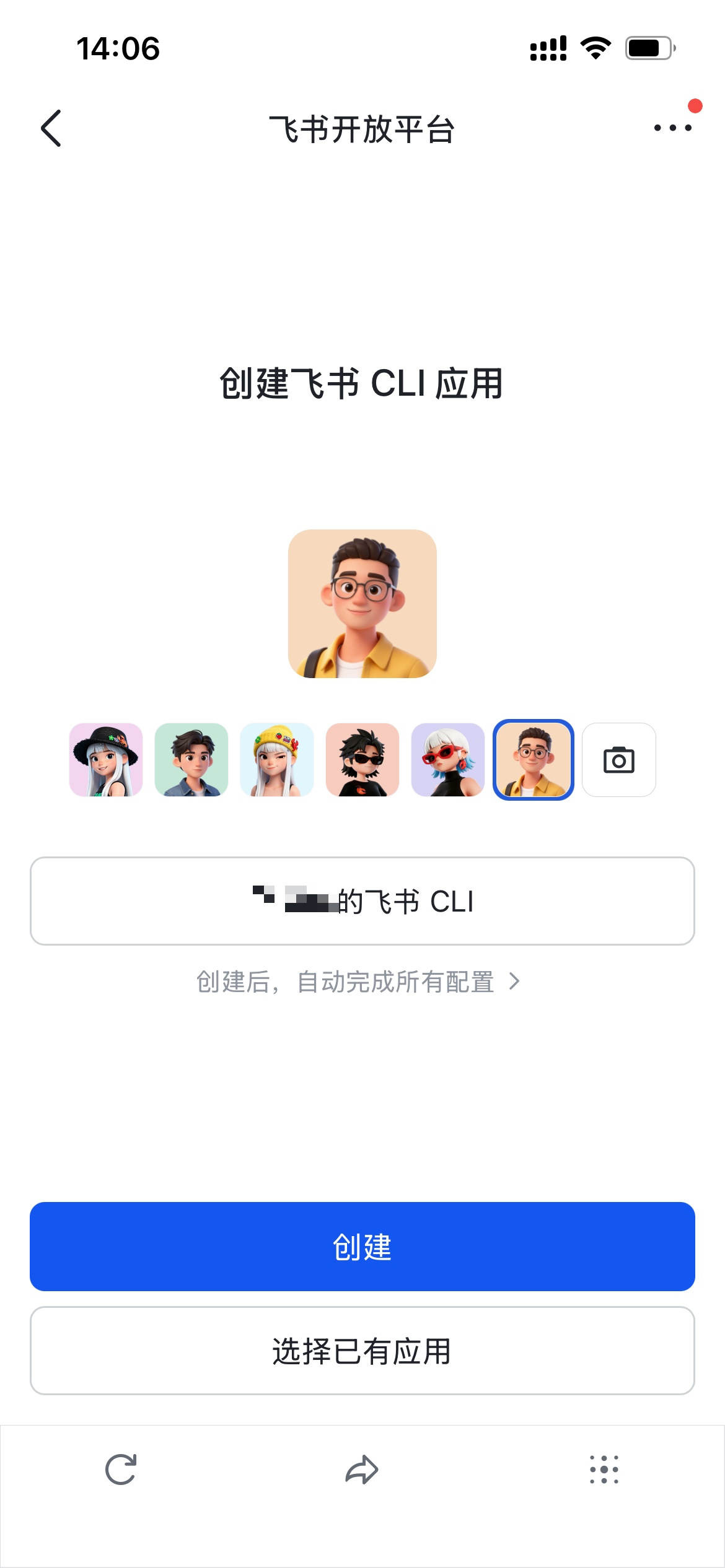
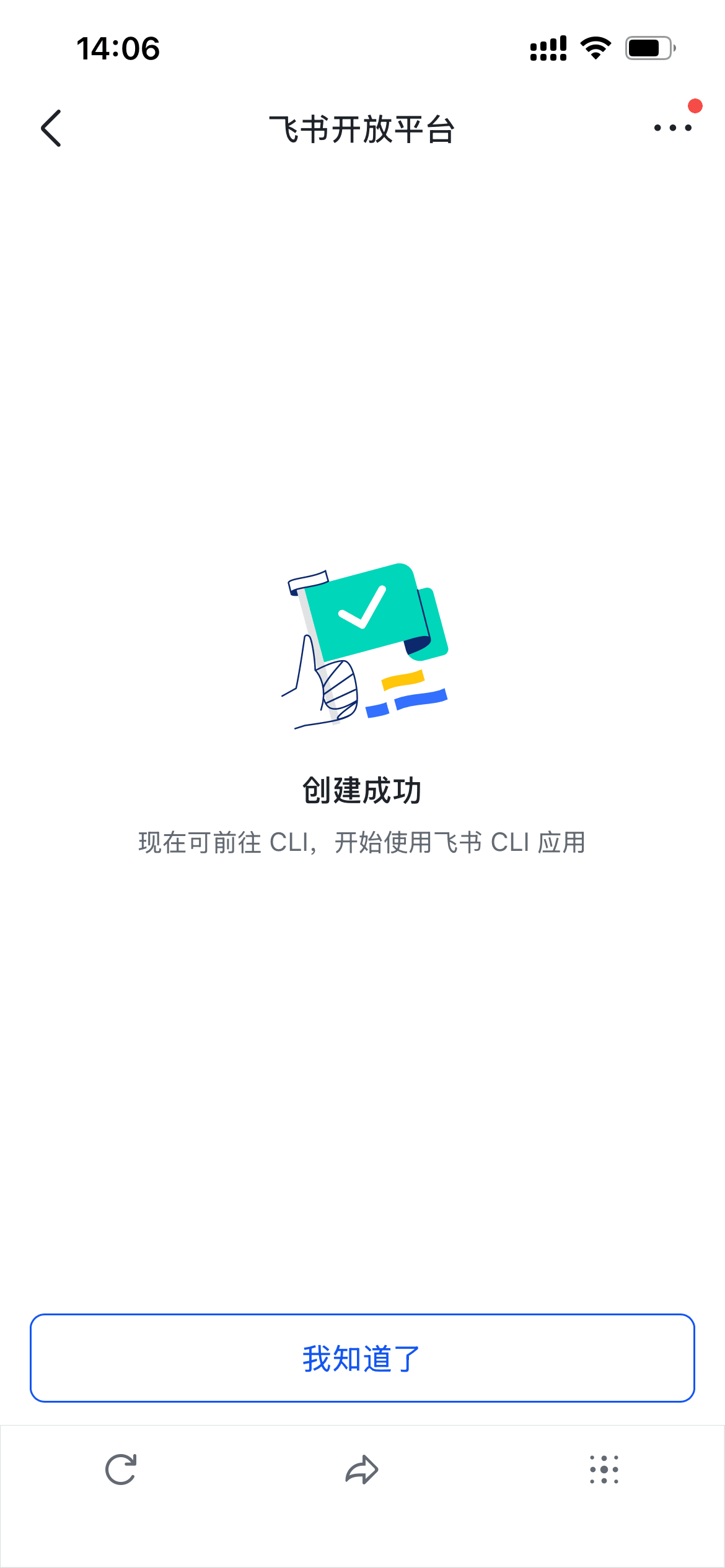
After the page displays that the application was created successfully, continue configuring the application permissions.
The App Secret is a sensitive credential. Do not send it to unrelated people or include it in public documentation.
Enable Application Permissions
Check the current application name and the permission scope listed on the page.
If you need common capabilities such as documents, messages, and groups, select the corresponding common permission options.
Click Enable and Authorize.
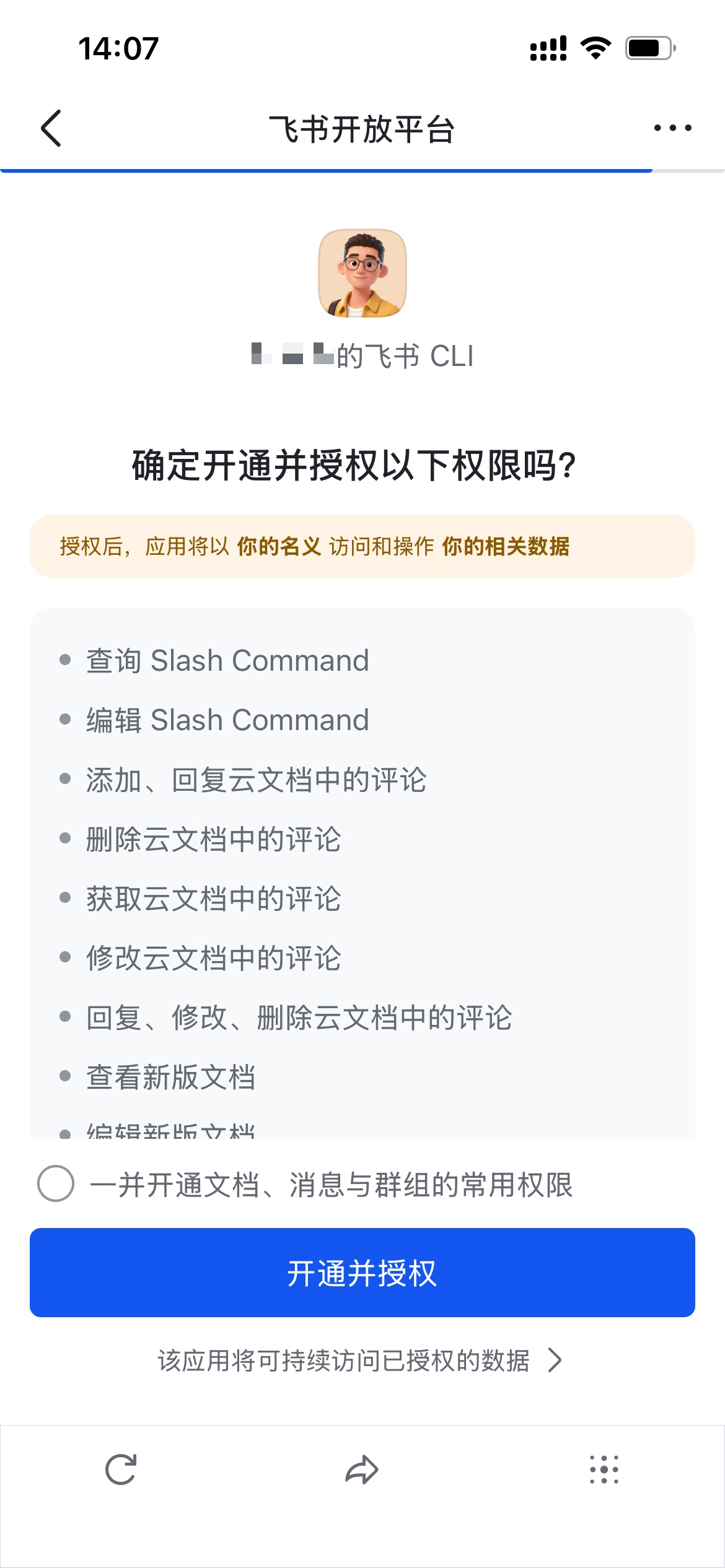
Before authorizing, confirm that the current application and permission scope are correct. After the page displays that enabling and authorization succeeded, you can return to SuperMagic to continue.
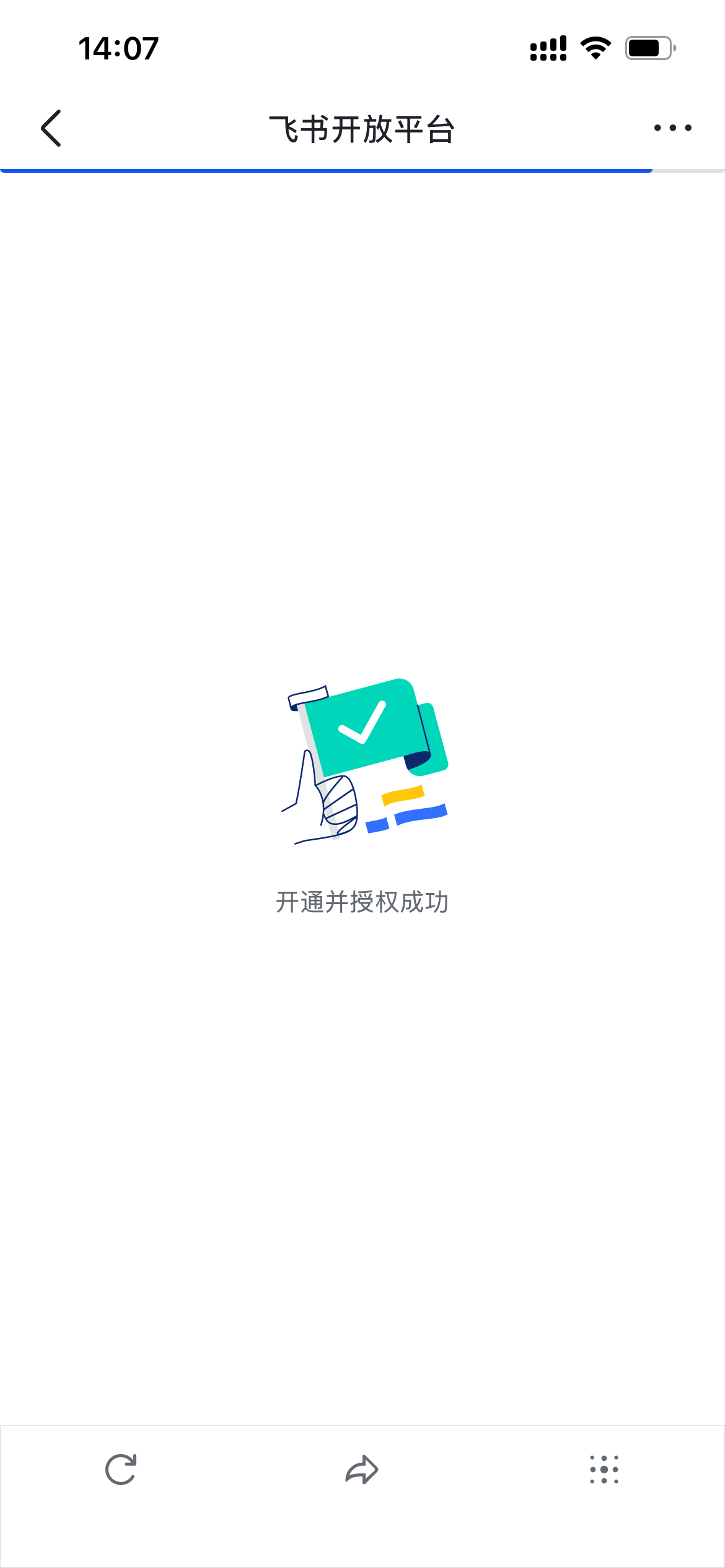
Authorize the Feishu Account
Return to the SuperMagic conversation and enter Configuration complete.
Wait for the page to check the application configuration and generate the
Feishu Authorization QR Code.pngattachment.Click
Feishu Authorization QR Code.pngto open the account authorization QR code.Scan the QR code with Feishu and confirm authorization on the page that opens.
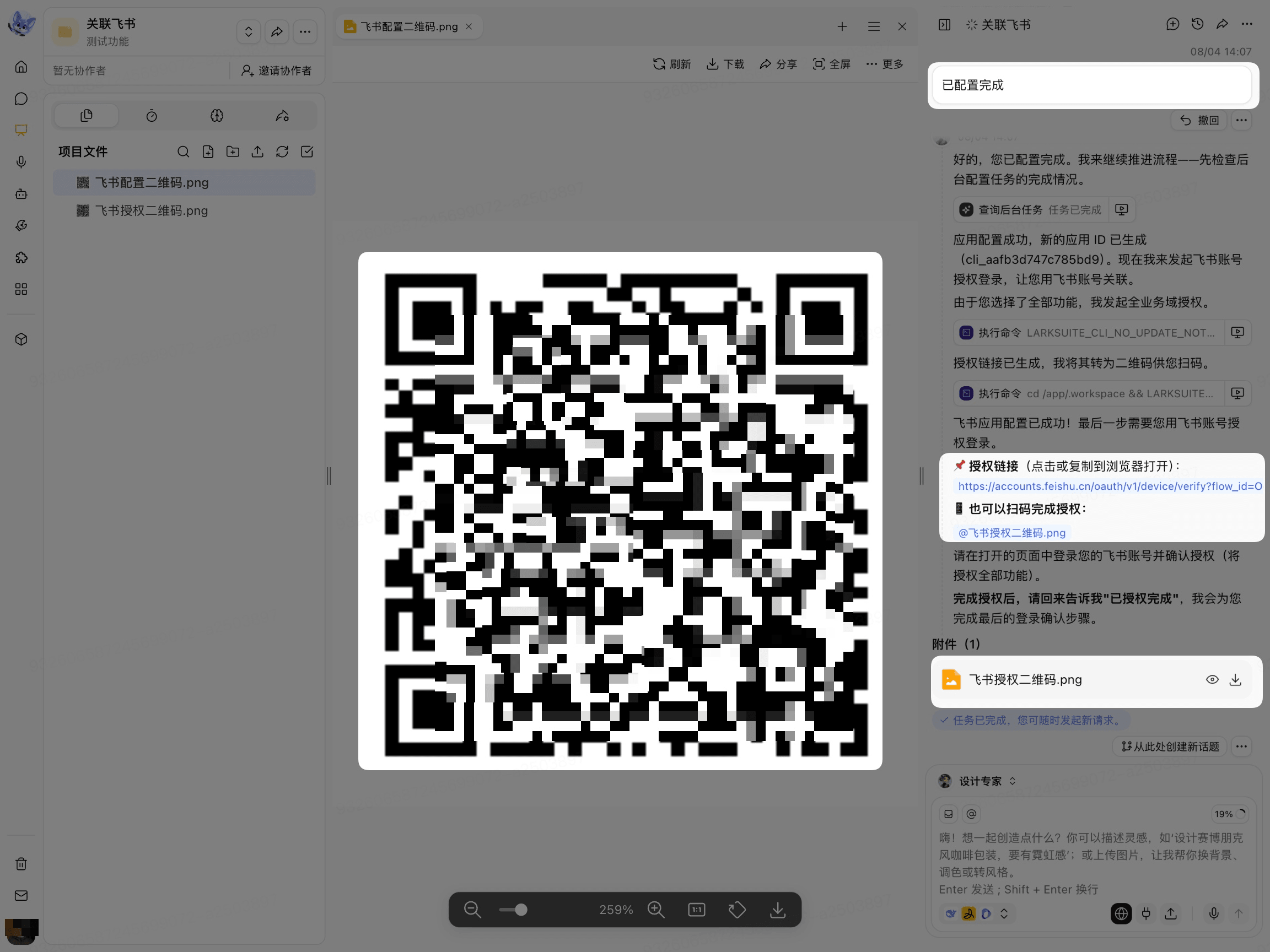
After completing authorization by scanning the QR code, return to SuperMagic and enter Authorization complete.
Wait for the page to check the final connection status.
Confirm That the Feishu CLI Connection Succeeded
When the page displays that the Feishu connection succeeded and lists the login account, application name, and authorization scope, the current account has been successfully connected.
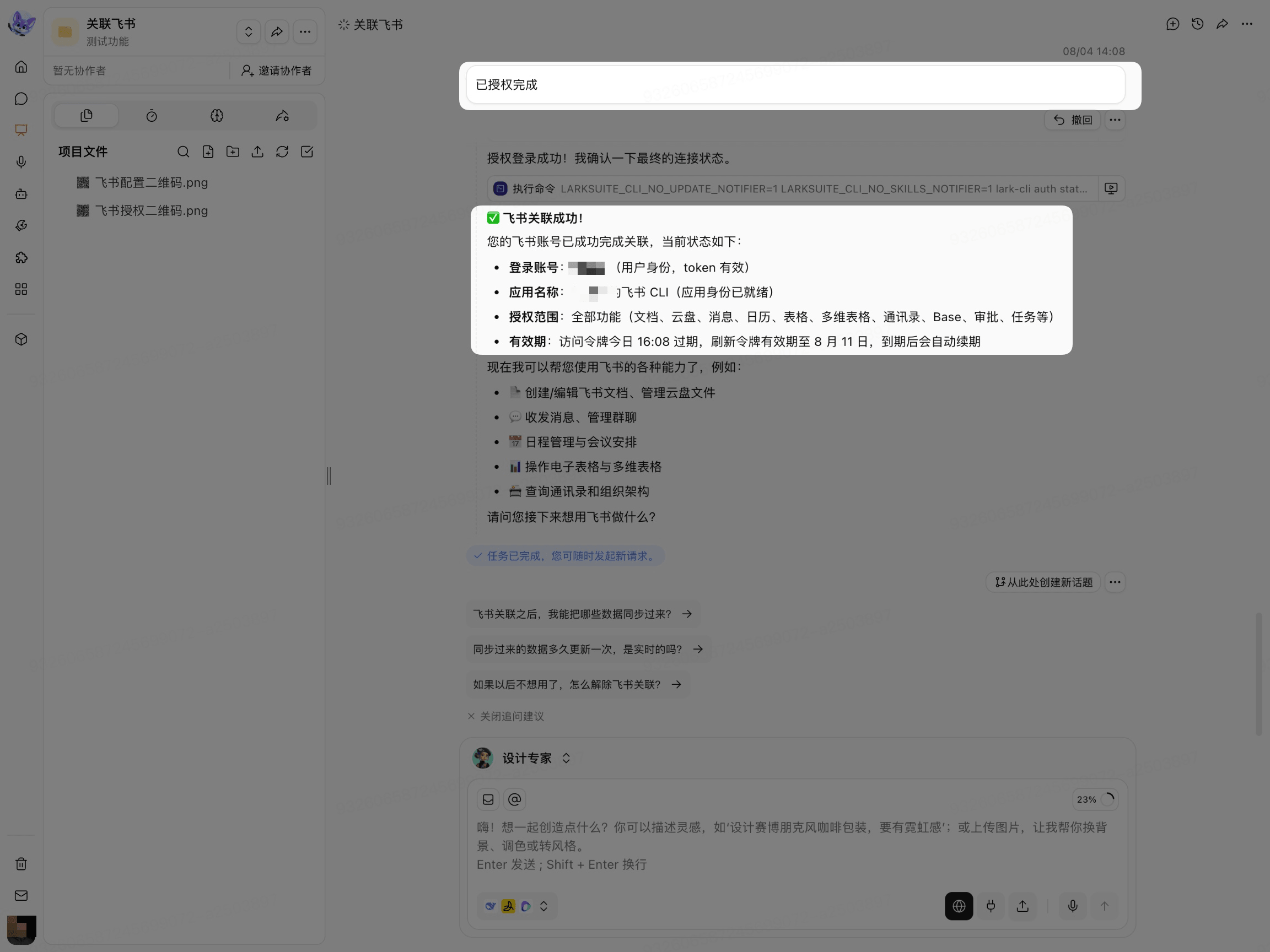
Verify the Connection Result
Platform | Success criteria |
|---|---|
DingTalk CLI | SuperMagic displays that the DingTalk CLI connection succeeded. |
Feishu CLI | SuperMagic displays that the Feishu connection succeeded and lists the login account, application name, and authorization scope. |
After the connection is complete, submit a test request with a clearly defined scope to confirm that the current account can properly call the corresponding platform capabilities.