
Let Trends Find You: Continuously Track Updates with AI Hot Topic Cards
Use AI Hot Topic Cards to continuously track updates related to industries, brands, or topics, and automatically generate and update visual cards through scheduled execution.
Use AI Hot Topic Cards to continuously track updates related to industries, brands, or topics. After you create a card, AI generates a visual card based on your analysis instructions. After you enable scheduled execution, the card is automatically updated at the configured frequency.
Create a New AI Hot Topic Card
Enter the project where you want to save the card.
In the project files area on the left, click the New File button.
Select AI Card.
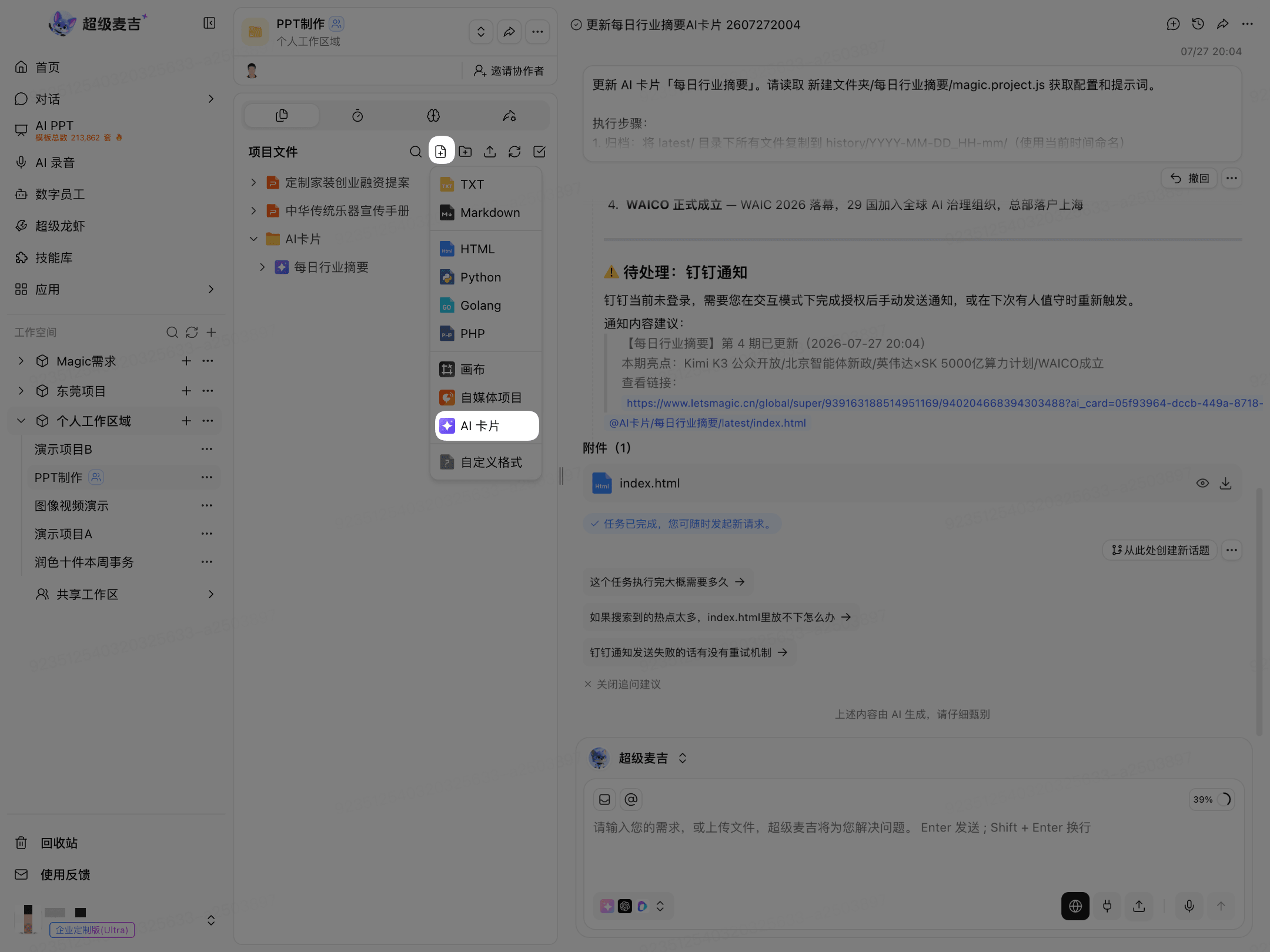
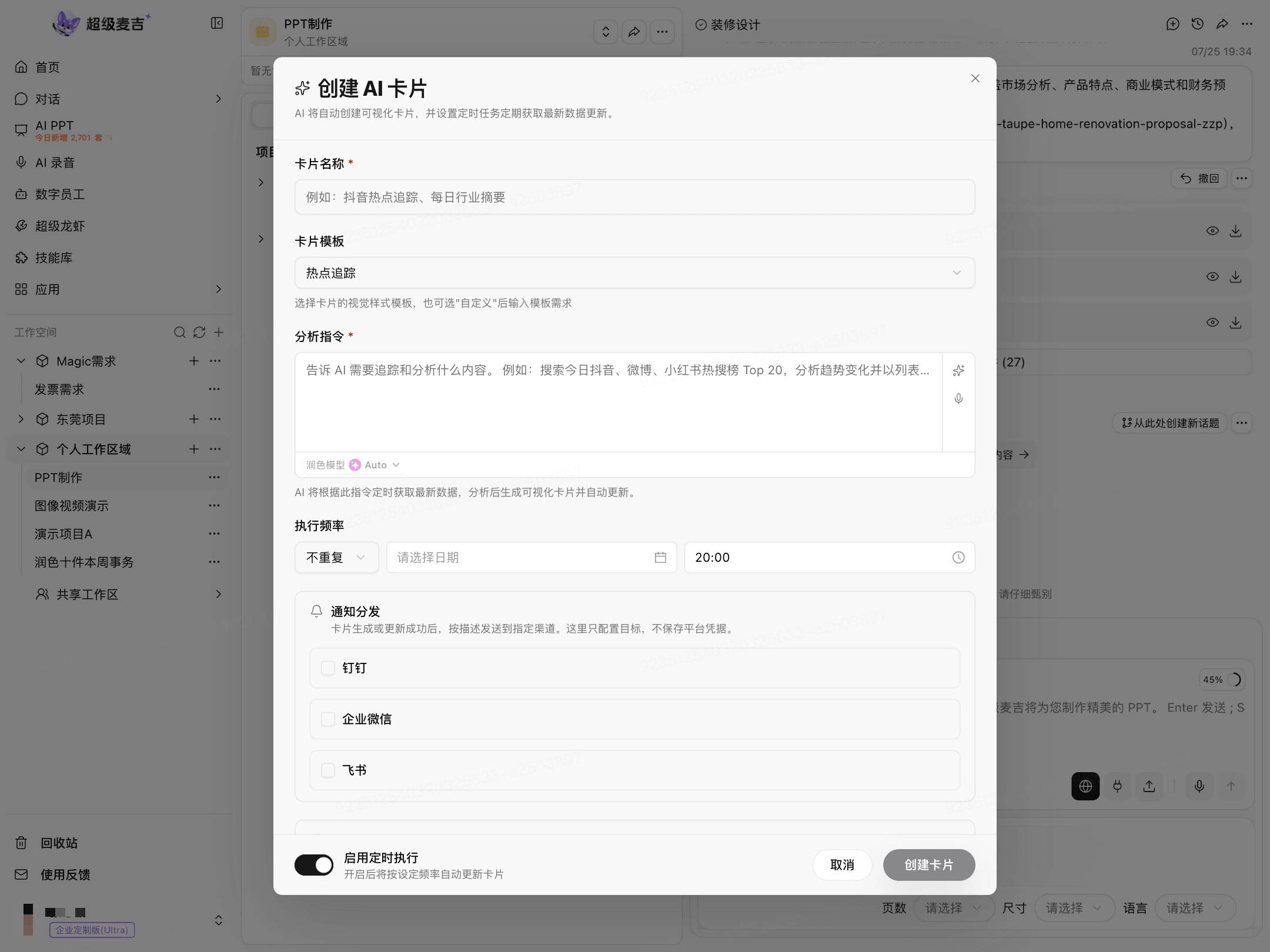
Enter Hot Topic Tracking RequirementsIn the “Create AI Card” dialog box, complete the following settings:
Enter a card name, such as “Daily AI Industry Summary” or “Competitor Hot Topic Tracking.”
Select “Hot Topic Tracking” in the card template. To customize the display format, select “Custom” and describe the output requirements in the instructions.
Specify the tracking topic, information sources, time range, filtering criteria, and output format in the analysis instructions.
When finished, click Create Card.
Recommended instruction example: Summarize the most important developments in the AI industry over the past 24 hours, prioritizing model releases, investment and financing, policies, and product updates. Include the title, summary, source, and impact assessment for each item, and sort them by importance.
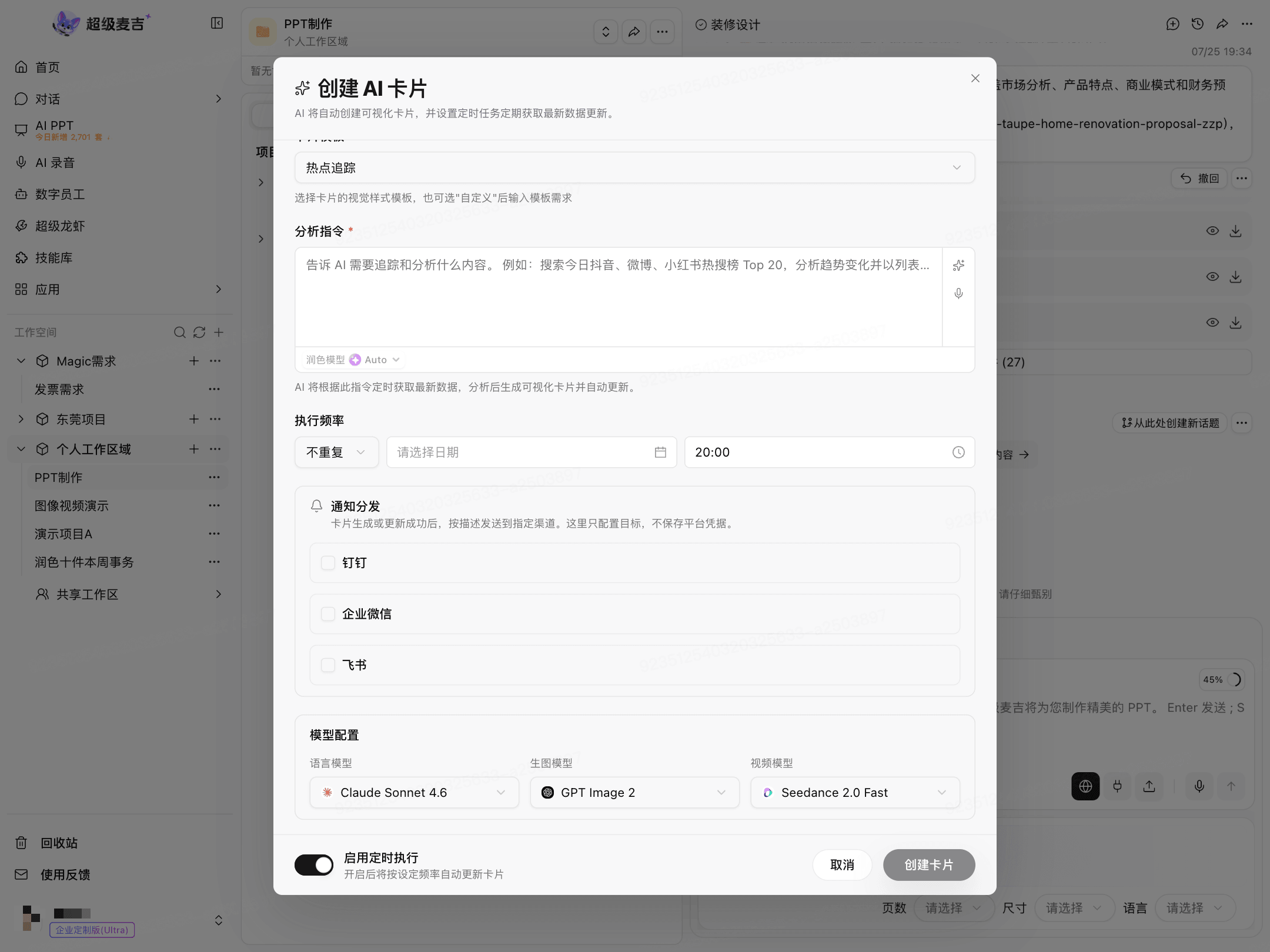
Set the Update Frequency, Notifications, and ModelsTo continuously receive the latest hot topics, enable scheduled execution and set the execution frequency, date, and time. The card is automatically updated at the configured time.
After generation or updating is complete, you can select DingTalk, WeCom, or Lark as needed to distribute the update results to the corresponding channels.
In the model configuration, you can select the language model, image generation model, and video model separately. If you only need text-based hot topic summaries, focus on confirming the language model.
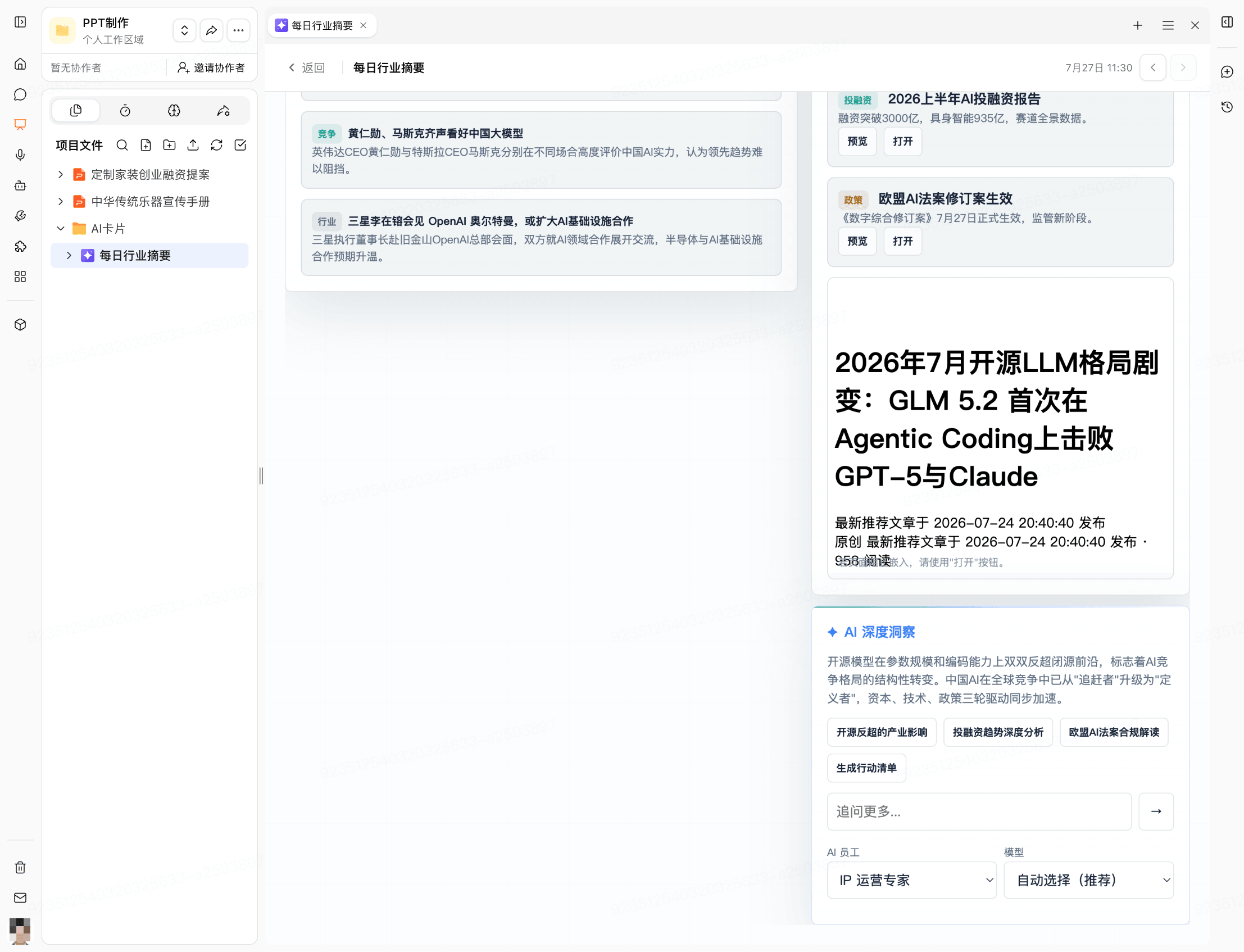
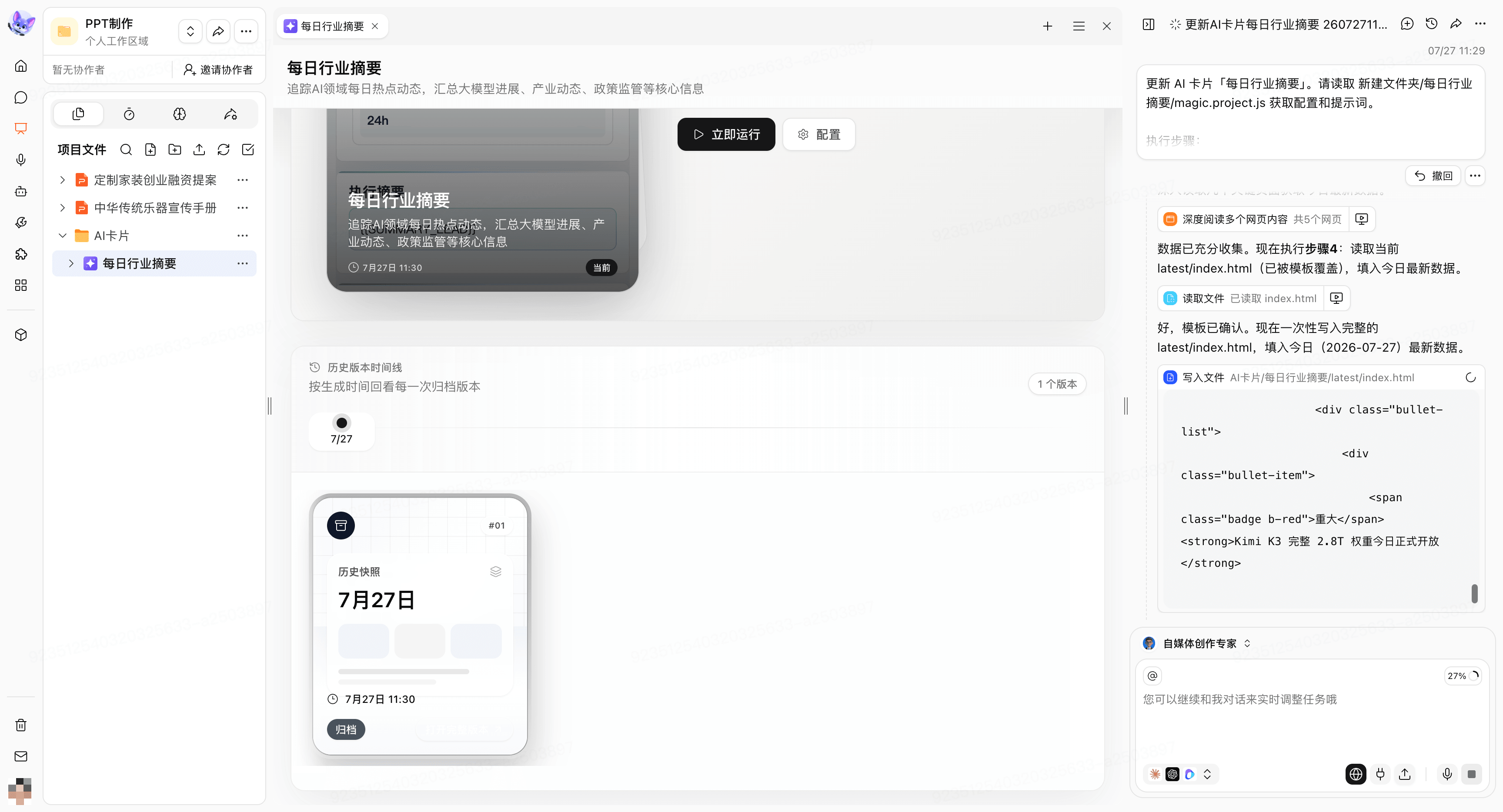
View Hot Topic CardsAfter creation is complete, the card appears in the AI Cards folder in the project files. Click the card name to open it.
The card page displays hot topic summaries, source content, and AI-powered in-depth insights. For source items, you can use Preview or Open to view details. You can also continue asking questions about the hot topics in the card using the “Ask More” input box.
Run, Configure, and View Version History
Click Run Now to manually update the current card.
Click Configure to return to and modify the card’s analysis instructions, update frequency, notifications, and model configuration.
In the version history timeline, you can view archived card versions by generation time.
The task area on the right displays the execution process for update tasks, as well as records of associated file reads and writes. After the task is complete, you can continue adding requirements in the conversation area on the right.
Usage Recommendations
Focus each card on a single topic, such as “Daily AI Industry Summary” or “Brand Sentiment Tracking,” to make it easier to compare changes consistently.
Include the information sources, time range, key dimensions, and output format in the analysis instructions to make the results better match your expectations.
For topics that require timely updates, set a fixed update frequency and enable notification distribution. For one-time research, you do not need to enable scheduled execution.