
Sync a Third-Party Organizational Structure
Use an IAM data source to import organizational structures, departments, and member identity data from DingTalk, WeCom, Feishu, or Teamshare into the current organization.
Use an IAM data source to import organizational structures, departments, and member identity data from DingTalk, WeCom, Feishu, or Teamshare into the current organization.
Before You Begin
Sign in to SuperMagic and open the Admin Console.
In the upper-right corner, switch to the organization you want to configure.
Confirm that your account has administrative permissions for the organization.
Prepare an administrator account and application credentials for the corresponding third-party platform.
During configuration, do not send sensitive credentials such as AppSecret, CorpSecret, Token, or AES Key through screenshots, chat, or public documents.
Only one data source can be enabled on this page. Before switching data sources, verify how the existing organizational identity data is being used.
Open the Data Sources Page
At the top of the Admin Console, click Enterprise Features.
In the left navigation, expand IAM Management.
Click Data Sources.
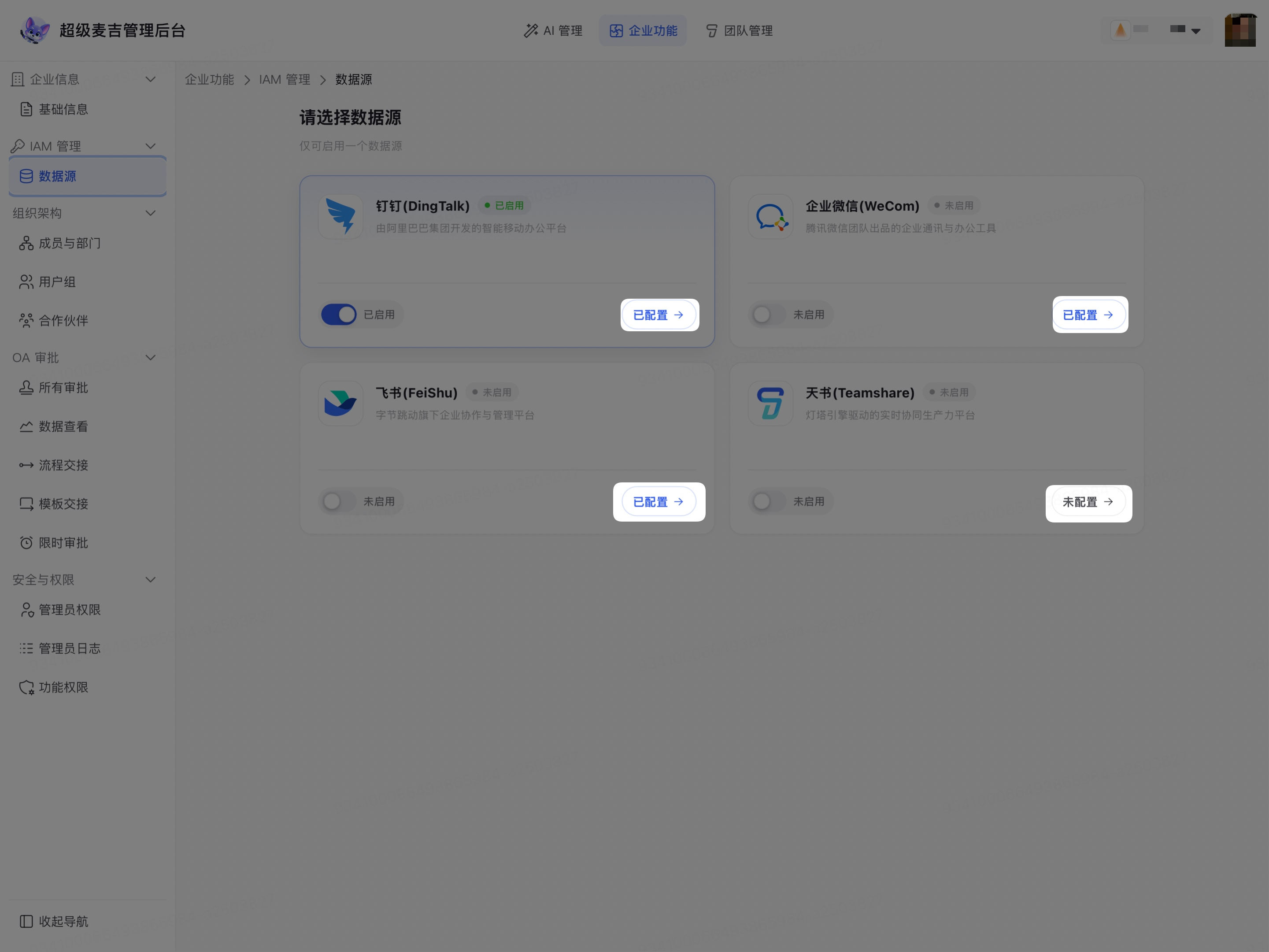
The page displays data source cards for DingTalk, WeCom, Feishu, and Teamshare. Each card shows whether the data source is enabled and configured.
Configure a Third-Party Data Source
Find the third-party platform that you want to connect to the current organization.
In the lower-right corner of the data source card, click Not Configured.
On the data source details page, click the Configuration tab.
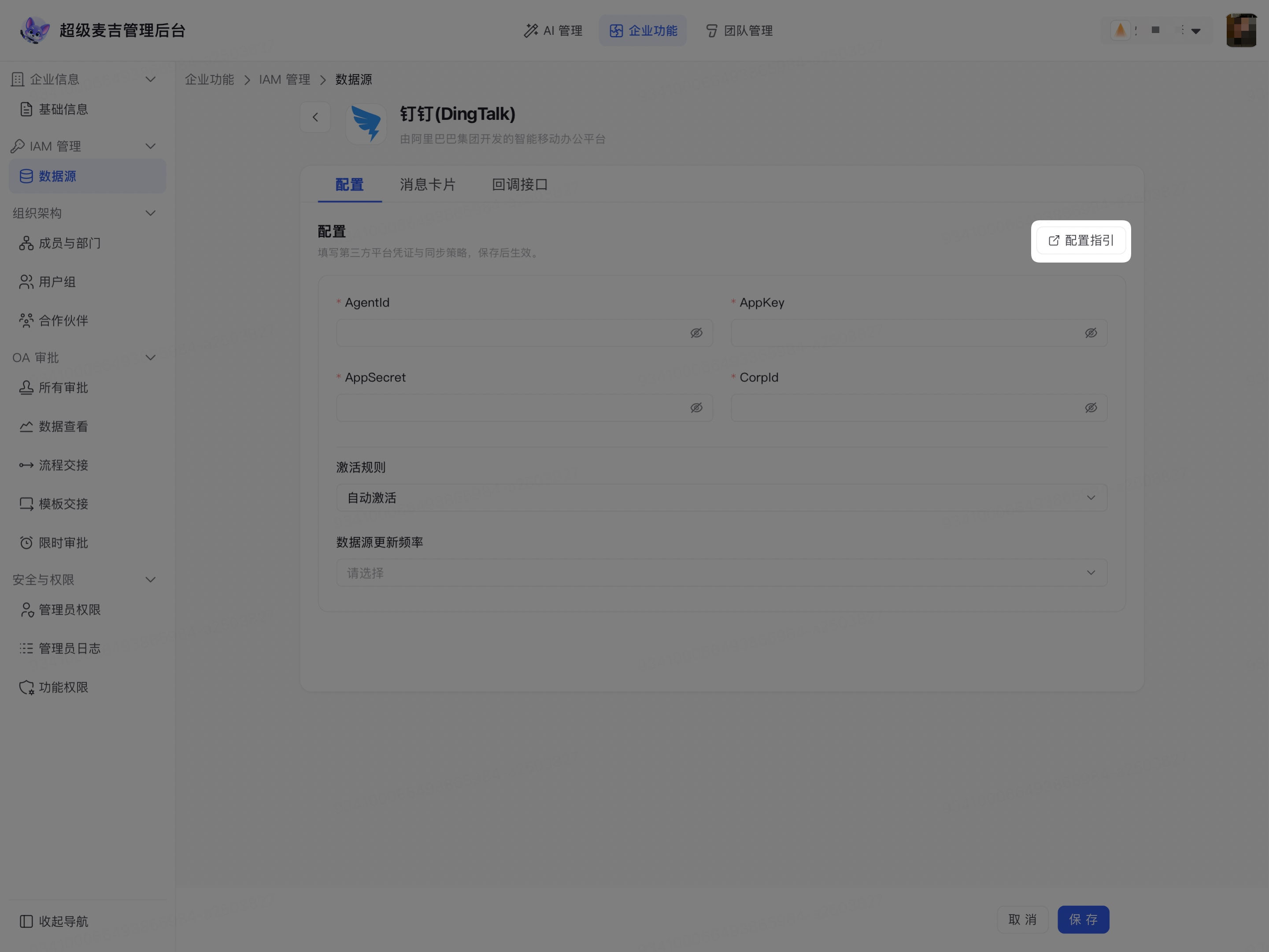
In the upper-right corner, click Configuration Guide.
The system opens the Teamshare OS Third-Party Organization Sync Configuration Guide. Follow the guide to configure application permissions and organization synchronization settings and obtain the required credentials from the third-party platform.
Return to SuperMagic and enter the application credentials required by the current platform on the Configuration tab.
The main configuration fields for each data source are listed below. Refer to the current page for the actual fields:
Data source | Main configuration required on the page |
|---|---|
DingTalk | AgentId, AppKey, AppSecret, CorpId |
WeCom | CorpId, CorpSecret, AgentId |
Feishu | AgentId, AppSecret |
Teamshare | API Endpoint, Organization Code, AppKey, AppSecret |
Using DingTalk as an example, the configuration page displays the application credentials, activation rules, and data source update frequency.
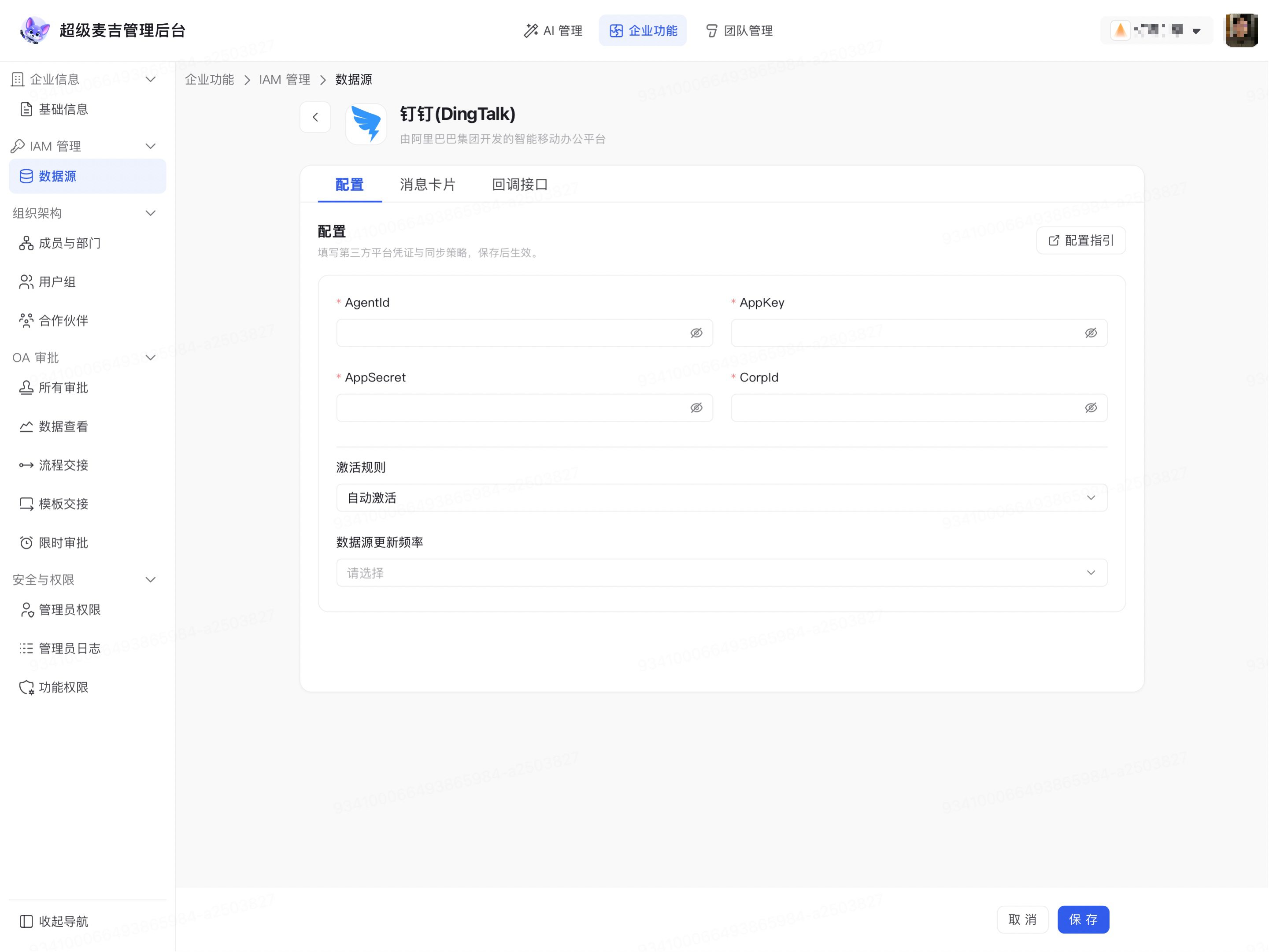
Under Activation Rules, select Manual Activation or Automatic Activation.
Click Data Source Update Frequency.
Select Disable Real-Time Updates or Real-Time Updates.
Follow the on-page instructions to save the configuration.
After you save, the data source credentials and synchronization policy are stored in the current data source. When you return to the data source list, the card will no longer show Not Configured.
Configure the Callback Endpoint as Needed
If the third-party platform's configuration guide requires event callbacks, configure them as follows:
Open the target data source details page.
Click the Callback Endpoint tab.
View the generated Callback URL, encryption key, and TOKEN.
Enter this information in the third-party platform's callback settings.
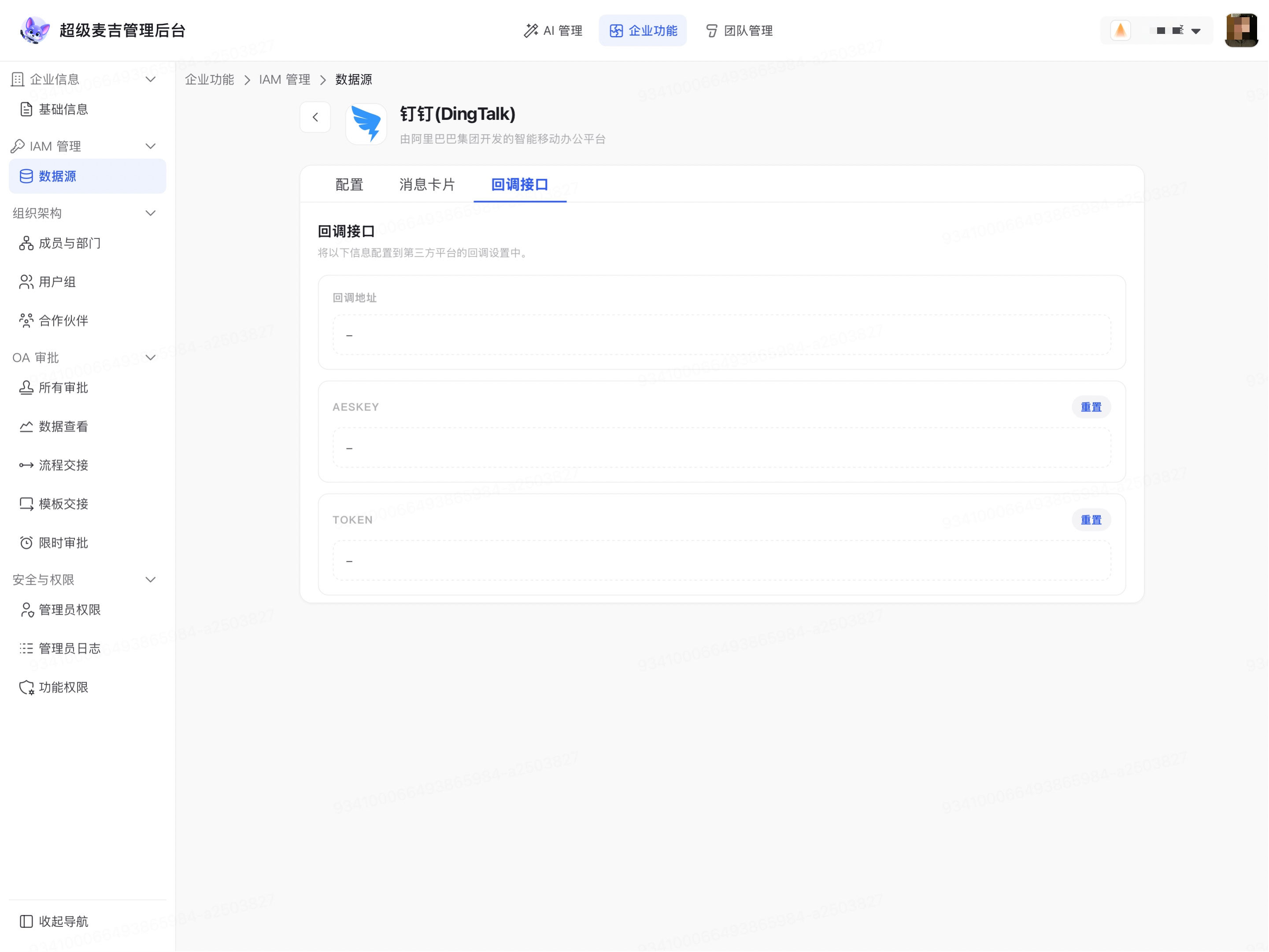
After saving the callback settings on the third-party platform, confirm that the callback URL, encryption key, and Token match the values displayed in SuperMagic.
Enable Organizational Structure Synchronization
Return to the IAM data source list.
Verify that the credentials and synchronization policy have been configured for the target data source.
Turn on the enable switch in the lower-left corner of the target data source card.
If a confirmation prompt appears, verify the data source name.
Click confirm.
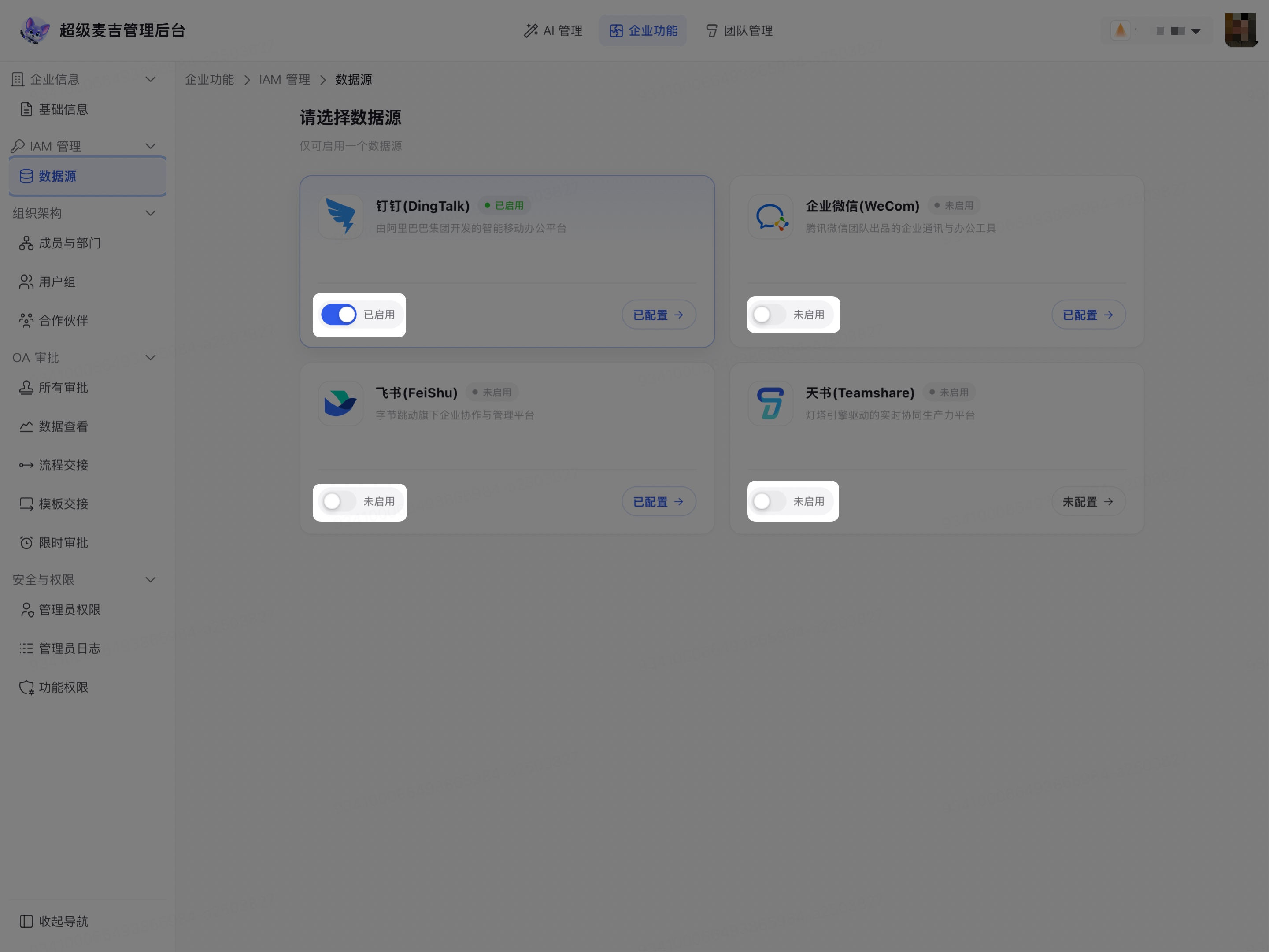
This screenshot is provided only to show the location of the enable switch. The data source in the screenshot still shows Not Configured; you must complete the data source configuration before enabling it.
The status on the data source card changes from Not Enabled to enabled. Because only one data source can be enabled on the page, other data sources cannot remain enabled at the same time.
View and Maintain Synchronization Results
At the top of the Admin Console, click Enterprise Features.
In the left navigation, expand Organizational Structure.
Click Members and Departments.
Click the Departments tab.
Check the Source column in the department list.
For departments synchronized from a third party, the corresponding platform name appears under Source. Refer to the current Members and Departments page for the actual organizational structure updates.
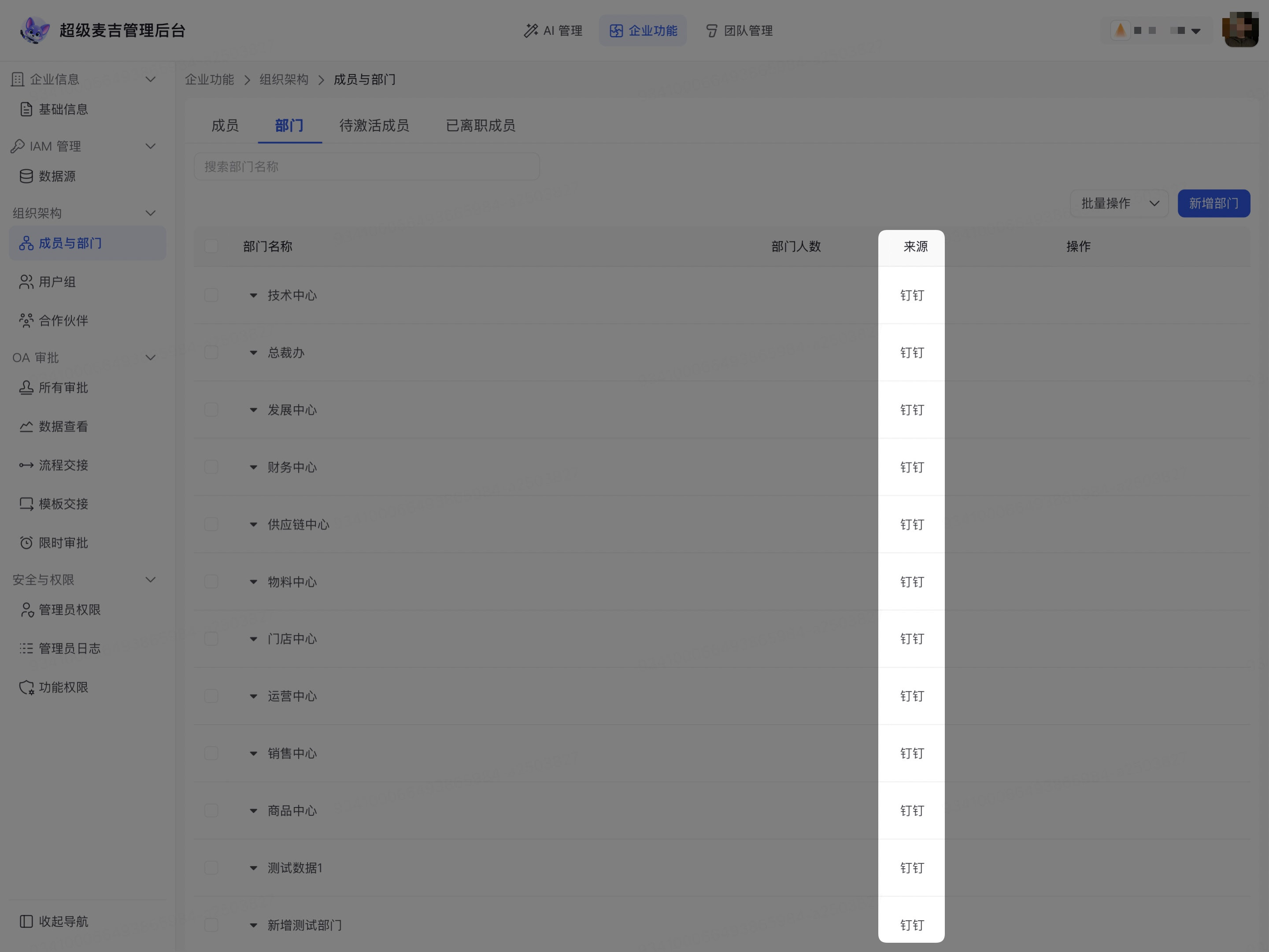
Departments synchronized from a third-party platform cannot be edited directly or have subdepartments added in the SuperMagic Admin Console. To adjust the organizational structure, make the changes on the corresponding third-party platform, wait for the data to update, and then return to the Members and Departments page to view the results.
If the identity data does not change, first confirm that the data source is enabled, and then verify the application credentials, third-party application permissions, and Data Source Update Frequency. If callbacks are enabled, also verify that the callback information on the third-party platform matches.