
A Quick Introduction to MCP
MCP is used to connect callable tools or external services to SuperMagic. You can add available MCPs to a conversation, select and call them using @; if no MCP meets your needs, you can also create and configure one yourself.
MCP is used to connect callable tools or external services to SuperMagic. You can add available MCPs to a conversation, select and call them using @; if no MCP meets your needs, you can also create and configure one yourself.
What Is MCP
MCP plugins extend the capabilities that SuperMagic can call. When creating an MCP, you can enter a plugin name and description, then configure callable capabilities for the plugin through Import Existing Tools or Custom MCP.
If the page already contains an MCP that meets your needs, you can add it directly to the current conversation. If not, you can start the creation process and configure existing tools or external services for the MCP.
Open the MCP Management Page
On the conversation page, click the MCP Plugins icon in the lower-right corner of the input box.
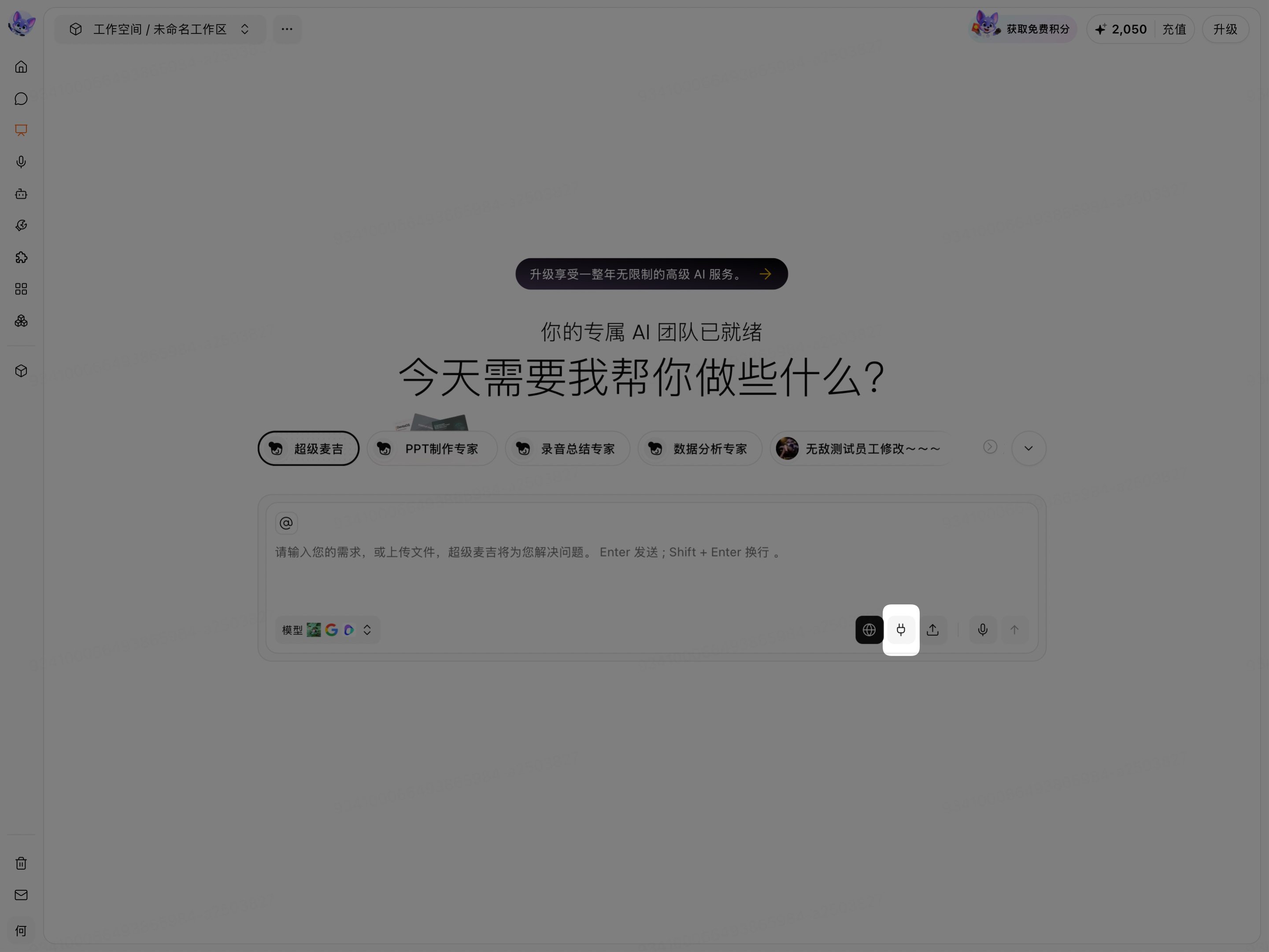
After opening it, you can view, search for, and add MCPs on the page.
About the MCP Plugins Page
The MCP Plugins page contains two tabs: Official Plugins and Custom Plugins. These are tab names on the page used to distinguish different lists; they do not represent two types of MCPs.
Page Entry | Available Operations |
|---|---|
Official Plugins | View, search for, and add the MCPs displayed in this tab. |
Custom Plugins | View MCPs you created, or start the Create MCP Plugin process. |
When you need to create an MCP:
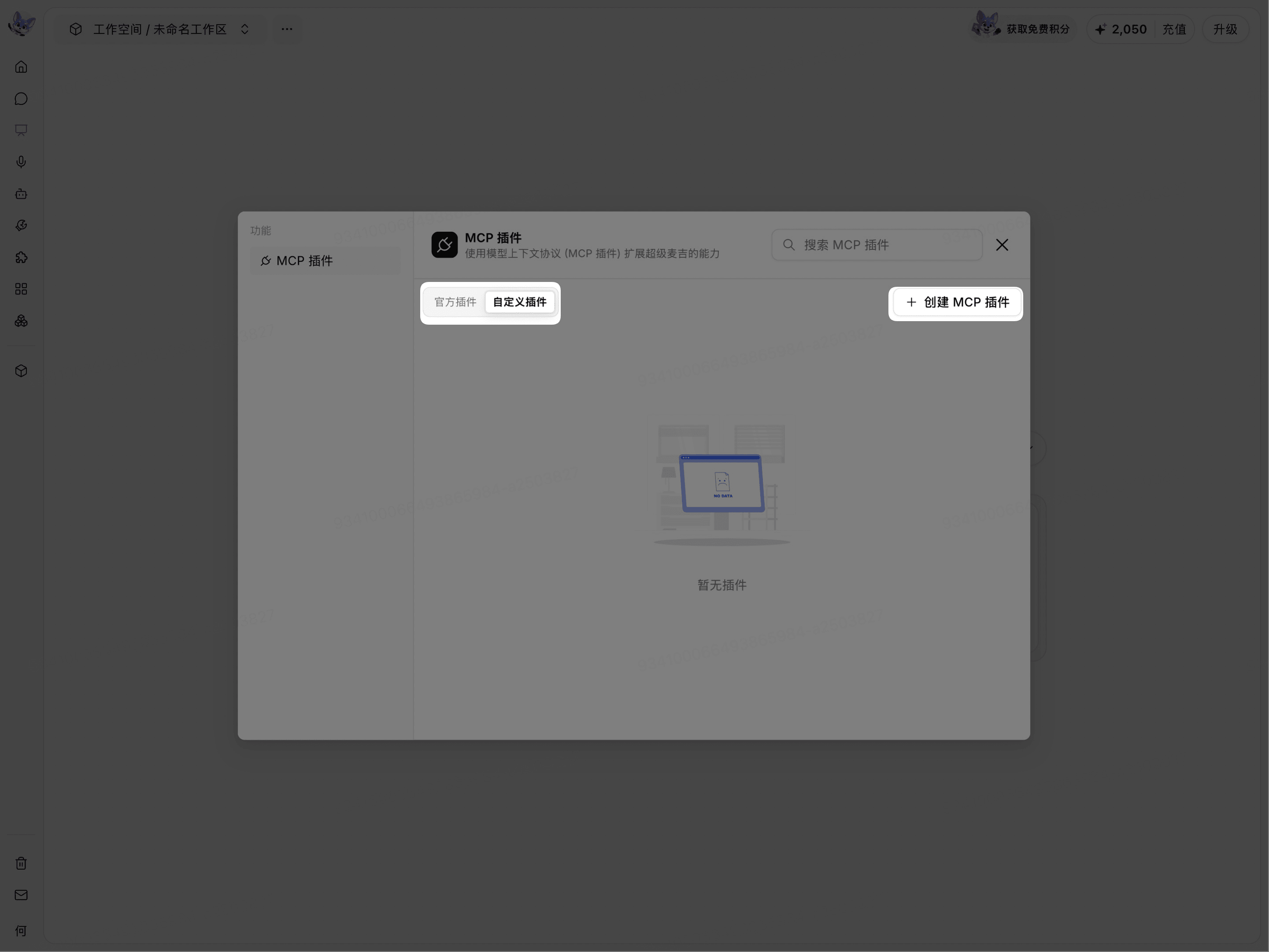
Switch to the Custom Plugins tab.
Click Create MCP Plugin in the upper-right corner.
If you do not have any custom plugins yet, the page displays No Plugins.
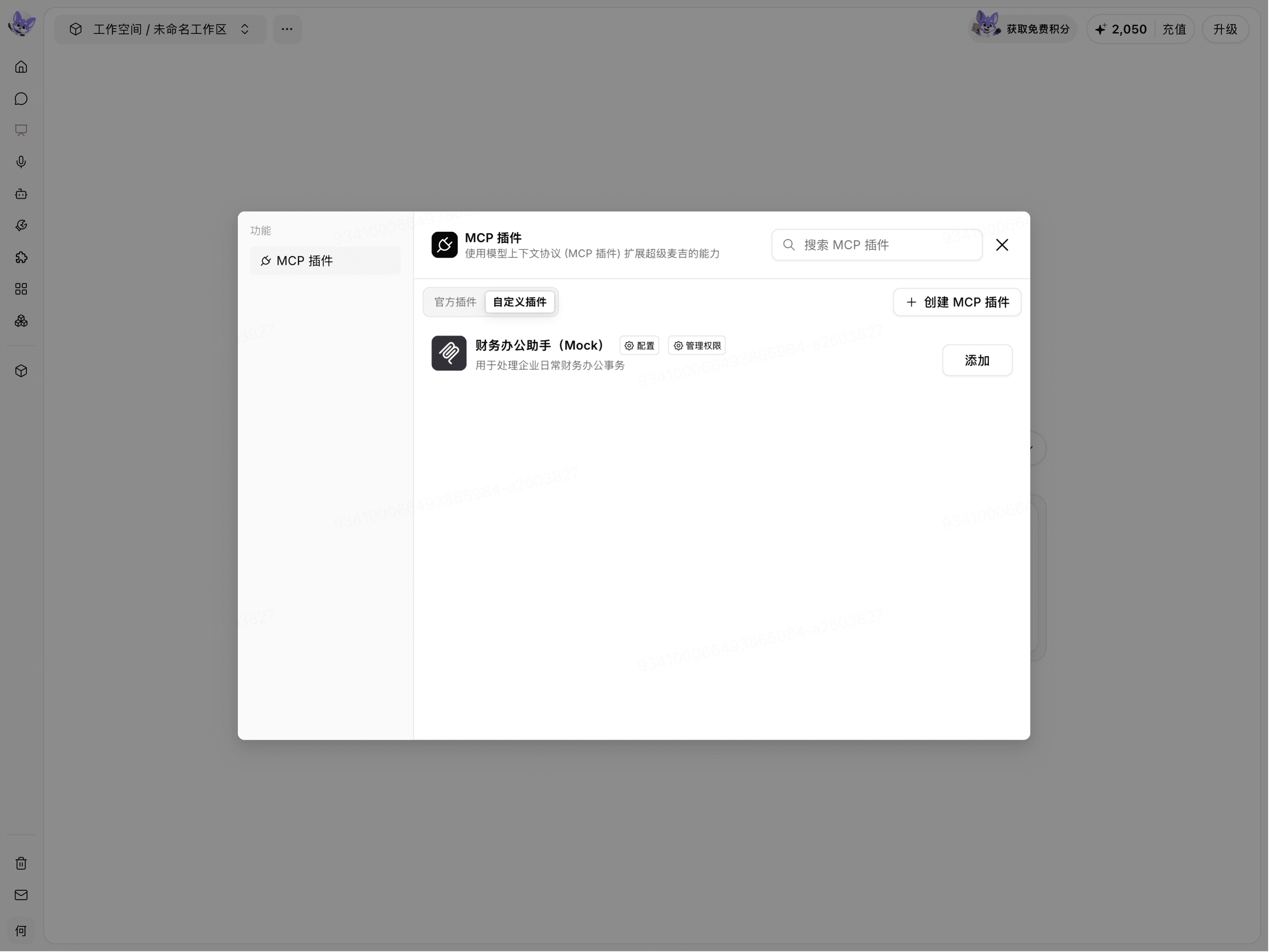
After creation is complete, the MCP appears in the Custom Plugins list. The list provides Manage Permissions, Configure, and Add entries.
Confirm the MCP Usage Scope
The MCP list may display Manage Permissions, but this entry does not mean that you can assign an MCP you created to other members of the organization.
After opening Manage Permissions, Personal Organization in the current screenshot displays only the creator, with the role Creator shown on the right.
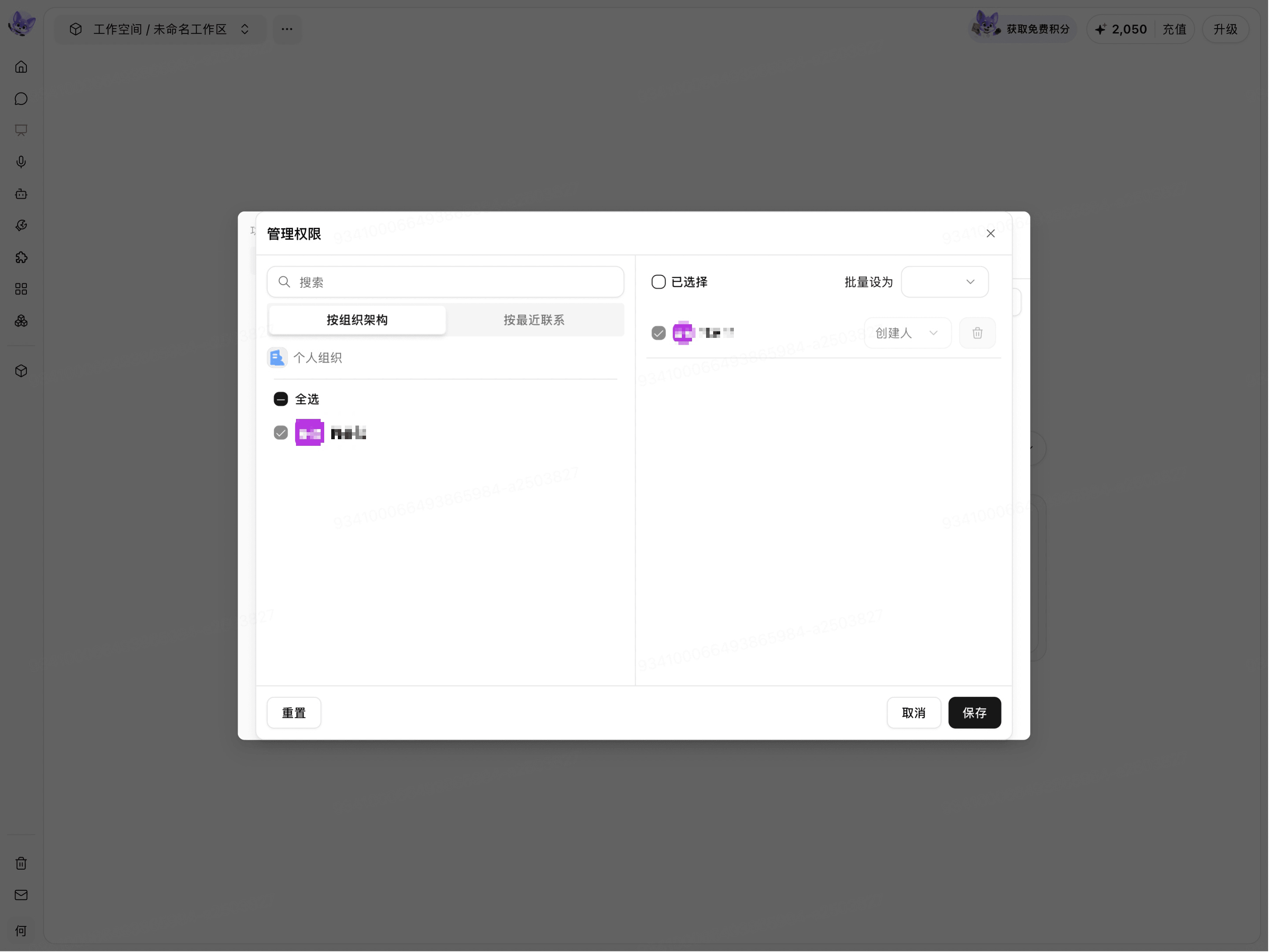
On the current page, an MCP you create can only be used by the creator.
How to Use MCP
If an MCP is already available, you can add it directly to a conversation and use it. You only need to create and configure an MCP yourself when no MCP meets your needs.
Open MCP Plugins and view the existing MCPs under Official Plugins or Custom Plugins.
Add the MCP you need to the current conversation.
In the conversation input box, select the MCP using
@and send your request.If no MCP meets your needs, go to Custom Plugins to create and configure an MCP.
For information about adding and calling MCPs in a conversation, see [Use MCP in a Conversation]; for information about creating, modifying, and deleting MCPs, see the [Create and Manage MCP] documentation.