
Manage My SuperClaw
Create SuperClaw instances in My SuperClaw, view their running status, start or stop instances, and edit or delete existing instances.
Create SuperClaw instances in My SuperClaw, view their running status, start or stop instances, and edit or delete existing instances.
Create a SuperClaw Instance
Click Create in the upper-right corner of the SuperClaw page.
Select the Original Shrimp or Maggie Swordsman template.
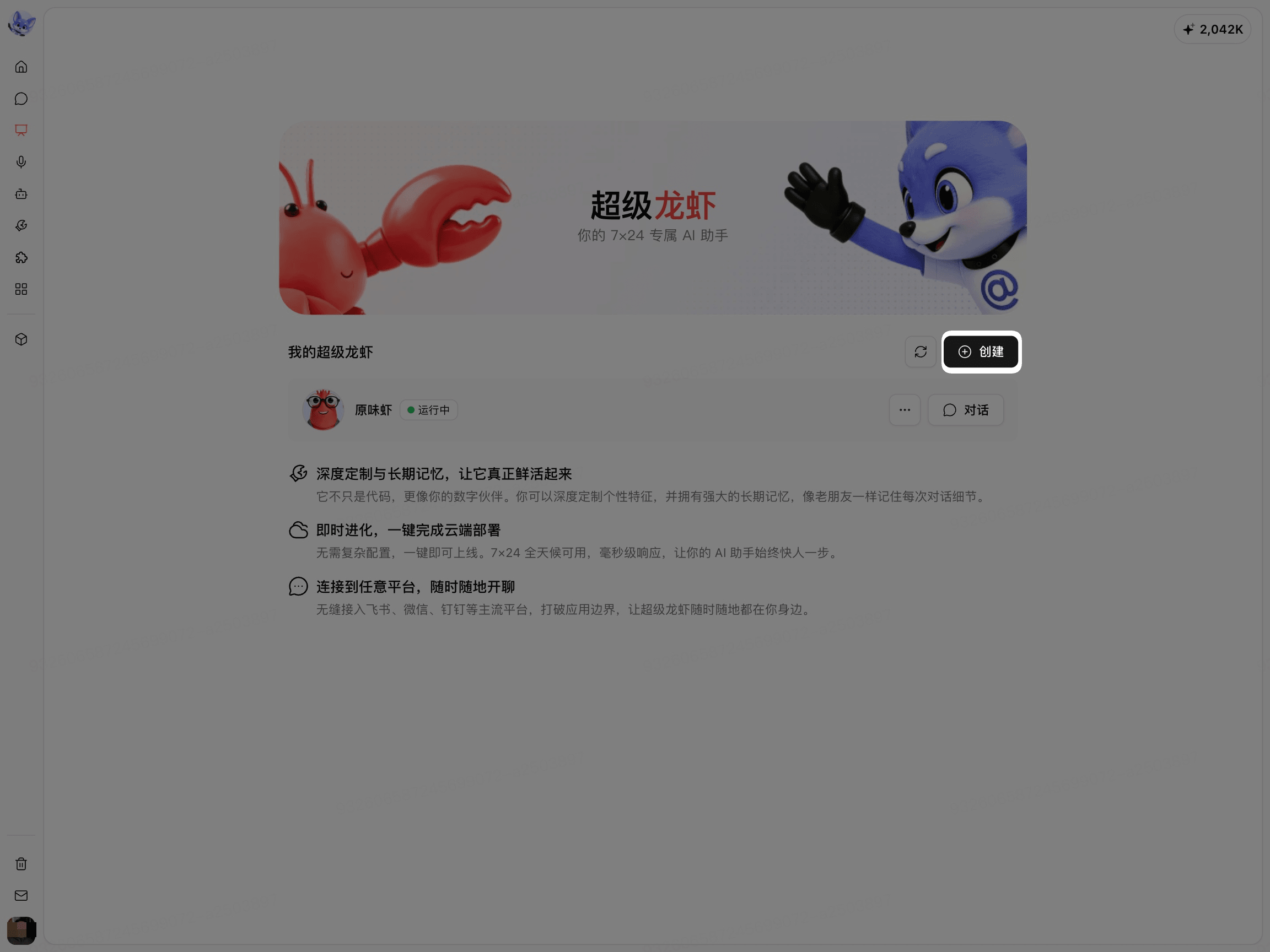
Enter the instance name in Name.
Click Upload avatar as needed.
Click Create now.
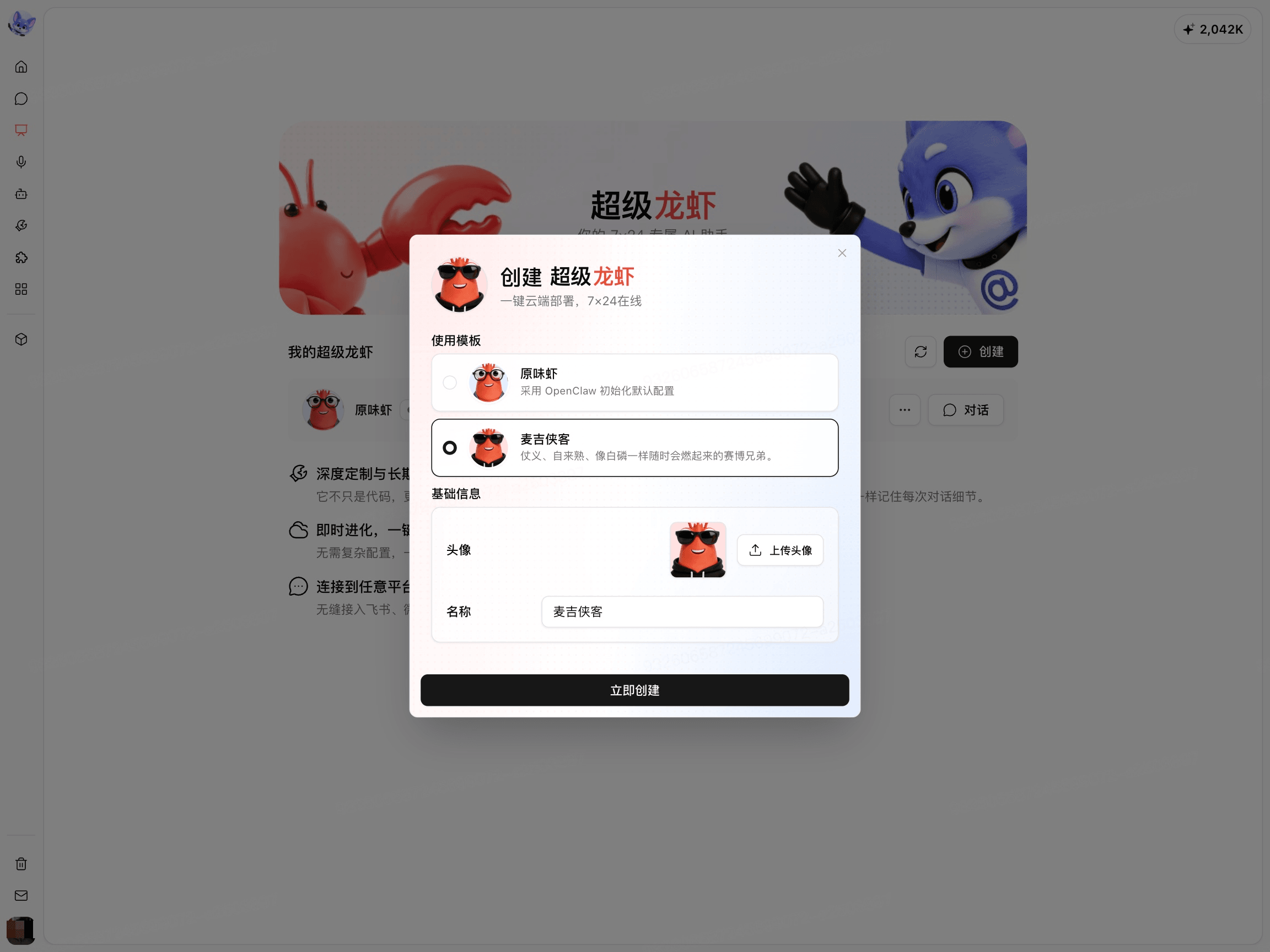
The new instance appears in the My SuperClaw list. Wait for the Status to update before entering the instance's Conversation.
View the Running Status
View the running status of the target instance in the Instance list.
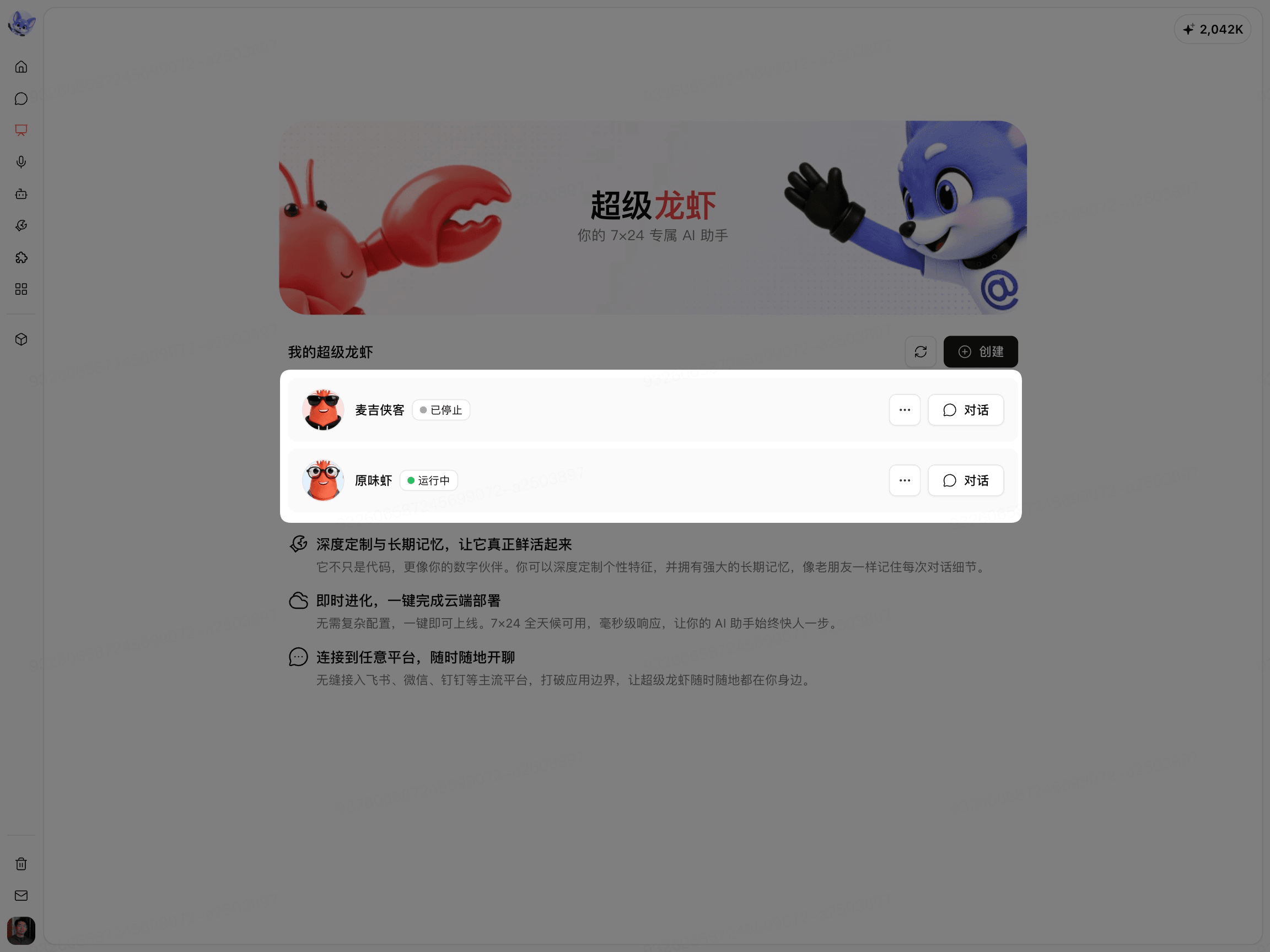
Running means that you can enter Conversation with the instance; Stopped means that you must start the instance first. If the Status does not update promptly, click Refresh in the upper-right corner of the page.
Start, Stop, or Restart an Instance
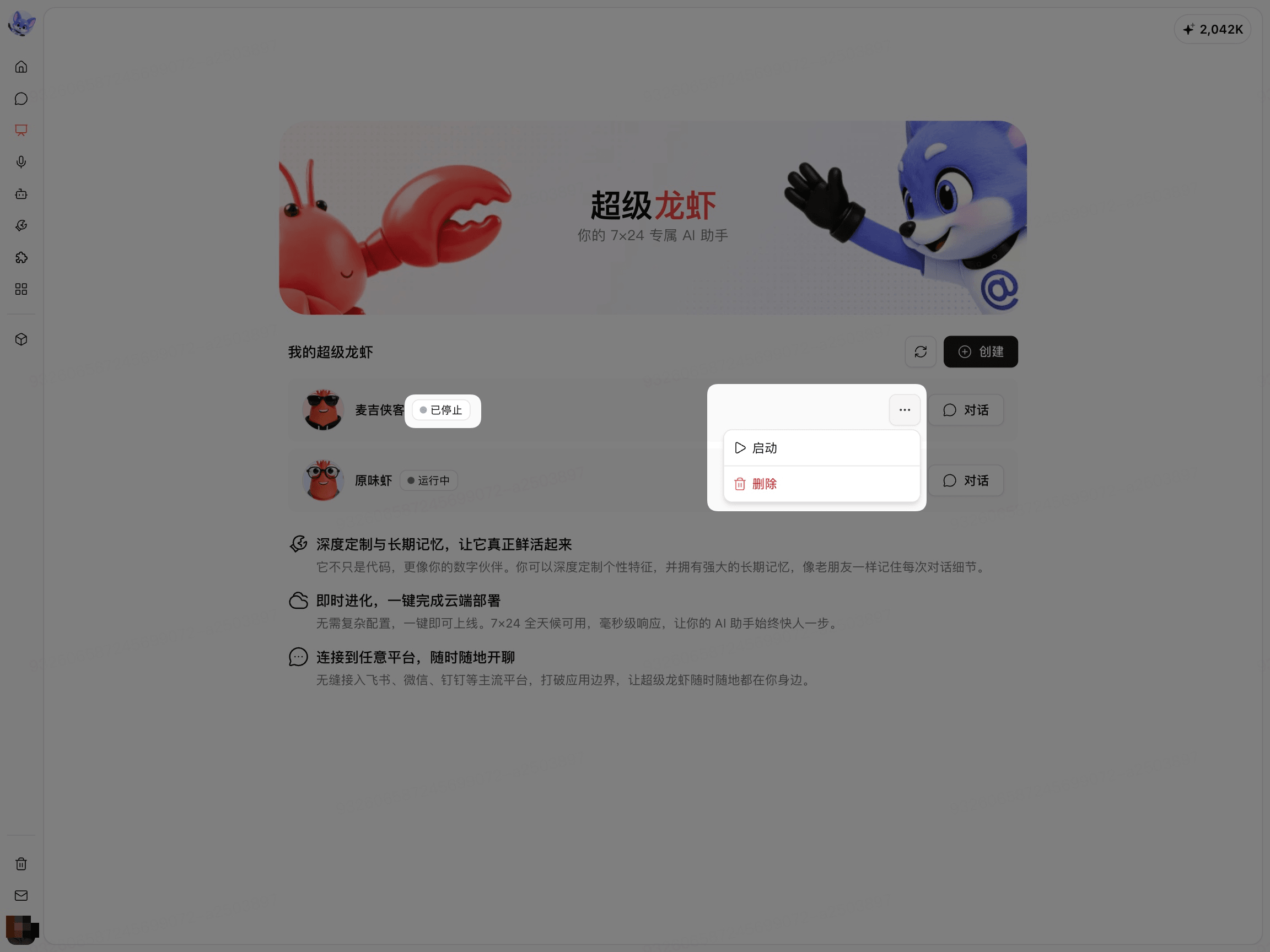
Start an Instance
Find an instance with the status Stopped.
Click More (...) to the right of the instance.
Click Start.
Wait for the Status to change to Running.
Stop or Restart an Instance
Find an instance with the status Running.
Click More (...) to the right of the instance.
Click Stop or Restart.
Wait for the page to update the Status.
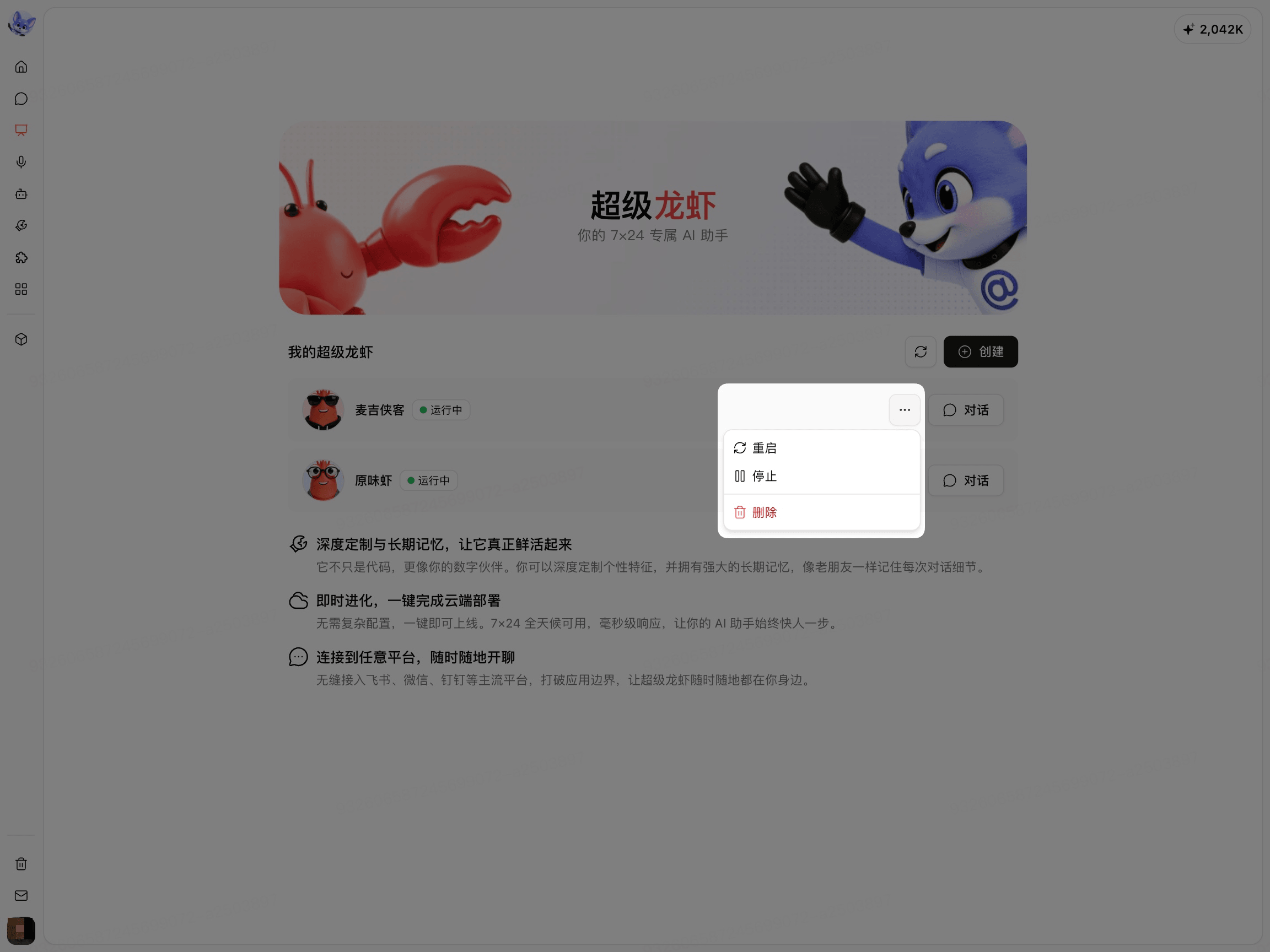
After stopping an instance, you must start it again before you can continue entering Conversation.
Edit Instance Information
Click Conversation for the target instance.
Click the Edit button next to the name in the upper-left corner.
Edit the Avatar or Name.
Click Save.
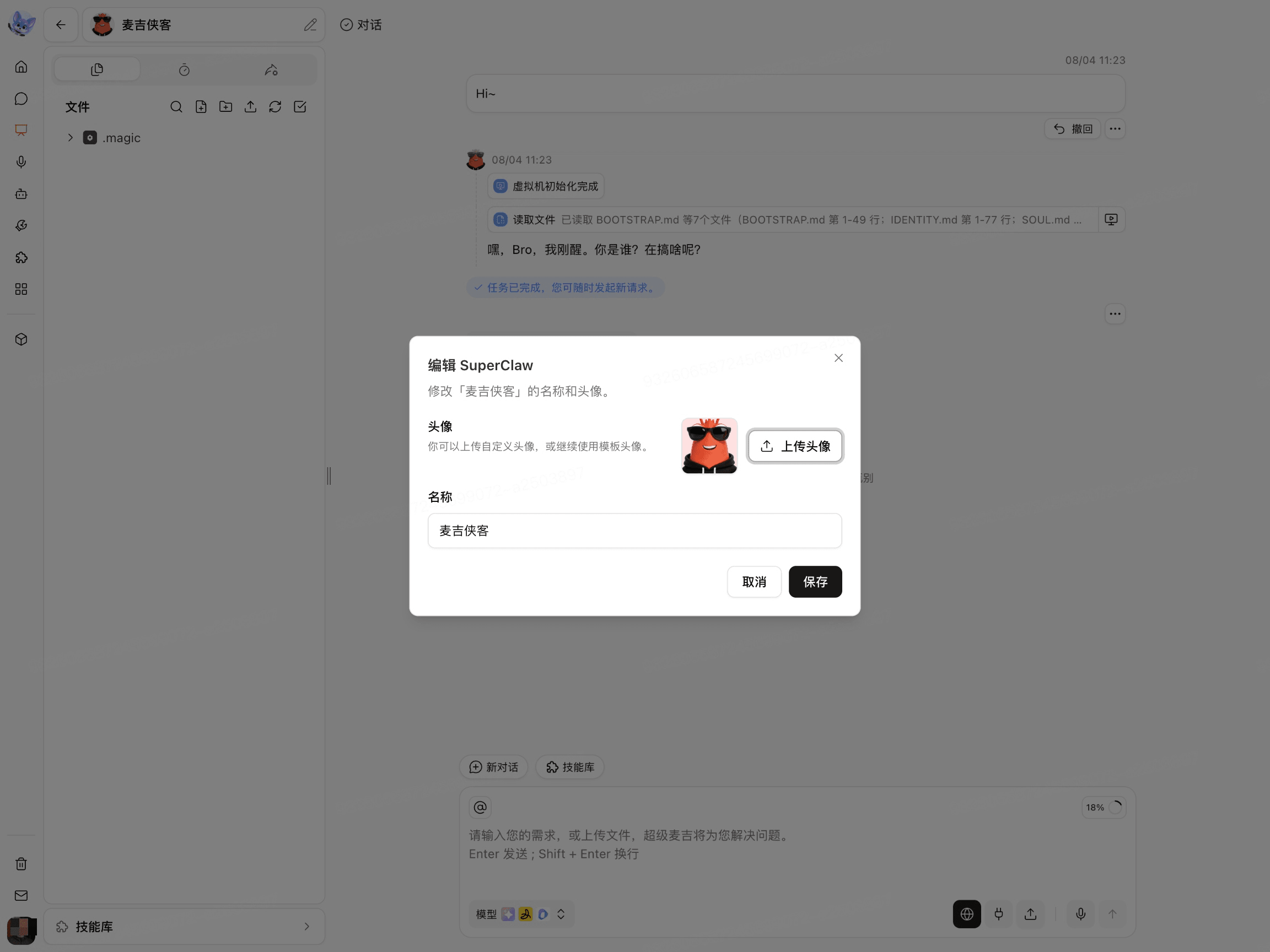
Changing the Name only affects instance identification. It does not change the instance's role, rules, or skills.
Delete an Instance
Find the target SuperClaw in the Instance list.
Click More (...) to the right of the instance.
Click Delete.
Read the confirmation prompt.
Confirm Delete.
Before deleting an instance, check whether its files, task results, and external platform connections still need to be retained. The ability to restore the instance after deletion is subject to the page's confirmation prompt.