
Start an AI Recording
Before starting a recording, you can choose where to save the project and audio source.
Before starting a recording, you can choose where to save the project and audio source.
Start a Recording from the Home Page
Go to Home.
Select Recording Summary Expert.
Click Select Project as needed.
Select an audio source.
Click Start Recording.
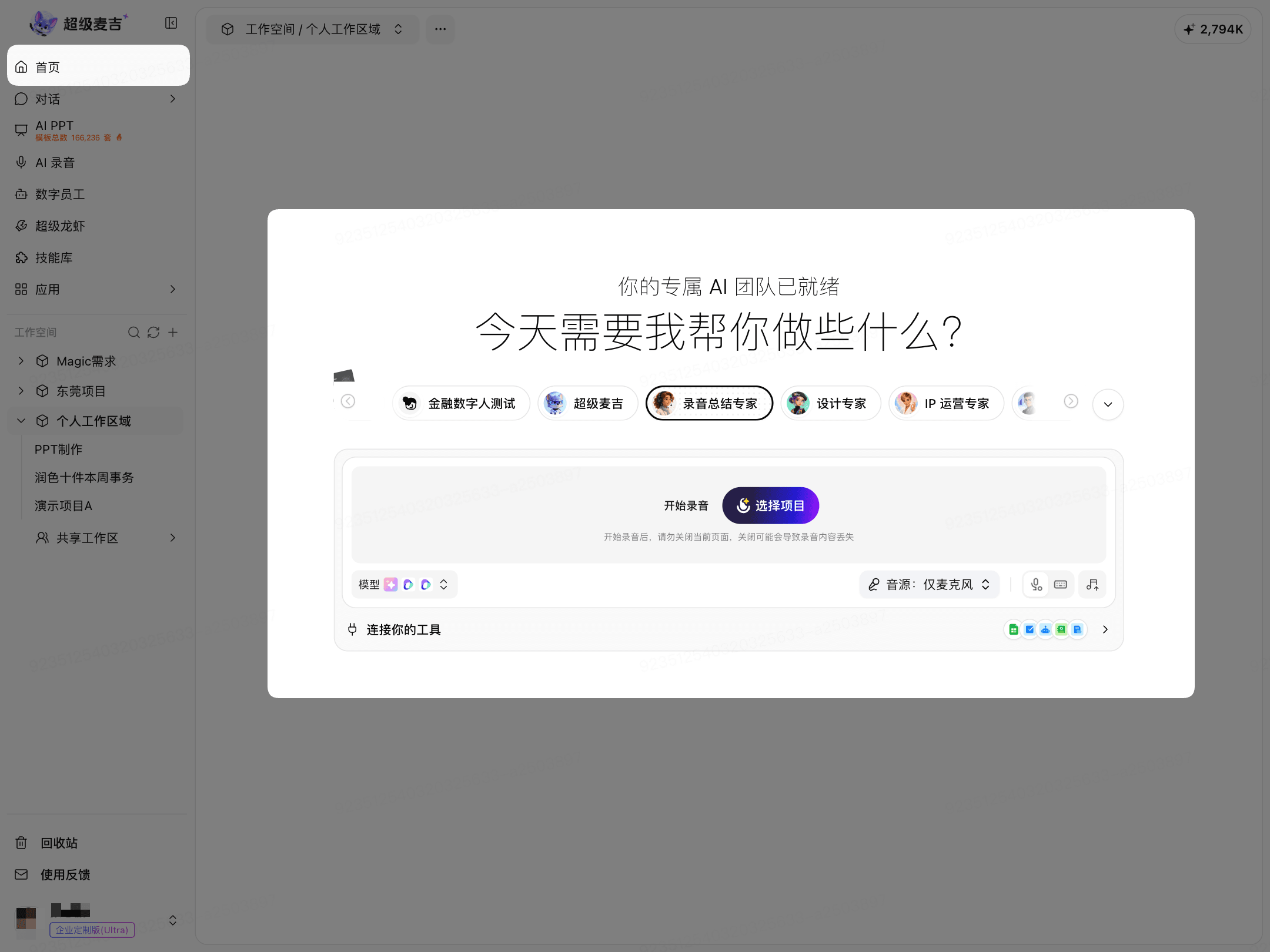
When you start a recording from within a project, the recording is saved to the current project by default.
Select a Project to Save the Recording
Select a workspace.
Select the target project.
Click Confirm.
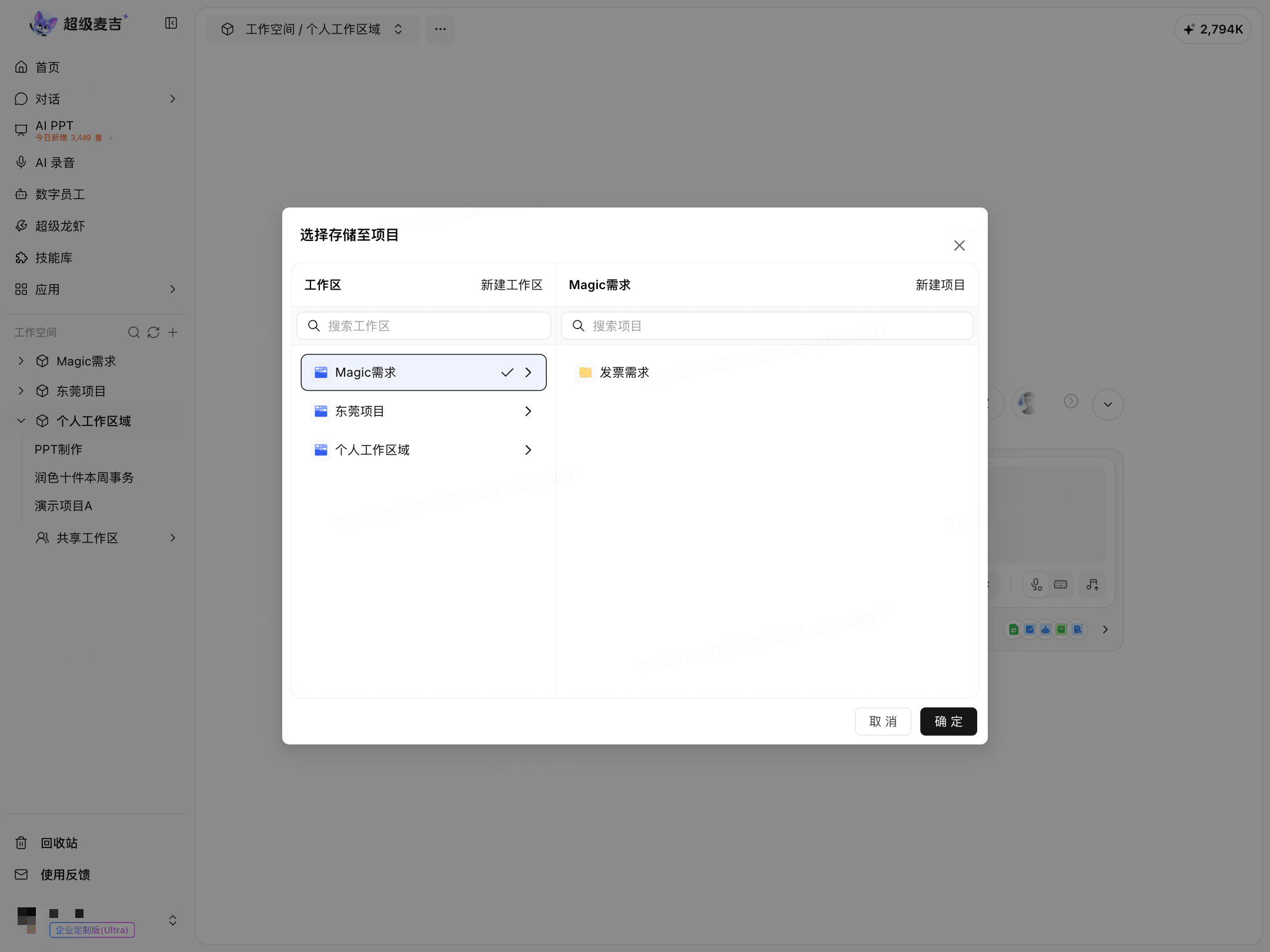
The dialog supports creating a new workspace or project.
Recording and Real-Time Transcription
The recording page displays the recording duration, pause and stop controls, audio source, real-time transcription, and recording notes.
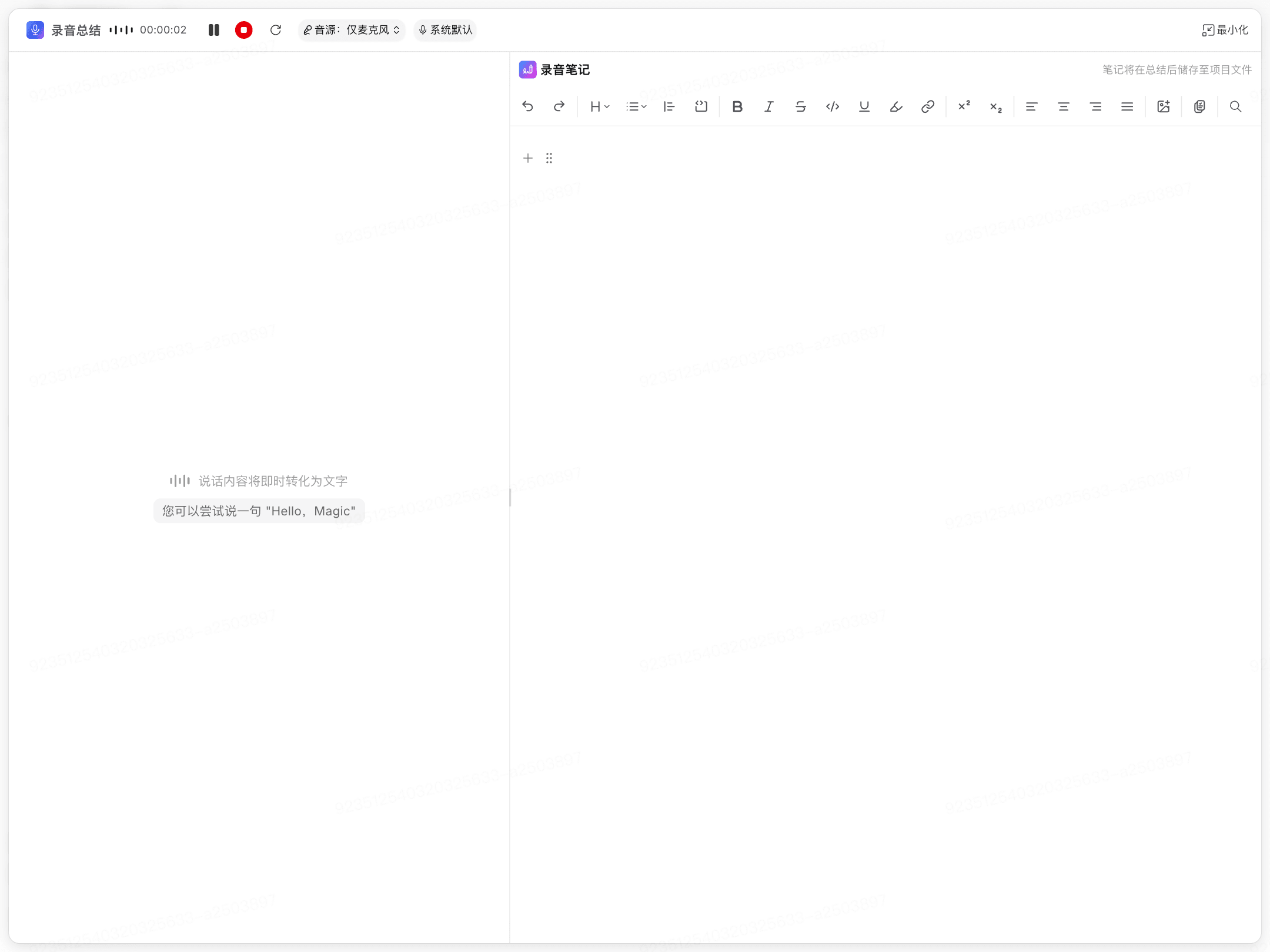
Do not close the current page while recording.
After stopping the recording, wait for the system to process the transcription and summary.