
Collaboratively Developing Skills
Add members or departments on the **Collaborative Developers** page of a **Skill**, and view, adjust, or remove collaborators.
Add members or departments on the Collaborative Developers page of a Skill, and view, adjust, or remove collaborators.
Open Collaborative Developer Settings
Open Skill Library.
Click My Skills.
Open the Skill that you want to maintain collaboratively.
Click Collaborative Developers on the left.
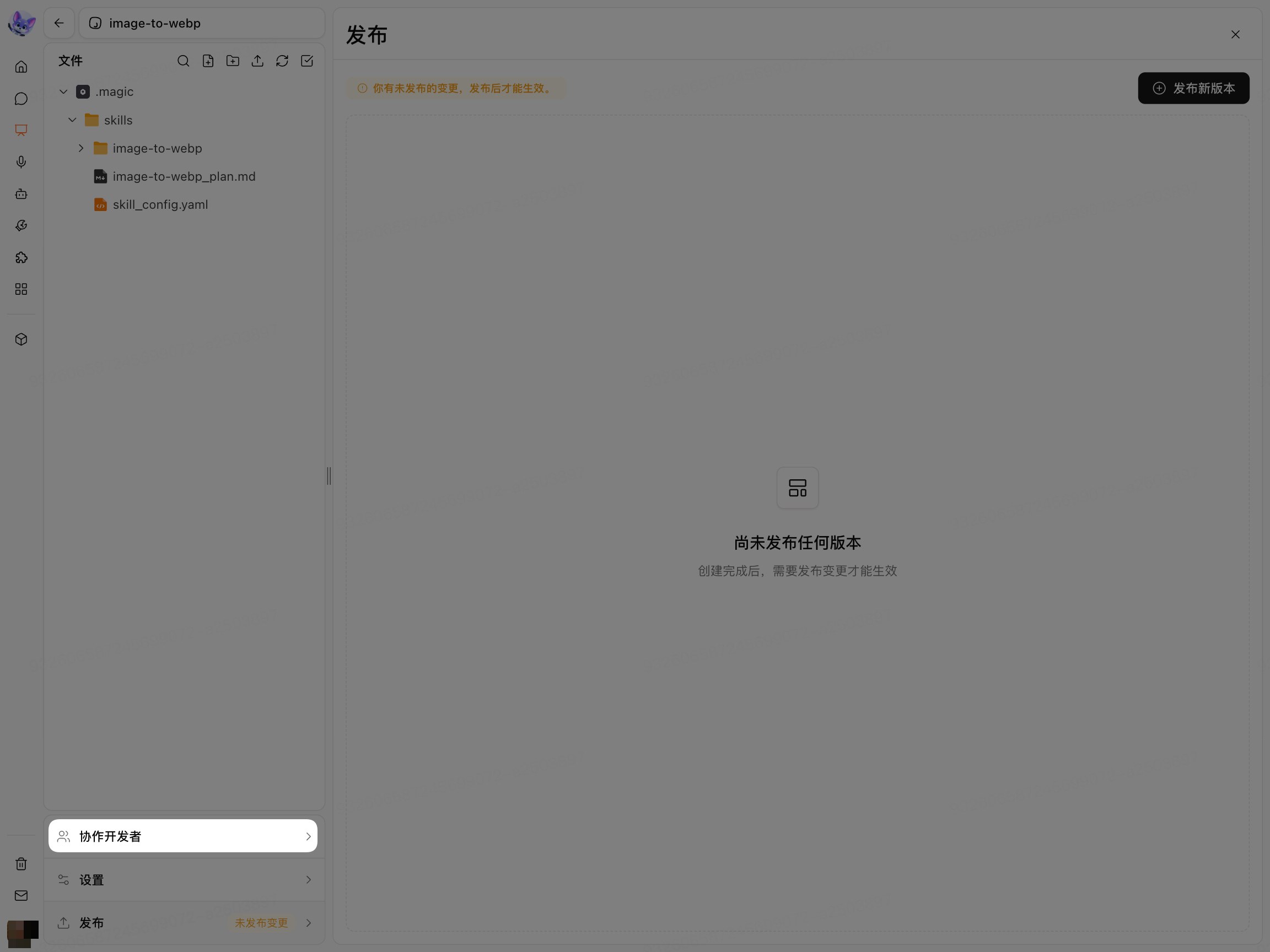
Add Members or Departments
Click Add Member/Department.
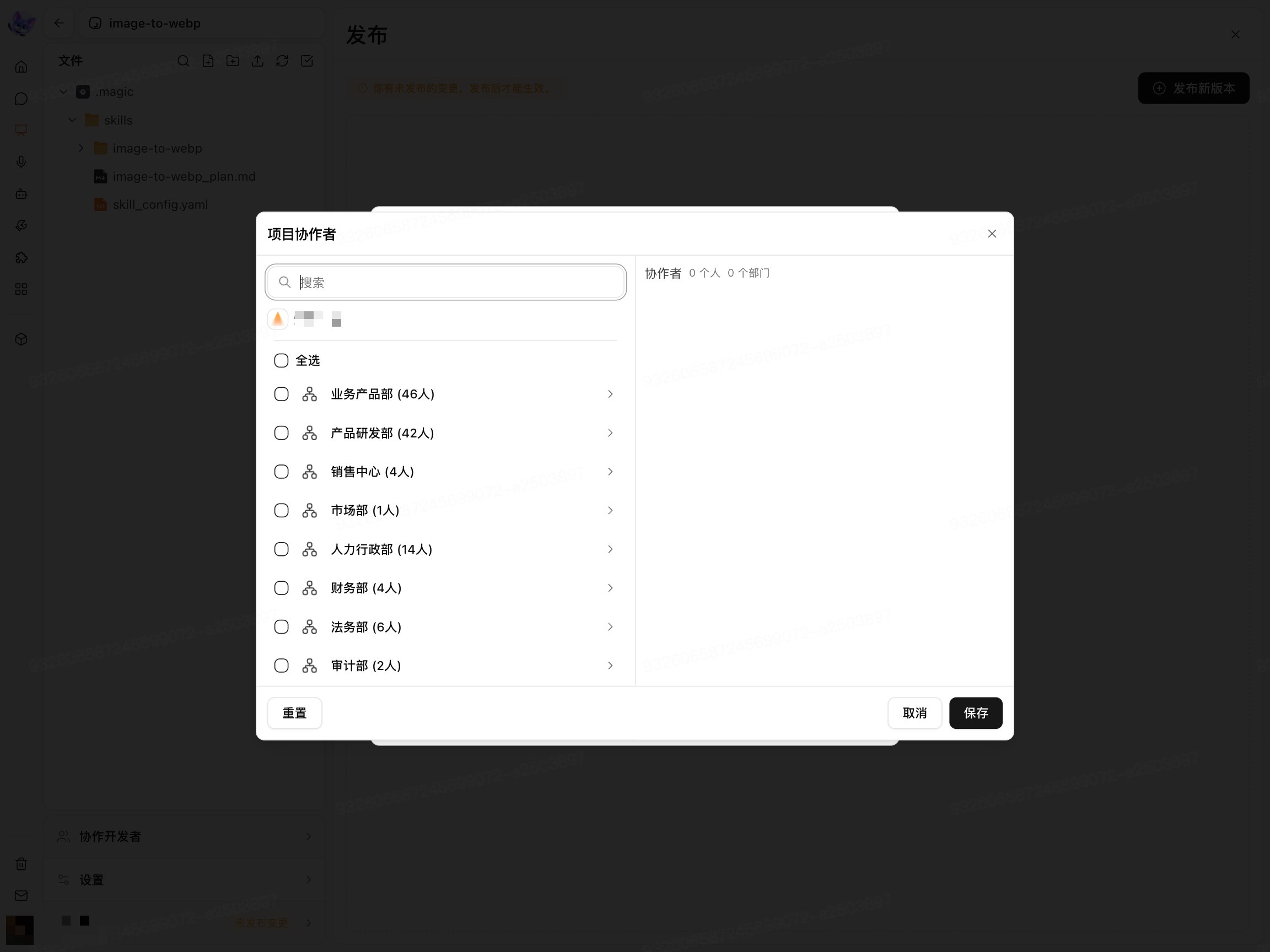
Select the members or departments to add.
Set collaboration permissions based on the role options provided on the page.
Confirm the addition.
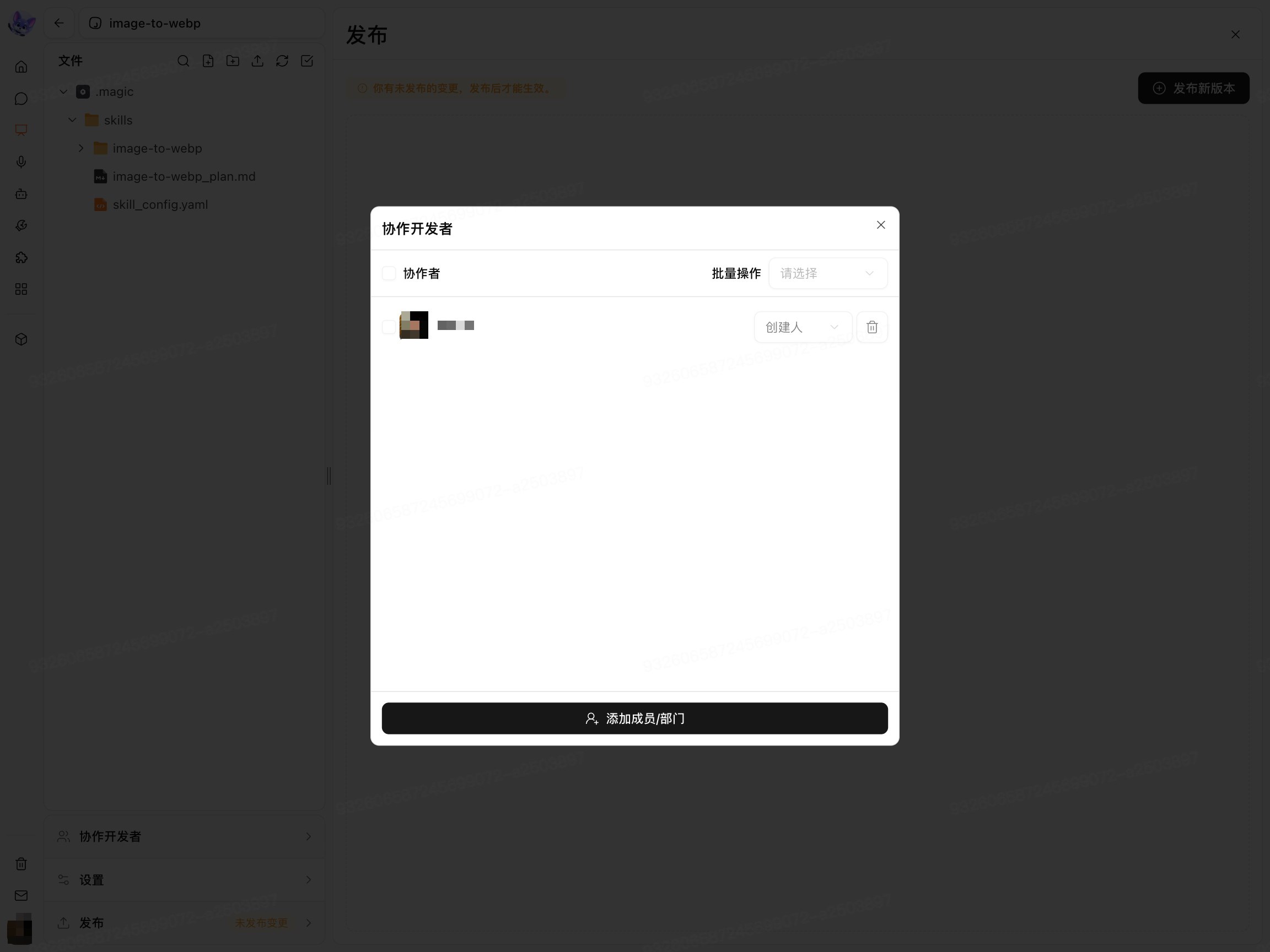
The Collaborative Developers list displays the members or departments that have been added and their roles.
View and Adjust Collaboration Permissions
After opening the Collaborative Developers list, view the current roles and permissions of the members or departments.
If the page provides an adjustment option, you can modify the collaborator's role or permissions. The specific settings that can be adjusted depend on what is shown on the current page.
Skill collaboration permissions and Digital Crew permissions are separate permission systems. Confirm each one separately before use.
Remove Collaborators
Open the Collaborative Developers list.
Find the member or department to remove.
Click the remove or delete option provided on the page.
Confirm as prompted.
Before removing a member or department, confirm whether it still needs access to Skill files and collaborative content.
After a collaborator modifies a Skill, if users need access to the new content, follow the process in Publish My Skill to publish a new version.