
Create or Import My Skills
In the **Skills Library**, you can create a **new skill** through a conversation or import an existing **skill file** or **folder**.
In the Skills Library, you can create a new skill through a conversation or import an existing skill file or folder.
Open the Creation Entry Point
Click Skills Library in the left navigation bar.
Click Create Skill.
Select a creation method.
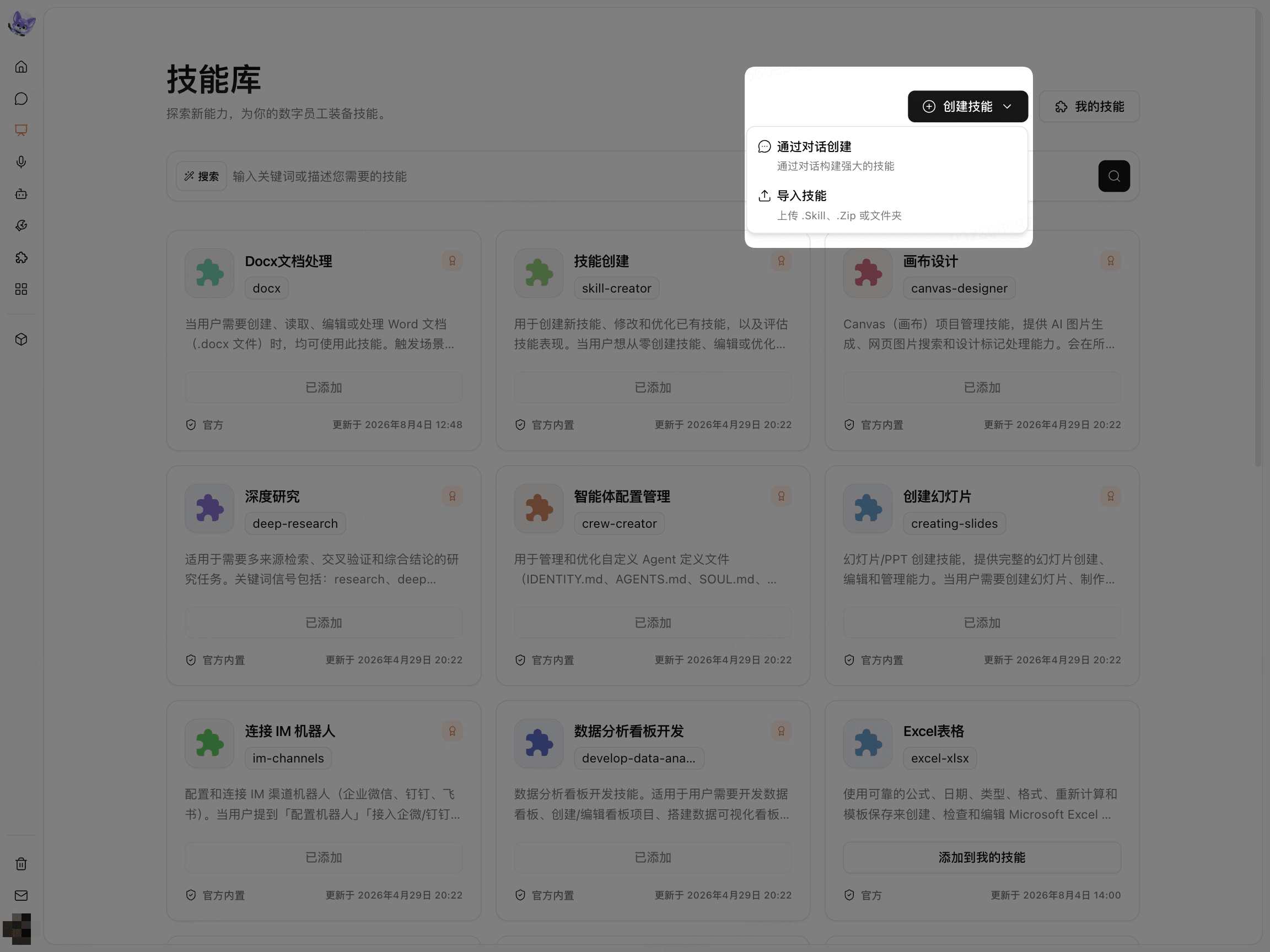
The page provides two options: Create Through Conversation and Import Skill.
Create a Skill Through Conversation
Select Create Through Conversation.
In the input box, describe the tasks that the skill should complete.
Click the Send button.

When describing your requirements, specify the input, processing requirements, and expected result.
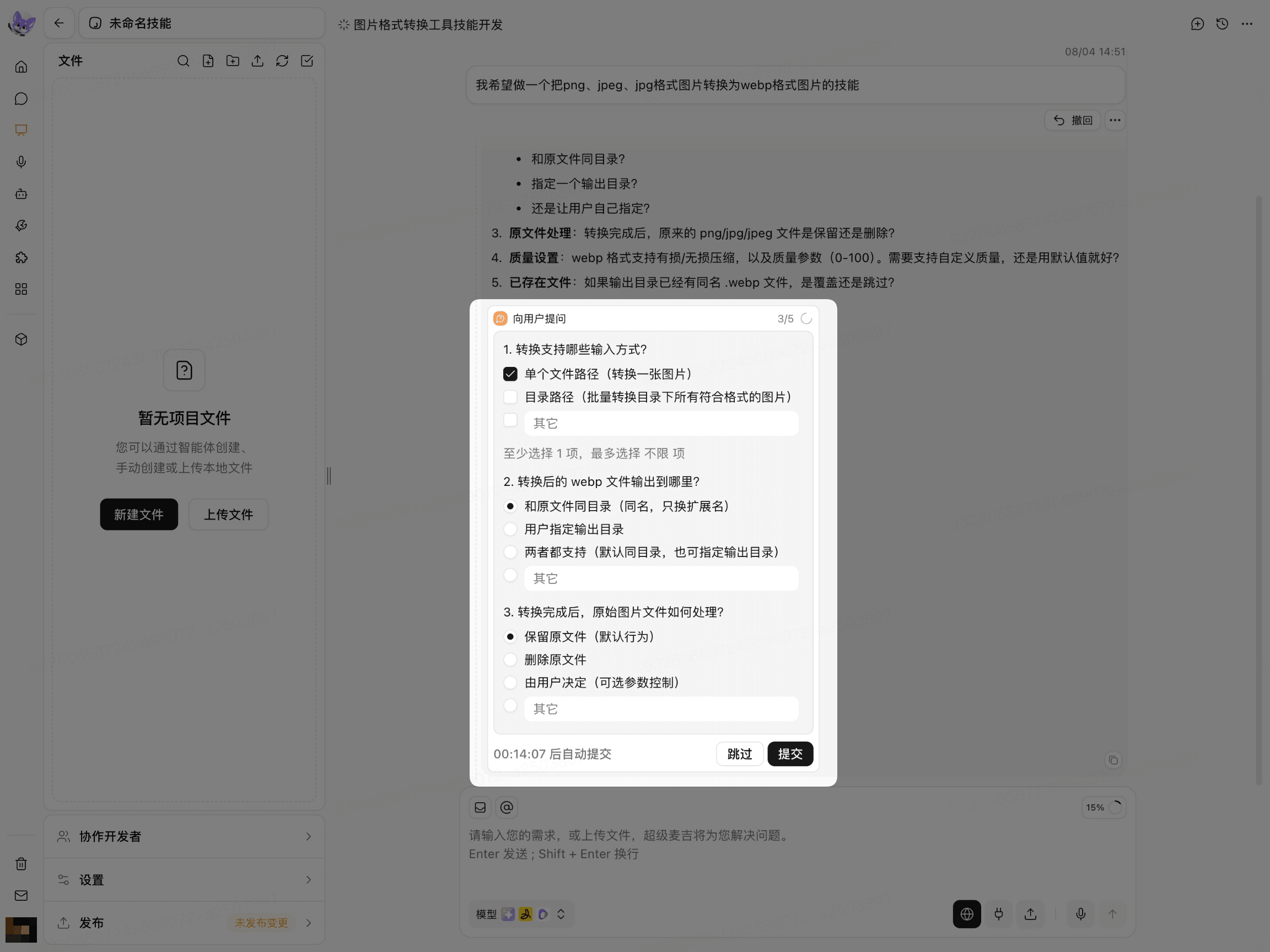
When the system asks follow-up questions:
Read the questions on the page.
Select options or provide additional details based on your actual requirements.
Submit your current response.
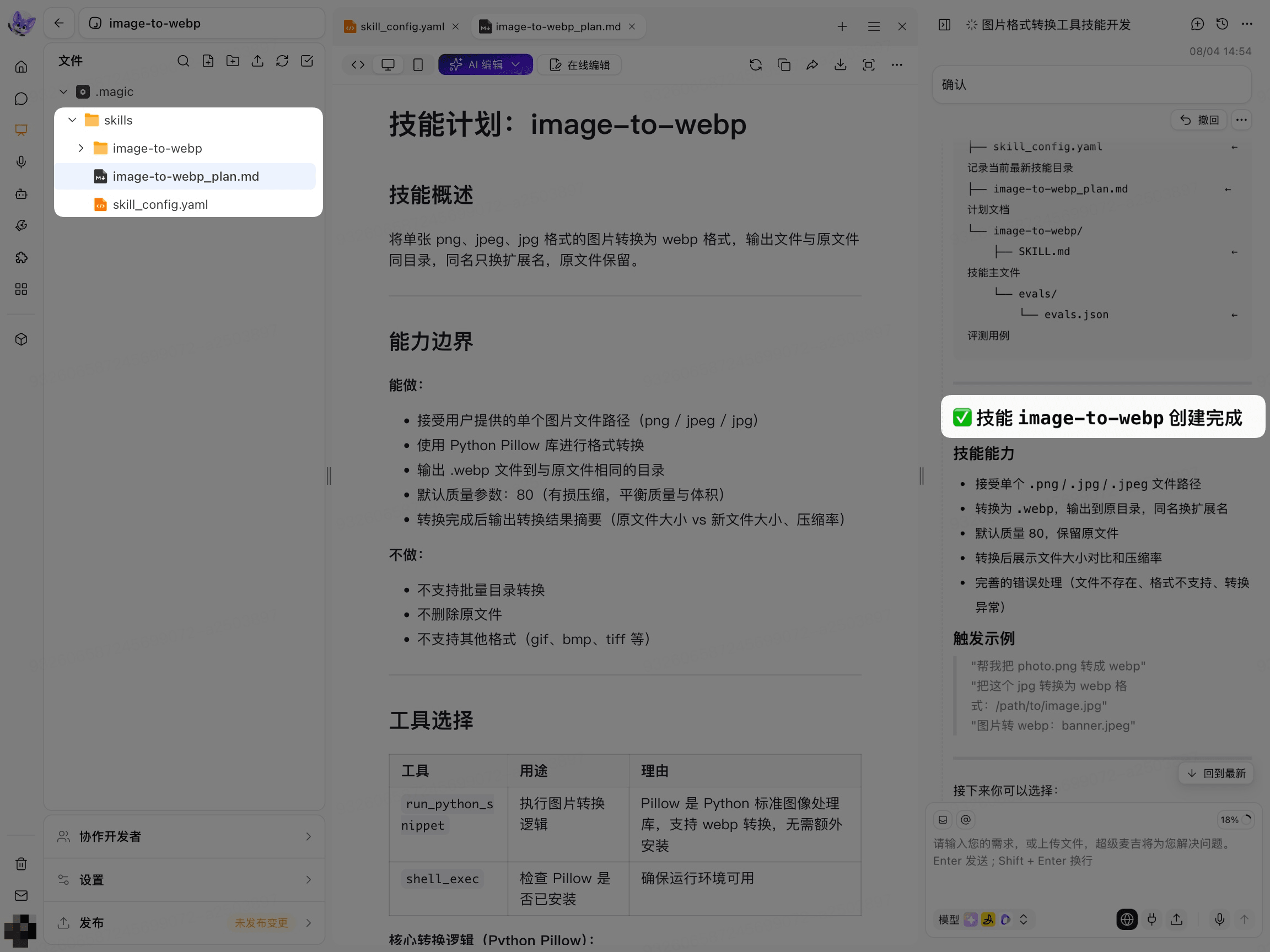
After the system generates the skill design, check the input, output, capability boundaries, and exception handling.

After the system generates the skill file, view the skill content in the file area on the left.
Import an Existing Skill
Click Create Skill.
Select Import Skill.
Drag the skill file or folder to the upload area.
Wait for the system to read the file.
Click Next.

When selecting a file, use the supported .zip or .skill format as prompted on the page. You can also select a folder that contains the skill content.
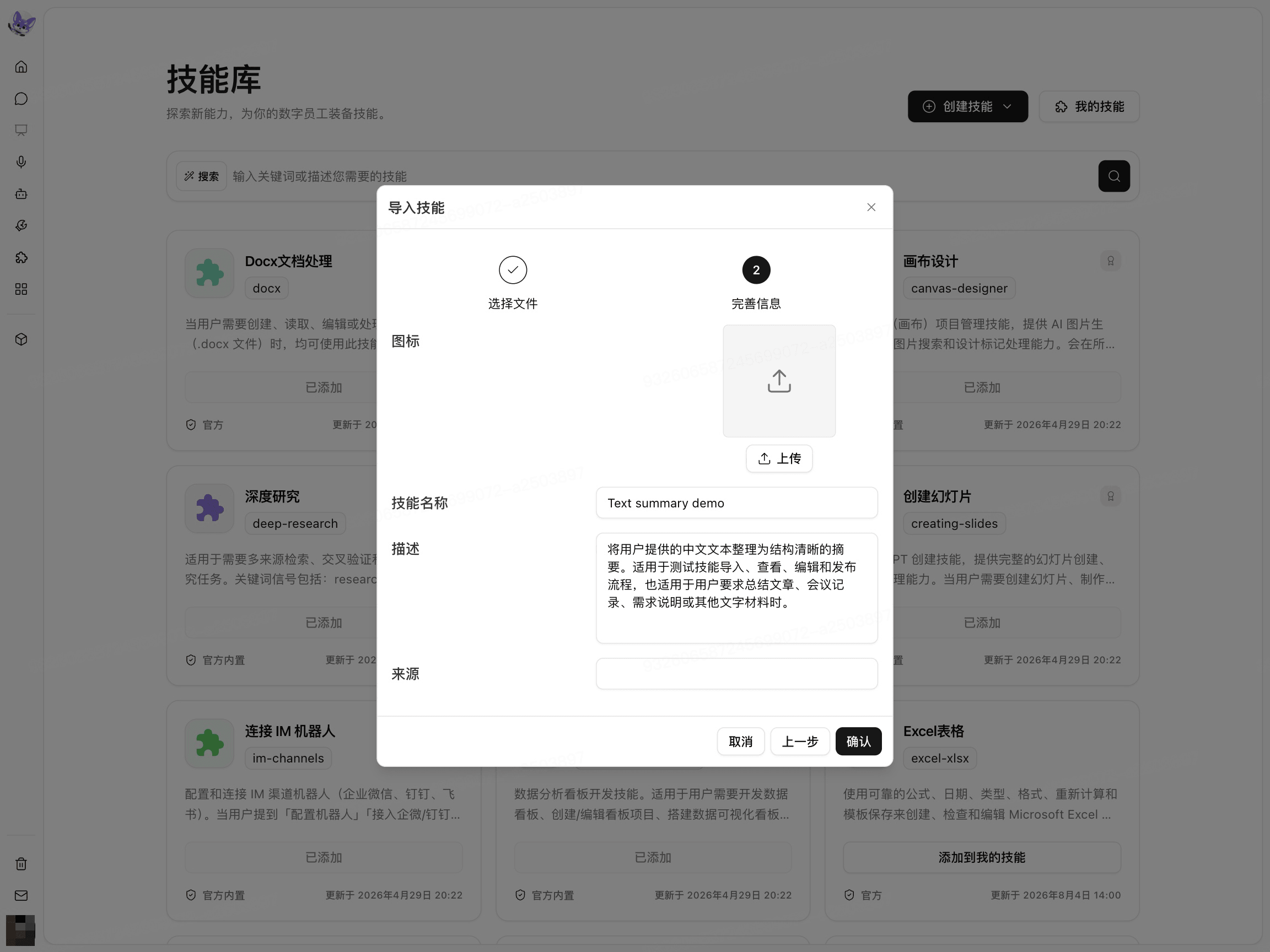
Upload a skill icon as needed.
Check the skill name and description.
Enter the source as needed.
Click Confirm.
Confirm the Creation or Import Result
After the skill is created or imported, the skill appears in the Created by Me category under My Skills.
When publishing skill resources, place the content intended for official release in the .magic/ folder at the skill root. Keep other files in the root directory only on the editing page for debugging, testing, or other non-production purposes. For detailed rules, see Publish My Skill.
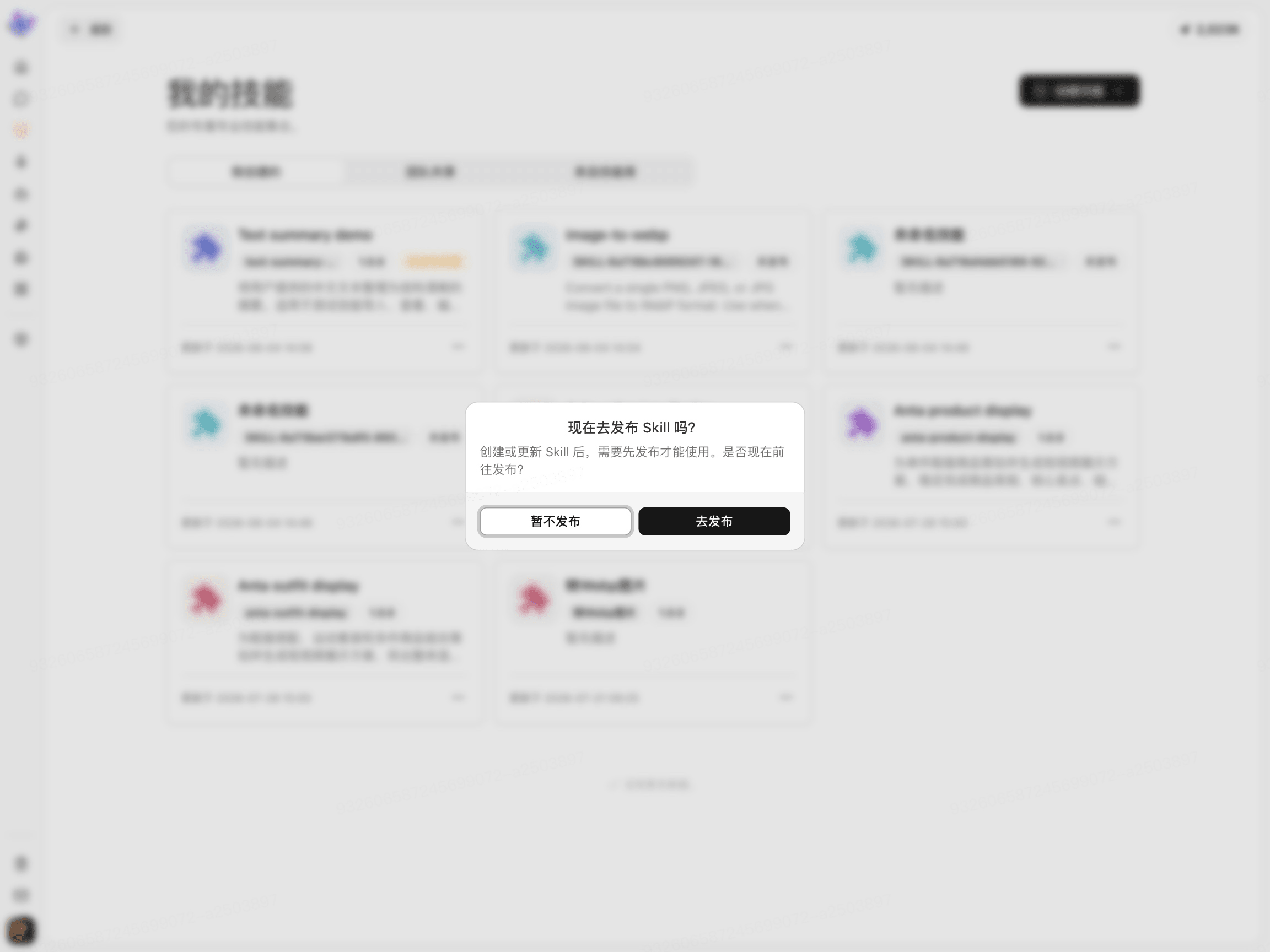
After the import is complete, the page provides publishing options:
Click Don't Publish Yet to complete the import and return to My Skills.
Click Publish Now to open the Skill Publishing page.
If you want Digital Crew to use the skill, you must also add the skill on the Digital Crew configuration page.