
Publish My Skill
Create a skill version in My Skills, set the publication scope and usage permissions, and view published versions.
Create a skill version in My Skills, set the publication scope and usage permissions, and view published versions.
Open the Publication Page
Open Skill Library.
Click My Skills.
Find the target skill under Created by Me.
Open the skill, then click Publish on the left.
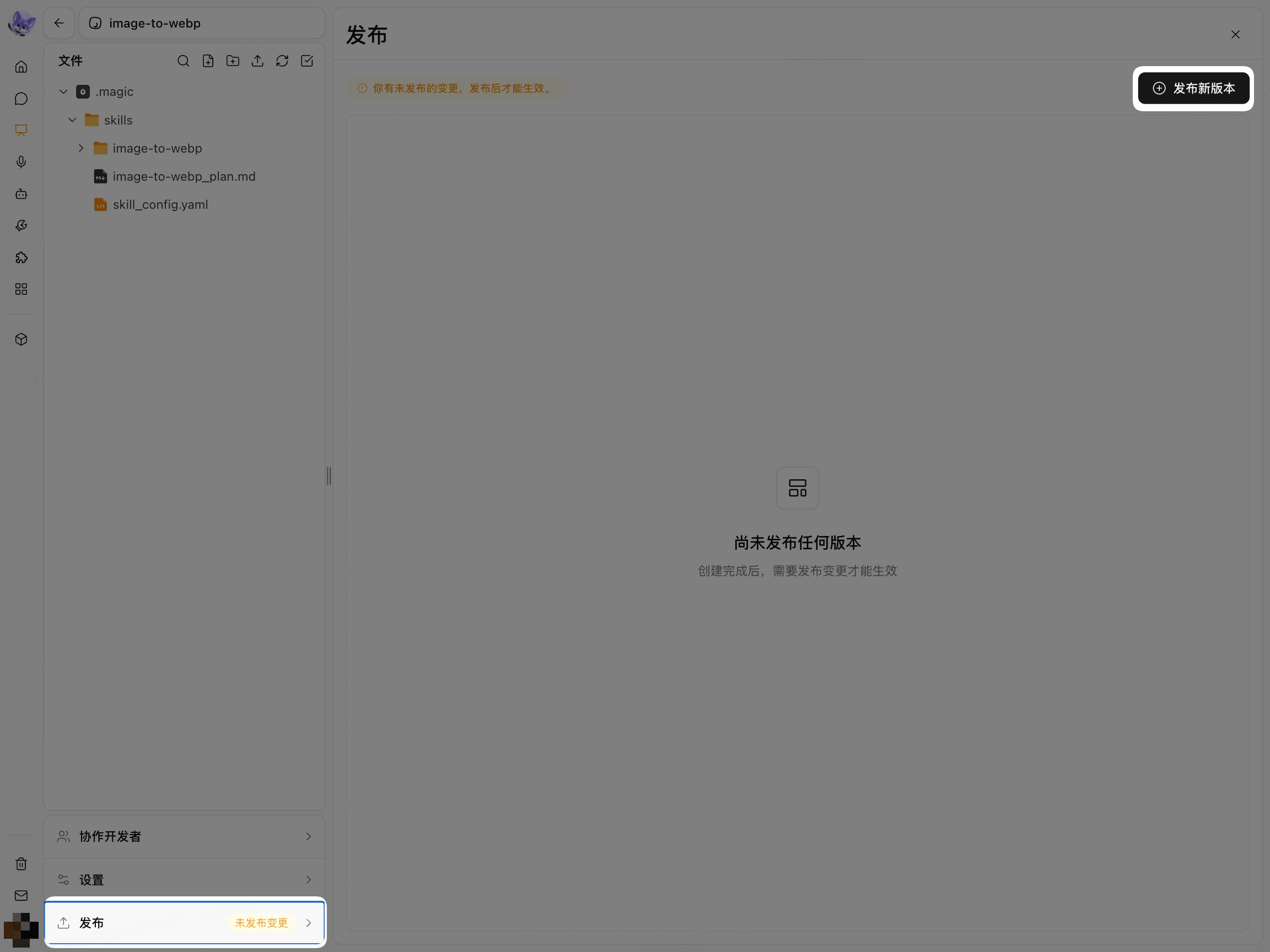
When publishing for the first time, the page displays No versions published yet. If the skill has been modified but the changes have not been published, the page displays Unpublished changes.
Confirm the Publication File Scope
When publishing a skill, the system uses only the resources in the .magic/ folder within the skill's root directory as the published content for that skill.
Files outside .magic/ in the root directory are not published with the version and remain in the file list on the editing page. You can use these files for debugging, testing, or other content that does not need to be formally published.
Before publishing, organize the resources that need to be published with the skill in the .magic/ folder and confirm that its contents are correct.
Publish a New Version
Click Publish New Version in the upper-right corner.
Enter a version number in Version Number.
Describe the changes in Version Details.
Review the Version Information.
Click Publish in the lower-right corner.

Version Details should describe the content and limitations involved in this change.
Select the Publication Scope
Publication scope | Usage scope |
|---|---|
Publish Internally | Available only to members within the enterprise. |
Publish to Skill Library | Available to Skill Library users. |
Before publishing to Skill Library, check whether the skill contains internal materials, account information, or other sensitive content.
View Published Versions
After publishing is complete, the version appears in the Publication List.
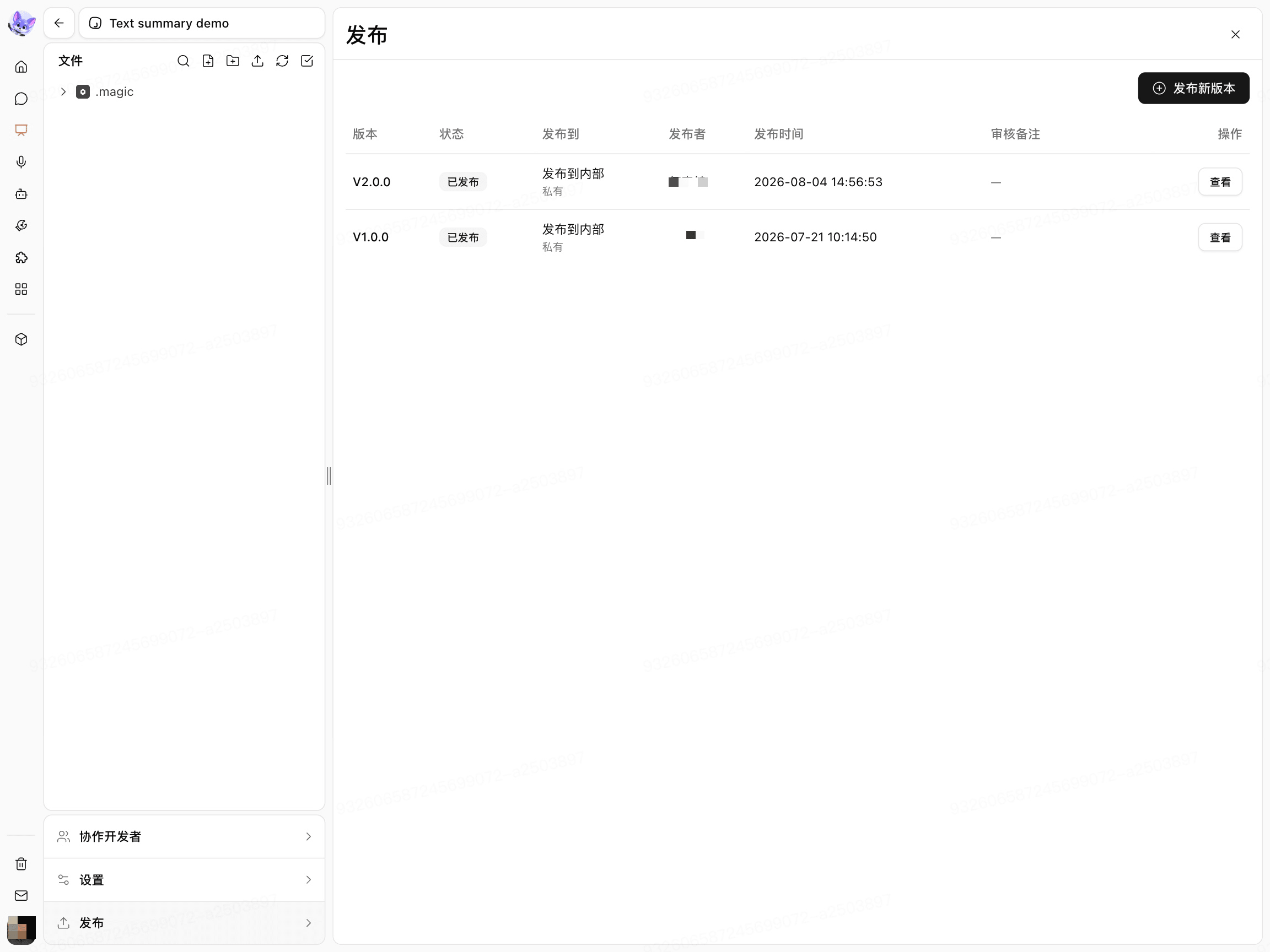
The version list typically displays the version number, publication status, publication scope, publisher, and publication time.
Republish a Modified Skill
Open the Publish page for the skill.
Check whether the page displays Unpublished changes.
Click Publish New Version.
Review the Version Details and publication scope.
Click Publish.
Changes take effect according to the publication scope only after they are published as a new version.