
Create My Digital Crew
Describe the role, tasks, and expected results in Digital Crew to create your own Digital Crew.
Describe the role, tasks, and expected results in Digital Crew to create your own Digital Crew.
Open the Creation Page
Click Digital Crew in the left navigation bar.
Click Create Employee in the upper-right corner of the Employee Marketplace.
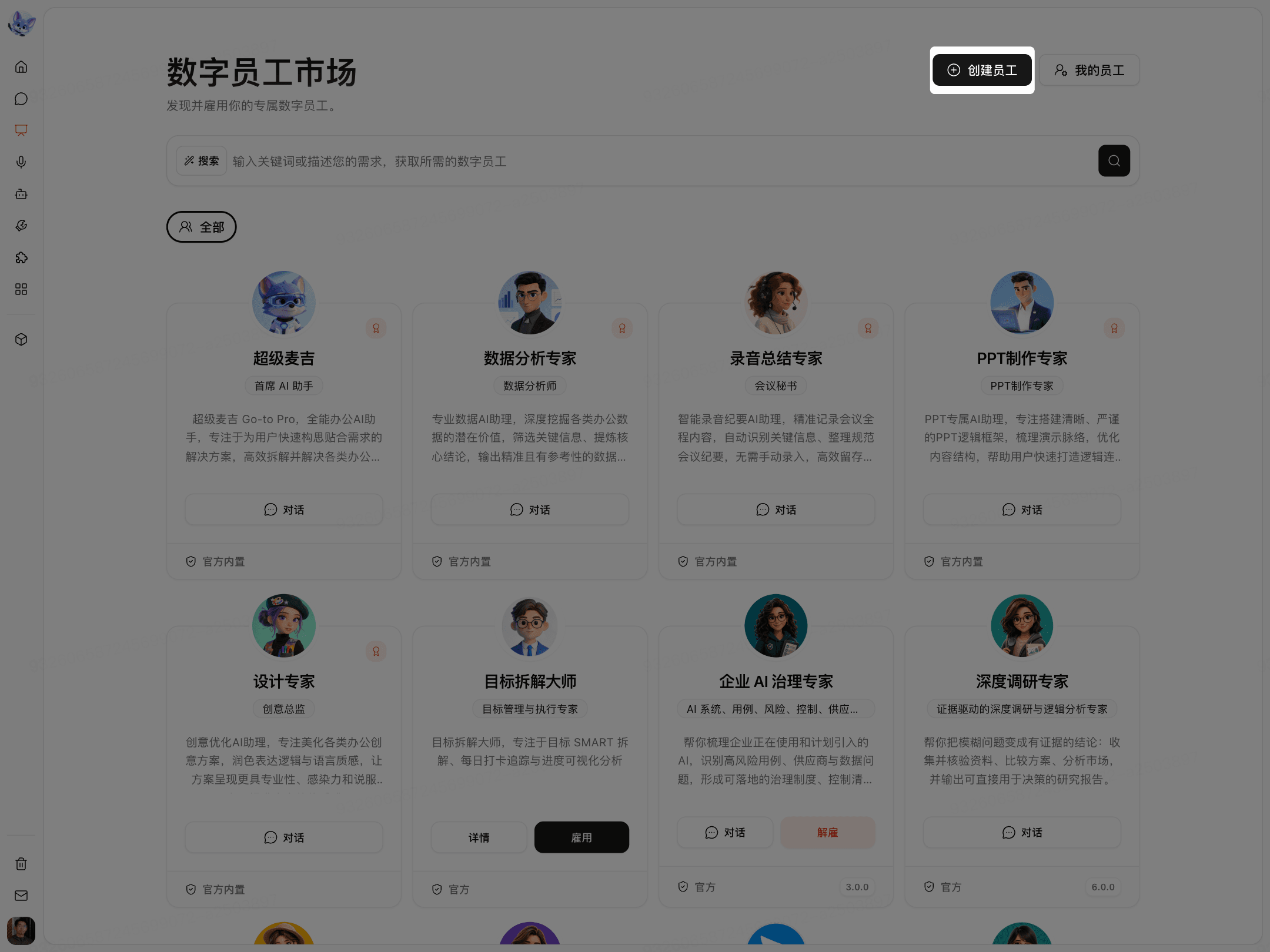
When the page displays Create Your Digital Crew, you have entered the creation page.
Describe the Digital Crew
Describe the employee's role in the input box.
Describe the tasks the employee needs to handle.
Describe the results you want the employee to produce.
Click the send button in the lower-right corner of the input box.
Wait for SuperMagic to finish creating it.
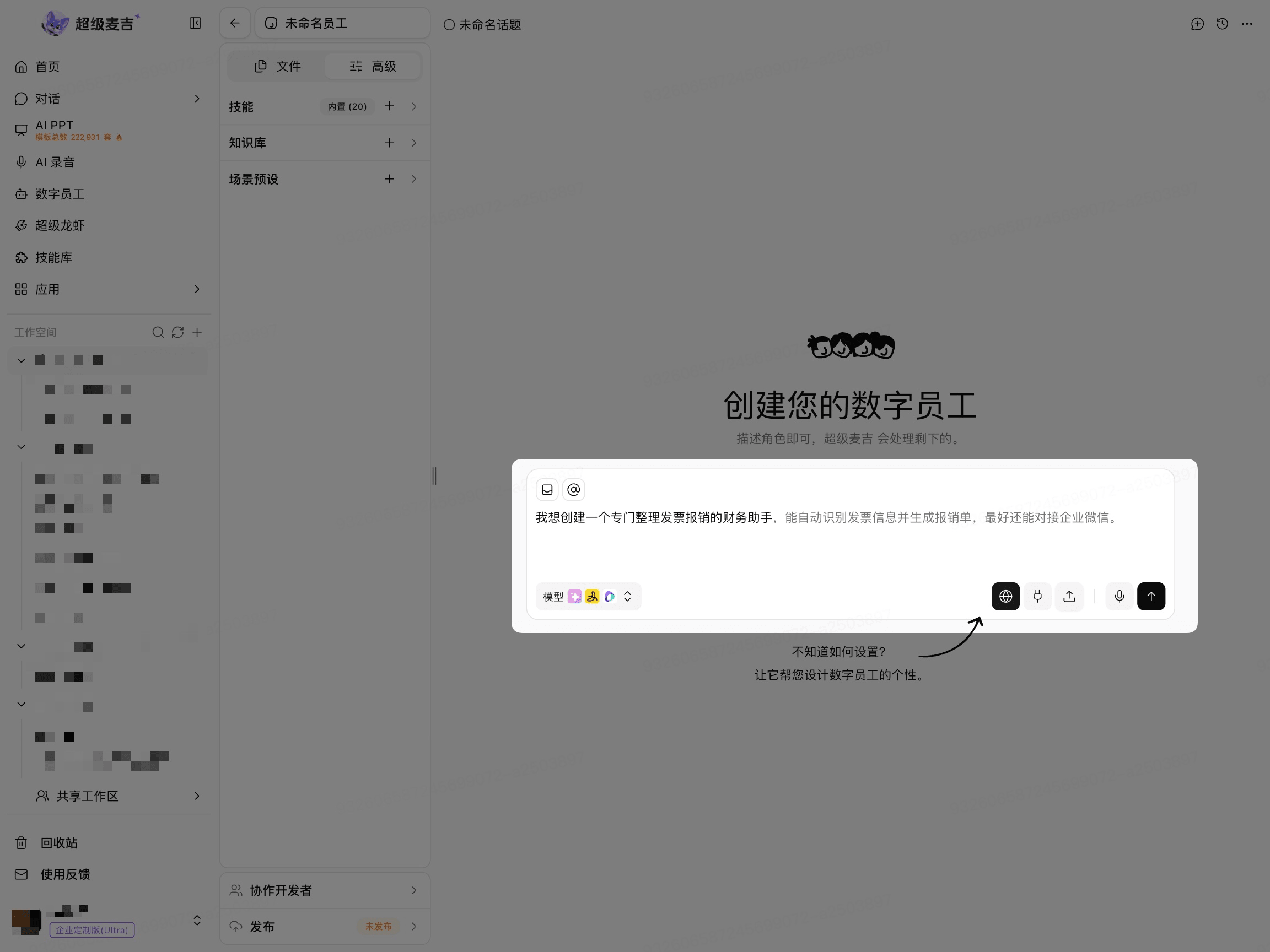
The more specific your description, the more likely the creation result will meet your actual needs. If you are not sure how to describe it yet, you can use the assistance options provided on the page to add role details.
Check the Creation Result
After creation is complete, check whether the employee's Role, Capability Description, and Task Scope meet your expectations.
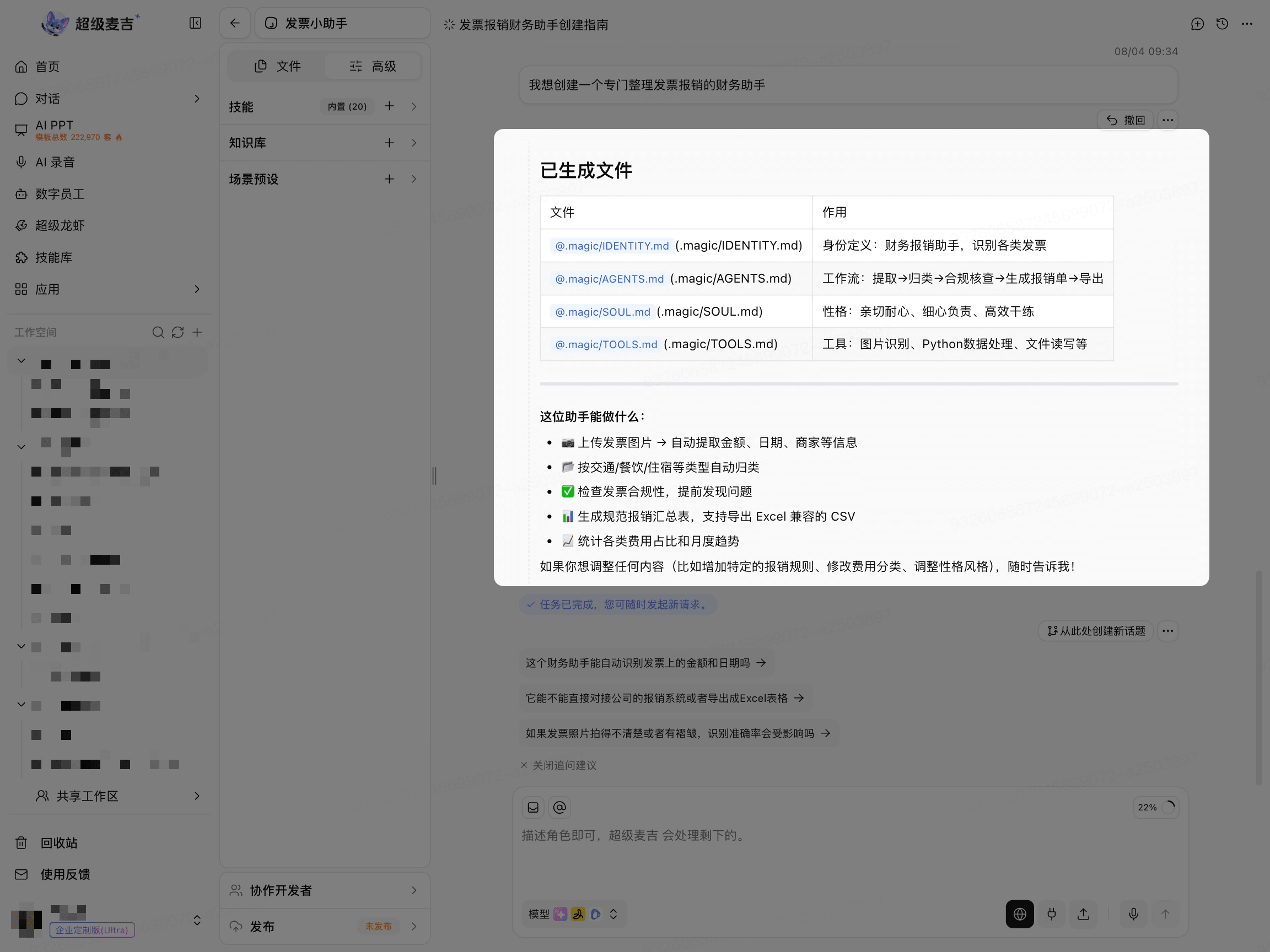
When the page displays Task Completed and lists the tasks the employee can handle, the creation process is complete.
If the result does not meet your expectations, you can continue adding the task scope, input materials, output format, or processing requirements.
When you need to publish file resources, place the content intended for formal release in the .magic/ folder in the Digital Crew root directory. Keep other files in the root directory only on the editing page for debugging, testing, or other non-production purposes. For detailed rules, see Publish My Digital Crew.
After creation is complete, you can continue configuring Skills, Knowledge Base, Scenarios, and Publishing Permissions in My Employees.