
Publish My Digital Crew
Create a Digital Crew version in My Employees, set access permissions, and complete the publishing process.
Create a Digital Crew version in My Employees, set Access Permissions, and complete the publishing process.
Open the Publishing Page
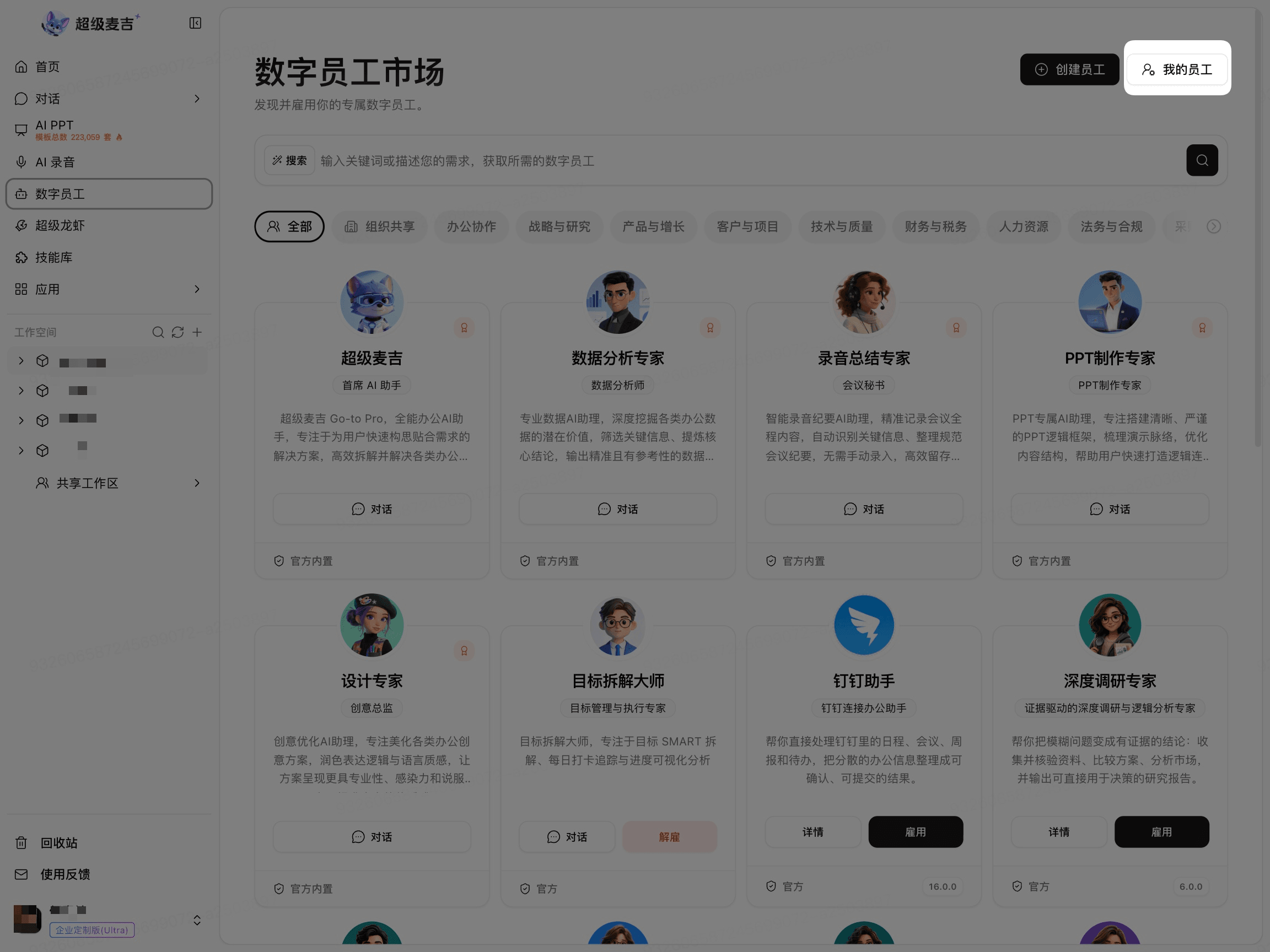
Click Digital Crew in the left navigation bar.
Click My Employees.
Find the target employee and click More (...) on the right side of the card.
Click Publish.
Confirm the Publishing File Scope
When publishing a Digital Crew, the system uses only the resources in the .magic/ folder in the Digital Crew's root directory as the employee's publishing content.
Files outside .magic/ in the root directory are not published with the version. They remain in the file list on the editing page. You can use these files for debugging, testing, or other content that does not need to be officially published.
Before publishing, organize the resources that need to be published with the Digital Crew in the .magic/ folder, and confirm that its contents are correct.
Create a Publishing Version
Click Publish New Version on the publishing page.
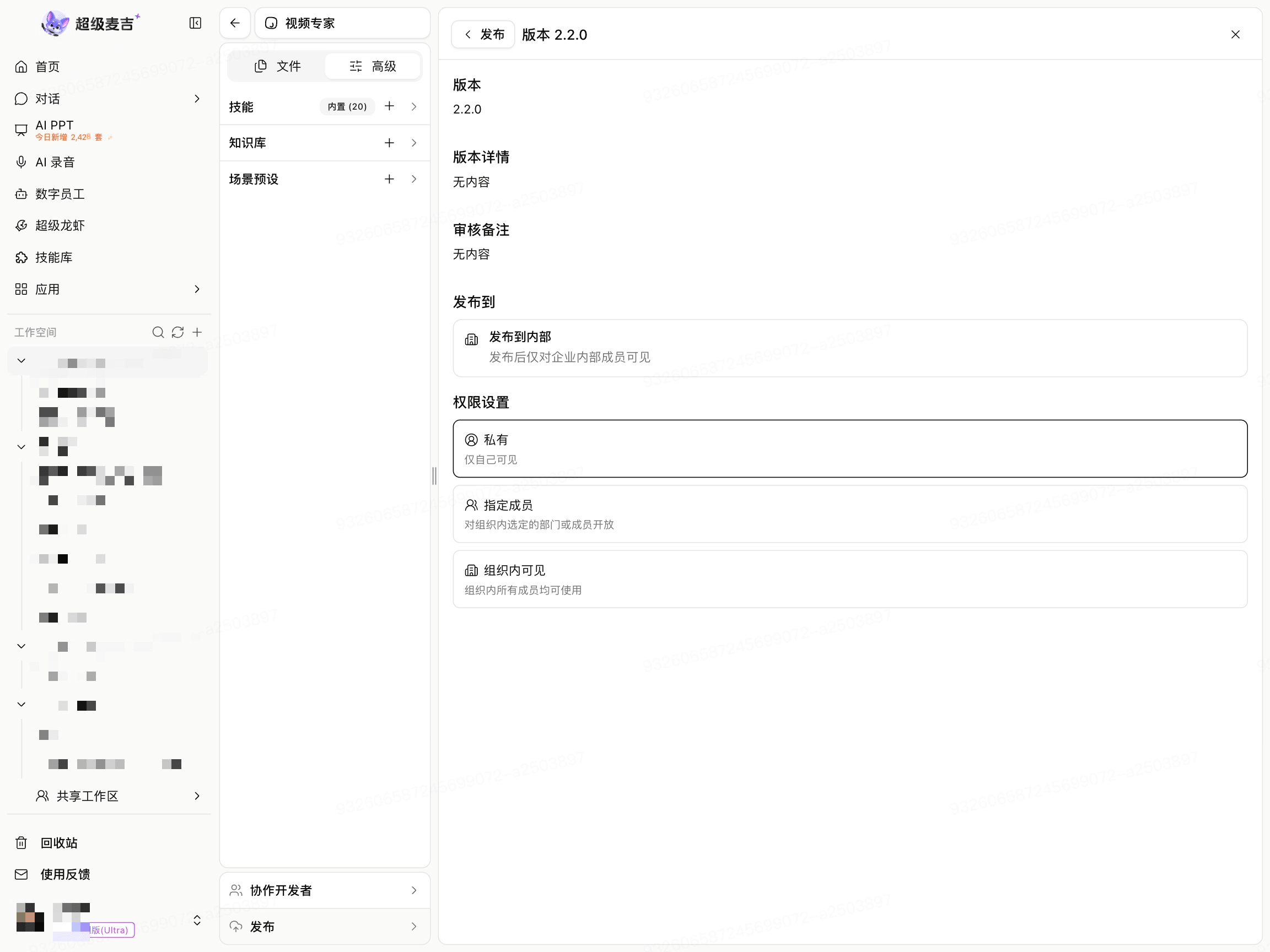
Enter the Version Number.
Describe the content added or modified this time in Version Details.
Check the current Employee Configuration.

Version Details should describe whether this change involves the Role, Skills, Knowledge Base, Scenarios, or Permissions.
Set Access Permissions
Access Permission | Scope |
|---|---|
Private | Visible only to you. |
Specific Members | Visible only to selected members or departments. |
Visible to Organization | Available for use by all members in the organization. |
If you select Specific Members:
Select Specific Members.
Open the Members or Departments selector.
Select the Members or Departments to whom access should be granted.
Check the Permission Scope.
Complete Publishing and Check the Status
Check the Version Information and Permission Scope.
Click the Publish button provided on the page.
Wait for the page to update the Publishing Status.
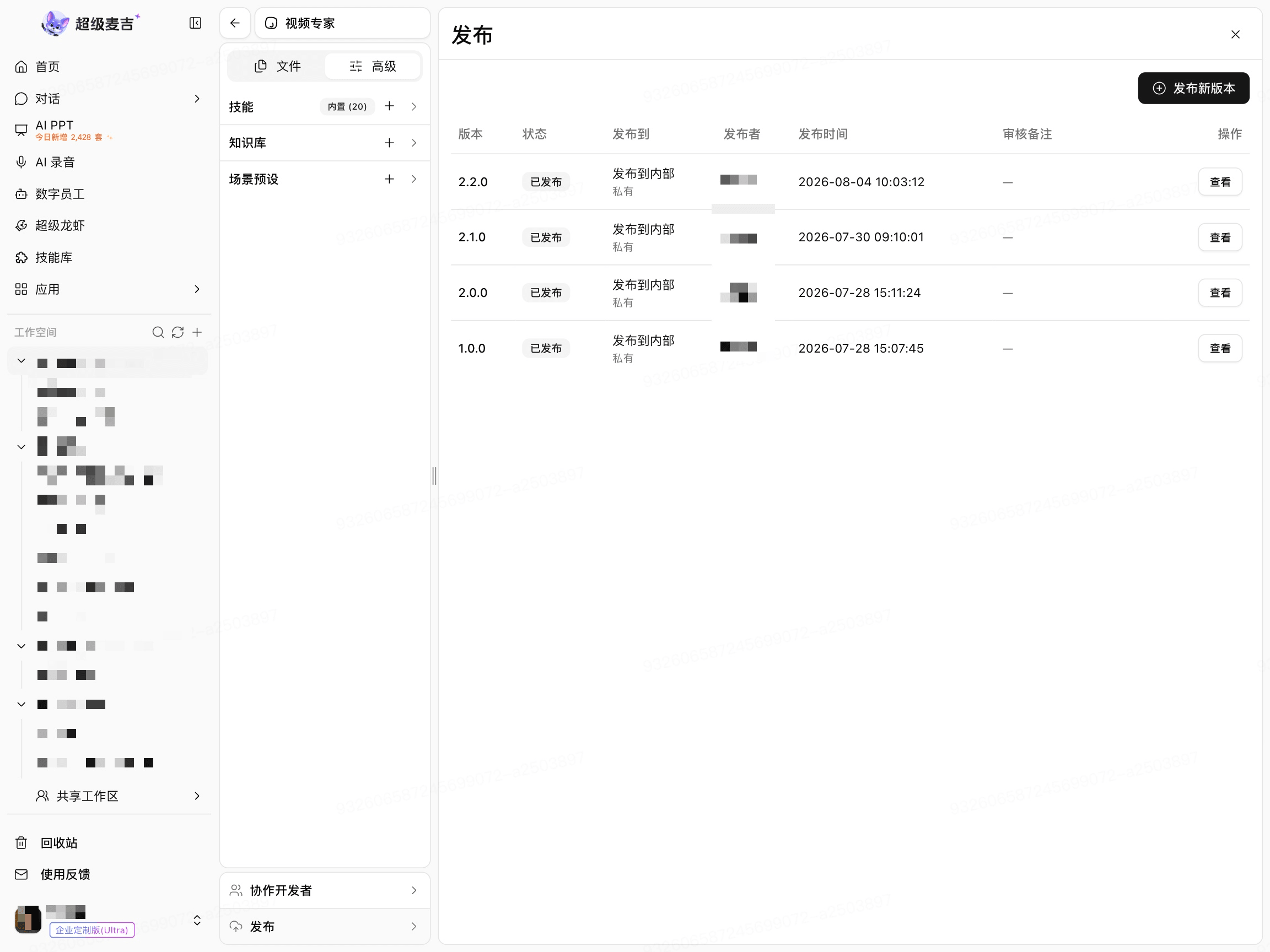
When the publishing list displays the Current Version, Publishing Status, Publishing Scope, Publisher, and Publishing Time, the version has been published successfully.
Republish an Employee After Making Changes
Open the employee's Publishing Page.
Check whether the page displays Unpublished Changes.
Click Publish New Version.
Check the Version Details and Permission Scope.
Click Publish.
After modifying the employee configuration, you need to publish a New Version for the changes to take effect according to the Publishing Scope.