
Control Model Permissions
Create model control rules in the admin console to restrict all members or specified members and departments in the current enterprise from using specific models.
Create model control rules in the admin console to restrict all members or specified members and departments in the current enterprise from using specific models.
Before you start
Sign in to SuperMagic and open the admin console for the enterprise that needs to be configured.
Confirm that the current account has administrative permissions for model control under AI Management.
Confirm the models that need to be disabled and the members or departments to which the rules apply.
If the rule needs to cover all members of the enterprise, confirm in advance whether there are members who need to be excluded.
Notify relevant model users before modifying rules to avoid affecting tasks that are currently running.
Model control determines “which members cannot use specified models.” After creating a rule, you must also enable Model Permission Control on the page for the rule to actually restrict model access.
Open the Model Control page
In the admin console, click AI Management at the top.
Expand Model Management in the left navigation.
Click Model Control.
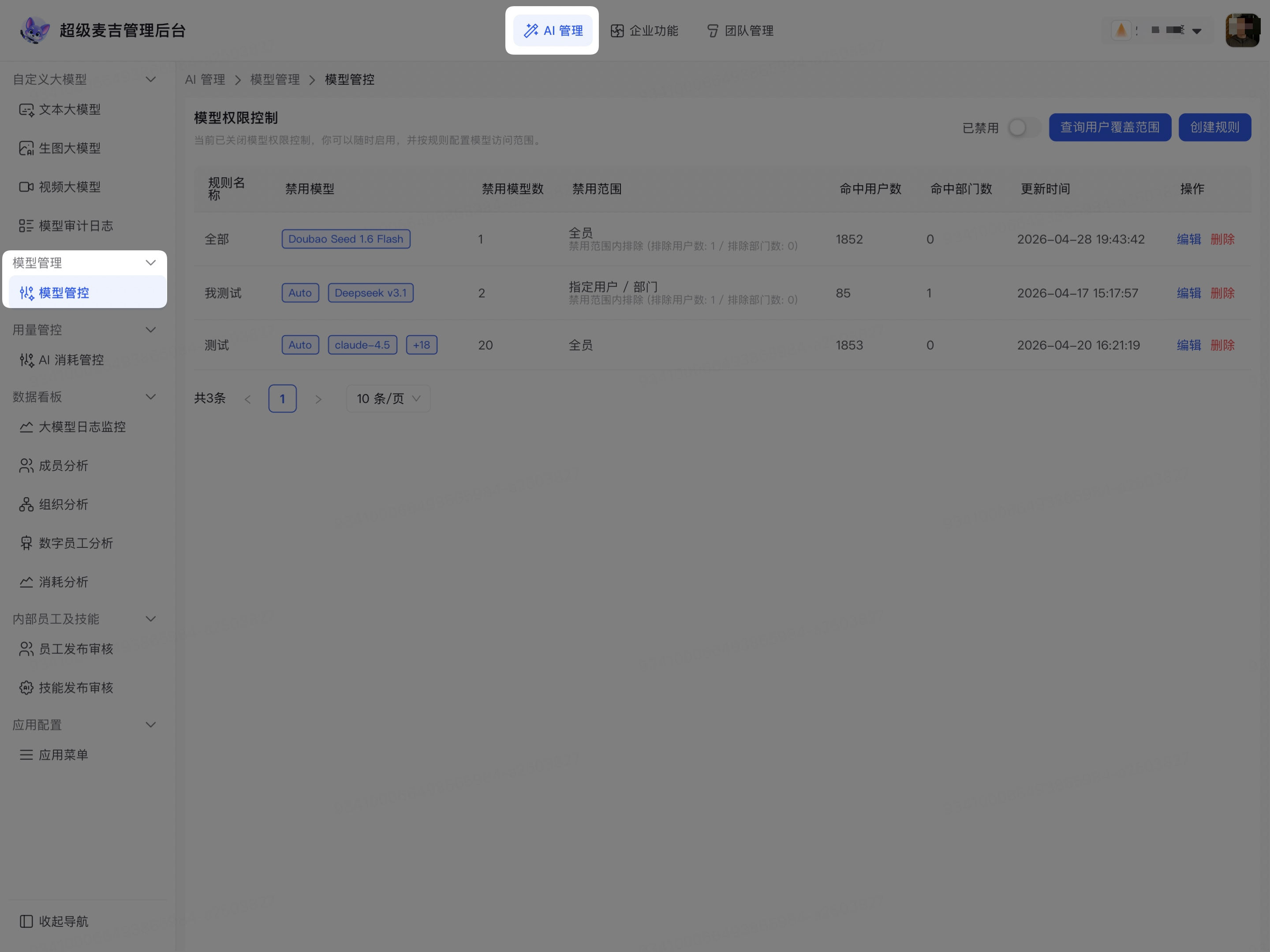
The page displays the enabled status of Model Permission Control, existing rules, Query User Coverage, and Create Rule.
Create a model control rule
Click Create Rule in the upper-right corner of the page.
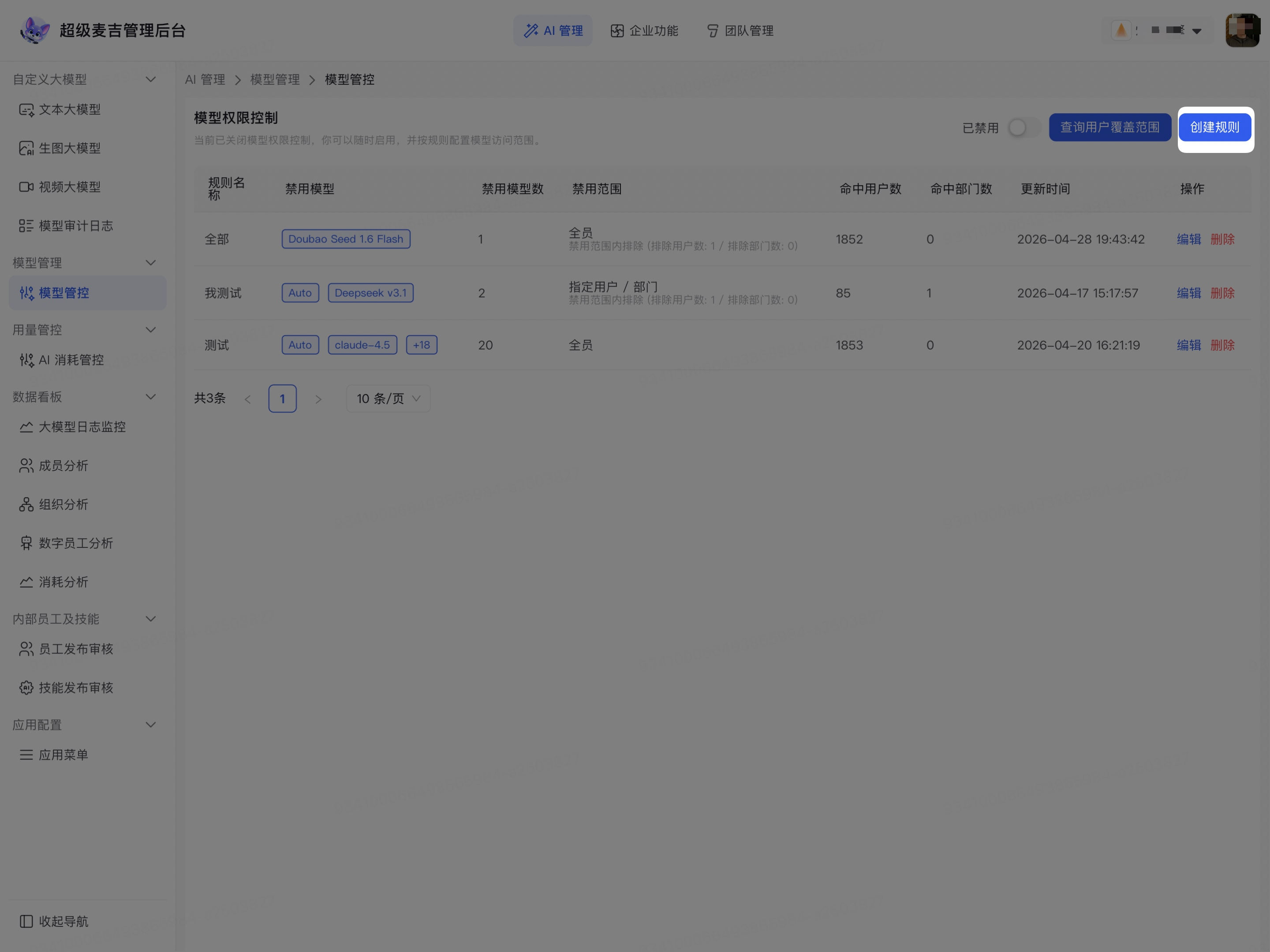
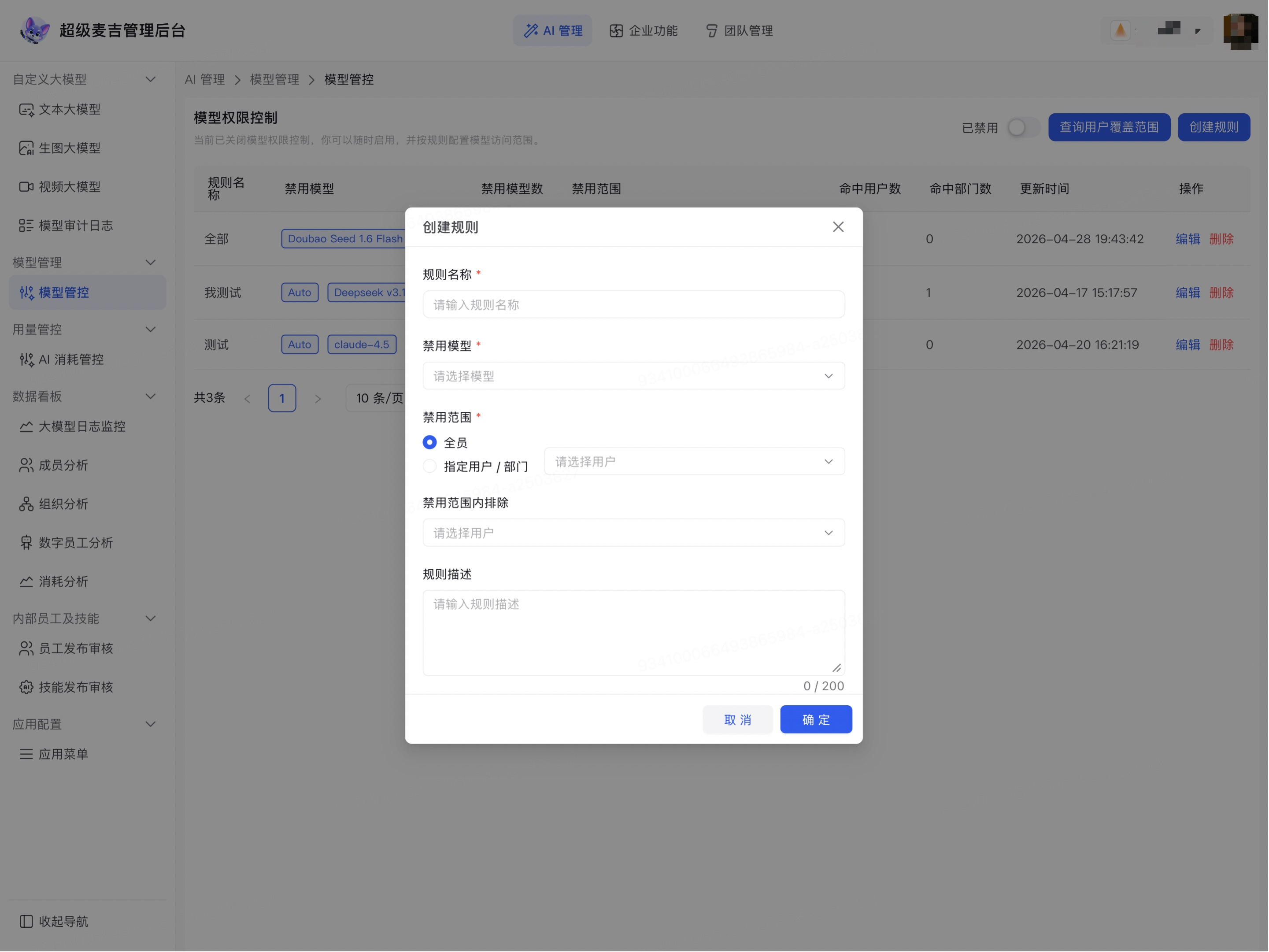
Enter an easily recognizable name in Rule Name.
Click Disable Models.
Search for and select one or more models that need to be prohibited.
Under Disable Scope, select how the rule applies:
Select All Members to apply the rule to all members of the current enterprise.
Select Specified Users / Departments, then add the members or departments to be controlled.
If you need to retain model access for individual members, select those members under Exclude from Disable Scope.
Enter the reason for the setting, applicable users, or owner in Rule Description.
Check the rule scope and disabled models.
Click Confirm.
The new rule appears in the list and displays the rule name, disabled models, disable scope, and the number of matched members and departments.
Rules for all members have a broad impact. Before saving, check the excluded members and disabled models again to avoid restricting the wrong users.
Query models available to a member
The same member may match multiple rules. You can query user coverage to view the models that the member is ultimately prohibited from using and the models that remain available.
Click Query User Coverage.
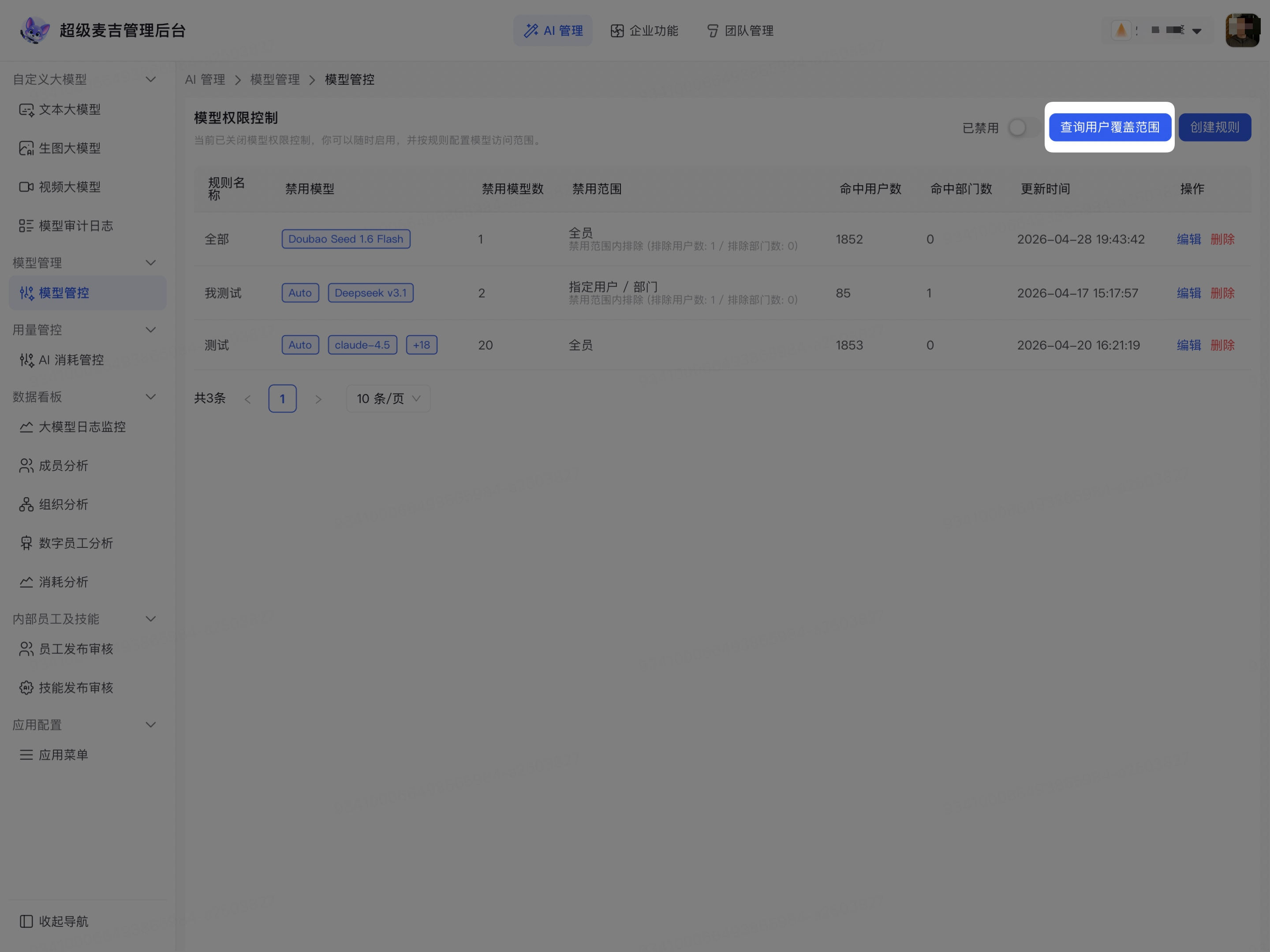
Click the user selector.
Search for and select the member to query.
Click Confirm to return to the query window.
Click Query User Coverage.
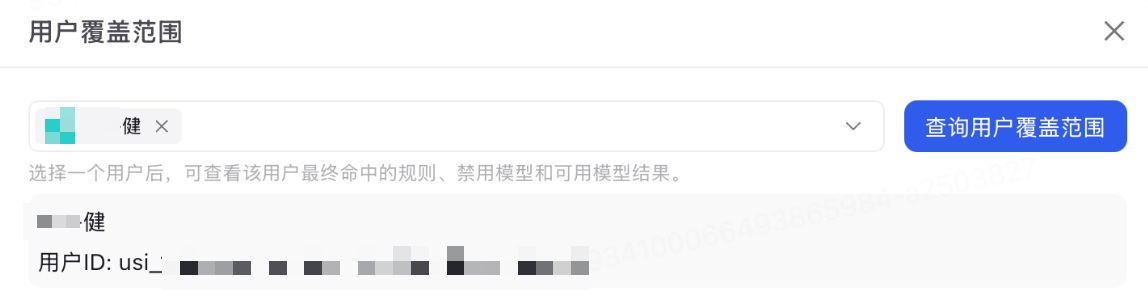
The page displays the rules matched by the member, the disabled models, and the models that remain available. After modifying rules, query the relevant members again to confirm that the final results meet expectations.
Enable or disable Model Permission Control
Click the status switch in the upper-right corner of the Model Control page to enable or disable Model Permission Control.
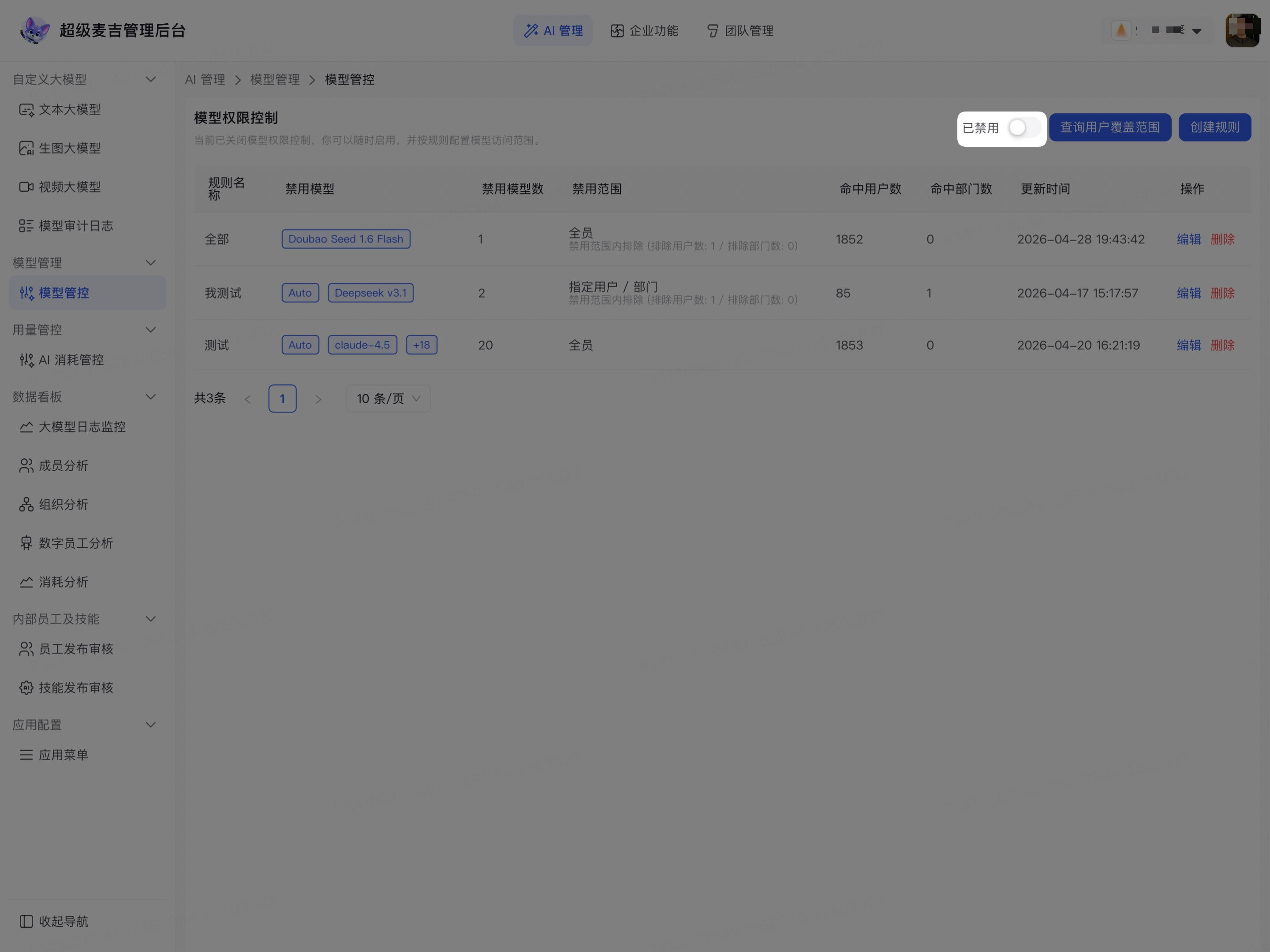
Switch on: Existing rules start restricting members' access to models.
Switch off: The rules are retained but no longer restrict model access.
Before disabling it, confirm whether the current enterprise still needs the existing model access restrictions.
Edit or delete a rule
Edit a rule
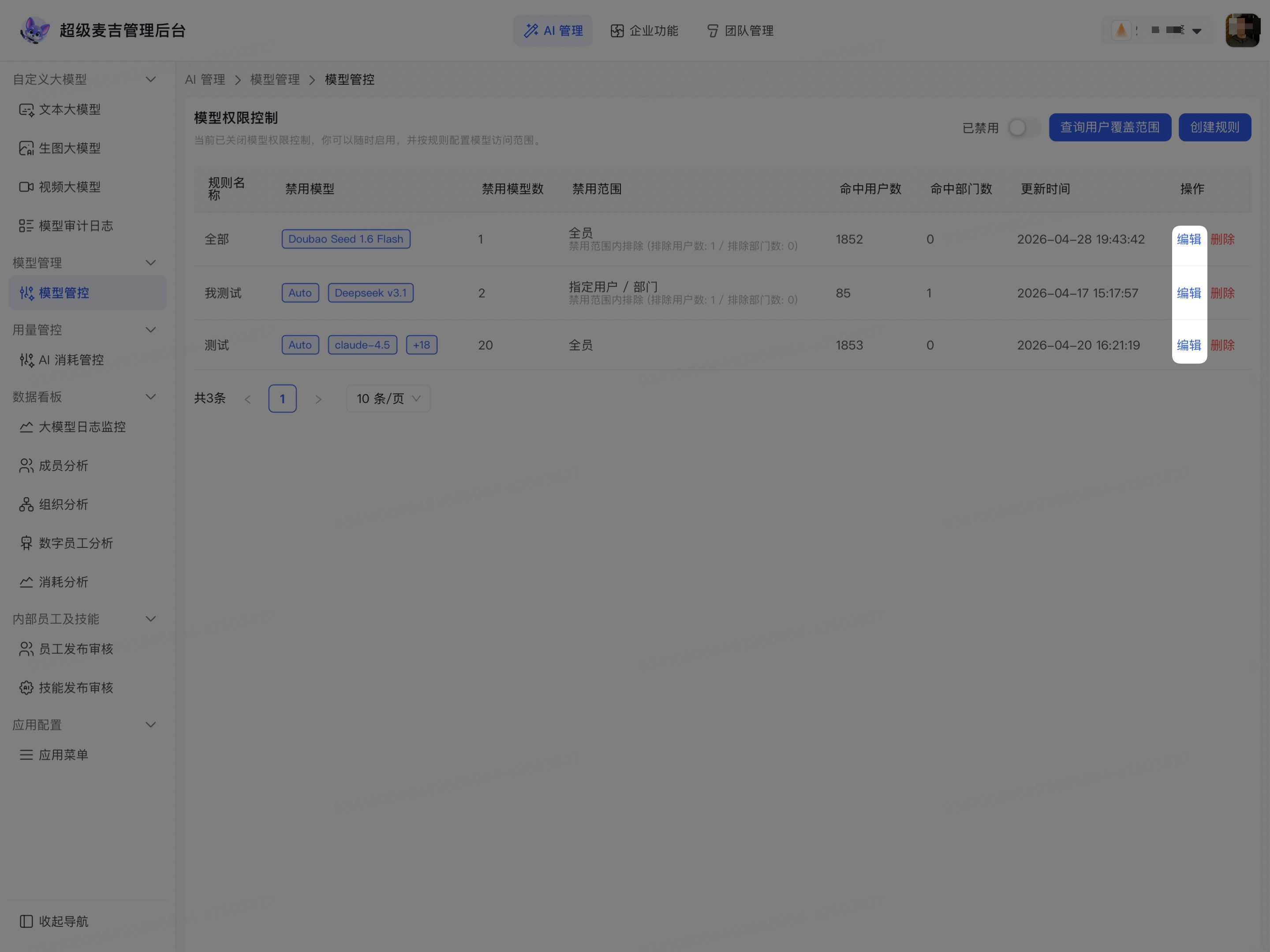
Find the target rule in the rule list.
Click Edit.
Modify the disabled models, disable scope, excluded members, or rule description.
Click Confirm.
Query user coverage for affected members.
Delete a rule
Find the target rule in the rule list.
Click Delete.
Confirm that the rule is no longer needed.
Complete the deletion as prompted on the page.
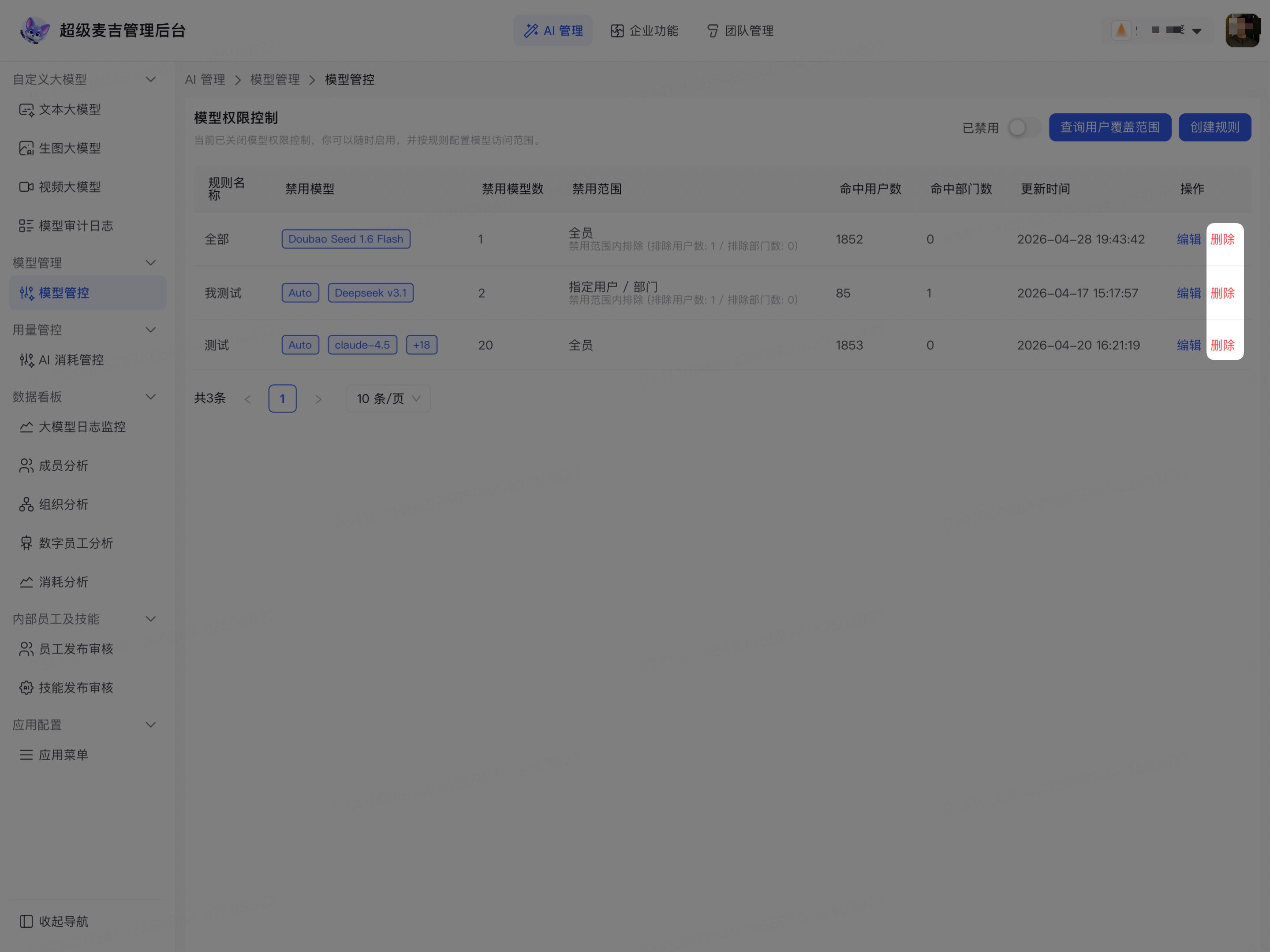
Deleting a rule changes the range of models available to members who were previously matched by that rule. Before proceeding, confirm whether other rules will continue to provide the same control.
Confirm the control results
After completing the setup, check the following:
Confirm that the Model Permission Control switch is turned on.
Verify the disabled models and disable scope in the rule list.
Use Query User Coverage to check representative members.
Verify the models available to members within the rule, excluded members, and members outside the rule separately.
Query again after adjusting the rule to confirm that the latest settings have taken effect.