
Enterprise Member Consumption Controls
Set monthly point limits for the enterprise, departments, and members in the admin console to control the current enterprise’s AI usage quota.
Set monthly point limits for the enterprise, departments, and members in the admin console to control the current enterprise’s AI usage quota.
Before you start
Sign in to SuperMagic and open the admin console for the enterprise you want to configure.
Confirm that the current account has permission to manage usage controls under AI Management.
Confirm the enterprise’s total monthly point limit and the default point limit for members in advance.
Prepare a list of the departments and members that require individually configured quotas.
Before changing quotas, confirm the scope of impact with the budget owner and the departments that use the service.
The consumption quota referred to on this page is the point limit displayed on the page. Do not write points directly as Chinese yuan, Tokens, or other billing units.
Understand the usage policy matching order
A member may be covered by enterprise-, department-, and member-level controls at the same time. The page indicates that the system matches the final policy in the following order:
Member control policy → If no match is found, match the department control policy → If no match is found, use the organization control policy.
Department policies also apply to subdepartments within the controlled department. The page also indicates that the team creator is not affected by AI consumption control policies, while other super administrators are included in the controls as usual.
Open the AI consumption controls page
In the admin console, click AI Management at the top.
Expand Usage Controls in the left navigation.
Click AI Consumption Controls.
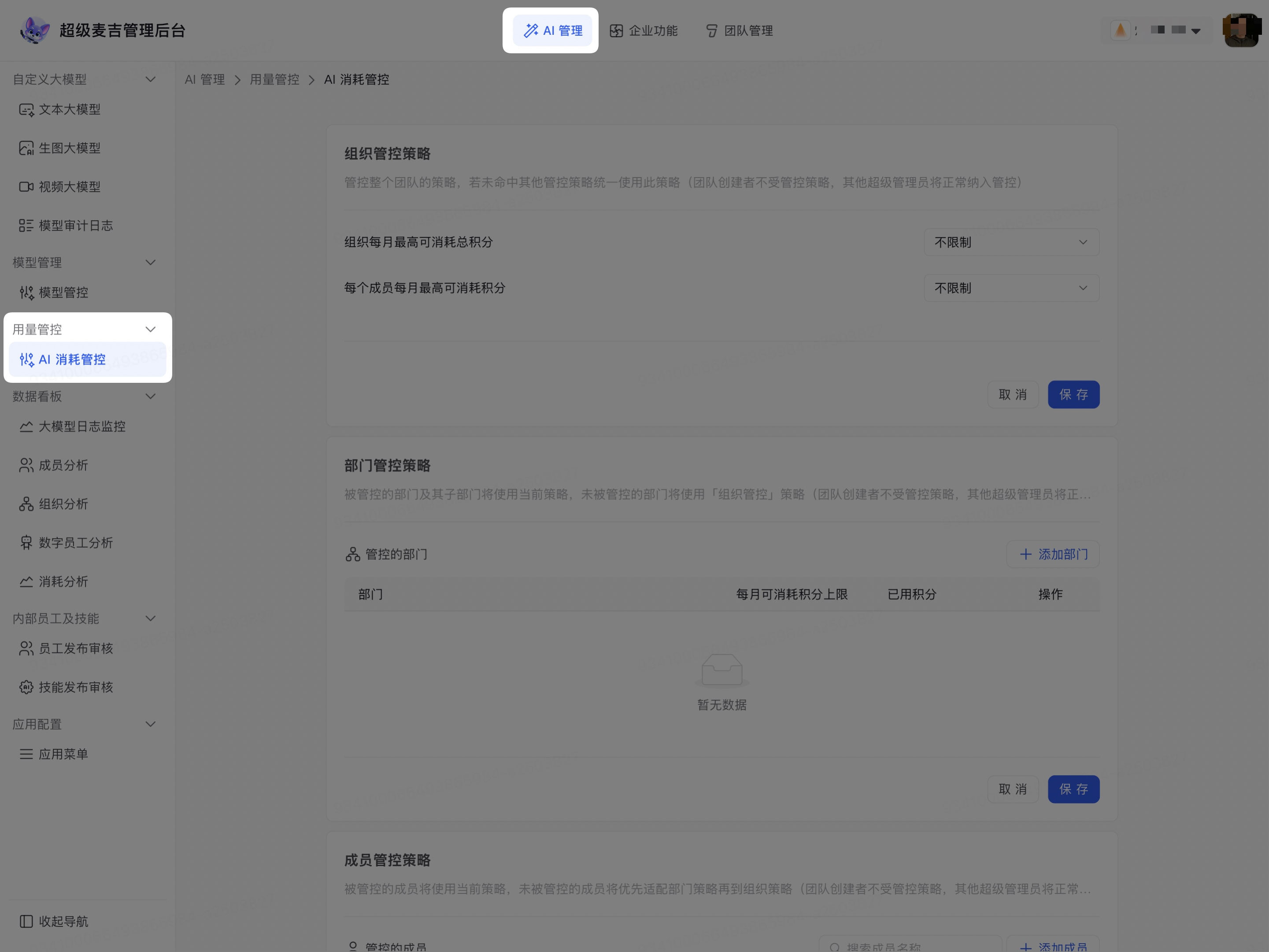
The page displays control policies at the enterprise, department, and member levels, along with the points used and monthly point limits.
Set the enterprise usage limits
The enterprise policy is the default usage policy for the current enterprise. Members who do not match a department or member policy use this policy.
Under Maximum Total Points the Organization Can Consume per Month, select No limit or Set a limit.
When you select Set a limit, enter the total number of points the enterprise can consume per month.
Under Maximum Points Each Member Can Consume per Month, select No limit or Set a limit.
When you select Set a limit, enter the default monthly point limit for an individual member.
Check the limits you entered.
Click Save in the current section.
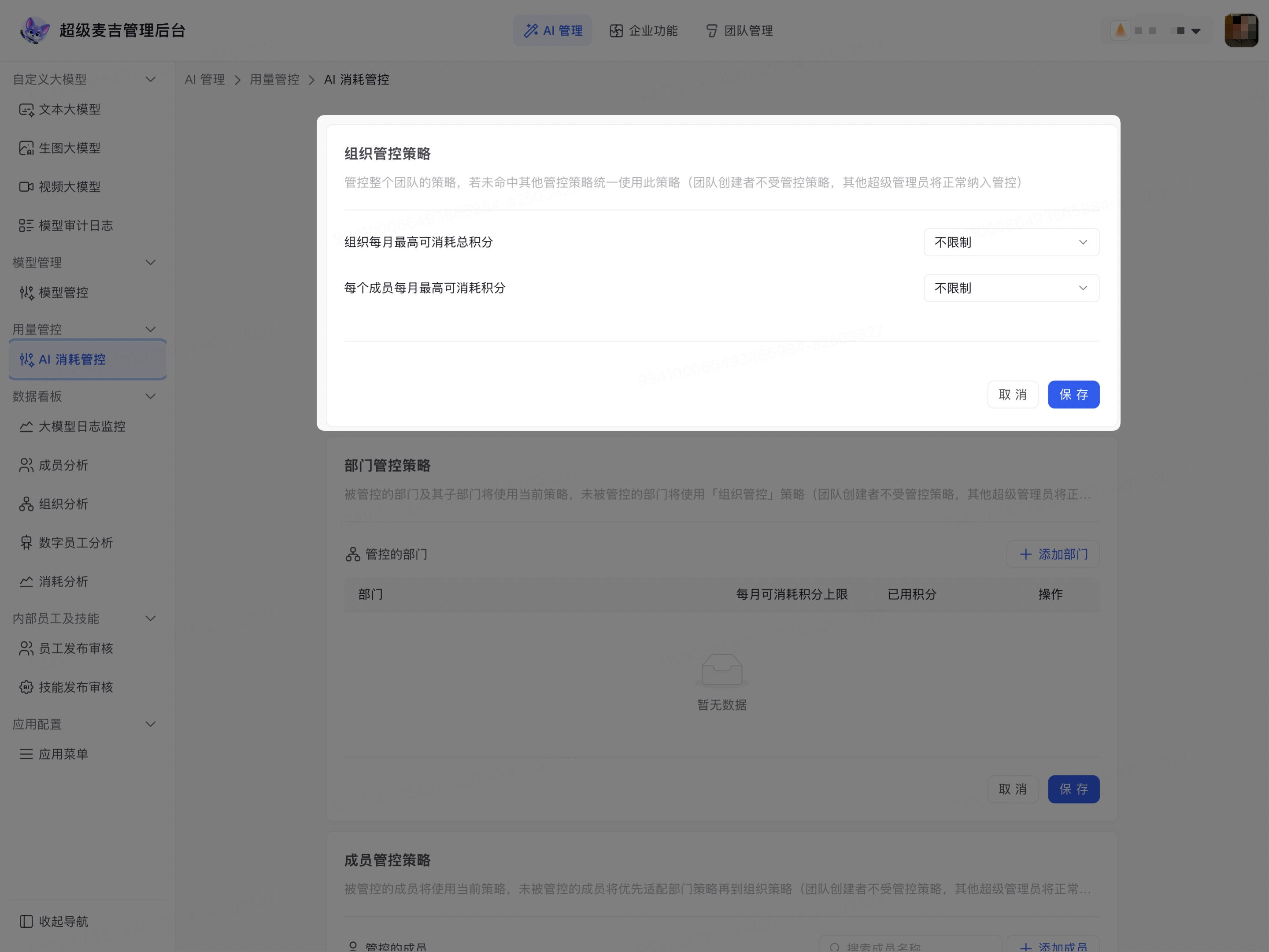
The enterprise usage policy is saved to the current enterprise. Members who do not match a more specific policy will have their monthly point consumption calculated according to the enterprise policy.
Set department usage limits
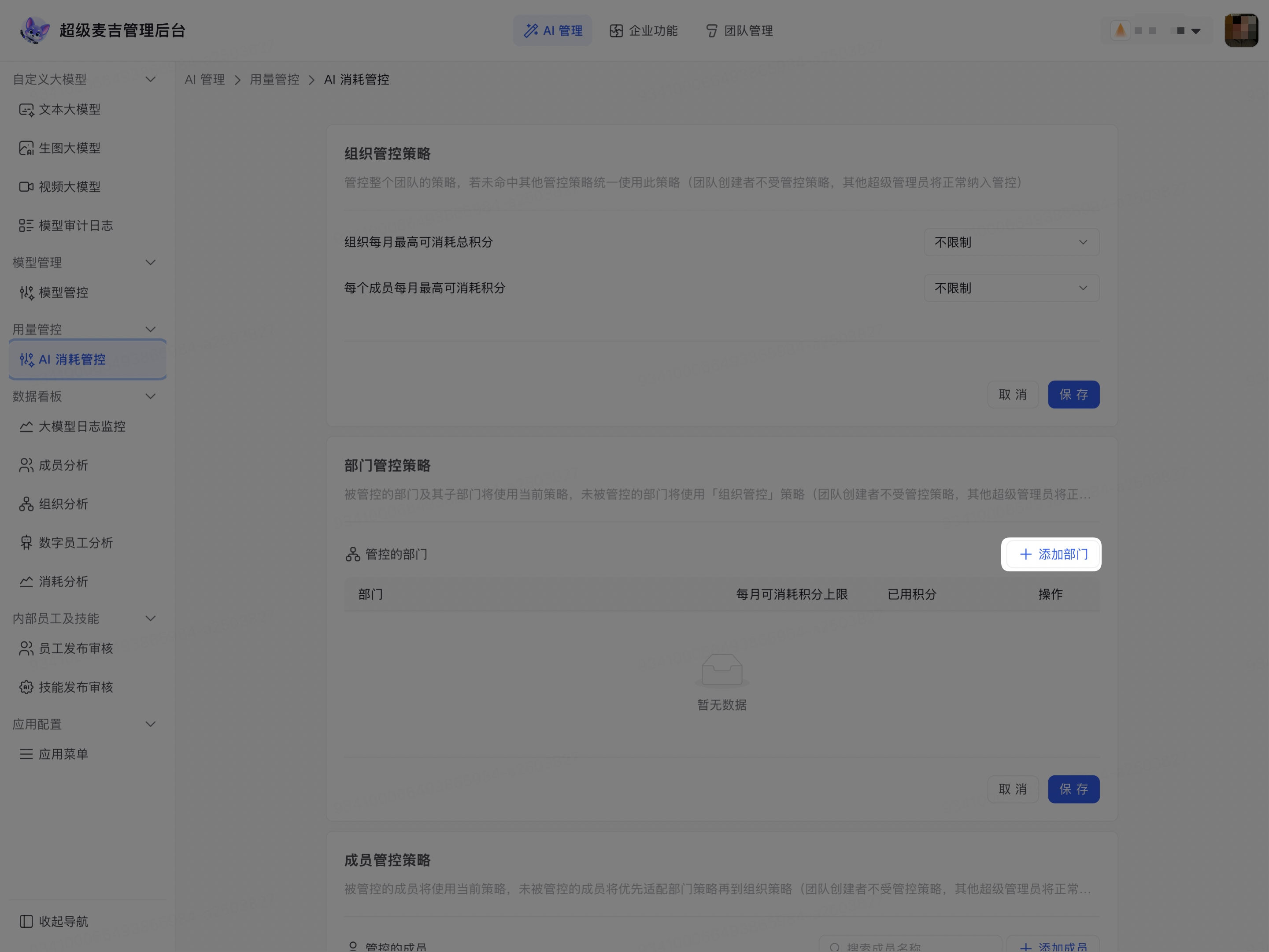
In the Department Control Policies section, click Add Department.
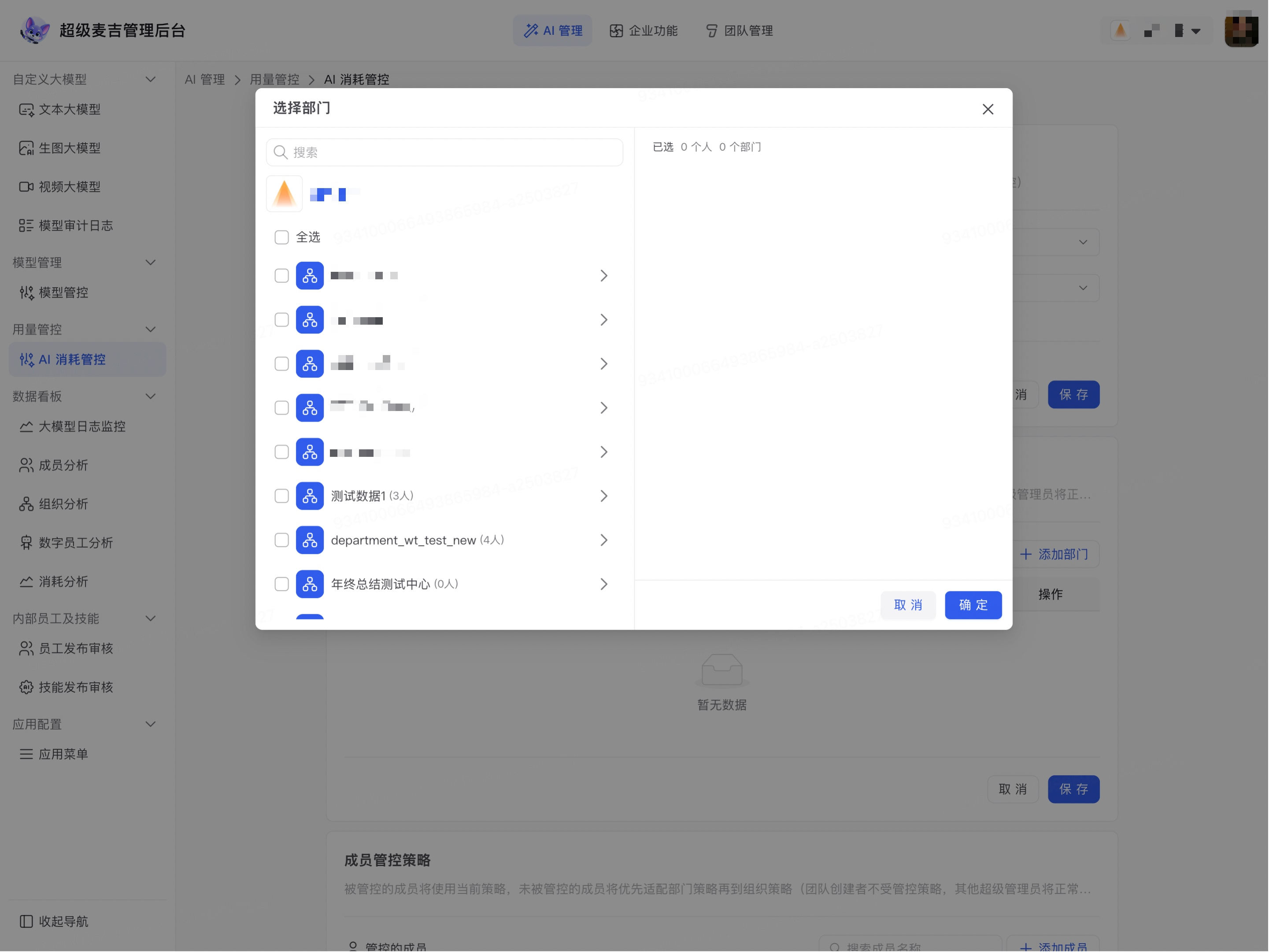
Search for a department or expand the organizational structure.
Select the departments that require individual controls.
Check the selected departments displayed on the right.
Click Confirm.
Enter a limit under Monthly Point Limit to the right of the department.
Check the department’s Points Used.
Click Save at the bottom of the department policy section.
The department appears in the control list and can use AI according to its individually configured monthly point limit. Subdepartments within the controlled department also use the current department policy.
Set member usage limits
In the Member Control Policies section, click Add Member.
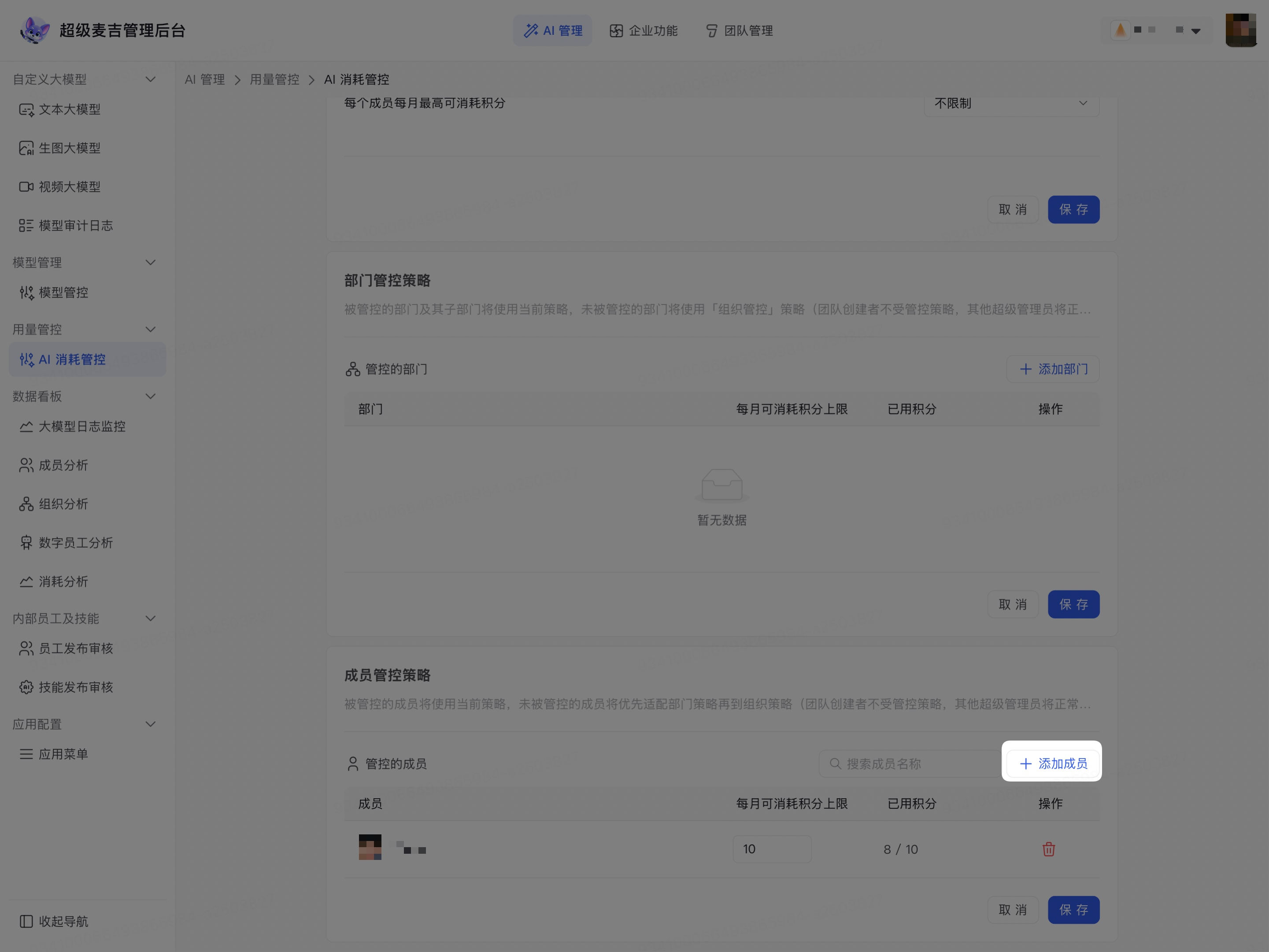
Search for a member or browse the enterprise member list.
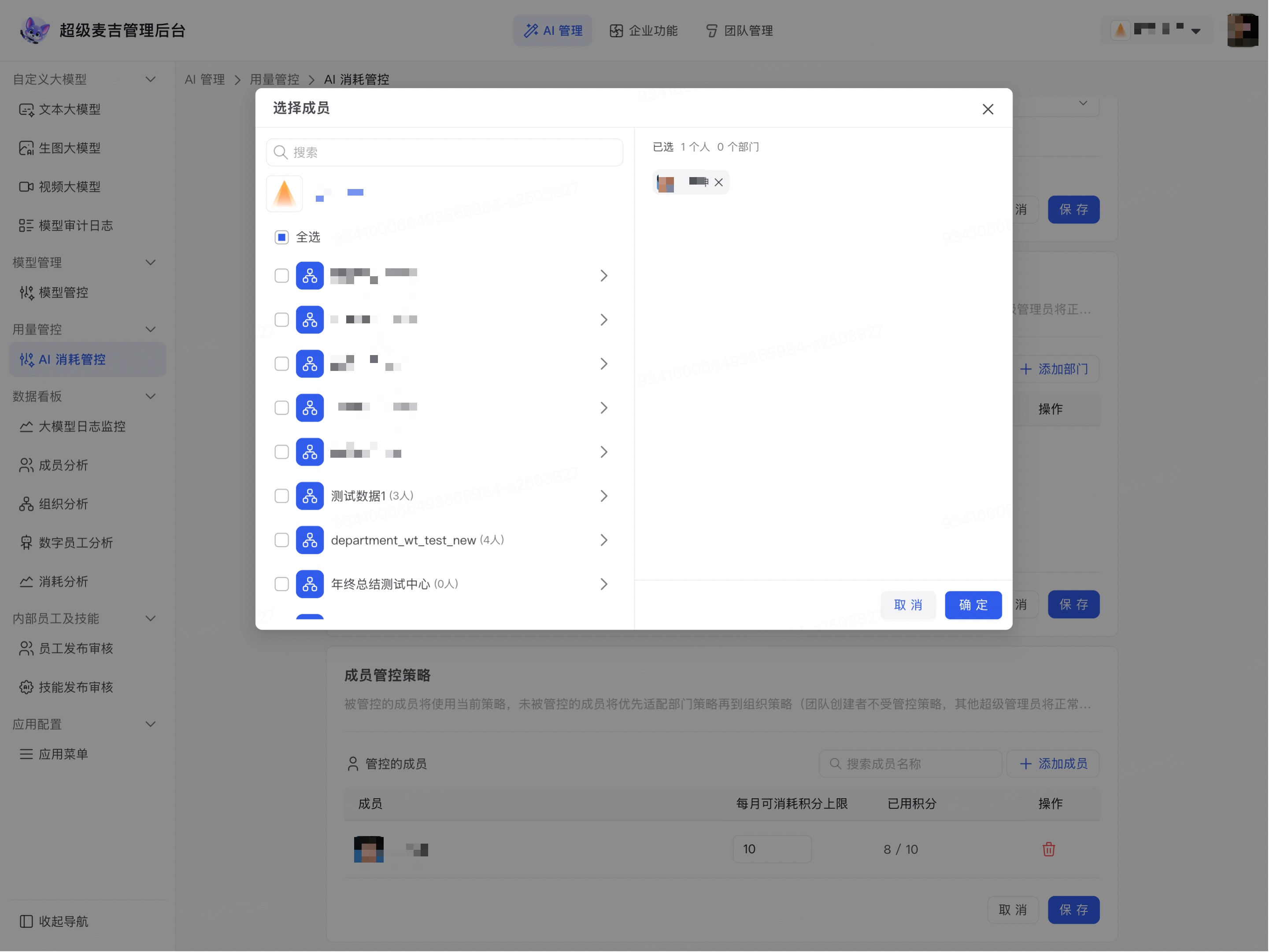
Select the members who require individual controls.
Check the selected members displayed on the right.
Click Confirm.
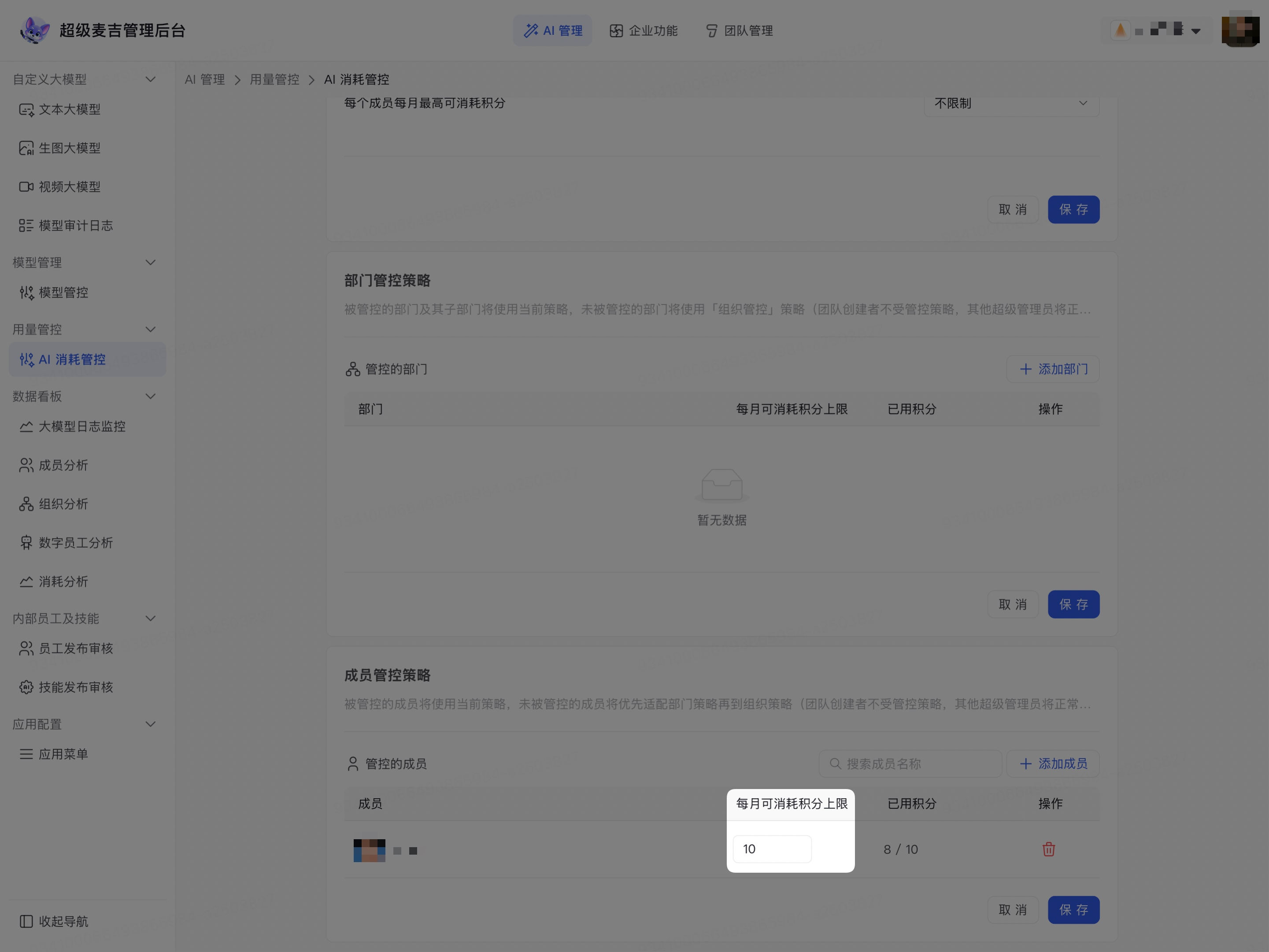
Enter a limit under Monthly Point Limit to the right of the member.
Check the member’s Points Used.
Click Save at the bottom of the member policy section.
The member appears in the control list and uses AI according to the individually configured monthly point limit as the priority policy.
Remove department or member policies
Remove a department policy
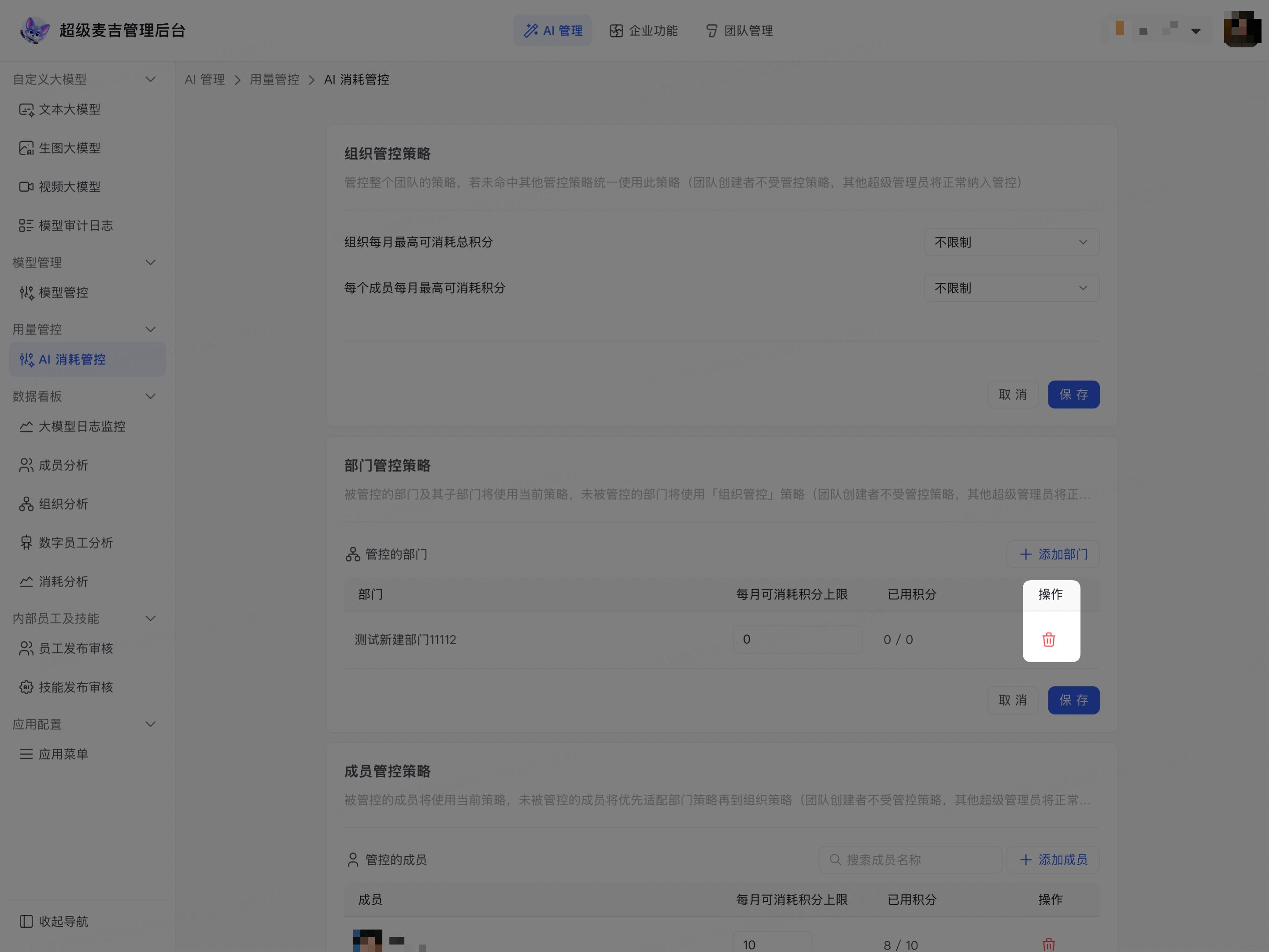
Find the target department in the department control list.
Click the delete icon to the right of the department.
Click Save at the bottom of the department policy section.
Remove a member policy
Find the target member in the member control list.
Click the delete icon to the right of the member.
Click Save at the bottom of the member policy section.
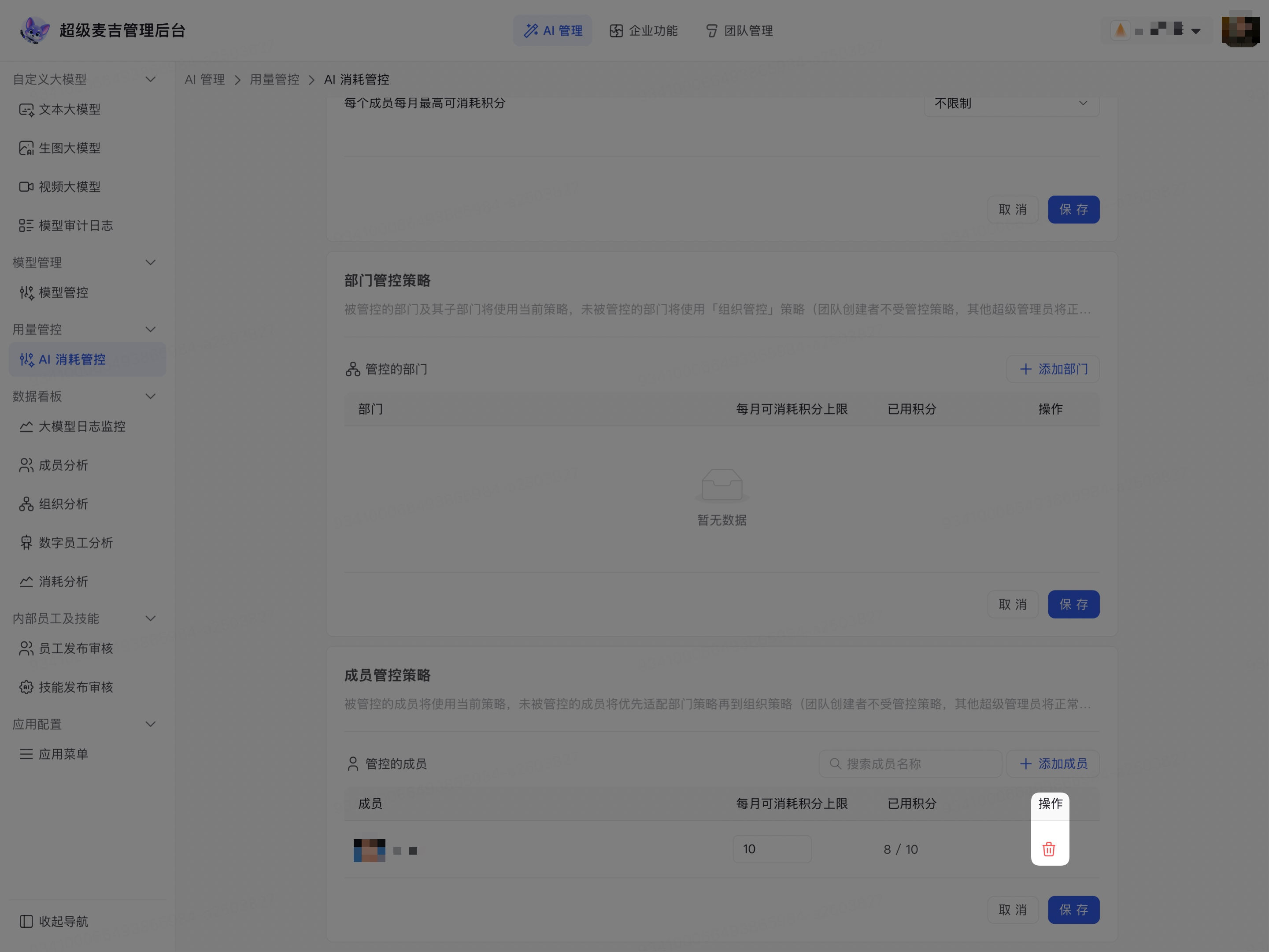
Removing a policy only deletes the current usage policy. It does not delete the department, member account, or organizational data. After removal, the affected members continue to match an available department policy or enterprise policy.
Confirm the control results
After completing the setup, check the following:
The total points and default member limit in the enterprise policy are correct.
The departments and members appear in the corresponding control lists.
The monthly point limit displayed for each object matches the plan.
The points used are displayed correctly.
Check the matching results for the member, department, and enterprise policies separately.
Confirm that the applicability to the team creator and super administrators matches the page description.