
Customize Internal Models
Add text, image generation, or video model providers for the current organization in the admin console, and configure the specific models the organization can use.
Add text, image generation, or video model providers for the current organization in the admin console, and configure the specific models the organization can use.
Before You Begin
Sign in to SuperMagic and open the admin console for the organization you want to configure.
Confirm that the current account has permission to manage custom models under AI Management.
Determine whether you need to connect a text, image generation, or video model.
Obtain the API Key, Access Key, Secret Key, or other access credentials issued by the provider.
Obtain the complete API endpoint, model identifier, model deployment name, and display information.
API Keys, Access Keys, and Secret Keys are sensitive credentials. Enter them only on controlled administration pages. Do not include them in documents or screenshots, or send them to unauthorized individuals.
Understand Providers and Models
Custom models have two configuration levels:
Configuration object | Purpose |
|---|---|
Provider | Stores the access credentials, API endpoint, alias, and display priority required to connect to the model service. |
Model | Stores the model identifier, deployment name, parameters, capabilities, and display information used by the organization. |
You must first add and configure a provider, and then add specific models under that provider. A provider can contain multiple models. If you use multiple accounts from the same provider, you can use aliases to distinguish their configurations.
Open the Custom Models Page
Click AI Management at the top of the admin console.
Expand Custom Models in the left navigation menu.
Click Text Models, Image Generation Models, or Video Models, as needed.
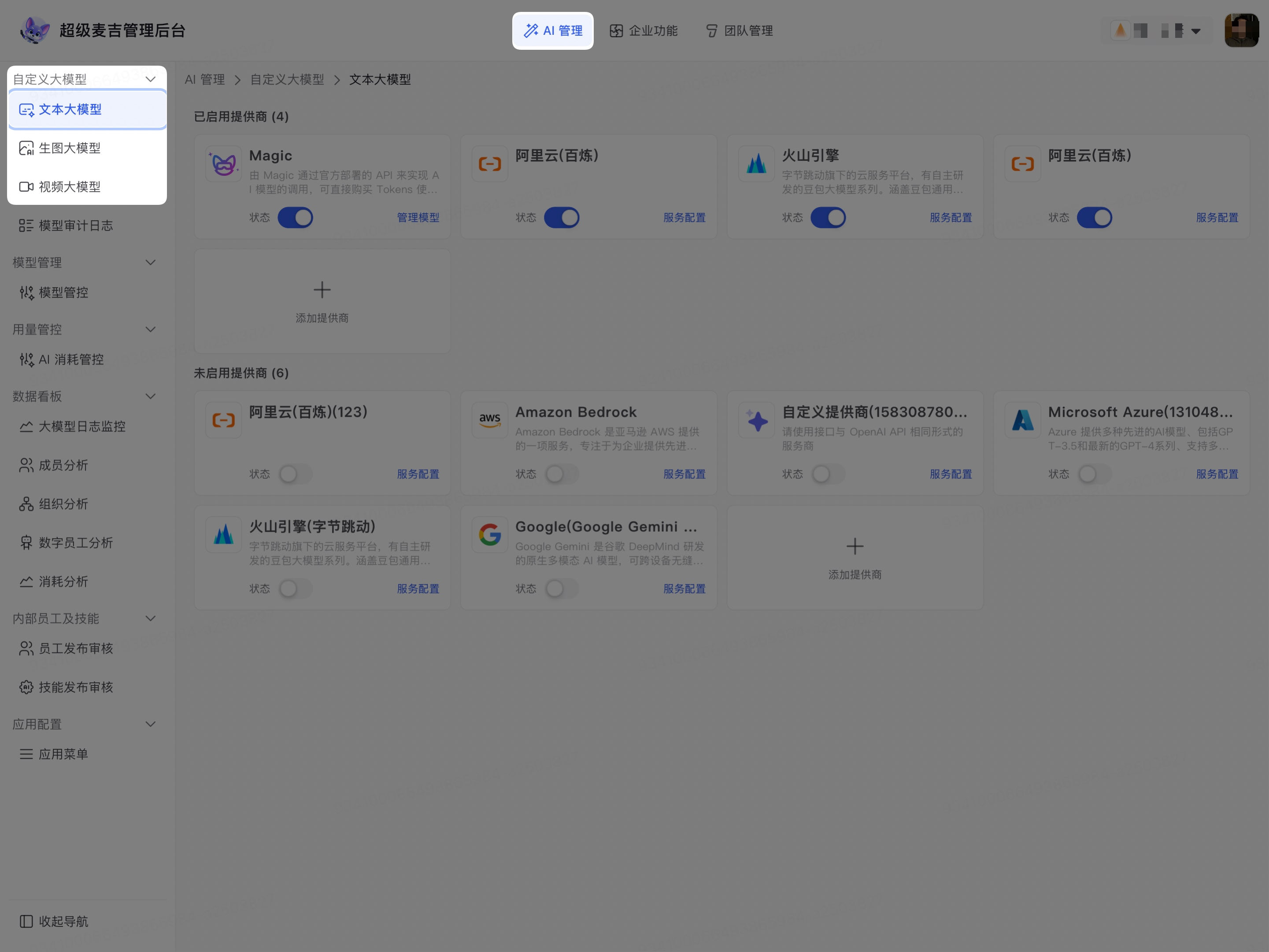
The page displays the providers added for the current organization under Enabled Providers and Disabled Providers, along with options such as Add Provider, Service Configuration, and Manage Models.
Add a Model Provider
Open the page for the type of model you want to configure.
Click Add Provider.
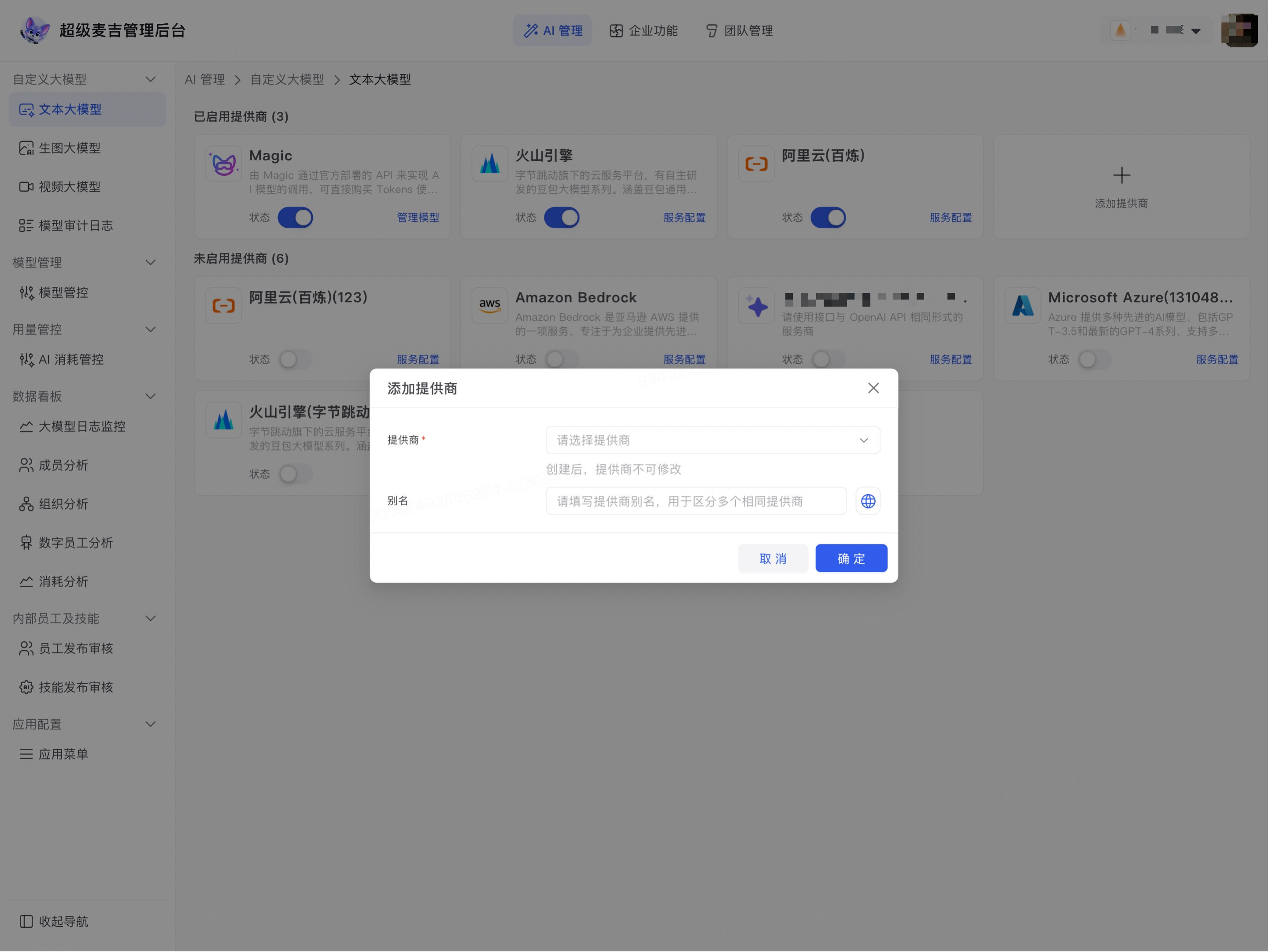
Click the Provider drop-down menu.
Search for and select the service provider you want to connect.
Under Alias, enter a name that administrators can easily recognize.
Enter the connection information displayed on the page, such as the API Key, Access Key, Secret Key, or API endpoint.
Click OK.
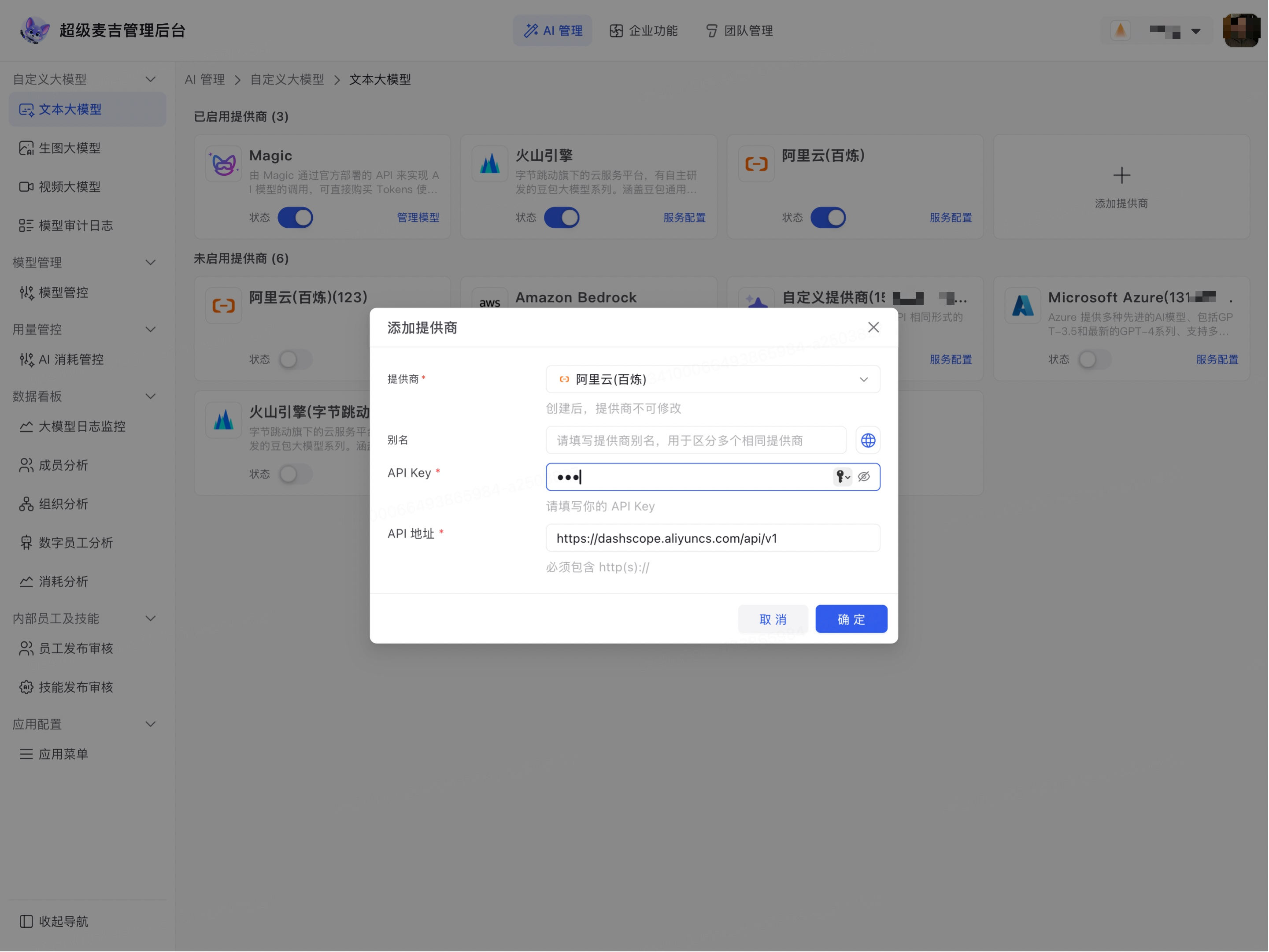
Authentication methods may vary by provider. Refer to the fields on the current page and the connection information supplied by the service provider. You cannot directly change the provider type after creating it. If you selected the wrong type, delete the provider and add it again.
Configure Provider Services
Click Service Configuration or Manage Models on the target provider card.
Review or modify the provider alias.
Review and update the access credentials and API endpoint.
Set the provider's display order under Display Priority.
Click Save.
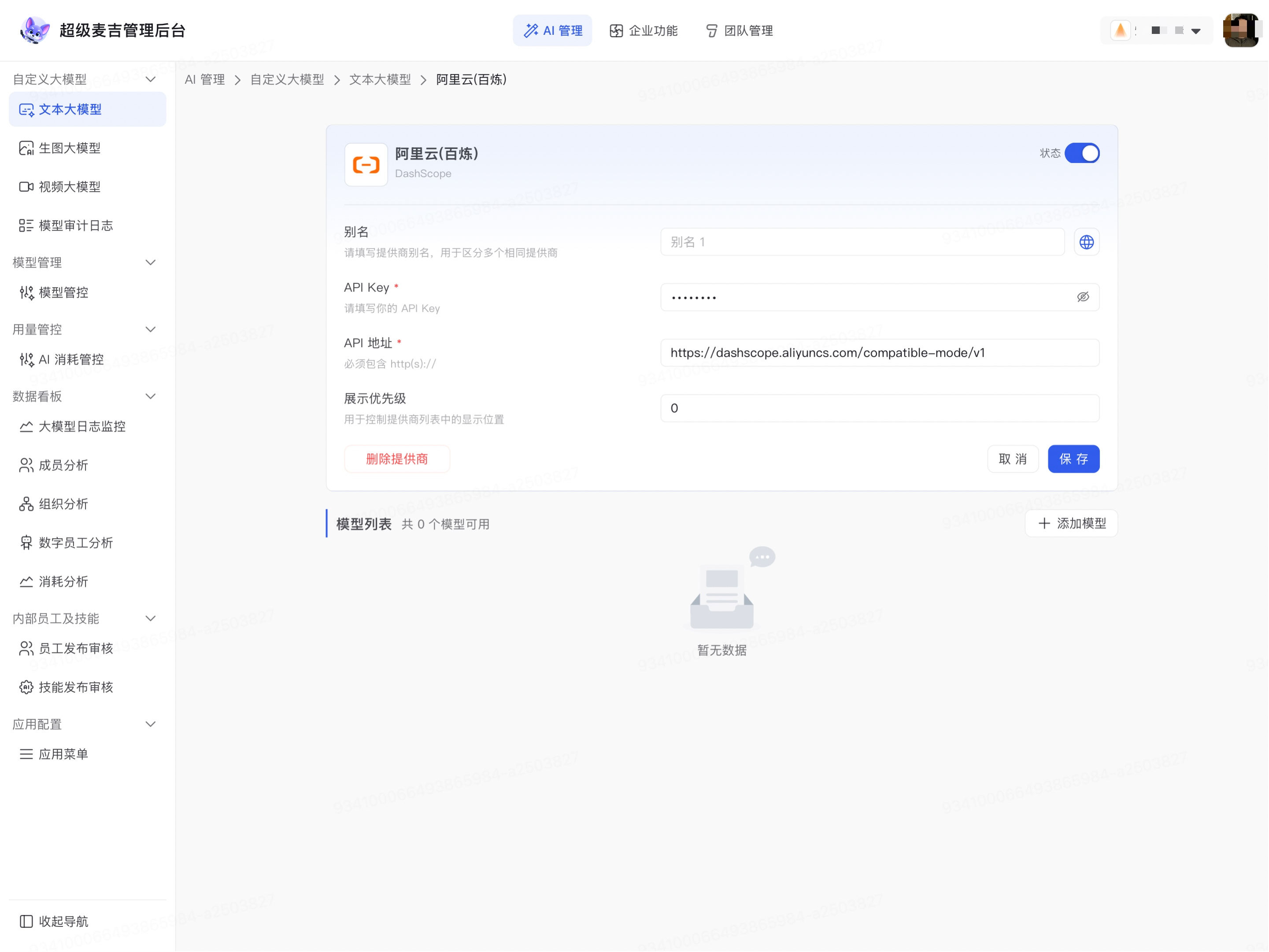
After you save the provider configuration, the provider's existing models and the Add Model option appear at the bottom of the page.
Add and Configure Models
Add a Text Model
Click Add Model in the provider's model list.
Select a model type under Model Type.
Select a model ID under Model Identifier.
Under Model Deployment Name, enter the name or ID of the actual deployment on the provider's platform.
Select or upload a model display icon.
Enter the Model Display Name and Model Description.
Under Maximum Context Tokens, enter the maximum number of tokens supported by the model.
Based on the model's actual capabilities, select whether it supports tool calling, visual recognition, and deep thinking.
If the API has specific requirements, enter additional request headers or request body parameters.
Click OK.
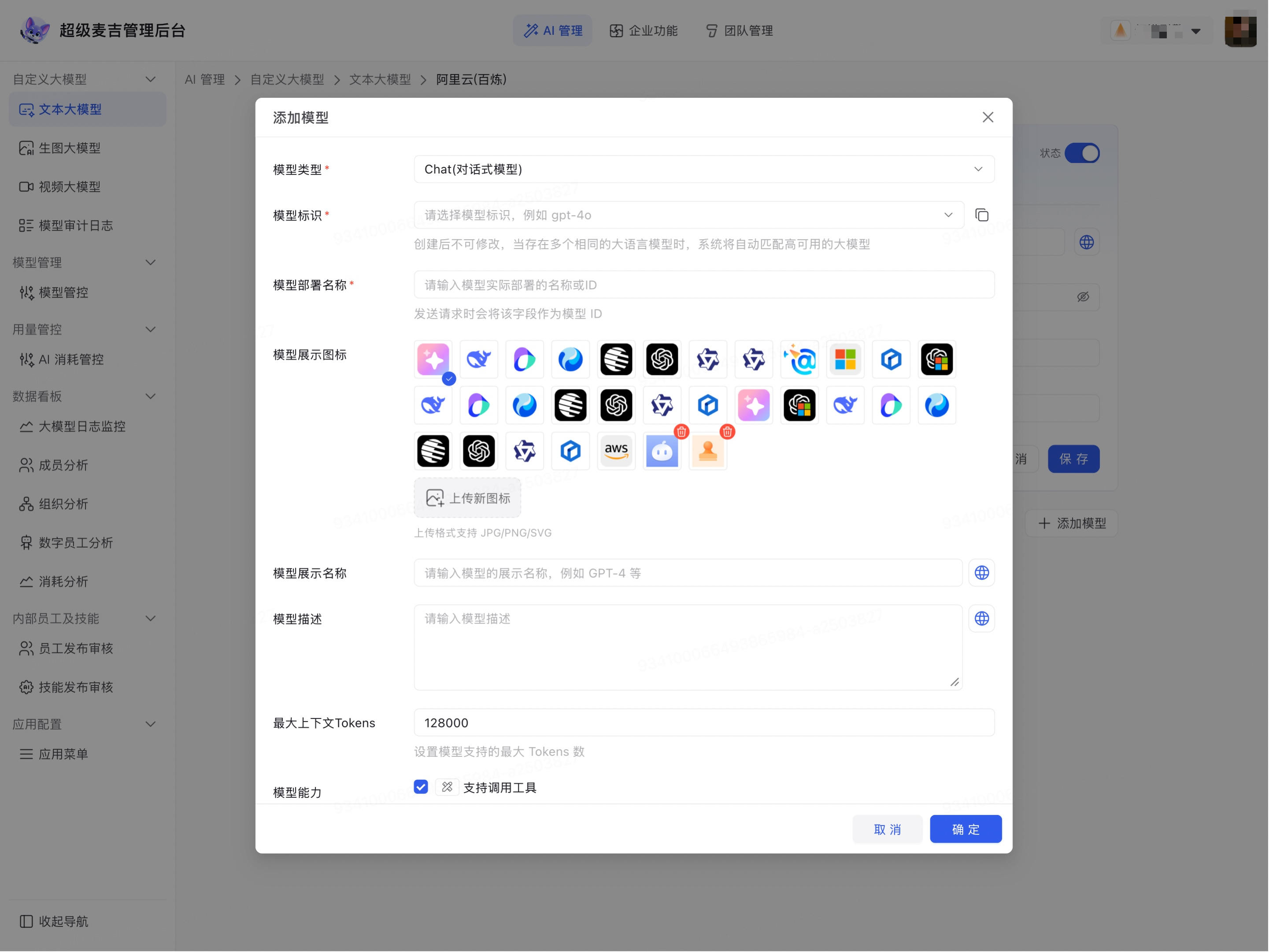
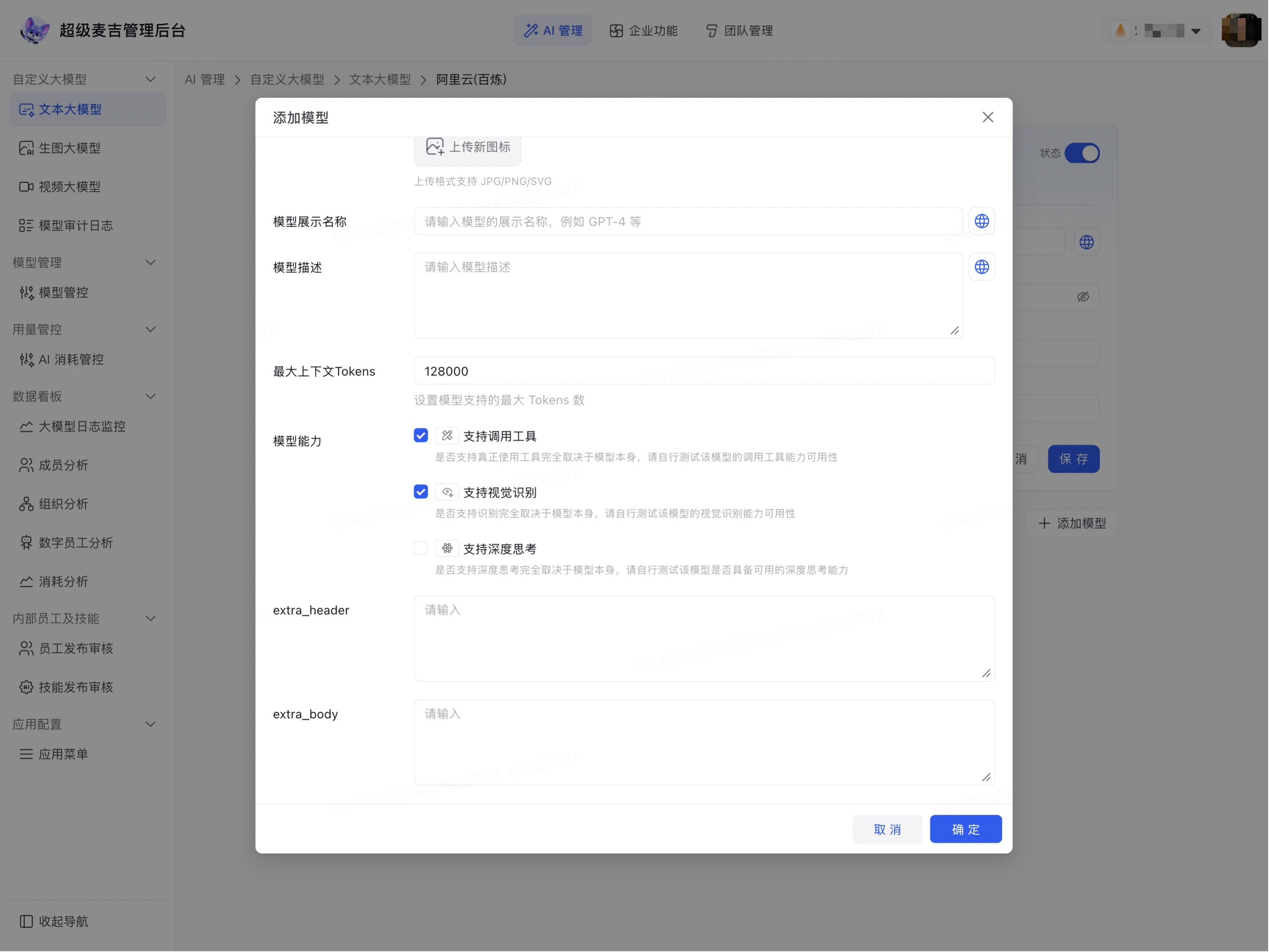
The model identifier cannot be changed after it is created. The model deployment name is used as the model ID in requests and must match the actual configuration on the provider's platform.
Add an Image Generation or Video Model
Click Add Model on the service configuration page for an image generation or video provider.
Under Model Identifier, select the model you want to connect.
Enter the Model Deployment Name actually used on the provider's platform.
Select or upload a model display icon.
Enter the Model Display Name and Model Description.
Click OK.
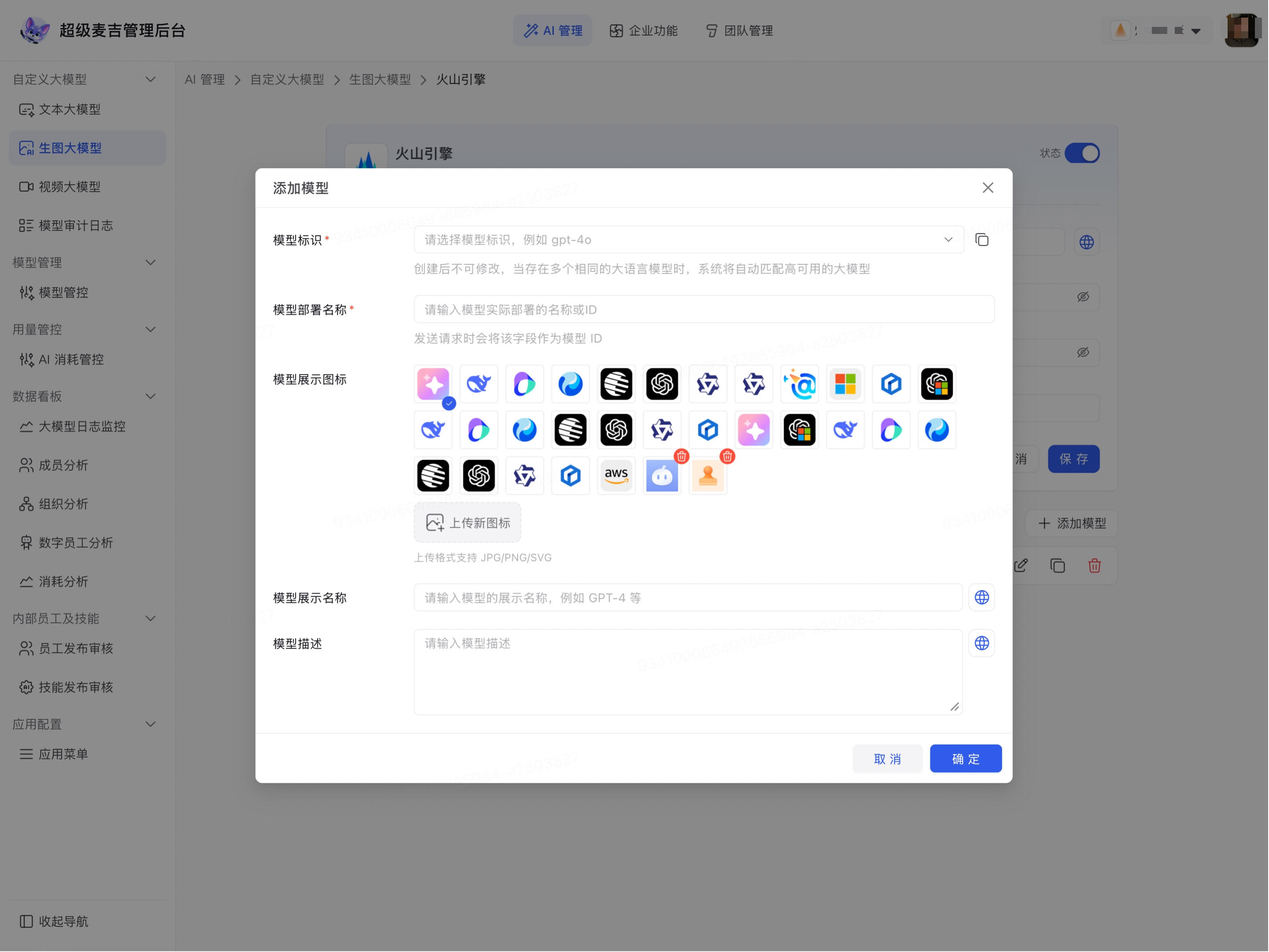
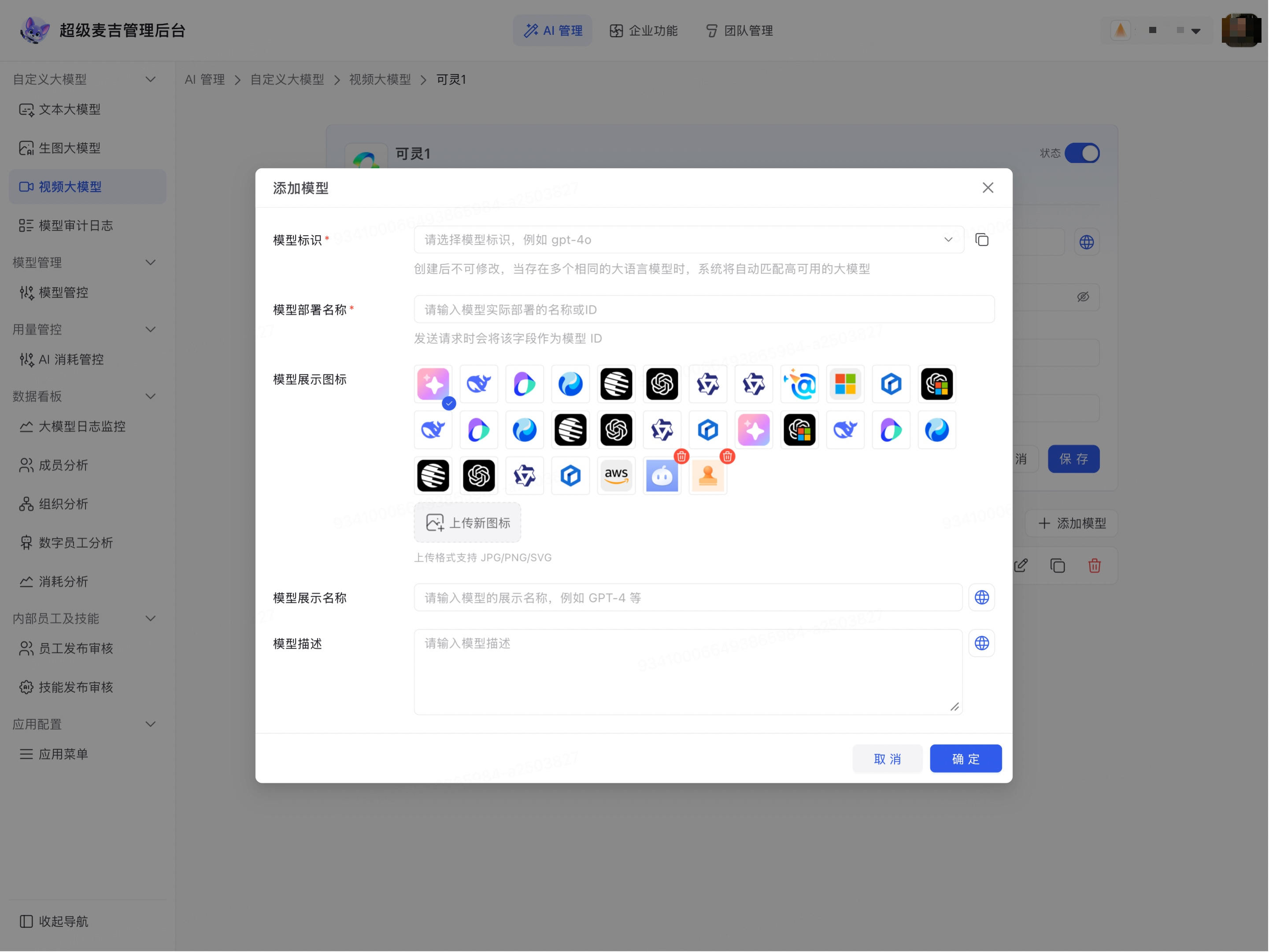
The available model identifiers and connection fields may vary by provider. Before saving, verify each item against the provider's actual configuration.
Test and Manage Models
Test Model Connectivity
Find the target model in the model list.
Click Connectivity Test.
When a confirmation prompt appears, read the message and confirm the operation.
Wait for the page to return the test result.
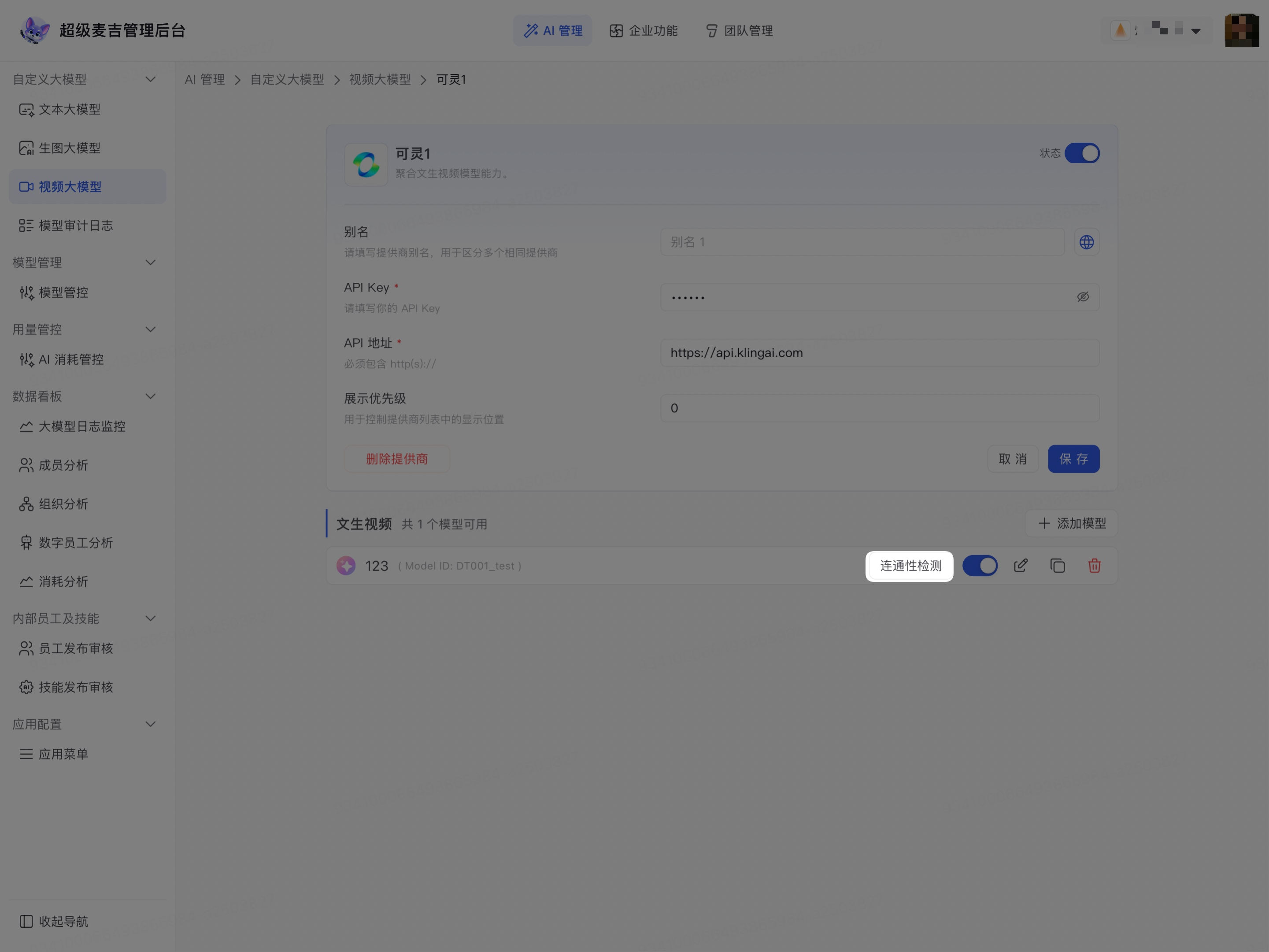
If the test fails, check whether the access credentials, API endpoint, and model deployment name are correct. Also confirm that the provider account has permission to call the corresponding model.
Edit or Copy a Model
Find the target model in the model list.
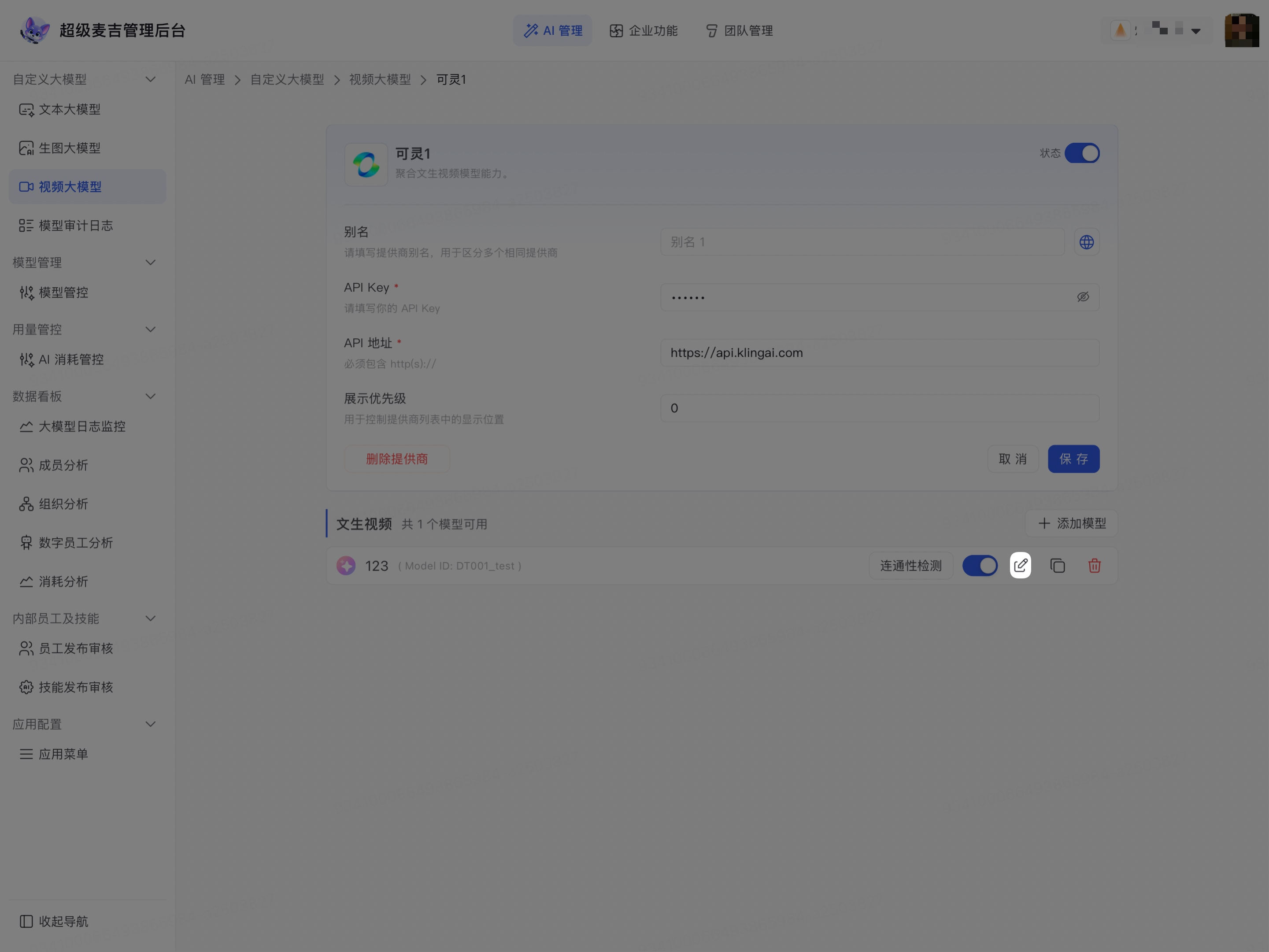
Click the edit icon to modify the model deployment name, display information, or other editable settings.
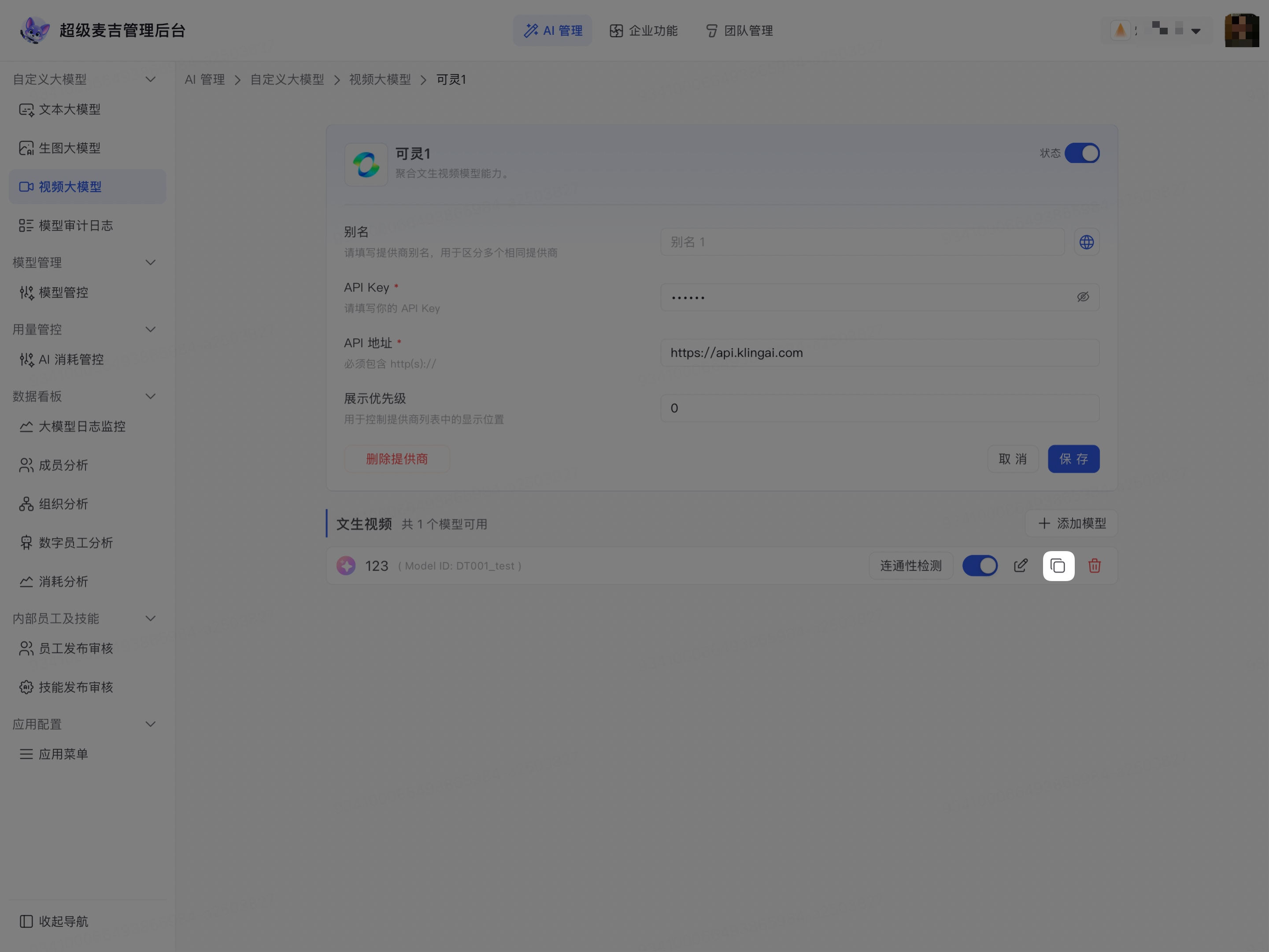
Click the copy icon to create a separate configuration based on the current model.
Review the copied fields and save the configuration.
Enable or Disable
Use the Status toggle on the provider card or service configuration page to enable or disable the entire provider.
Use the status toggle in the model list to enable or disable an individual model.
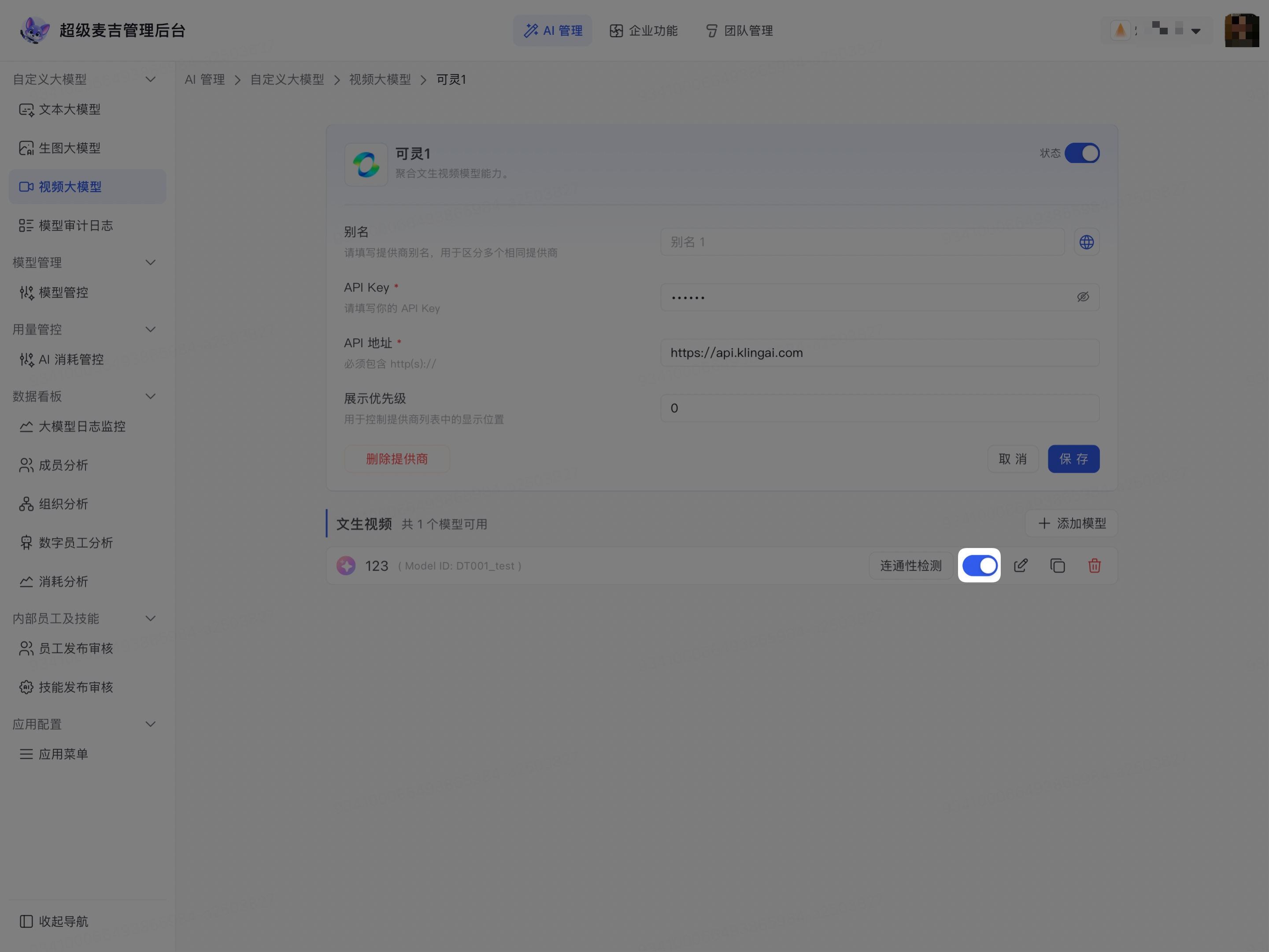
Before disabling a provider or model, confirm whether any Digital Crew, AI assistants, workflows, or other features in the current organization still depend on that model.
Delete a Model or Provider
Confirm that the model or provider is no longer used by the current organization.
Click the delete icon in the model list, or click Delete Provider on the service configuration page.
Follow the on-screen instructions to complete the deletion.
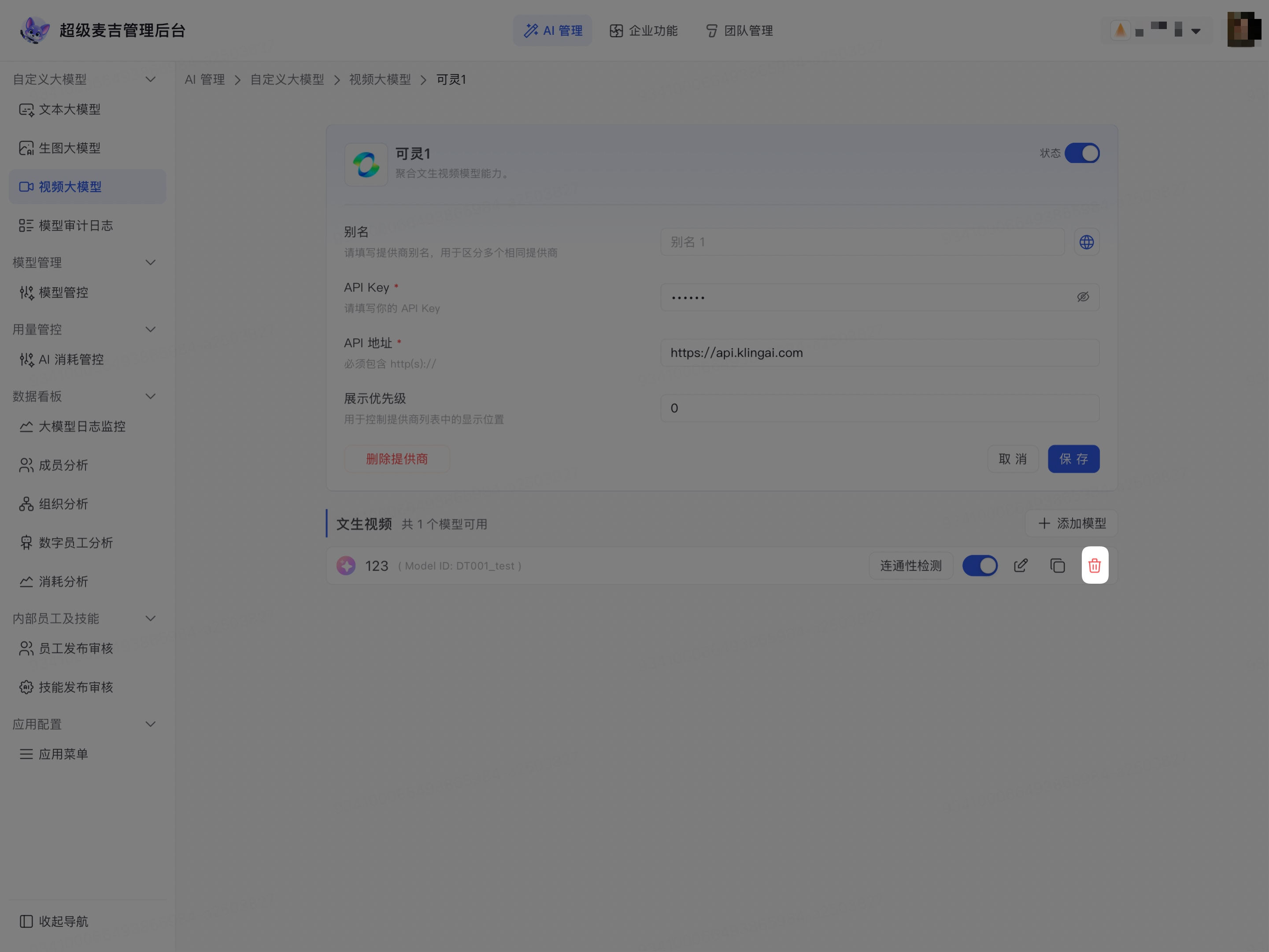
Deletions typically cannot be directly reversed. Before proceeding, record any model identifiers, deployment names, and connection settings that you need to retain.
Verify the Configuration
After completing the configuration, verify the following in order:
The provider appears in the correct enabled or disabled section.
The model list displays the correct model name, model ID, and capability information.
The model status meets the current organization's enablement requirements.
The connectivity test completes successfully.
Organization features that use models can select and call the model.