
Enterprise Digital Crew Management
In the admin console, query and process Digital Crew release applications for the current enterprise. After confirming the application version and release scope, approve or reject the application.
In the admin console, query and process Digital Crew release applications for the current enterprise. After confirming the application version and release scope, approve or reject the application.
Before You Begin
Log in to SuperMagic and enter the enterprise admin console you need to manage.
Confirm that your current account has release review permissions for internal employees and skills under AI Management.
Prepare the Digital Crew name, version number, or creation time you need to query.
Before reviewing, confirm the application target, application version, and release scope.
Before clicking Approve or Reject, double-check the application you are processing.
The management scope of this page is limited to release applications for Digital Crew in the current enterprise. The employee name, role, version, release status, and review status are all based on the actual records in the review list.
Entering the Employee Release Review Page
At the top of the admin console, click AI Management.
In the left navigation, expand Internal Employees and Skills.
Click Employee Release Review.
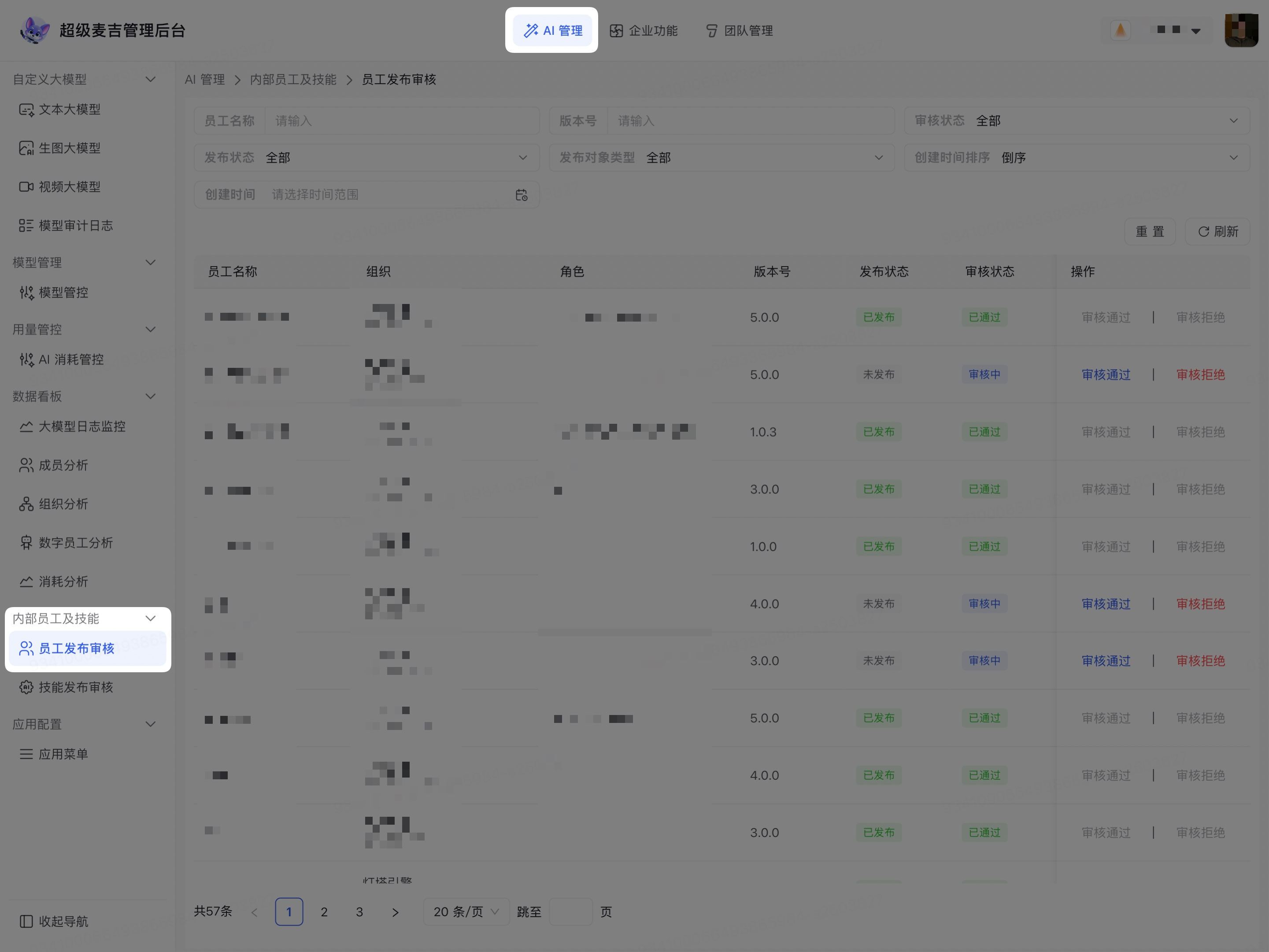
The page displays the current enterprise's Digital Crew release applications, filter conditions, Reset, Refresh, and review actions.
Filtering Digital Crew Release Applications
In Employee Name, enter the name you want to query.
In Version Number, enter the application version.
Select Review Status as needed.
Select Release Status as needed.
In Release Target Type, select an organization or member.
Select the creation time sort order.
Set the creation time range for applications.
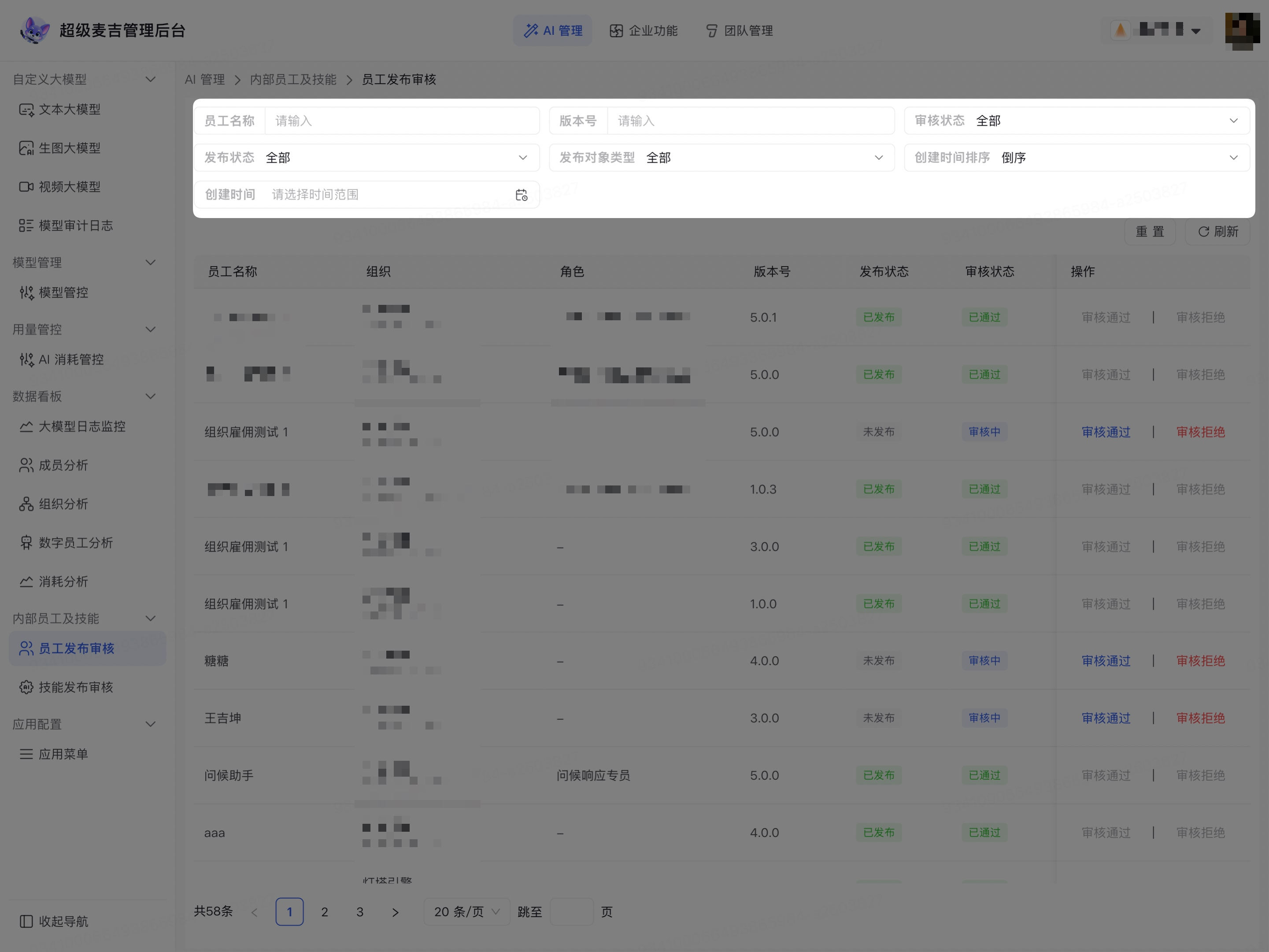
The list displays applications that meet the criteria. Click Reset to clear the filter conditions, or click Refresh to reload the current list.
Verifying Release Applications
Before processing an application, check the following information in the list:
Digital Crew name, organization, and role;
Application version number;
Release Status and Review Status;
Release Target Type;
Publisher, creation time, and release time.
The same Digital Crew may have multiple application versions. Before processing, verify both the name and version number to avoid reviewing the wrong record.
Processing Release Applications
Find the record you need to process in the application list.
Confirm that the Digital Crew name, version, and release target are correct.
When release is allowed, click Approve in that row.
When release is not allowed, click Reject in that row.
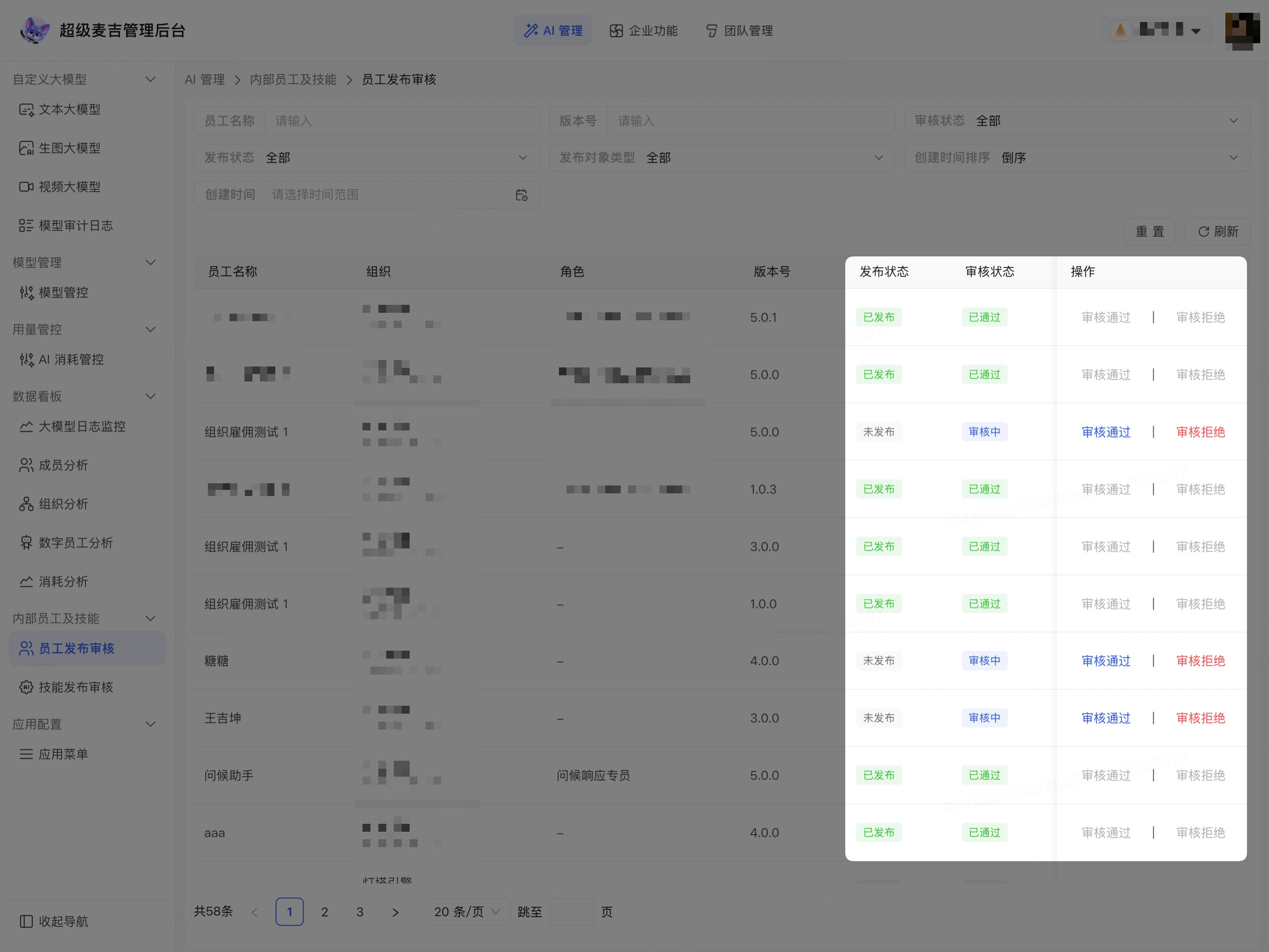
The application's review status updates to the corresponding result. For records that have already been reviewed, the review actions may appear grayed out.
Confirming the Review Result
After processing, check the following:
Check whether the application's Review Status has been updated.
Check whether the Release Status is as expected.
Search again using the same employee name or version number.
If the page has not updated in time, click Refresh.
Confirm that records that have already been reviewed no longer display executable review actions.
The review status indicates whether the application passed the review, and the release status indicates whether the corresponding version has completed release. After the review is approved, use the release status shown in the list to determine the final result.