Manage Project Files
Upload, view, download, edit, and restore files in a project.
Upload, view, download, edit, and restore files in a project.
Access Project Files
Open the target project.
Click Project Files on the left side of the project page.
View the project and folders in the file tree.
All subsequent upload, download, and management operations are performed here.
Upload Files or Folders
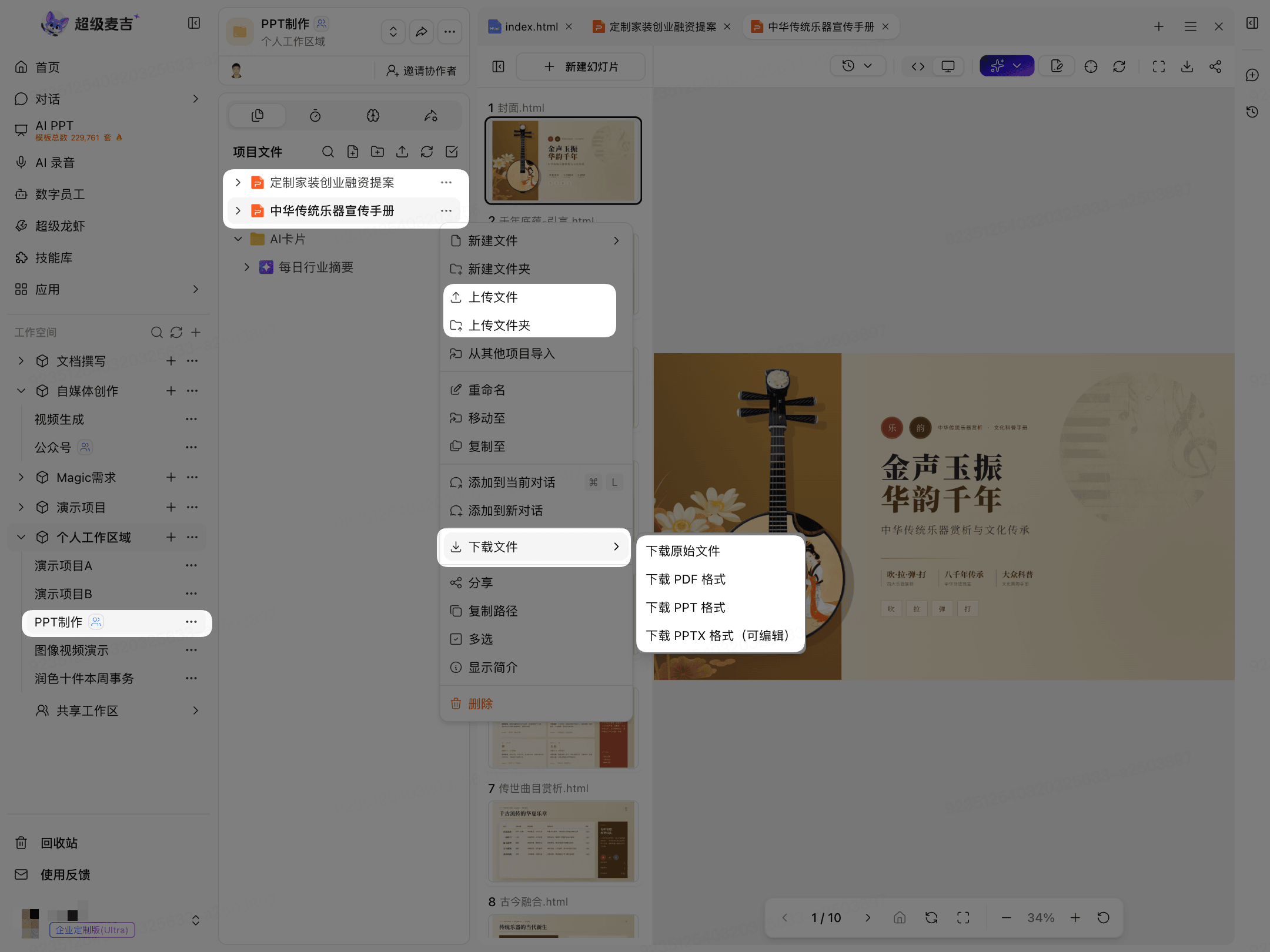
Find the storage location in the file tree.
To upload to the project root directory: click More (…) to the right of the project name.
To upload to a specified folder: click More (…) to the right of the folder.
Select Upload File or Upload Folder.
Select the local content and complete the upload.
View and Download Files
Click the file name to open the file preview.
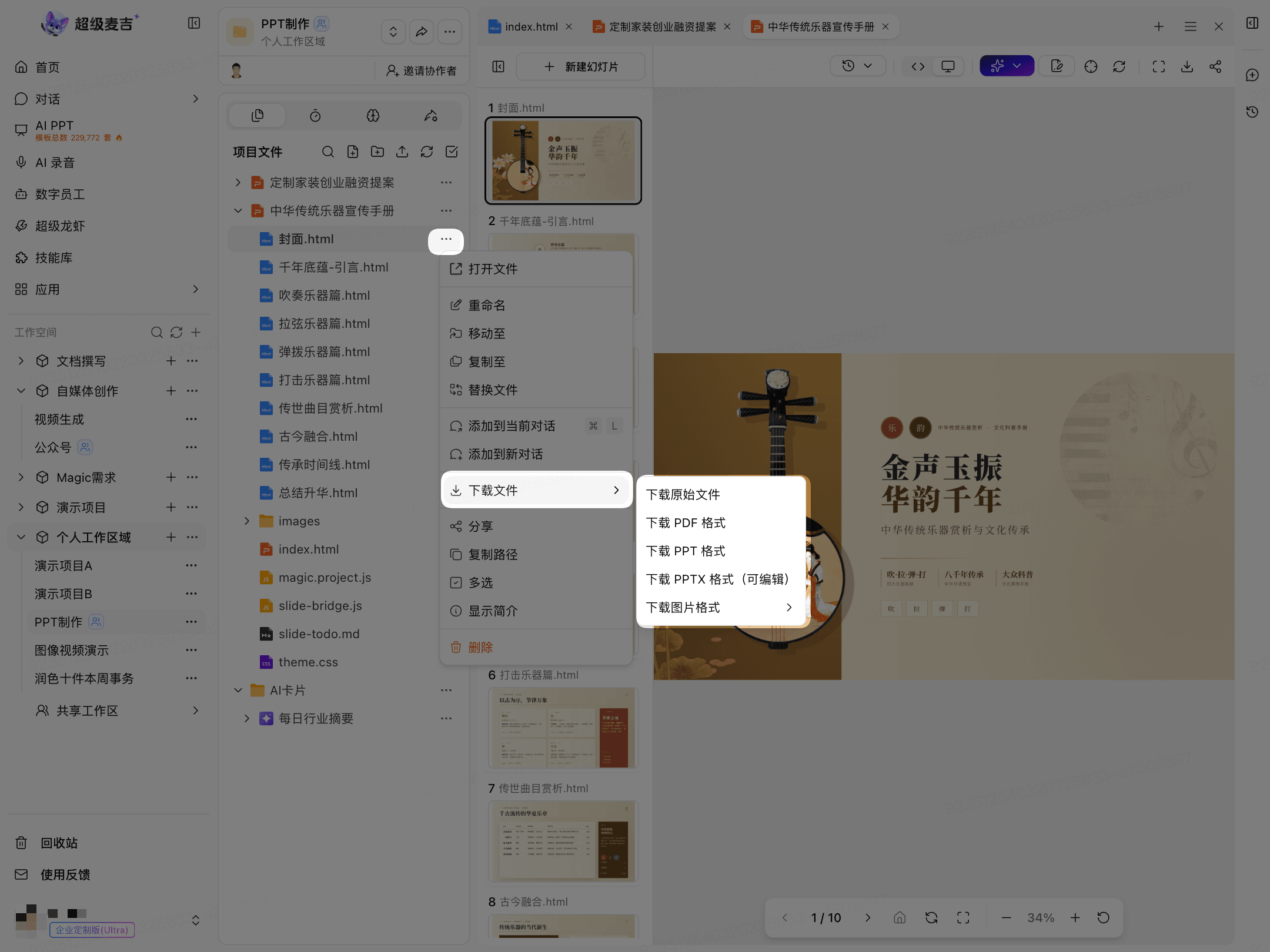
To download a file:
Click More (…) to the right of the target file.
Select Download File.
Select a download format provided on the page.
The available download formats vary by file. Refer to the options displayed on the page.
Edit Deliverables
After opening a file, you can continue editing only when the page displays Online Edit or AI Edit.
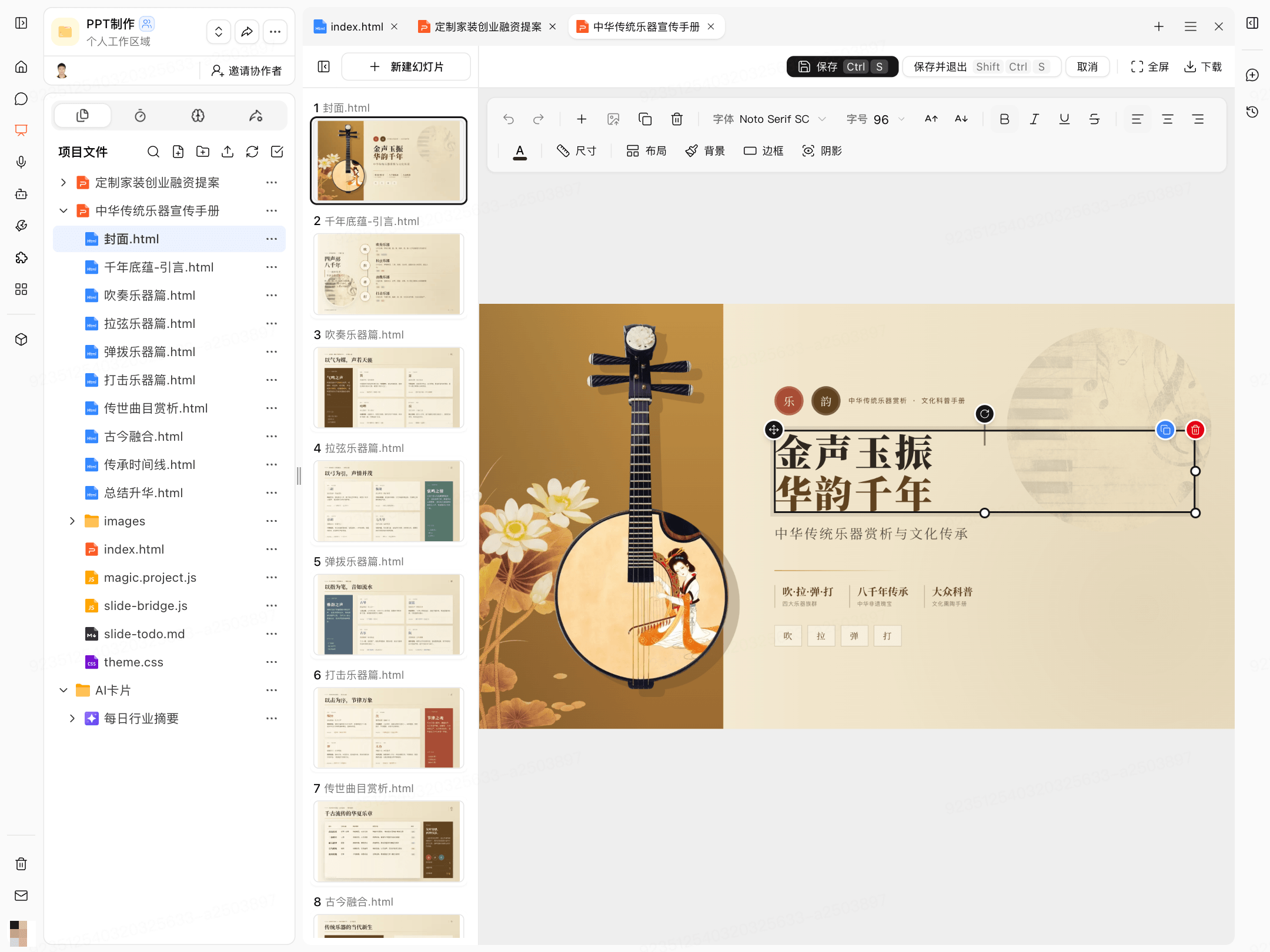
Online Edit
Click Online Edit.
Select the page elements you want to modify.
Use the toolbar to adjust the text, style, or layout.
When finished, click Save; to exit the editor, click Save and Exit.
AI Edit
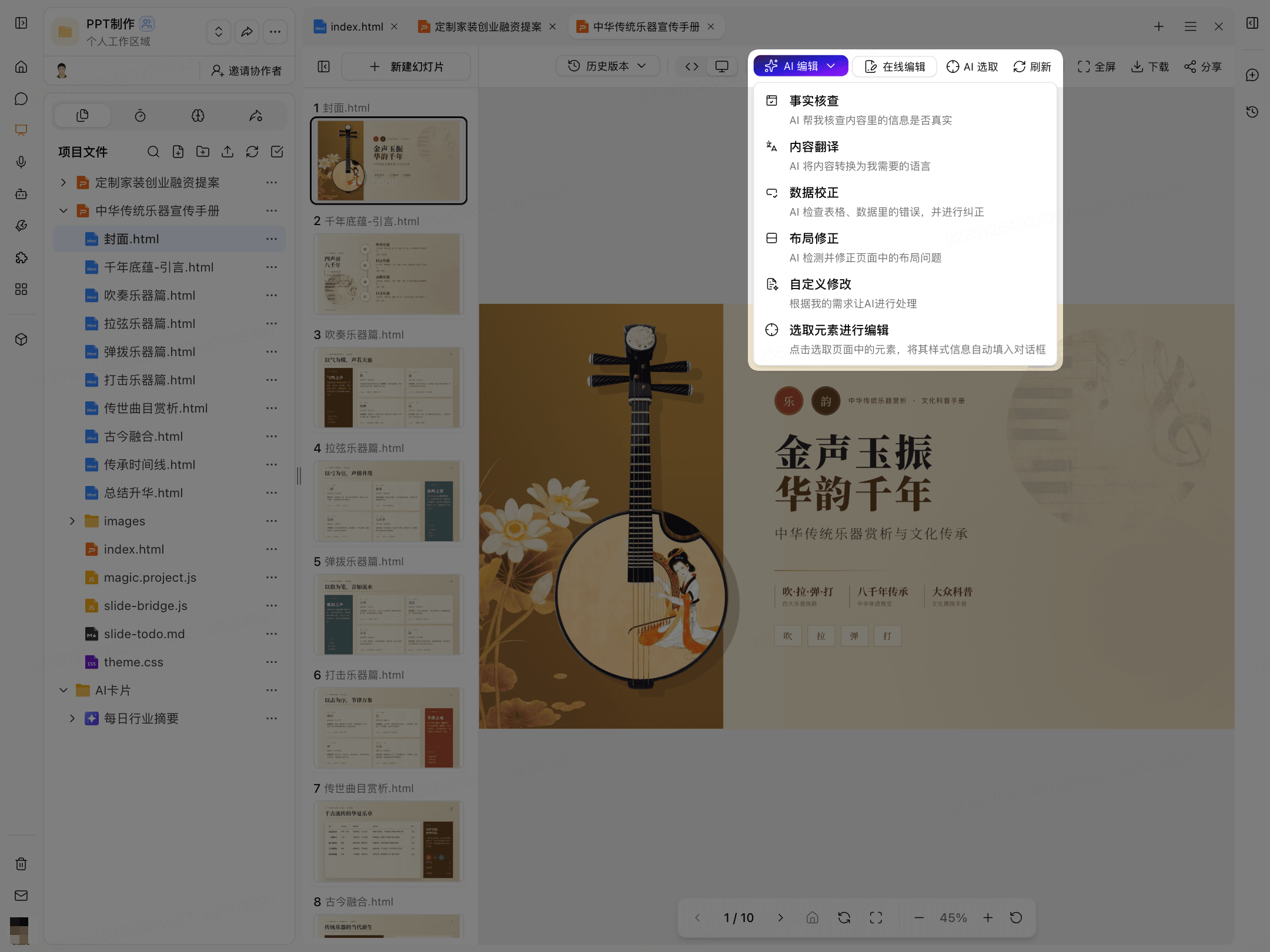
Click AI Edit.
Select the processing method you need.
The available options depend on what is displayed on the page, such as fact-checking, content translation, data correction, layout correction, or custom modifications.
View and Restore Version History
This operation is supported only for files where the page displays Version History.
View Version History
Open the target file.
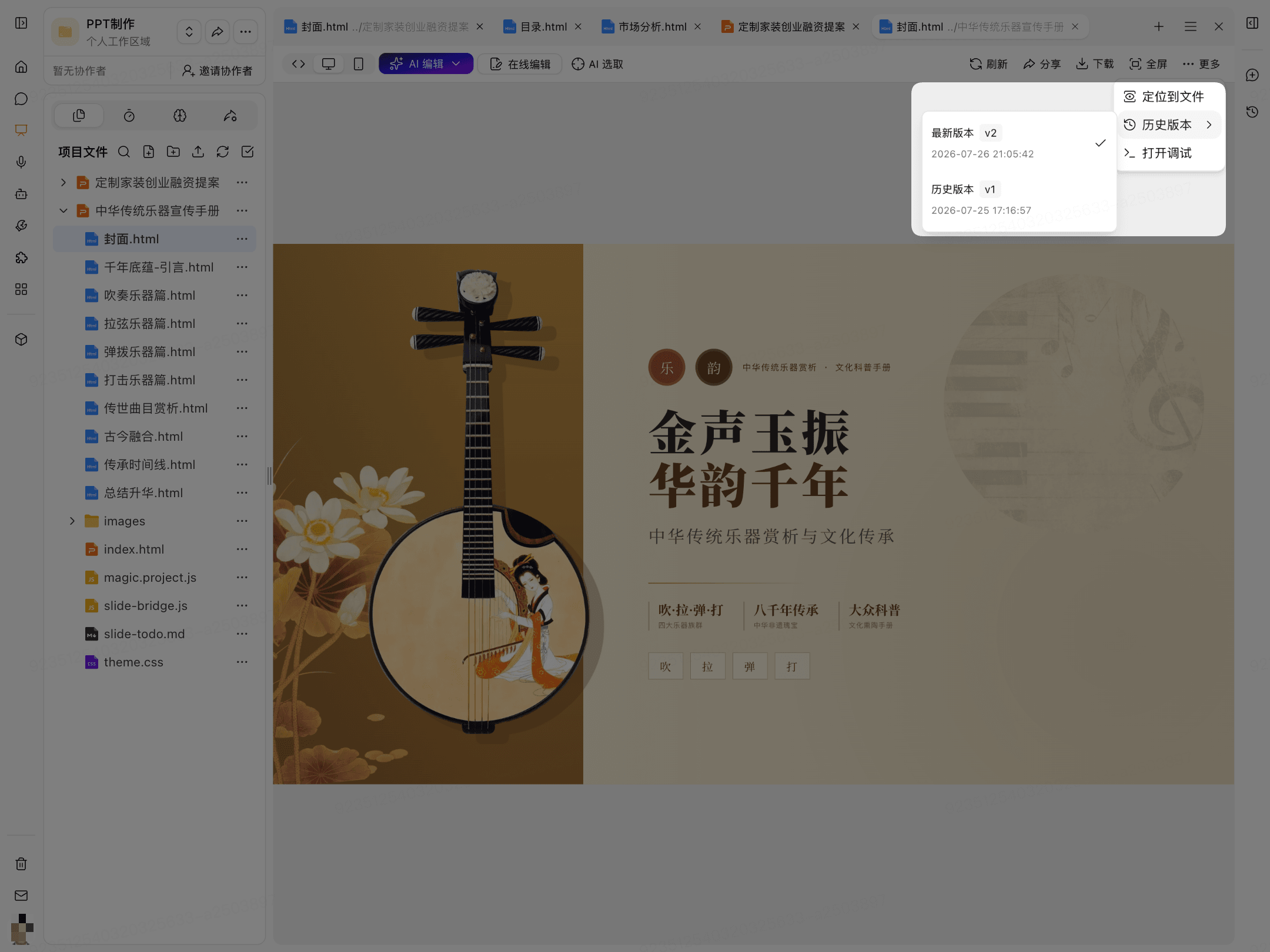
Click More in the upper-right corner of the preview page.
Select Version History.
Select the version you want to view.
Restore a Previous Version
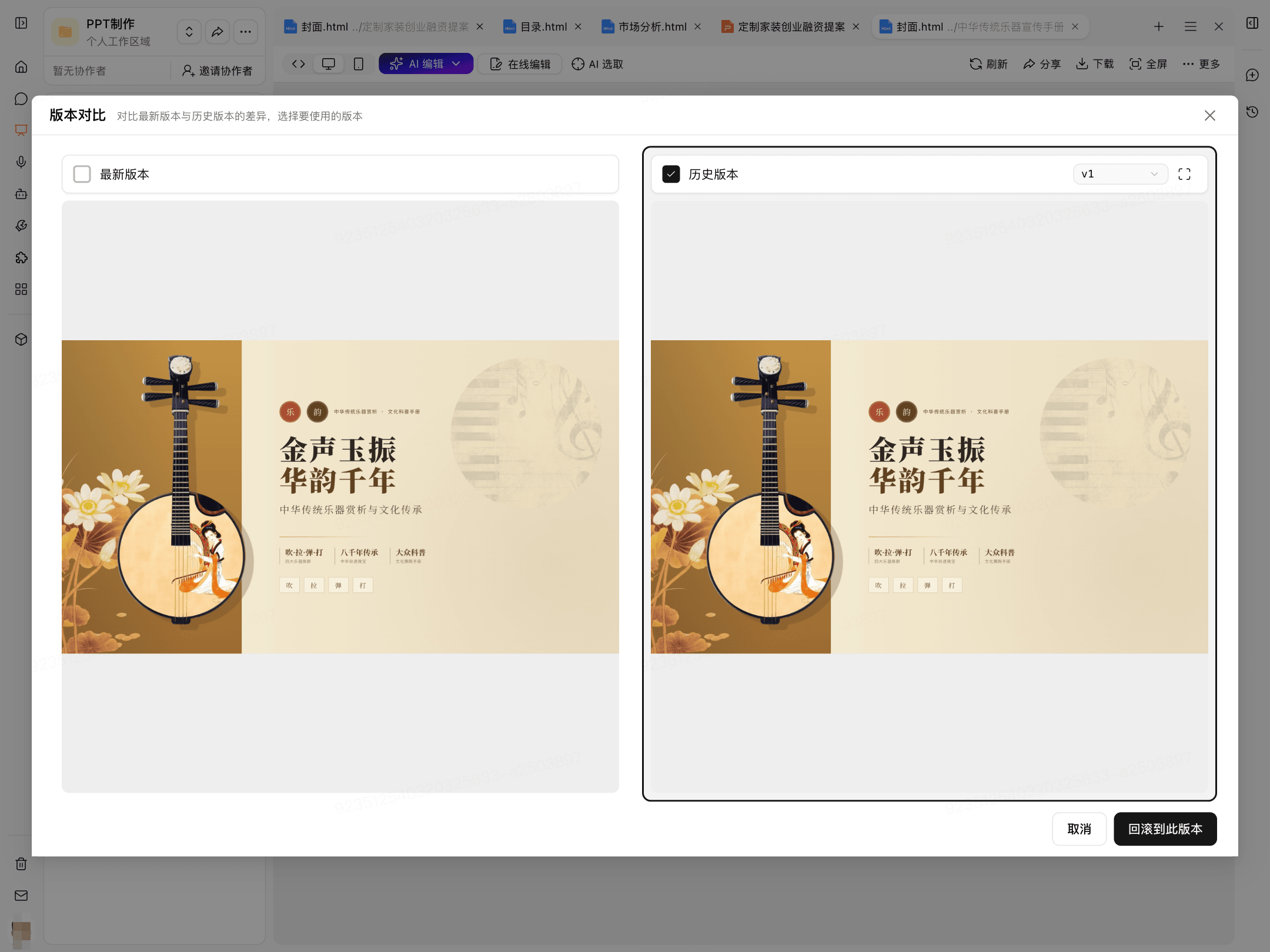
Select the previous version you want to restore on the version comparison page.
Compare the content of the latest version with the previous version.
After confirming that everything is correct, click Roll Back to This Version.
After the rollback, the selected previous version becomes the current version. Before proceeding, confirm that you no longer need the content of the current version.