Enable Team Collaboration for a Project
After enabling project sharing, you can invite members or departments to use the project together.
After enabling project sharing, you can invite members or departments to use the project together.
Enable Project Sharing
Click Add Collaborator in the project menu, or click Invite Collaborators within the project.
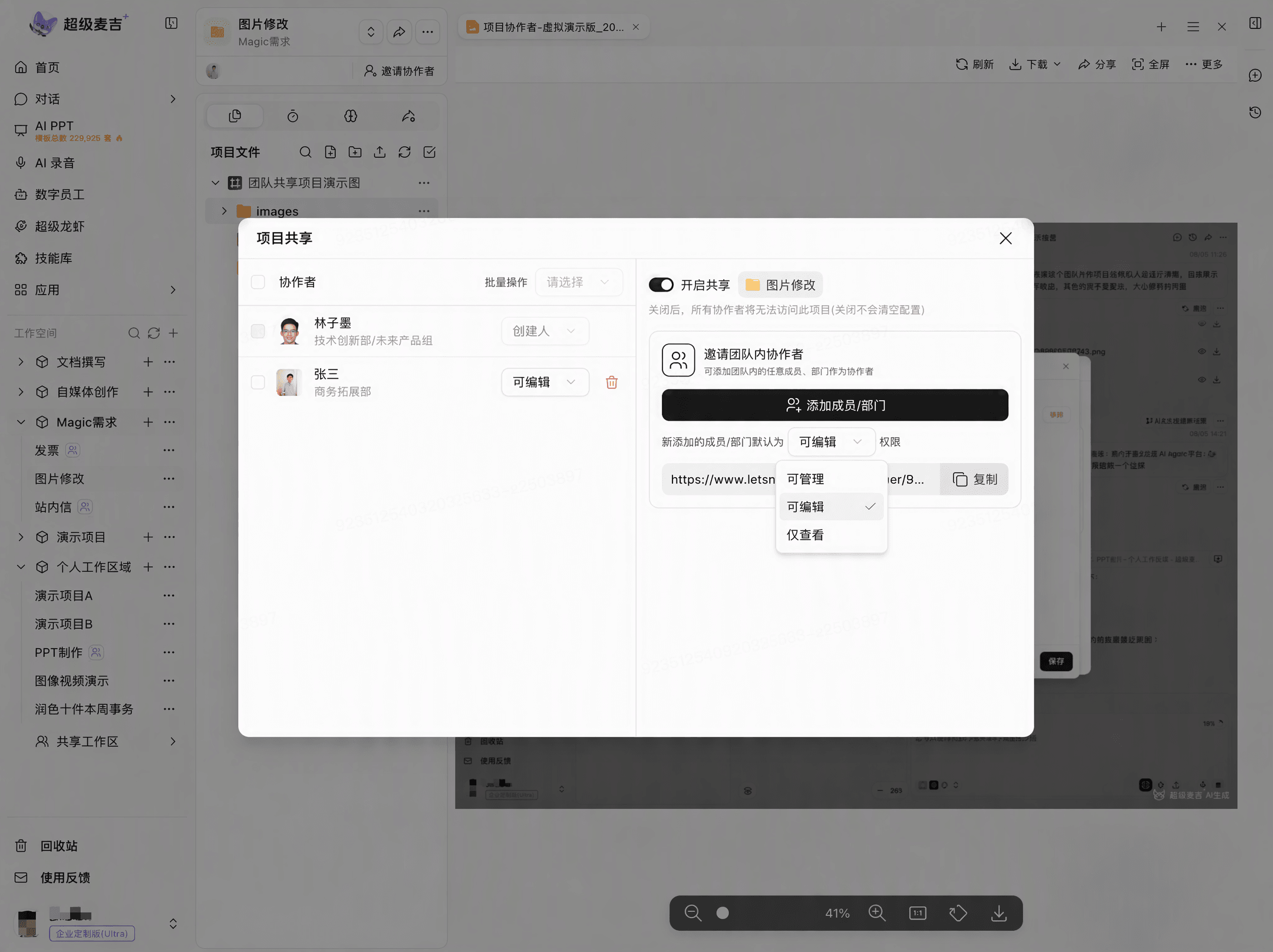
Turn on Enable Sharing.


After sharing is turned off, collaborators cannot access the project. Existing collaboration settings are retained.
Add Collaborators and Set Permissions
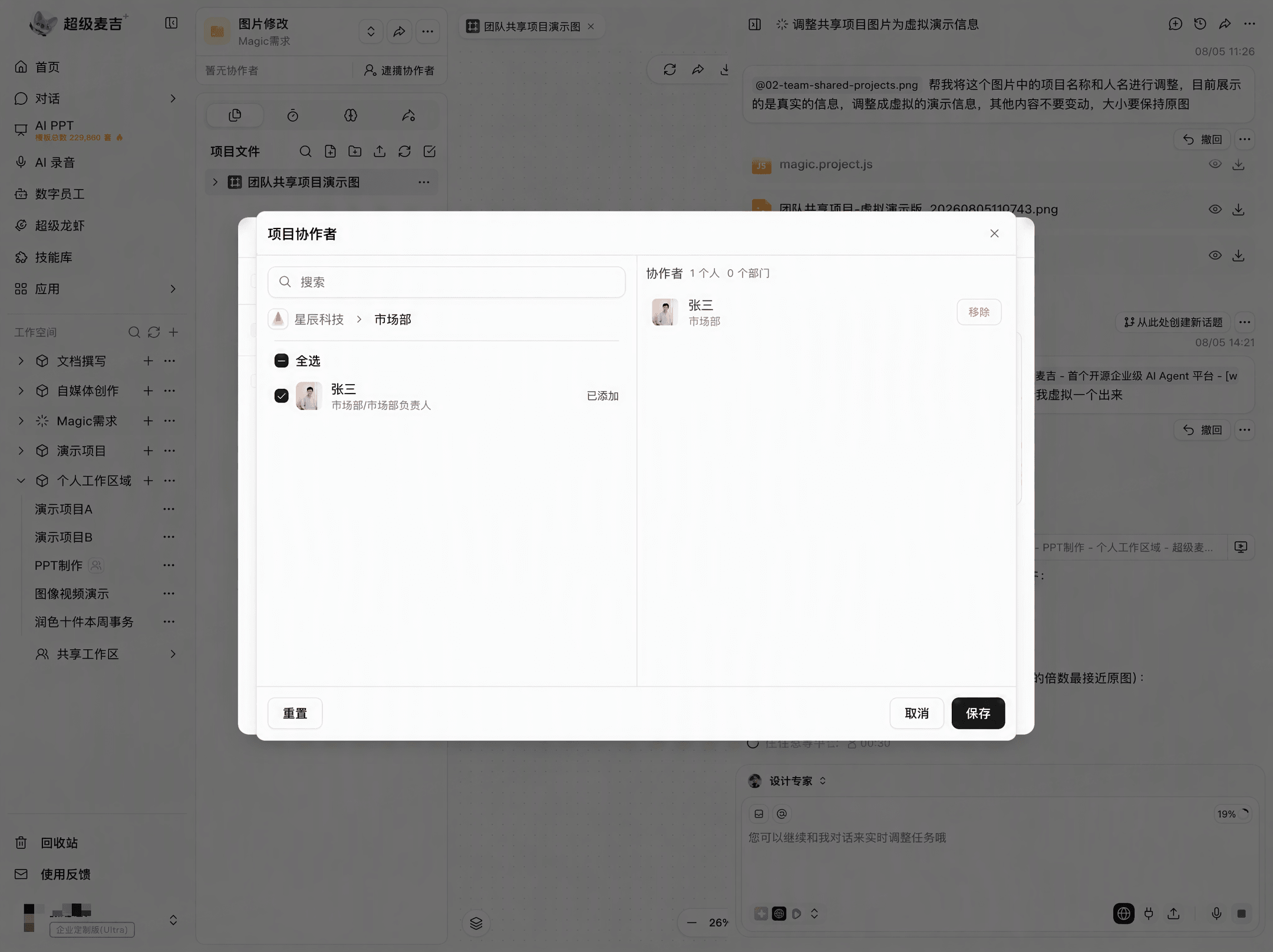
Click Add Member/Department.
Search for and select a member or department.
Click Save.
Select a role in the collaborator list:
Can Manage: Manage project collaboration settings.
Can Edit: Edit project content.
View Only: View project content.
Send an Invitation Link
After enabling project sharing, click Copy next to the invitation link, then send the link to collaborators.
Collaborators can only be added by the project owner or access the project through an invitation link.
Remove Collaborators
Find the target member in the collaborator list, click the delete or remove option, and click Confirm in the confirmation window.