
Using Scheduled Tasks
Scheduled tasks allow an Agent to automatically execute a task you write at a specified date and time.
Scheduled tasks allow an Agent to automatically execute a task you write at a specified date and time.
Open Scheduled Tasks
Go to the project where you want to create the task.
At the top of the left panel in the project, click the clock icon.
In the Scheduled Tasks panel, click Create Task. You can also click + in the upper-right corner.
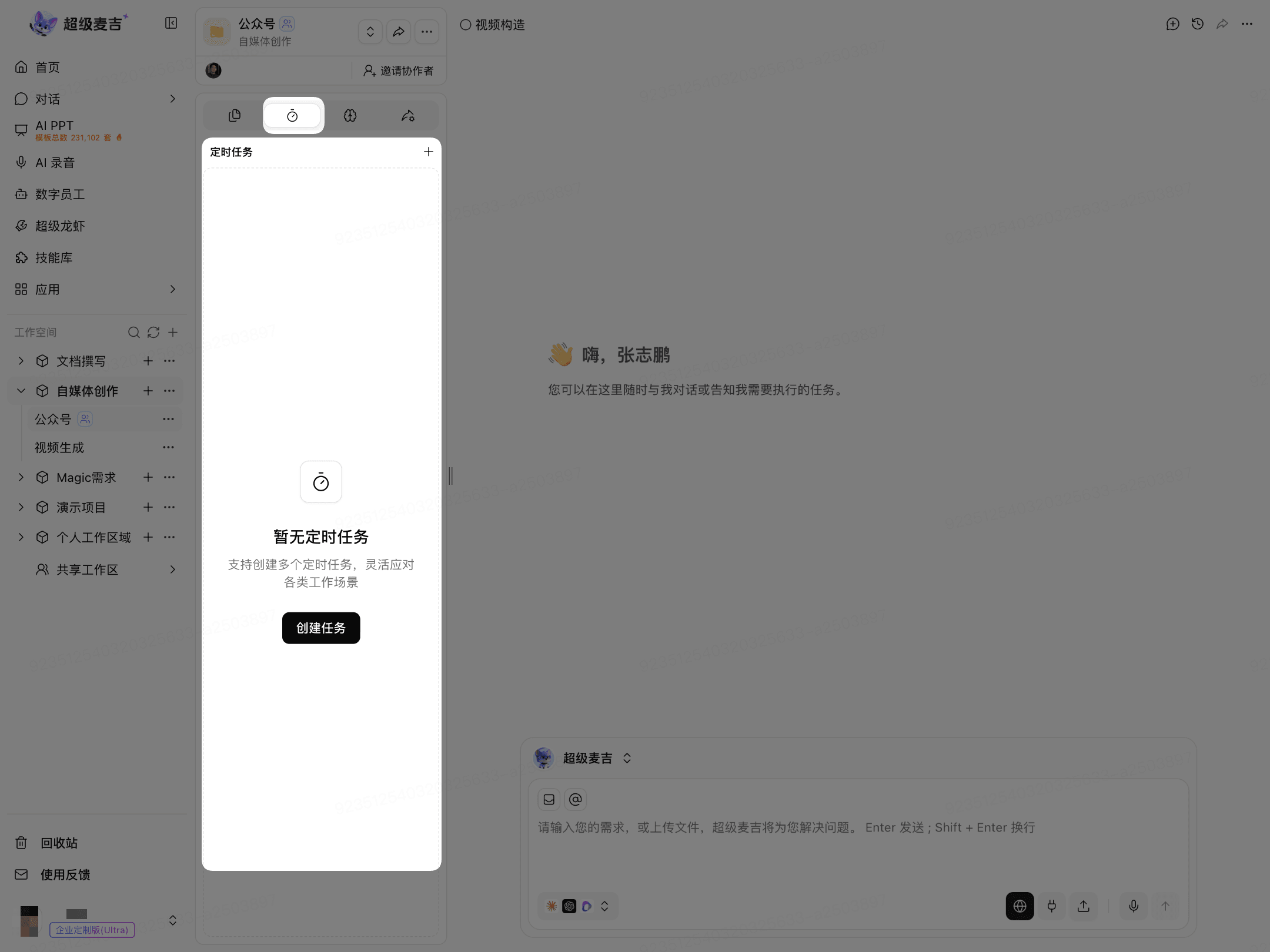
Create a Scheduled Task
Enter the Task Name and Content
Enter a Name to make the task easier to identify later.
Specify the task to be executed in Message Content.
Select the Agent and model to execute the task as needed. If supporting materials are required, you can upload files.
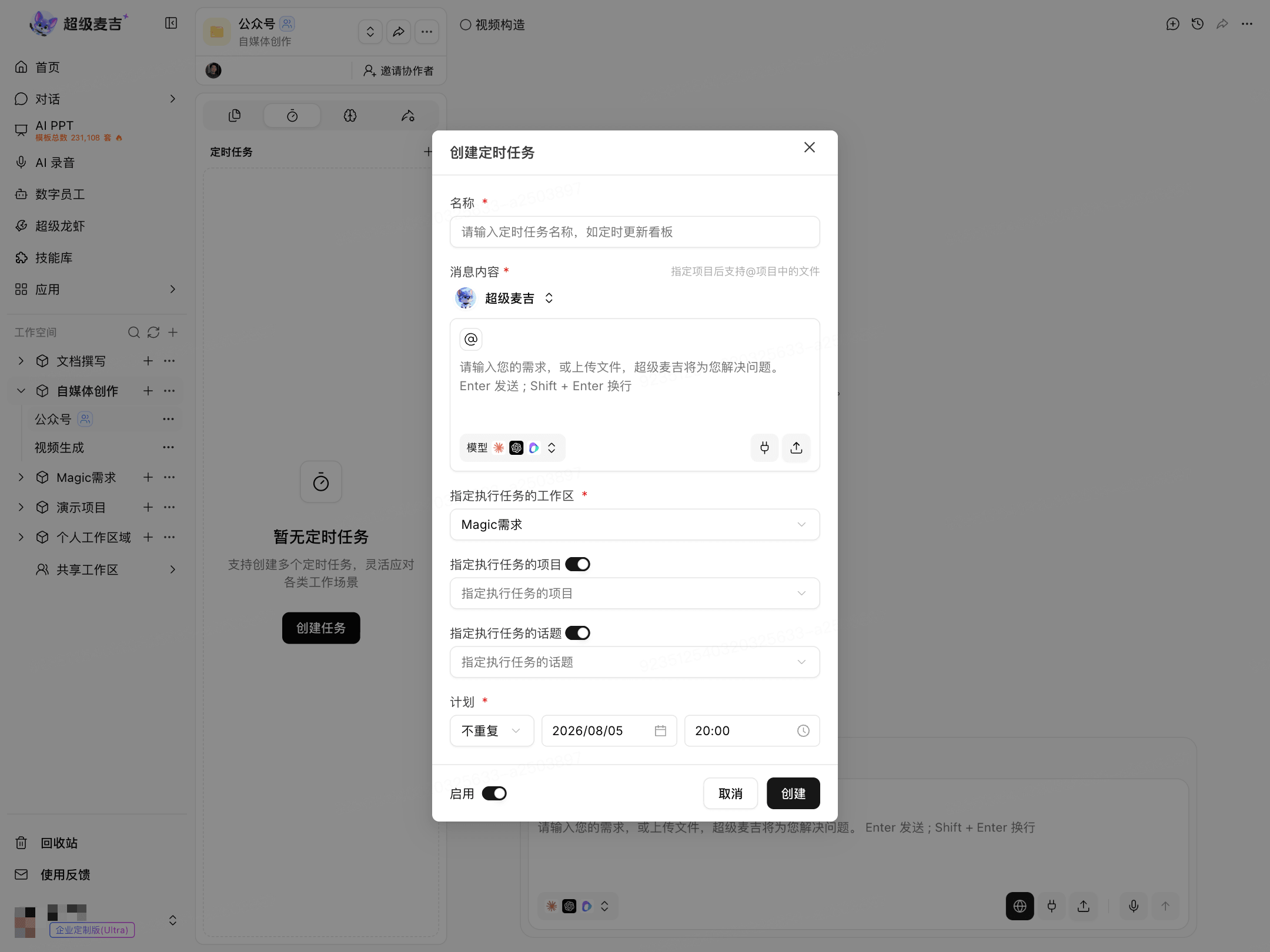
Name and Message Content are required.
Select the Execution Workspace
Click Specify the Workspace for Task Execution.
Select the target workspace from the list.
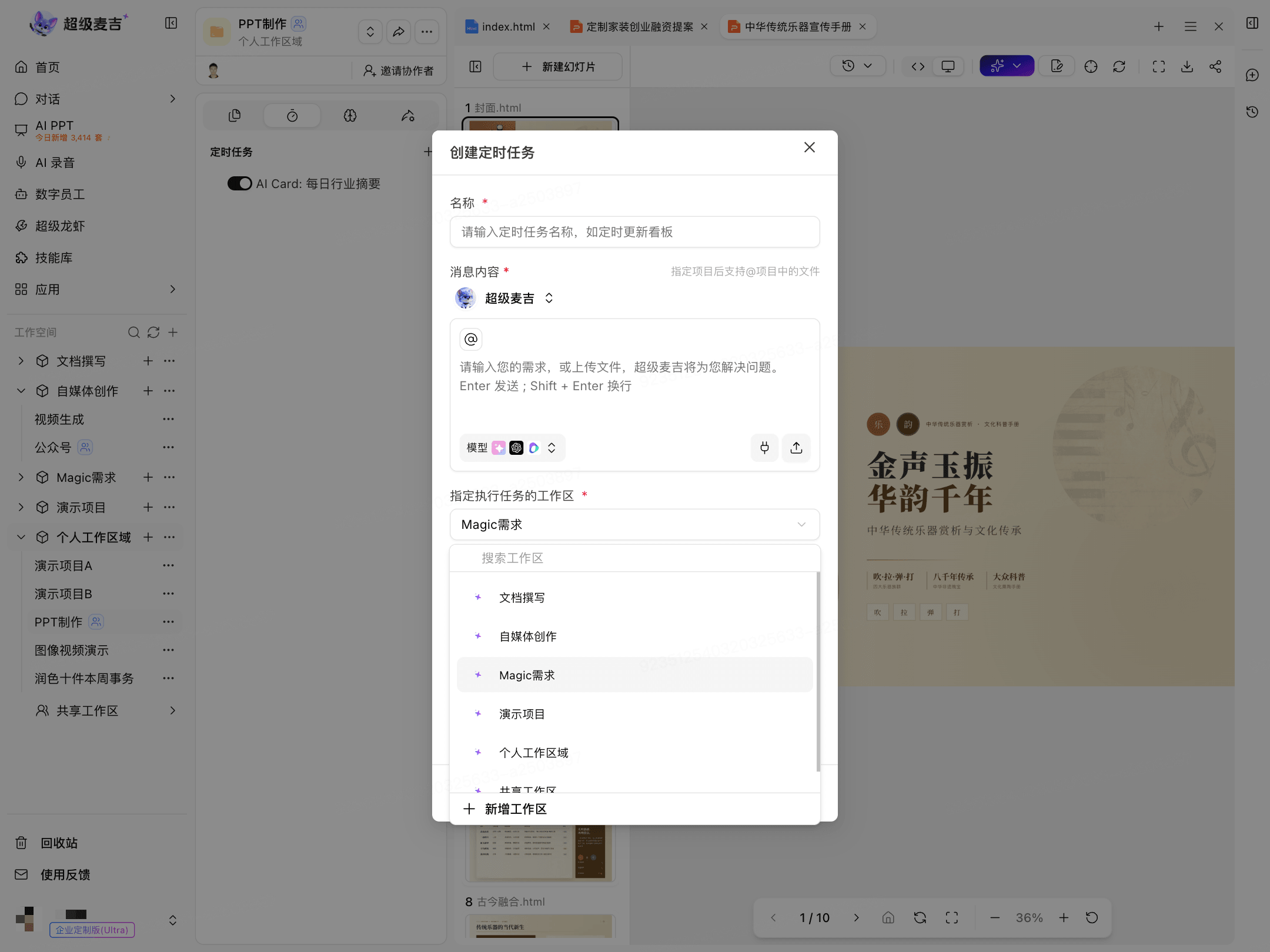
The execution workspace is required. You can search for a workspace in the search box.
Specify the Project and Topic
If you want the task to run in a specific project or topic:
Turn on the Specify the Project for Task Execution switch.
Select the target project.
To further limit the task to a specific topic, turn on the Specify the Topic for Task Execution switch, and then select the target topic.
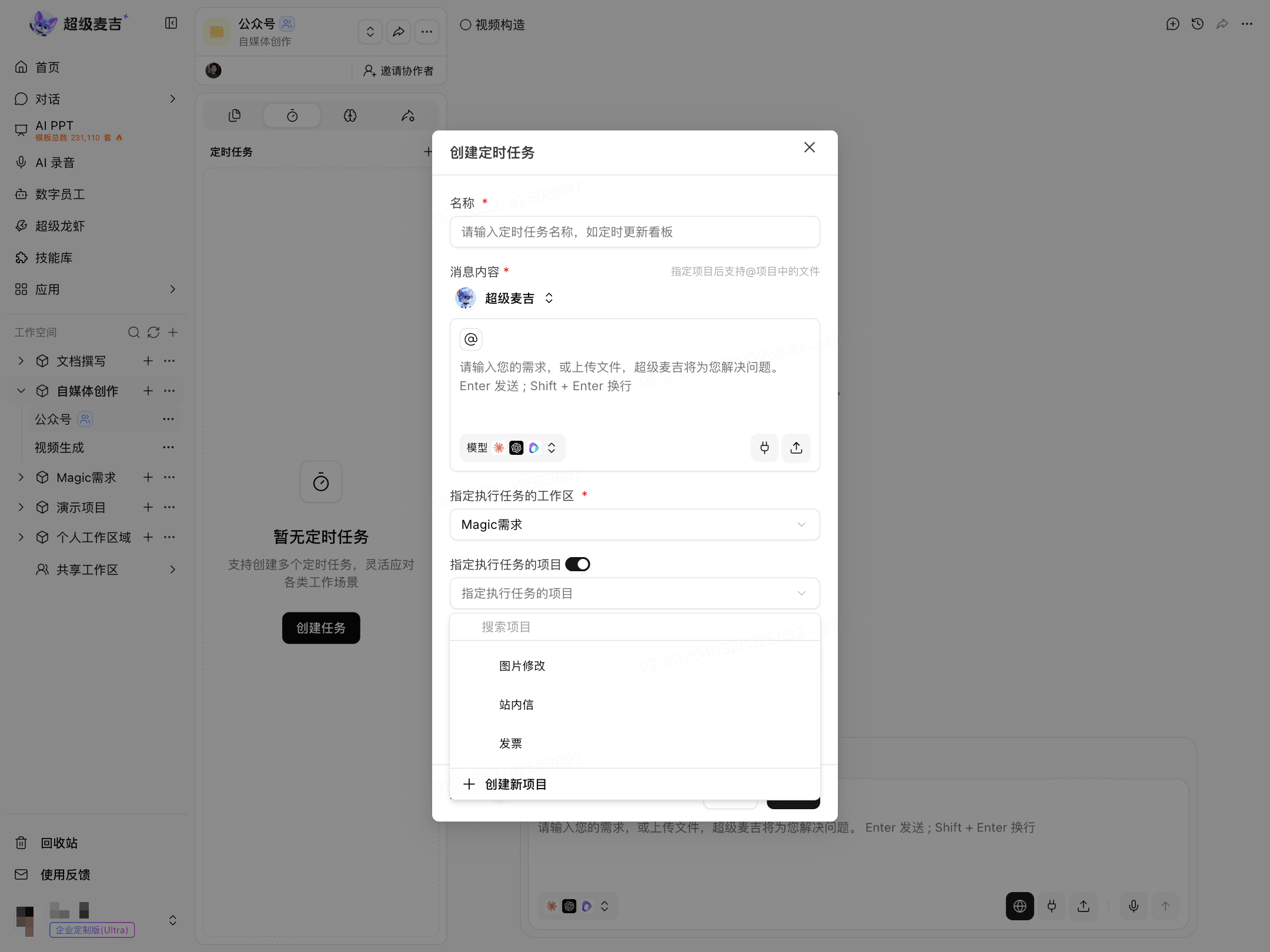
After selecting a project, you can use @ in the message content to reference files in that project.
Set the Execution Schedule
Select an execution frequency in Schedule: Does Not Repeat, Daily, Weekly, or Monthly.
Set the execution date and time.
Confirm that the Enable switch is turned on.
Click Create.
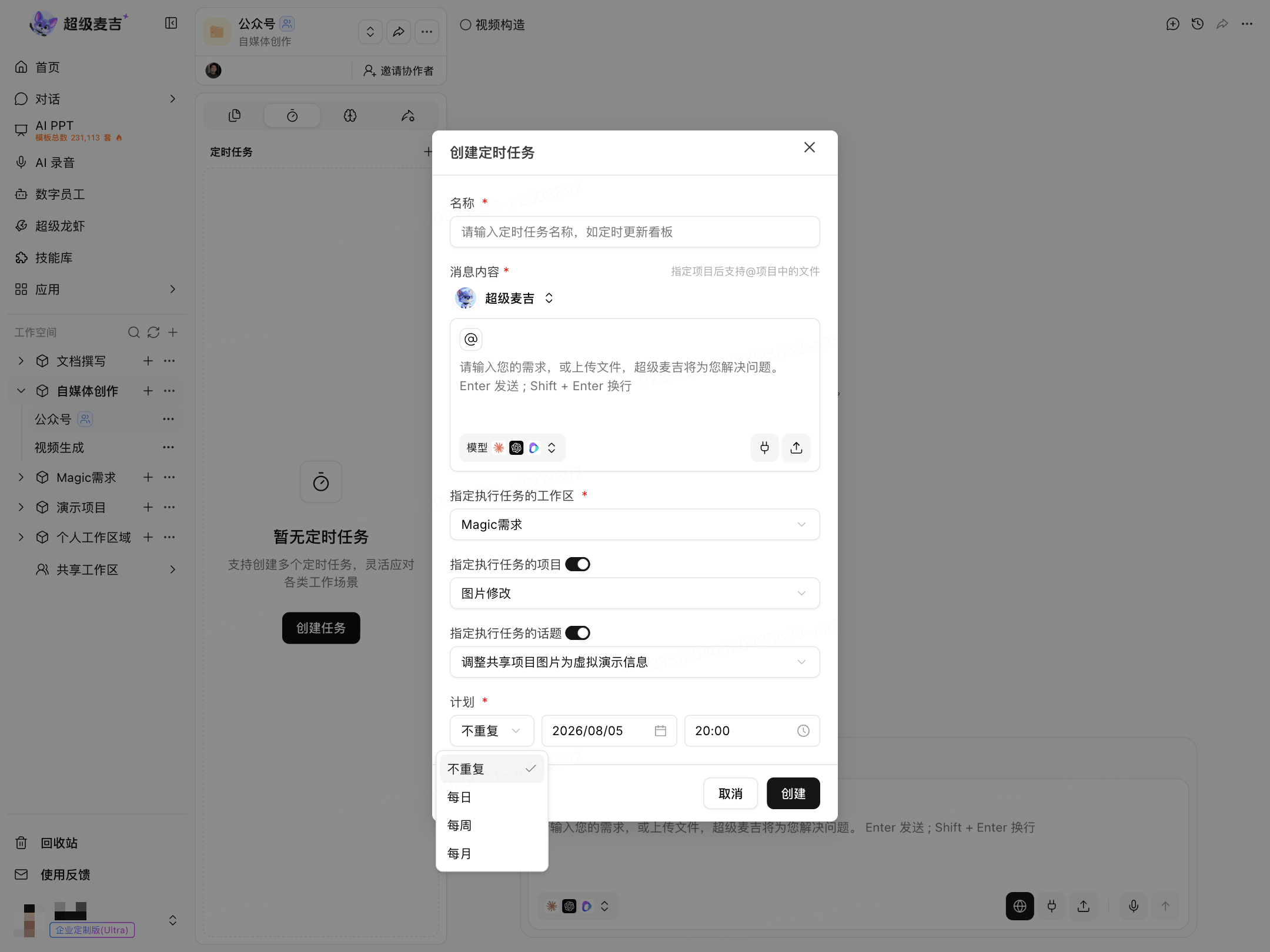
Schedule is required. You can configure the Enable switch as needed before creating the task.
Frequently Asked Questions
Which fields are required?
Name, Message Content, Specify the Workspace for Task Execution, and Schedule marked with an asterisk (*) are required. The project and topic can be specified as needed.
Can I have a task run in a specific project?
Y
Turn on the Specify the Project for Task Execution switch, and then select the target project.
Can I set a recurring task?
Y
Select Daily, Weekly, or Monthly in Schedule.